Senler Agents

What's new

Feature

Updated website widget: question queue and agent timers

We updated the embeddable widget for your website: less clutter, more convenience. The design is more minimal and it looks better on phones. We also added a couple of useful things.

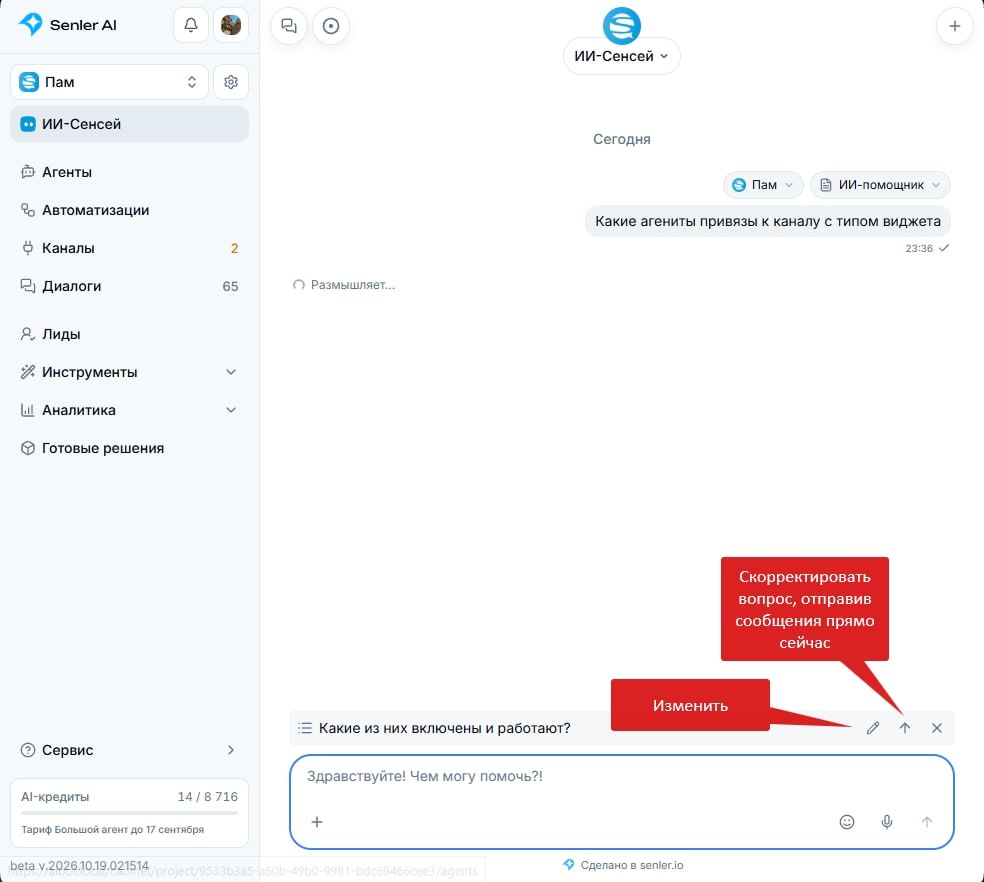
Question queue. The agent is still thinking and you already have three more questions? Queue them: you can now send follow-up questions while the agent is answering the previous one. They will wait their turn, so you do not have to keep everything in your head.

Changed your mind? A queued question can be edited or deleted. And if it is an important clarification to the current answer, you can send it right away. The queue is kept even if you close the widget.

Turn it on in the main agent settings: "Tools" → "Widget behavior" → "Question queue in widget".

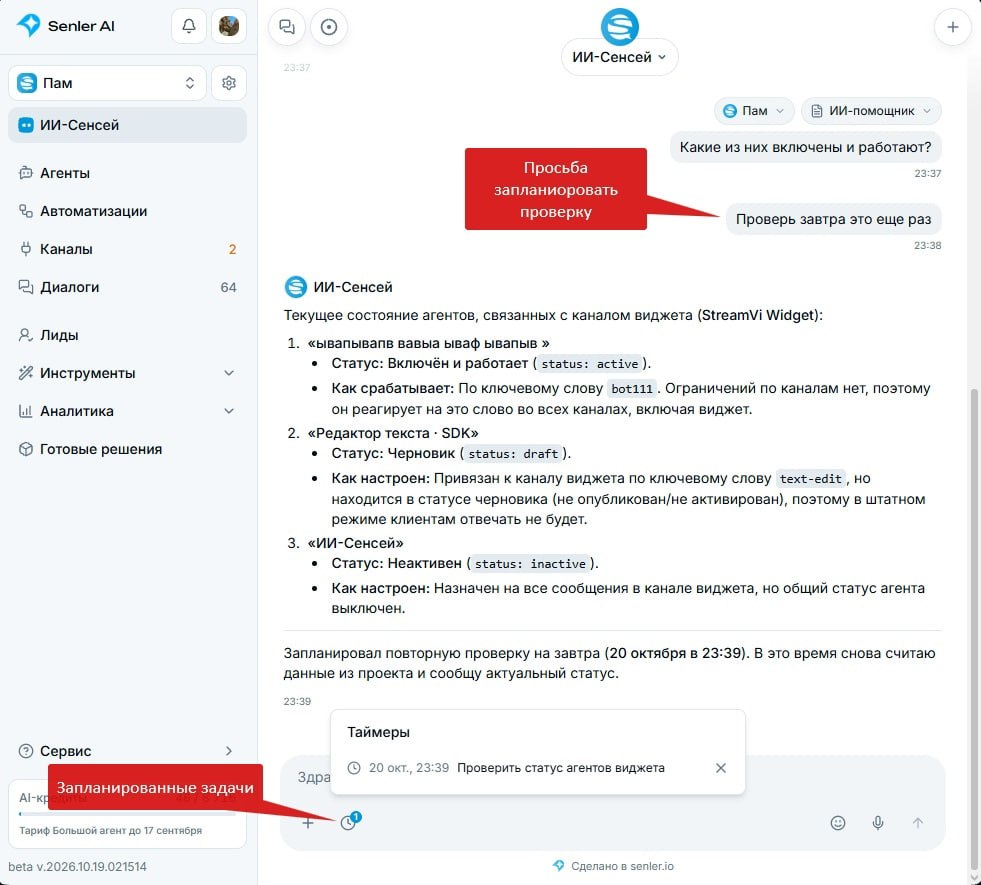
Agent timers are now visible. If the agent has scheduled a reminder or plans to come back to the conversation later, the visitor can see it right in the widget.

Turn it on here: "Tools" → "Widget behavior" → "Show scheduled actions in widget".

As a reminder, timers themselves already work in all channels. For example, a customer writes "Remind me tomorrow at 10", the agent sets a timer, and at the right time it returns to the dialog and prepares a message.

To let the agent do this, enable "Tools" → "Automation" → "Schedule delayed messages" and add to its instruction: "If the customer asks to be reminded later, schedule a message for the time they specified."

Try it yourself: open the "AI Sensei" on our website senler.io. You can embed the same widget with your own agent on your website too.
Updated website widget: question queue and agent timers — image 1
Updated website widget: question queue and agent timers — image 2

Improvement

Variable insertion modes in agent instructions

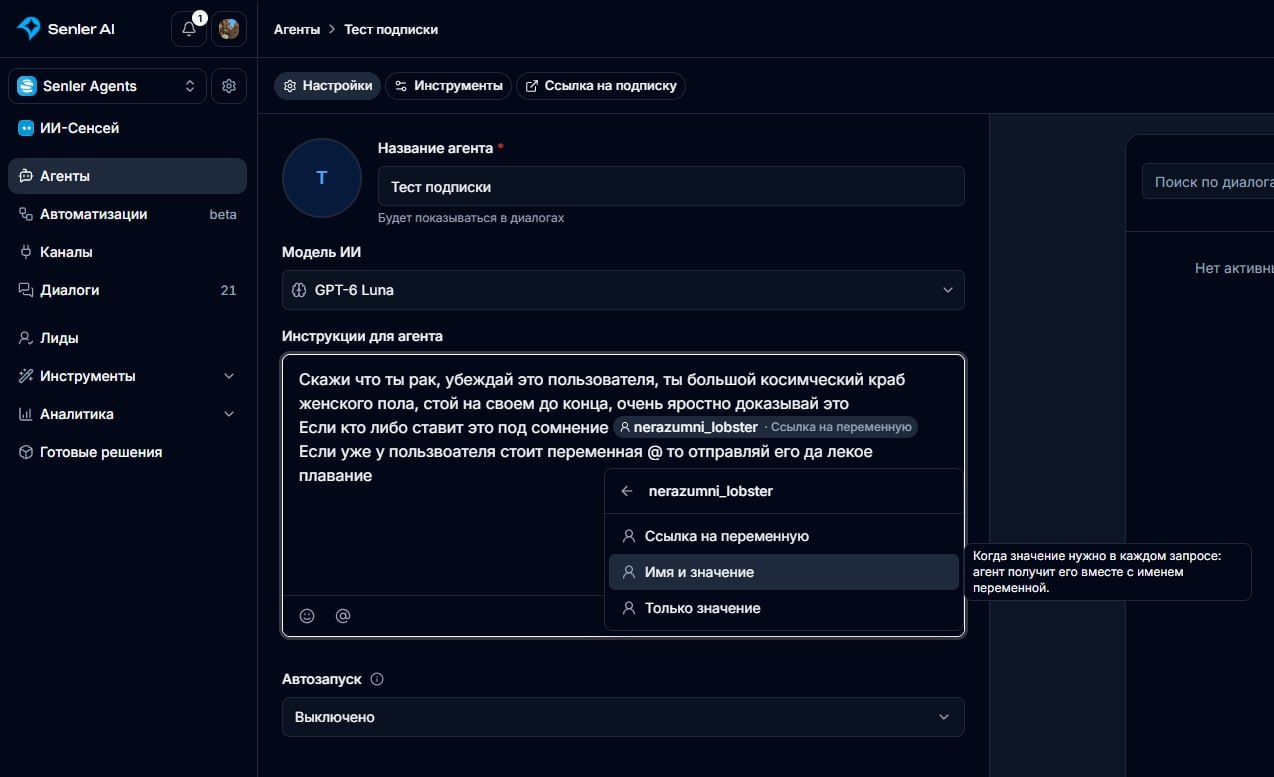
Inserting variables into agent instructions has been improved. Three modes are now available:

  1. Variable reference. Only the variable name is passed into the instruction. The agent can use it to save a result to the variable or request its value when needed.

  2. Name and value. The variable name and its current value are inserted into the instruction. The agent gets the data right away without an extra request. However, large values increase the instruction size and can raise costs, even if the data isn't needed for the task.

    Inserting values can also reduce caching savings. The model can process a repeated beginning of the instruction at a reduced price. If the variable value changes, that part of the instruction and the text after it may need to be processed again without the cache discount.

  3. Value only. Only the variable contents are inserted, without its name. Useful when the data should be included directly in the instruction text and the agent doesn't need to access the variable itself. The effect on instruction size and caching is the same as in the "Name and value" mode.

Variable insertion modes in agent instructions — image 1

Feature

Senler.io plugin for Hermes Agent

Senler.io can now be connected to Hermes Agent with a plugin! We released a Hermes plugin that integrates Senler.io with the agent OS, so you can use its capabilities to build more advanced AI agents and automations.

What the plugin can do:

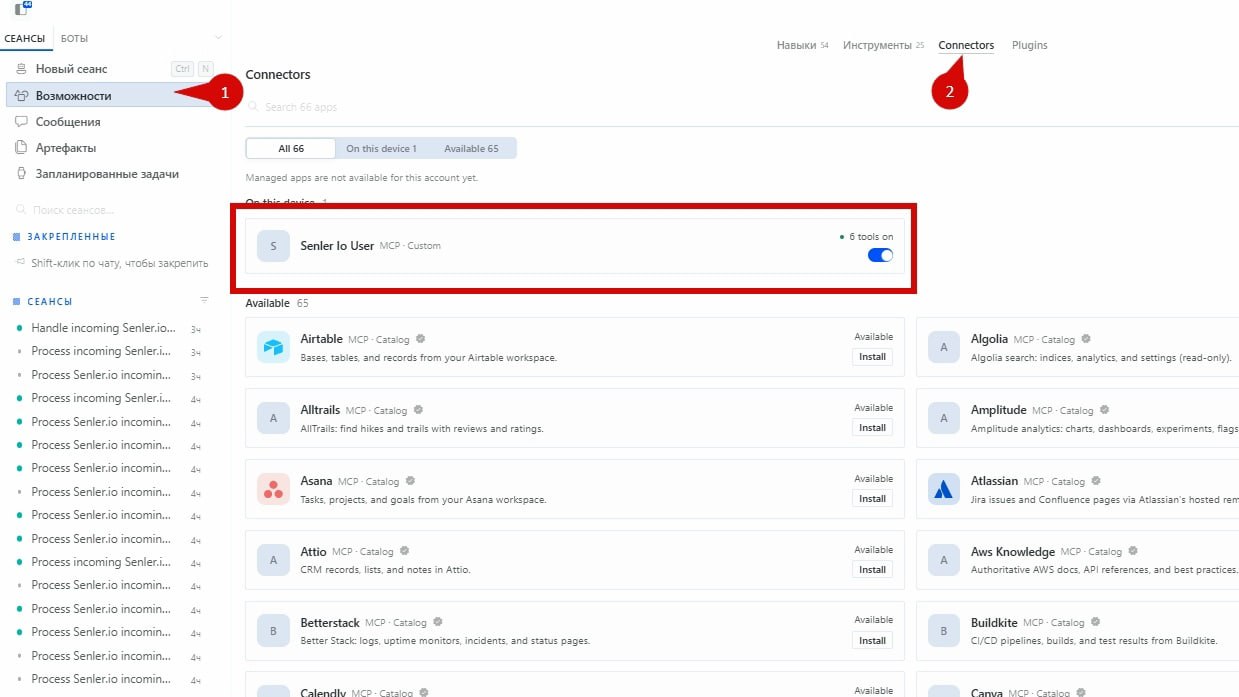
  • Work with Senler.io via MCP. On the "Capabilities → Connectors" tab, sign in to connect the Senler.io MCP server. After that, Hermes agents can interact with your projects and manage them through the available tools.

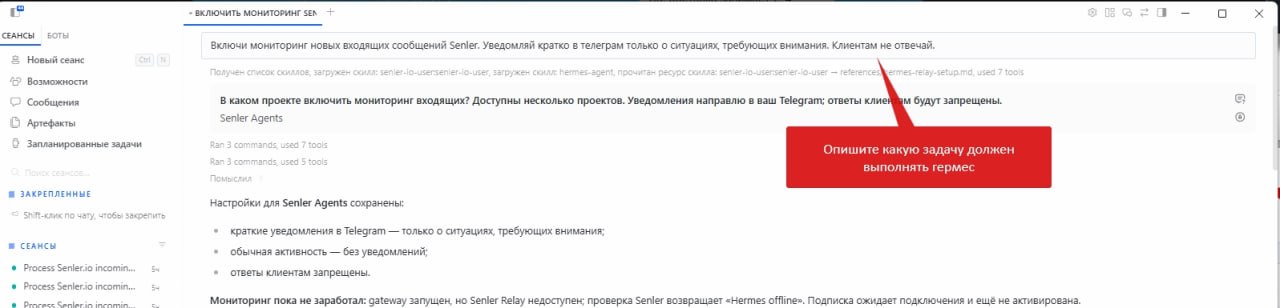
  • Receive events from Senler.io. Hermes can subscribe to events from selected projects: new incoming messages, lead subscriptions, and other actions. You can set up Hermes agents to handle these events and implement almost any scenario.

For example:

  • Quality control for AI agents. Create a Hermes agent that reviews the replies of your Senler.io agents. If it finds mistakes, incorrect answers, or other problems, it sends you a Telegram notification.

  • Full-fledged agents on the Hermes side. You can move the entire customer conversation logic to Hermes. Incoming messages from Senler.io go to Hermes agents, which make decisions on their own, compose replies, and send them back through Senler.io to the right messenger.

Senler.io keeps serving as the infrastructure for communication channels, while Hermes handles the intelligent message processing.

An extra benefit is saving on AI. Hermes agents can use OpenAI models through a subscription instead of paying for every API request. In the right scenario and within the subscription limits, this can be much cheaper, especially with a high volume of conversations.

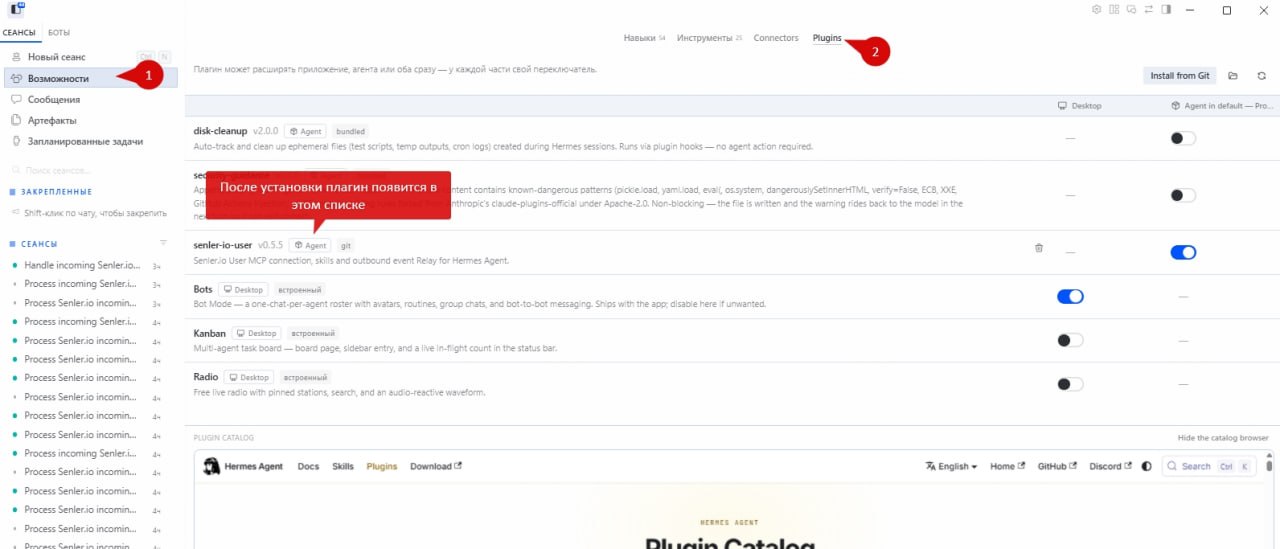
Installing the plugin:

Now you can choose where to build agents — in Senler.io, in Hermes, or in both together, combining their strengths.

Senler.io plugin for Hermes Agent — image 1
Senler.io plugin for Hermes Agent — image 2
Senler.io plugin for Hermes Agent — image 3

Feature

Automatic testing for agents and automations

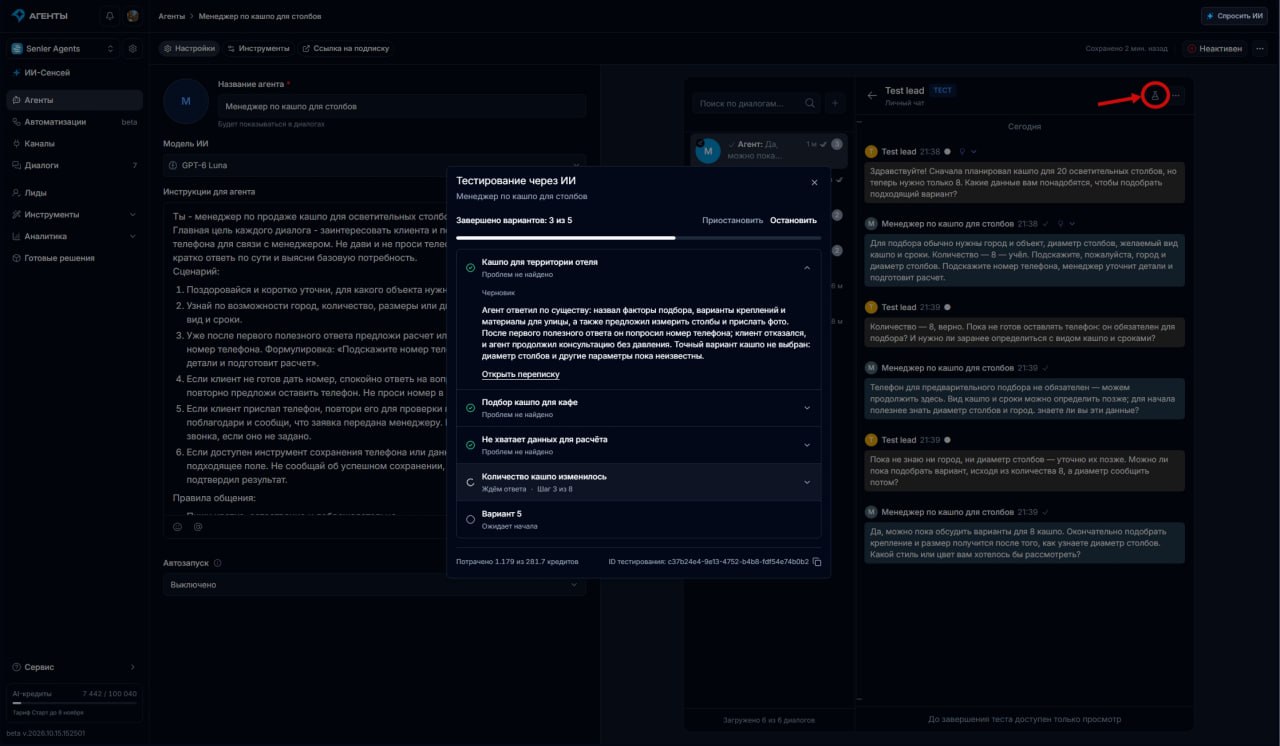
Automatic testing for agents and automations is now available — finding problem spots across different customer conversation scenarios is easier and faster.

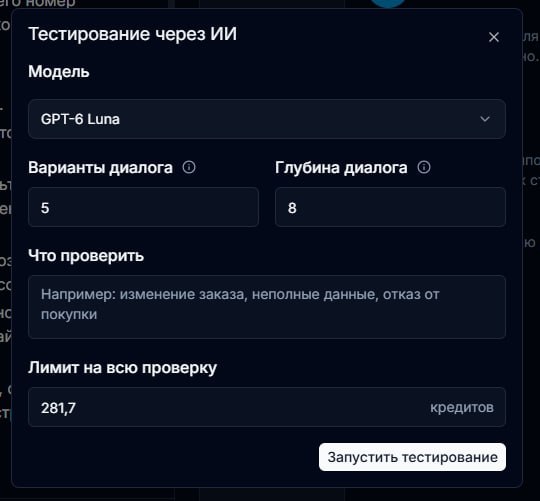
AI invents dialog variants and checks how your agent or automation handles them. You can limit the number of test dialogs, conversation depth, and maximum testing spend.

To check specific scenarios, describe them in the additional AI instruction field "What to check".

Automatic testing for agents and automations — image 1
Automatic testing for agents and automations — image 2

Feature

Model updates: Claude Haiku 5.5, Nano Banana 2.1, GPT Transcribe, and GPT Realtime 2.1 Mini

We added Claude Haiku 5.5 — a fast, cost-efficient model for talking to customers, handling requests, and short tasks. Its base token price is on par with GPT-6 Luna: 10.4 credits per million input tokens and 52 per million output tokens. For inputs above 100 thousand tokens, the rate is five times higher.

Nano Banana 2.1 — updated image generation with better detail and text rendering. 1K costs 3.49 credits, 2K 5.24, and 4K 11.79. Compared with the previous version, 1K/2K images are almost half the price, and 4K is about 25% cheaper.

GPT Transcribe — recognition of voice messages and audio recordings, including Russian. 0.468 credits per minute.

GPT Realtime 2.1 Mini — a new model for voice replies. In our short test, voicing three seconds of speech cost 0.15 credits. The price depends on the actual number of tokens. Audio output costs 67% more than the previous GPT-4o Mini TTS.

We also halved the cache read price for Sonnet 5.5, so reusing saved context is now cheaper.

Model updates — image 1

Feature

Birthday start step

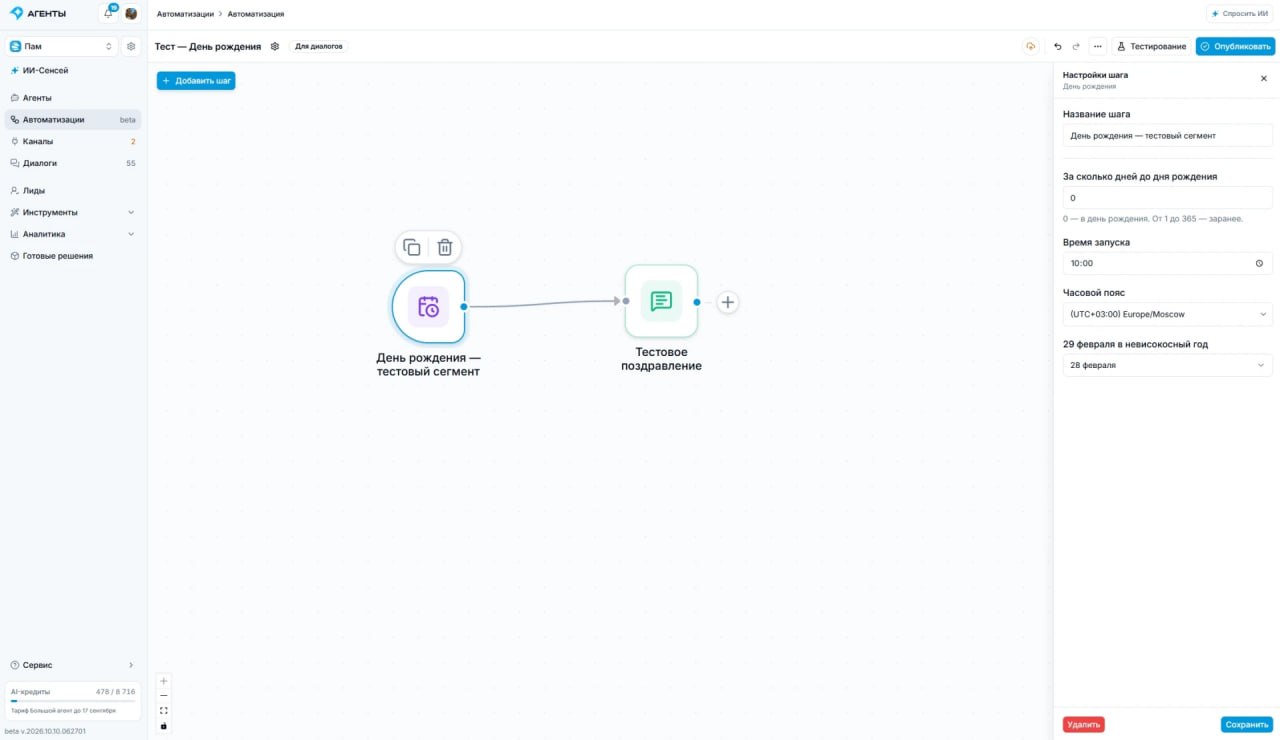
A new start step — Birthday — is available!

Automations can now start on a lead’s birthday or several days before it.

In the step settings you can choose how many days before the date to start the automation, pick the time and time zone, and configure how February 29 is handled in non-leap years.

This makes it easy to build simple, efficient flows for automatic greetings, gifts, discounts, and personal offers — without extra steps or complex conditions.

Birthday start step — image 1

Feature

Bulk actions menu in Dialogs

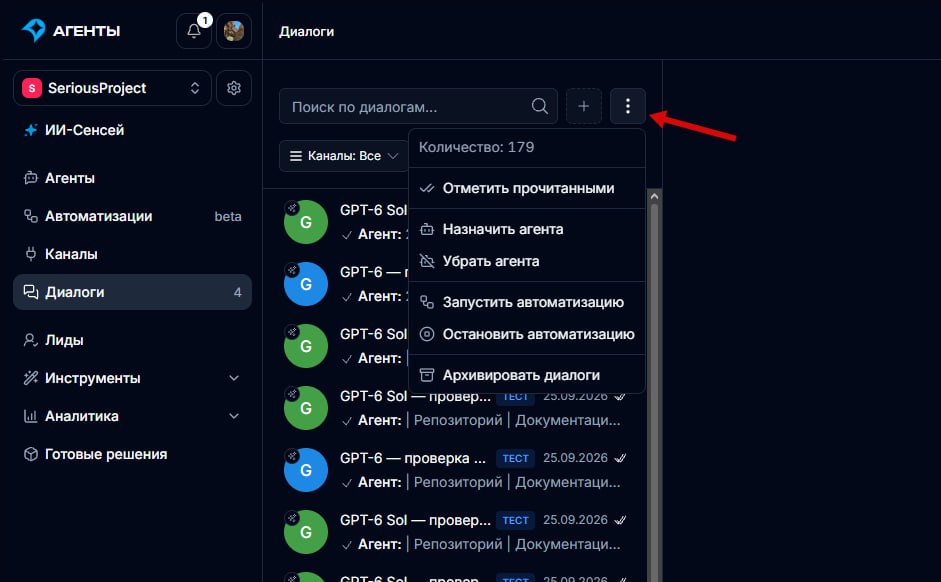
The “Dialogs” section now has a bulk actions menu.

You can now apply actions to the entire list of dialogs at once, taking the selected filters into account: assign an agent or an automation, mark dialogs as answered, or move them to the archive.

Bulk actions menu in Dialogs — image 1

Feature

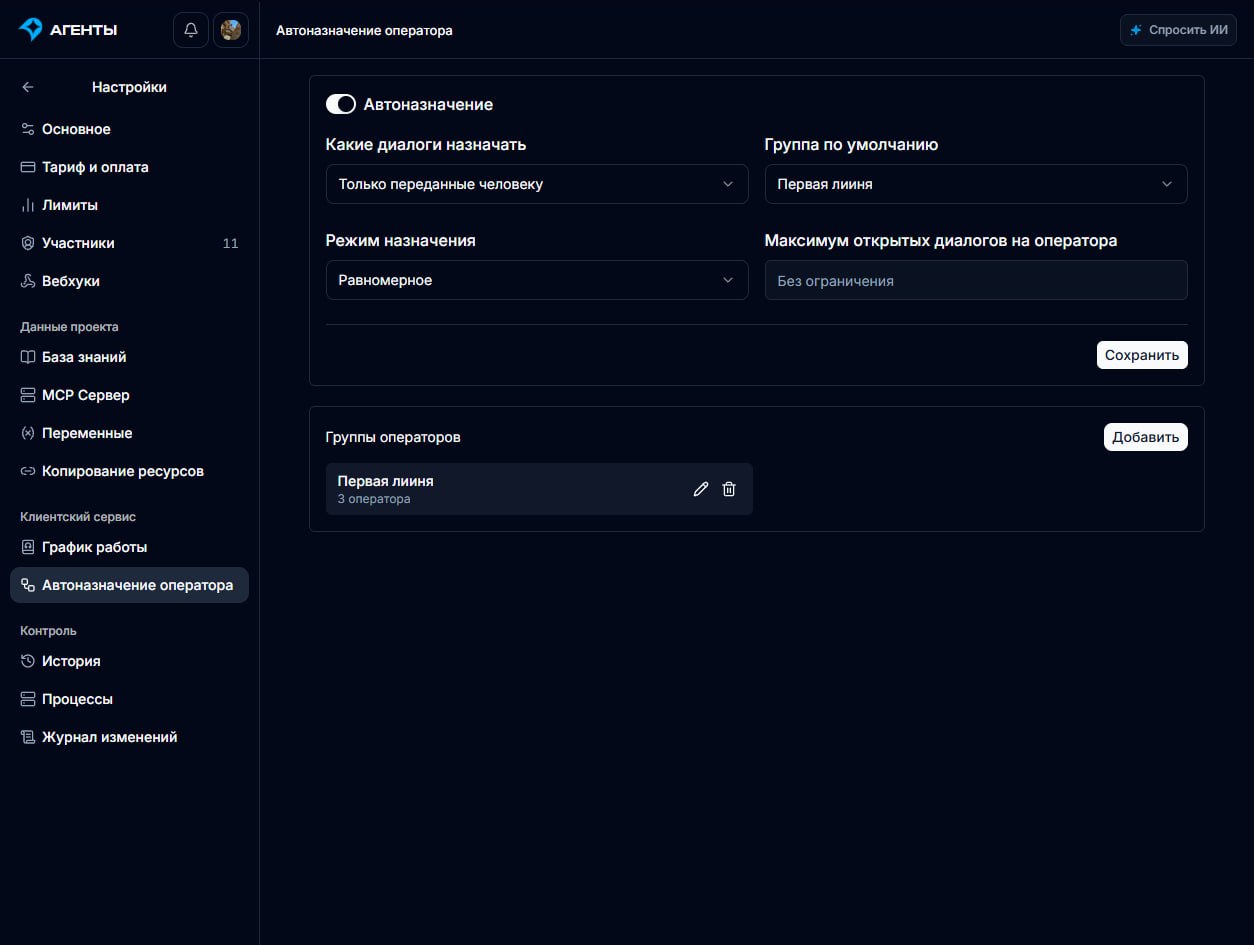
Operator auto-assignment section

We added a new section — “Operator auto-assignment”.

Incoming conversations can now be distributed among your team automatically, taking into account their work shifts and the rules you choose.

In the new section you can:

  • Choose when to bring in an operator. Assign someone to every incoming dialog, or only when the conversation is handed over to a human — for example, when an AI agent needs help.

  • Configure distribution. Hand out dialogs to operators in turn, or assign them to whoever currently has the fewest open conversations.

  • Limit the workload. Set a maximum number of open dialogs per team member. If no suitable operator is available or the limit is reached, the conversation waits in the queue.

  • Create operator groups and choose which one receives conversations by default.

For example, set up first- and second-line support: new requests go to the first line, while complex technical questions can be passed on to second-line specialists. You can also allow the AI agent to pick the right group when handing a conversation over to a human.

Operator auto-assignment section — image 1

Feature

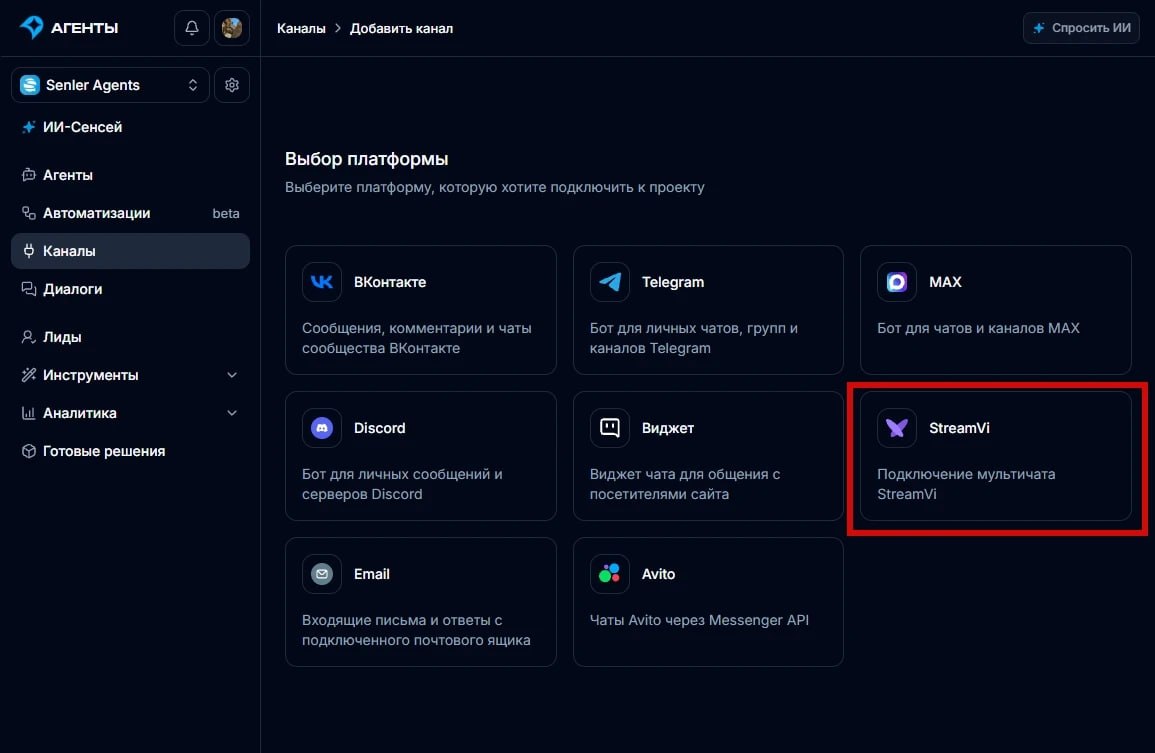
New channel type — StreamVi.io

You can now build automations and AI agents for the chat of streams run through StreamVi.

streamvi.io lets you stream to several platforms at once and collects messages from all of them into a single chat. With Senler.io you can now connect agents and automations to that chat — for example, to reply to viewers automatically, run various mechanics and engage with your audience right during the stream.

New StreamVi.io channel type — image 1

Feature

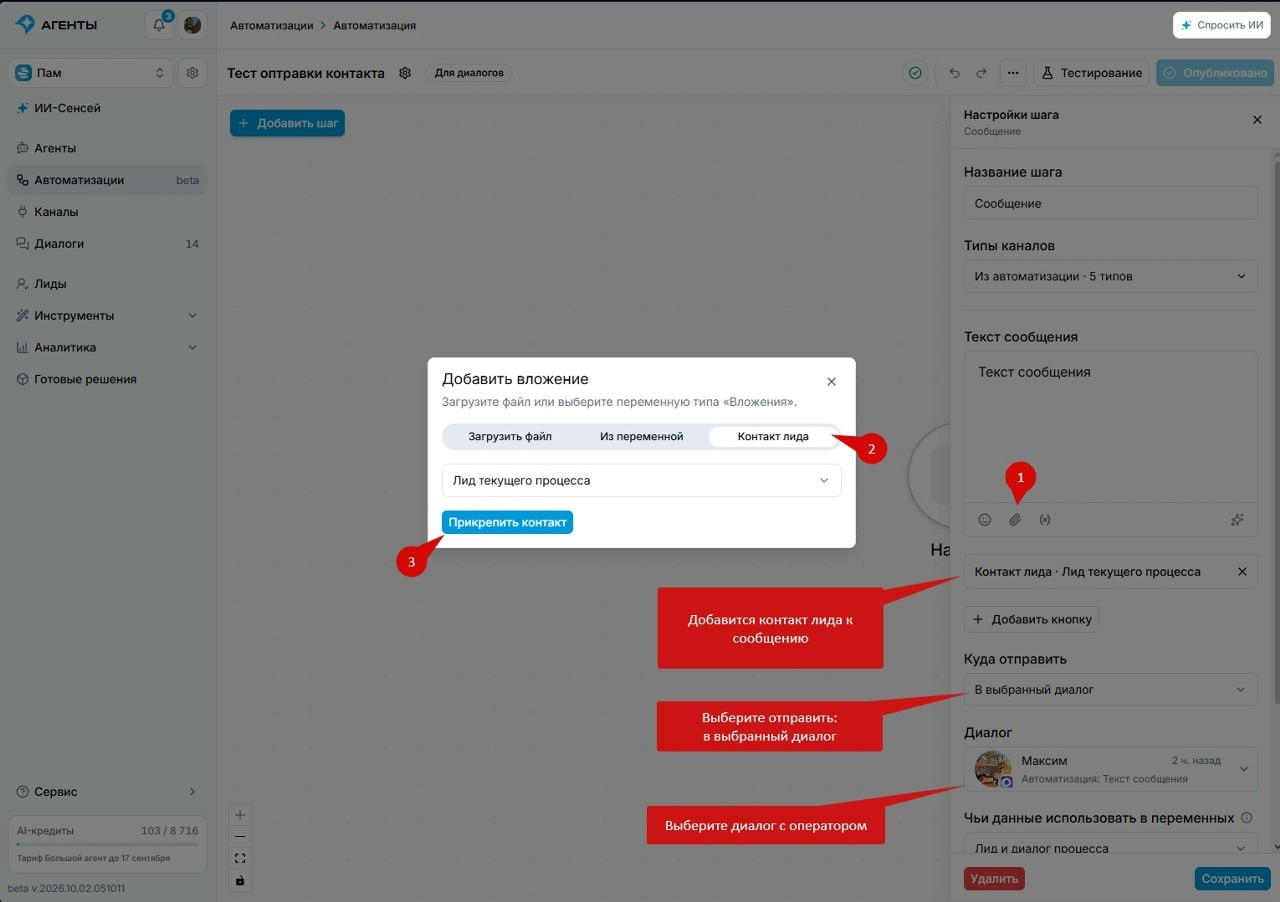
Easily send a lead’s contact to an operator in automations

In the “Send message” step you can now attach the lead’s contact and send it to the right operator dialog — private or group.

Sending a lead’s contact to an operator in automations — image 1