Feature
Analytics counters on landing pages
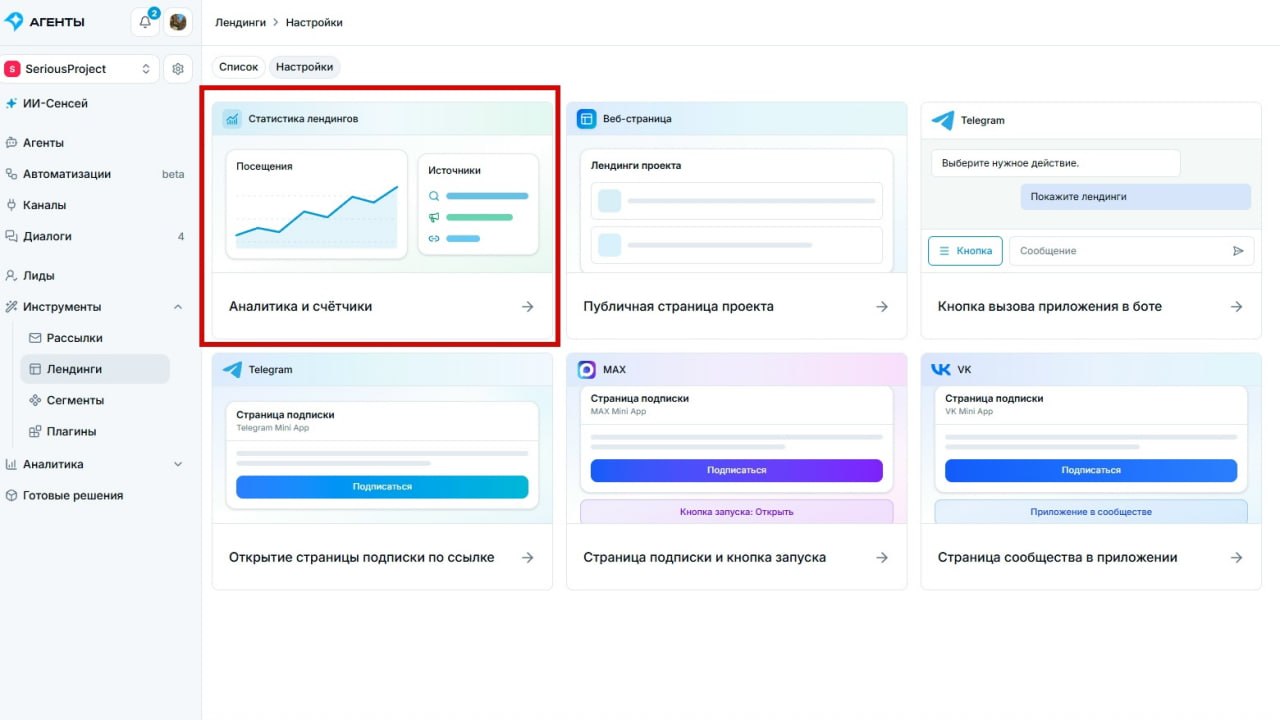
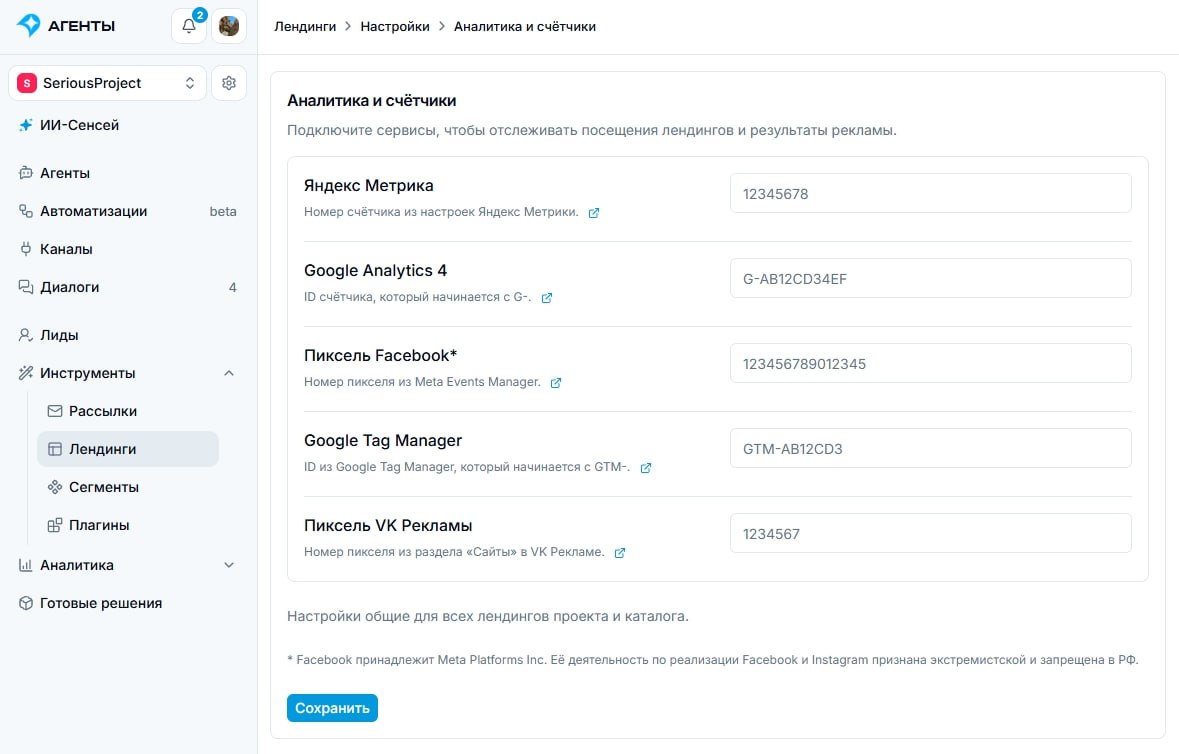
You can now add analytics counters to landing pages (subscription pages), such as Yandex Metrica or the VK pixel.
To connect a counter, go to Tools → Landings → Settings and paste its code.
Something went wrong while loading the page. Reload it and try again.
You can now add analytics counters to landing pages (subscription pages), such as Yandex Metrica or the VK pixel.
To connect a counter, go to Tools → Landings → Settings and paste its code.
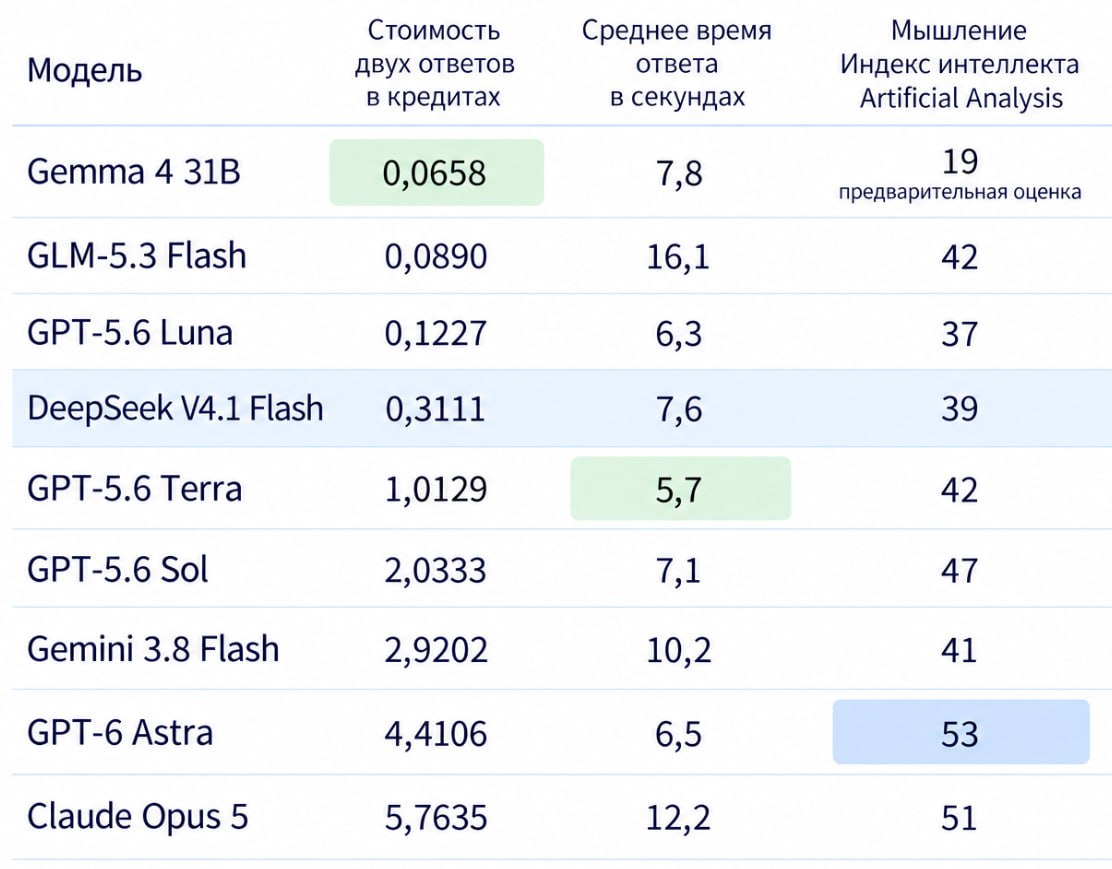
We compared the available models across three dimensions: cost, response speed, and intelligence.
💚 Gemma 4 31B — the most economical, but also the simplest model. Good for basic tasks and short dialogues, though it can get confused in complex scenarios and long conversations.
⚡️ GPT-5.6 Luna — a fast and affordable model for most chatbots.
🔥 GLM-5.3 Flash — one of the best price-to-intelligence ratios. Smart and very affordable, but responds more slowly than other models.
🚀 GPT-5.6 Terra — the fastest among the tested models with a high intelligence level.
🧠 GPT-5.6 Sol — for complex tasks where reasoning quality matters most.
💎 GPT-6 Astra — the smartest model in the comparison. Suited for advanced agents and non-standard scenarios.
Pick a model for the job: save on simple dialogues and connect more powerful models where deep reasoning and context understanding are needed.
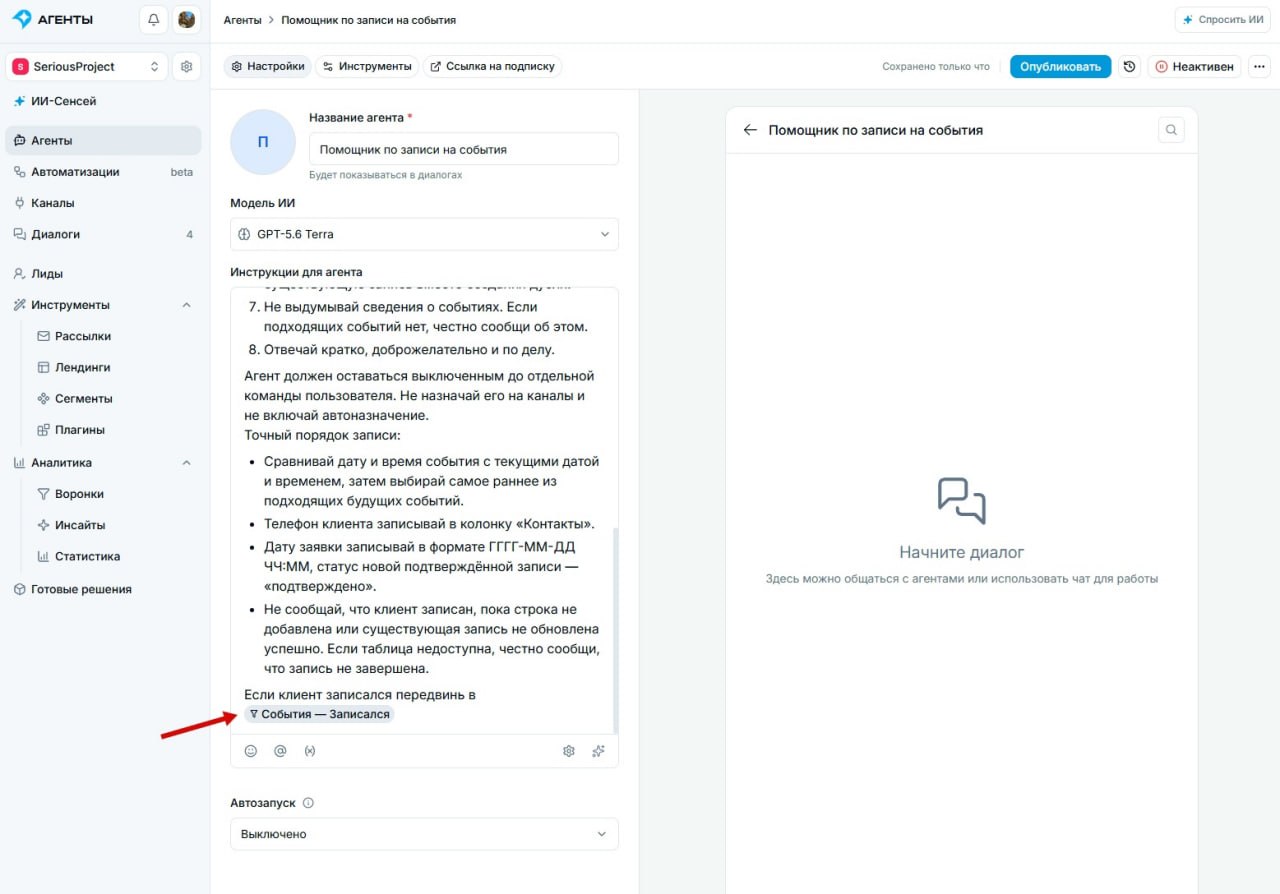
Specify directly in an agent’s instructions when to move a lead to a particular funnel stage.
To set this up, type @ in the agent’s instructions, select Funnels and the funnel stage you need, then describe when the agent should move a lead there.
For example, move a customer to Interested when they express interest in a product, then to Ready to buy once the terms are agreed.
Agents can now move leads through the funnel according to the conversation.
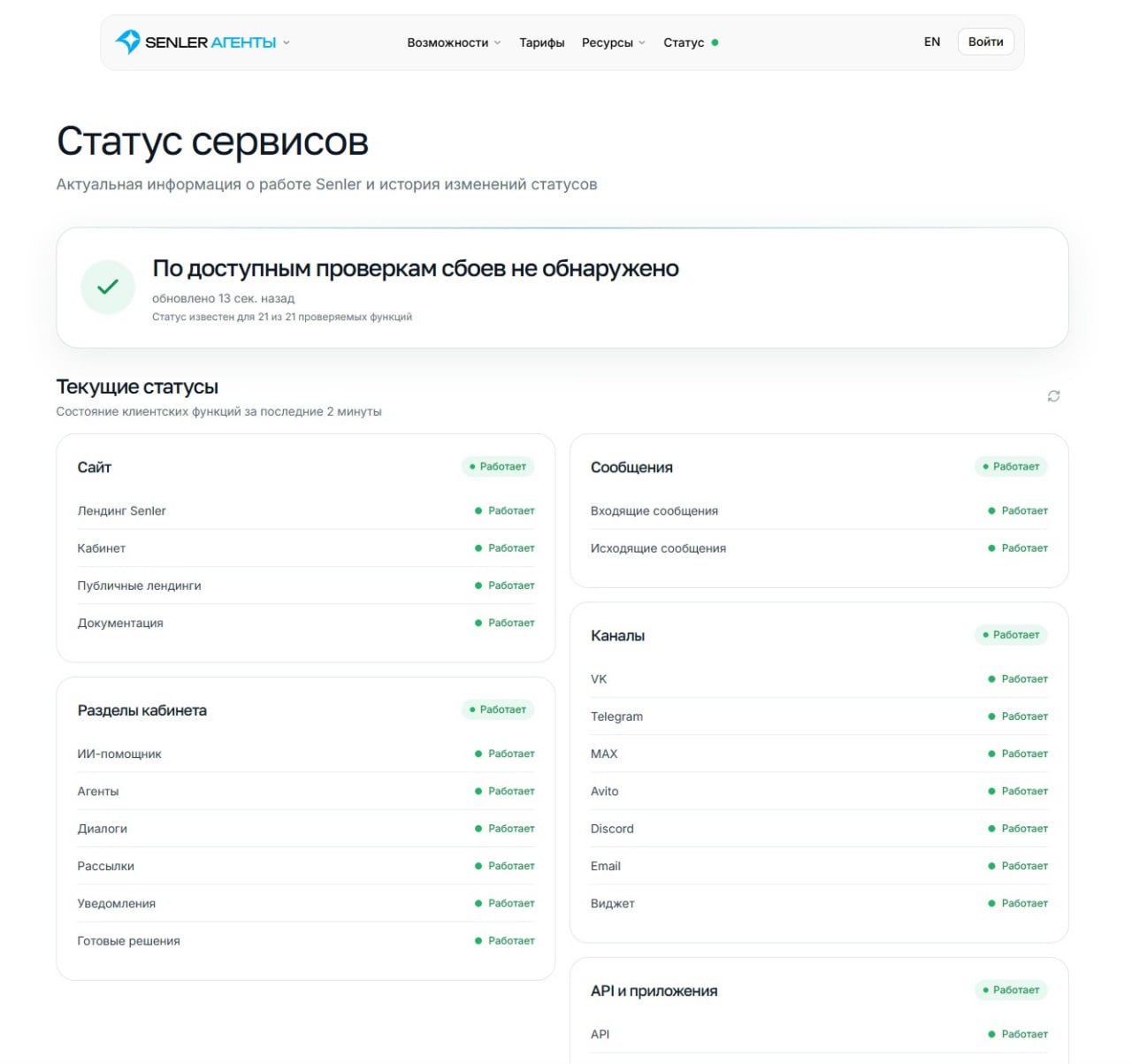
The new service status page shows the current state of Senler’s components, information about disruptions and incident history.
Use it to check whether the service is operating normally and whether a problem is related to an incident on our side.
DeepSeek V4.1 Flash is now available in Senler.io.
We tested it on practical tasks that require an agent to interpret conditions, calculate discounts, remember conversation details and perform actions.
Speed: complete answers took 6–11 seconds, faster than Gemini 3.8 Flash and GLM 5.3 Flash in our scenarios.
Cost: the two tasks used 0.24–0.28 credits, around 6–8 times less than Gemini 3.8 Flash on the same tasks.
Luna and Gemma were less expensive for simple queries. DeepSeek showed a useful balance of capability and cost for tasks involving conditions, calculations and several steps.

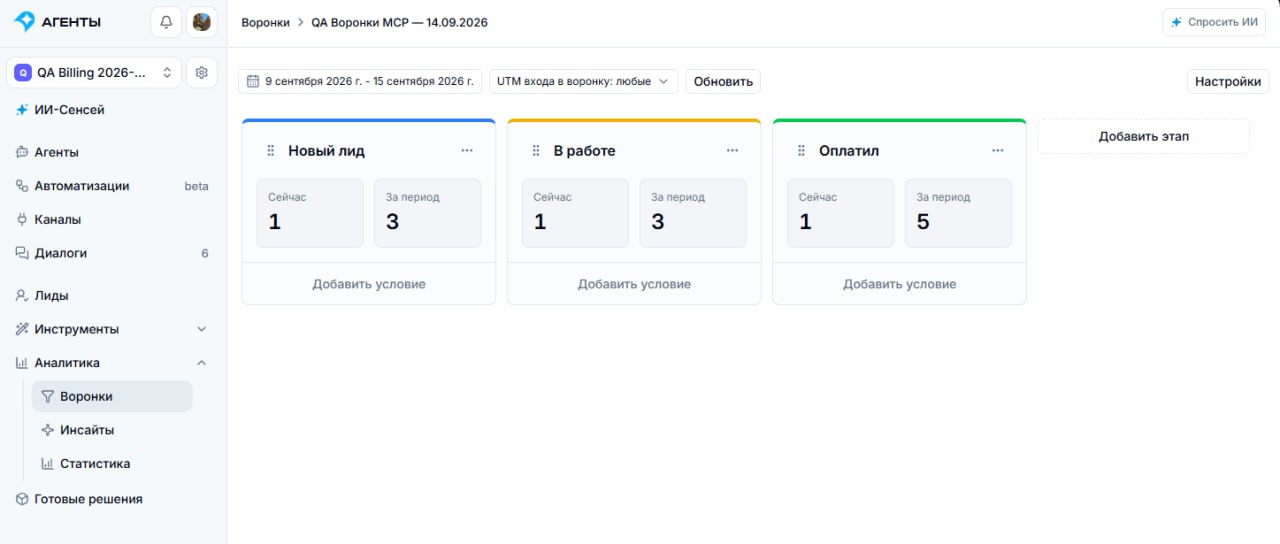
The new Funnels tool in Analytics shows a customer journey as a board. Each column represents a stage, such as New lead, First contact, Interested, Awaiting payment or Paid.
See how many leads are currently at each stage and how many passed through it during a selected period.
Leads can move between stages automatically when conditions are met. For example, joining a segment can move a lead from New lead to Interested. A dedicated automation step can also move leads.
Review the journey from first contact to payment and filter results by the UTM tags recorded when leads entered the funnel.
To create a funnel with AI, describe the stages and transition conditions you need to the agent in AI Sensei.
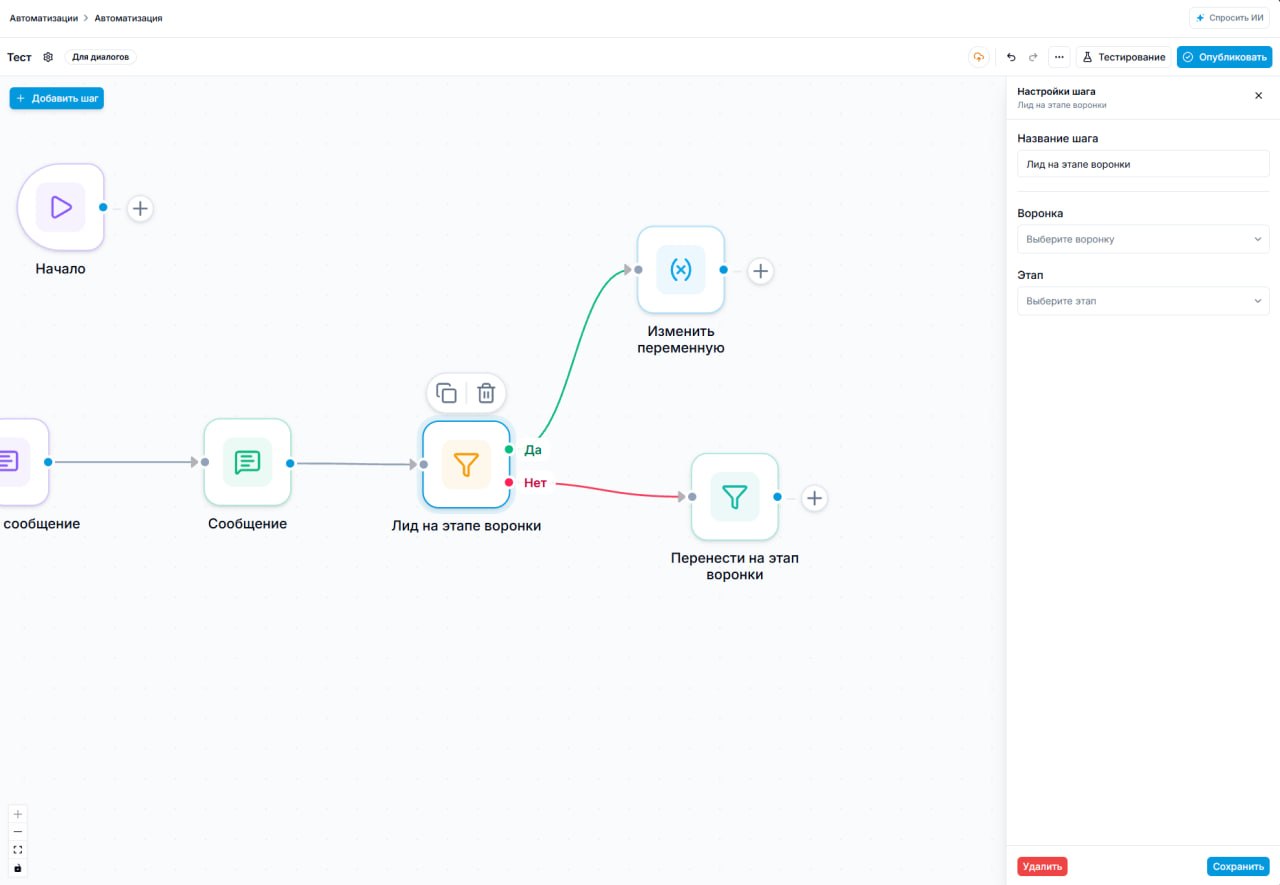
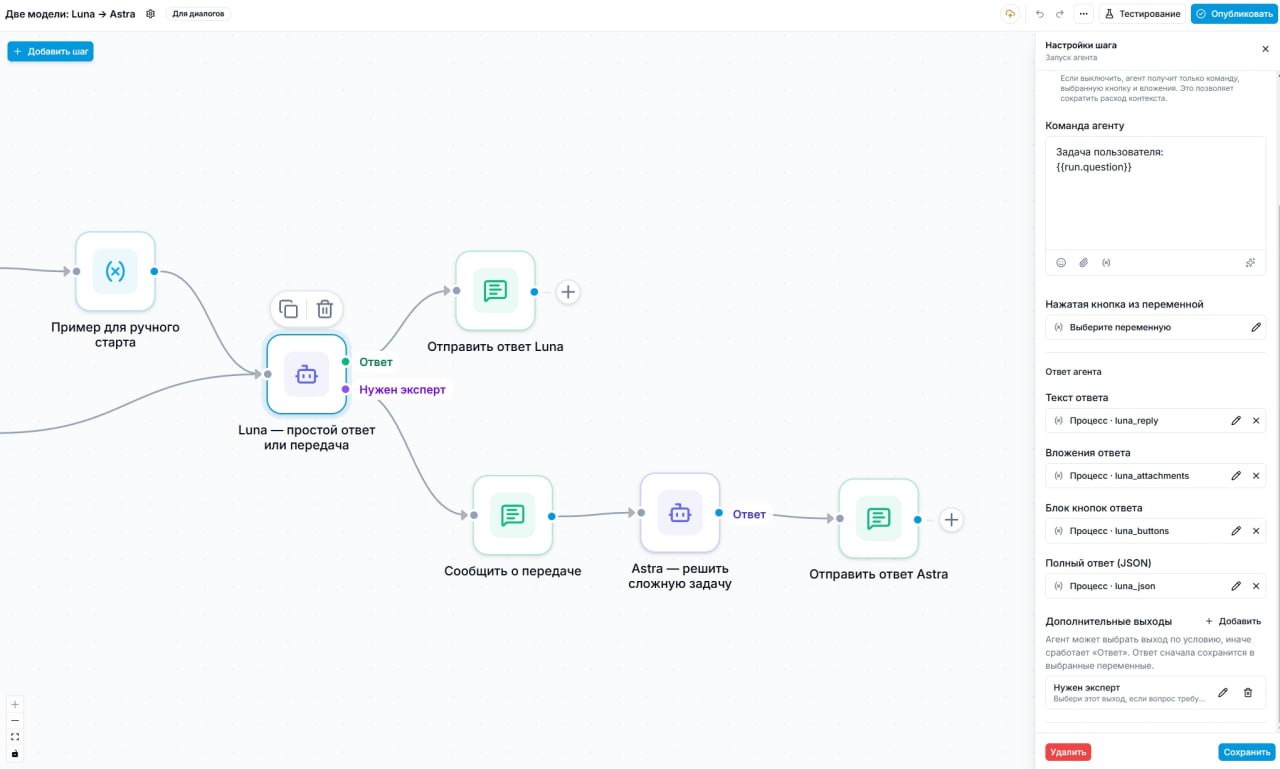
The Run agent step now supports branches. Describe when the agent should choose each branch, and it will select one according to the task.
This makes automations easier to read and more flexible. For example, route simple tasks to an agent with a fast, inexpensive model and send complex tasks to a separate agent with a stronger model.
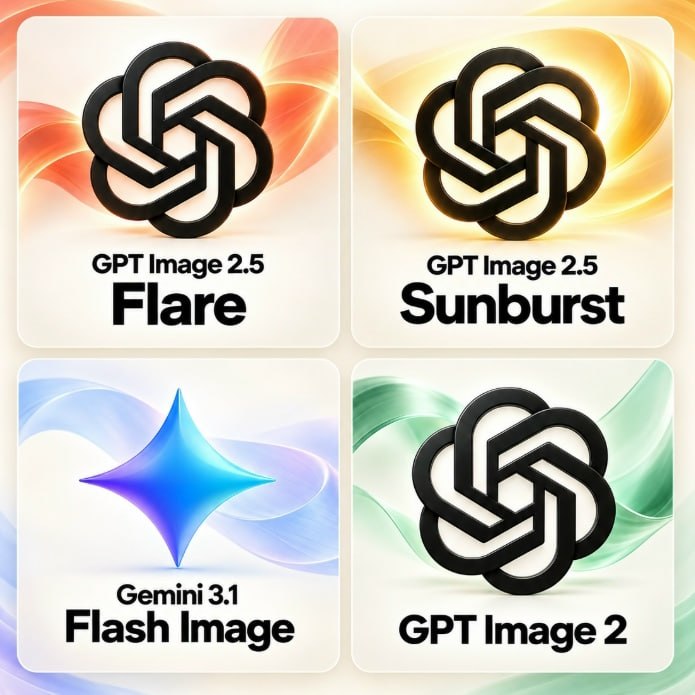
Three new image generation models are available for agents. Choose one for your task.
GPT Image 2.5 Flare focuses on speed. Use it for everyday illustrations and experiments, trying ideas quickly. One test generation cost approximately 1.40 credits.
GPT Image 2.5 Sunburst focuses on quality. It is the most powerful image generation model in the OpenAI range, suited to prominent covers and advertising banners. One test generation cost approximately 1.10 credits.
Gemini 3.1 Flash Image, also called Nano Banana 2, combines speed with text rendering. Use it for banners with headings, information cards and illustrations containing text. A 1K image costs approximately 6.97 credits.
GPT Image 2 remains available, with a known price for the selected format at medium quality:
a square 1K image: approximately 5.51 credits;
a portrait or landscape 1K image: approximately 4.26 credits.
The Flare and Sunburst prices are examples from individual tests at medium quality and 1K resolution. The final cost depends on the tokens used by the model during image generation.
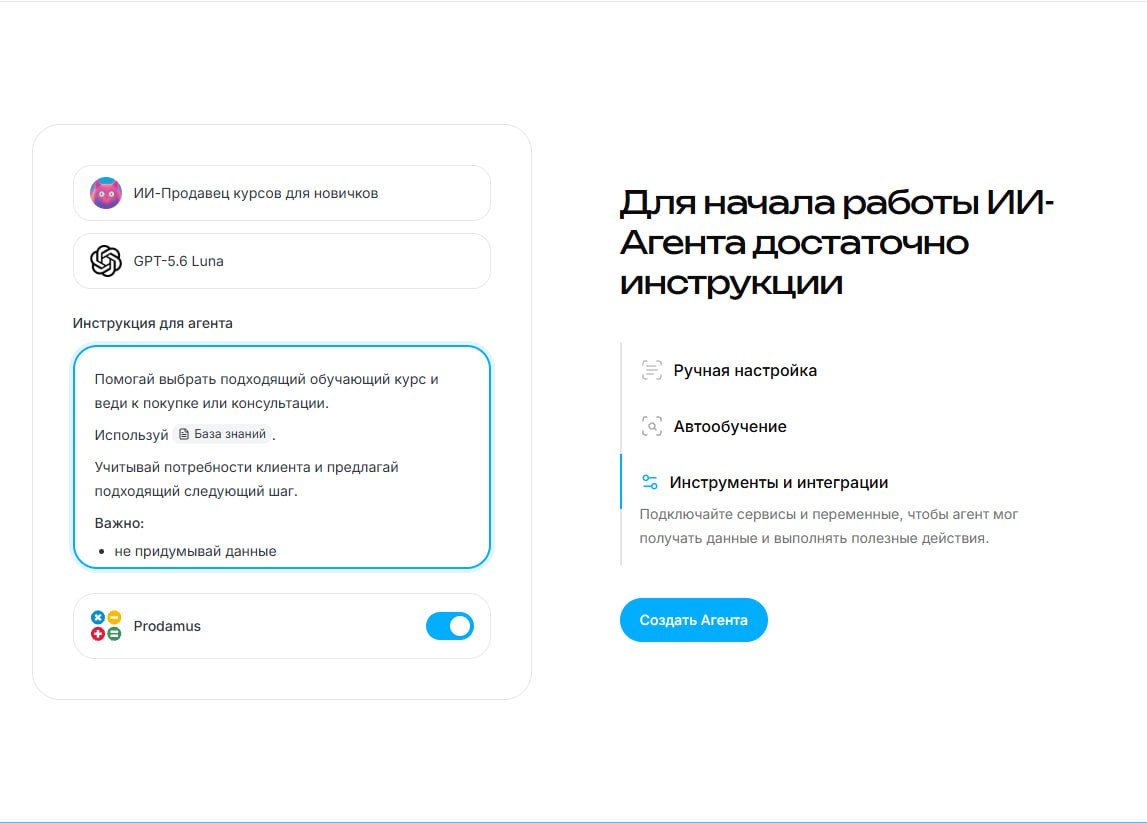
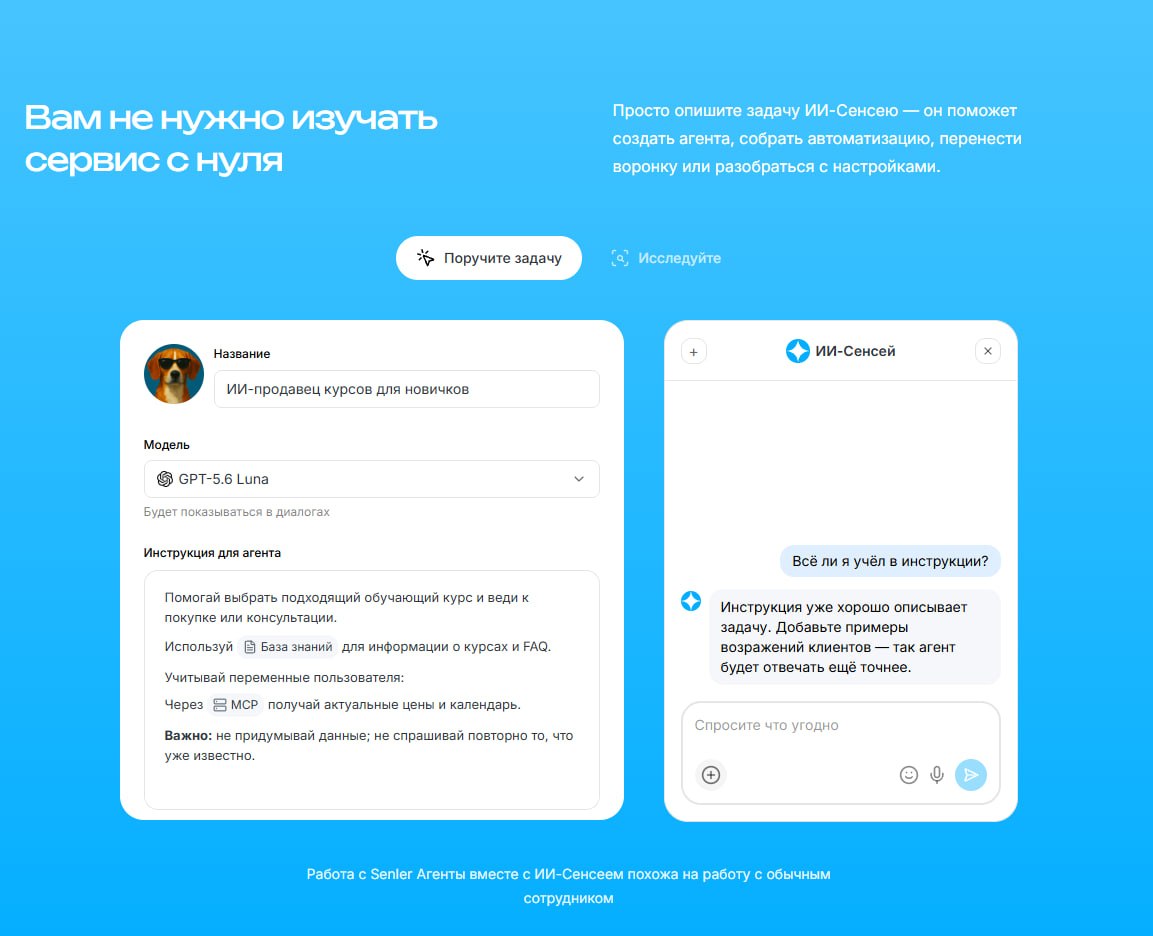
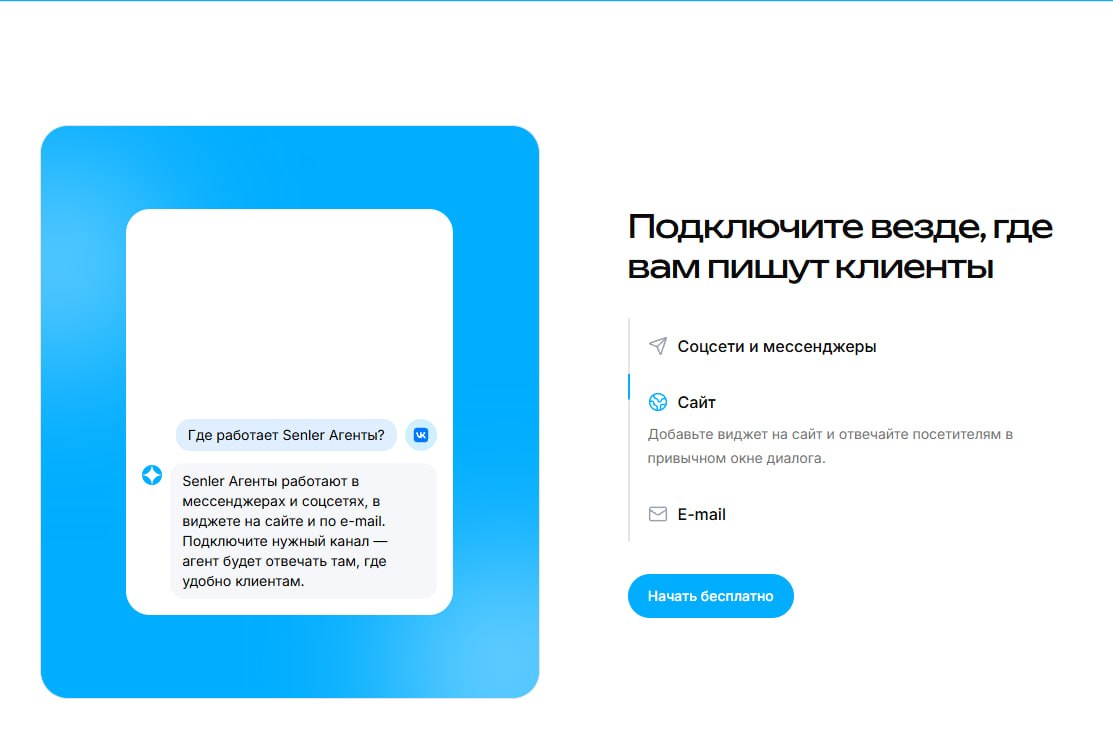
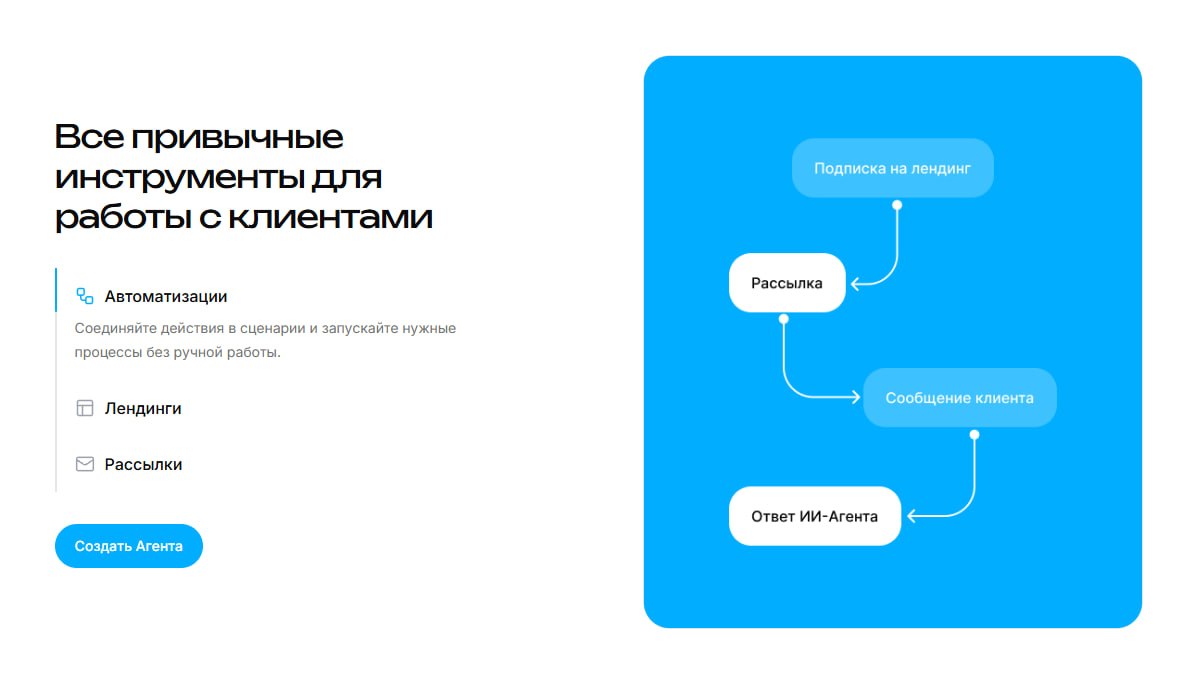
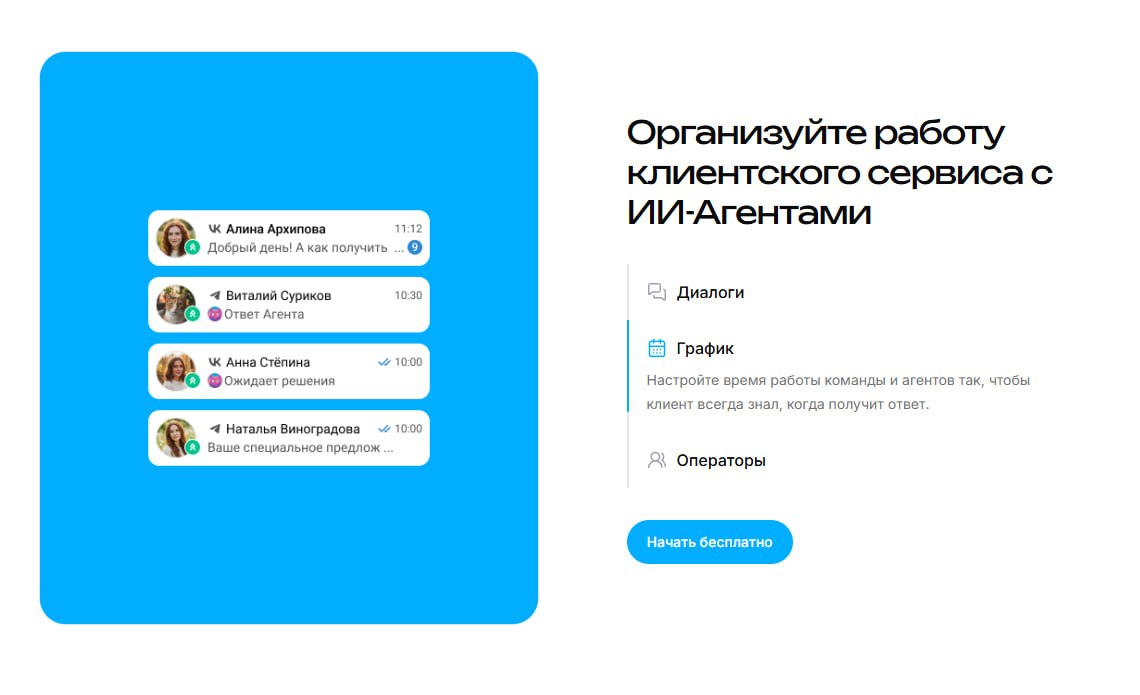
We refreshed the Senler.io website to explain the service’s key capabilities and benefits more clearly.
It is now easier to explore Senler and see which tasks it can help you solve.

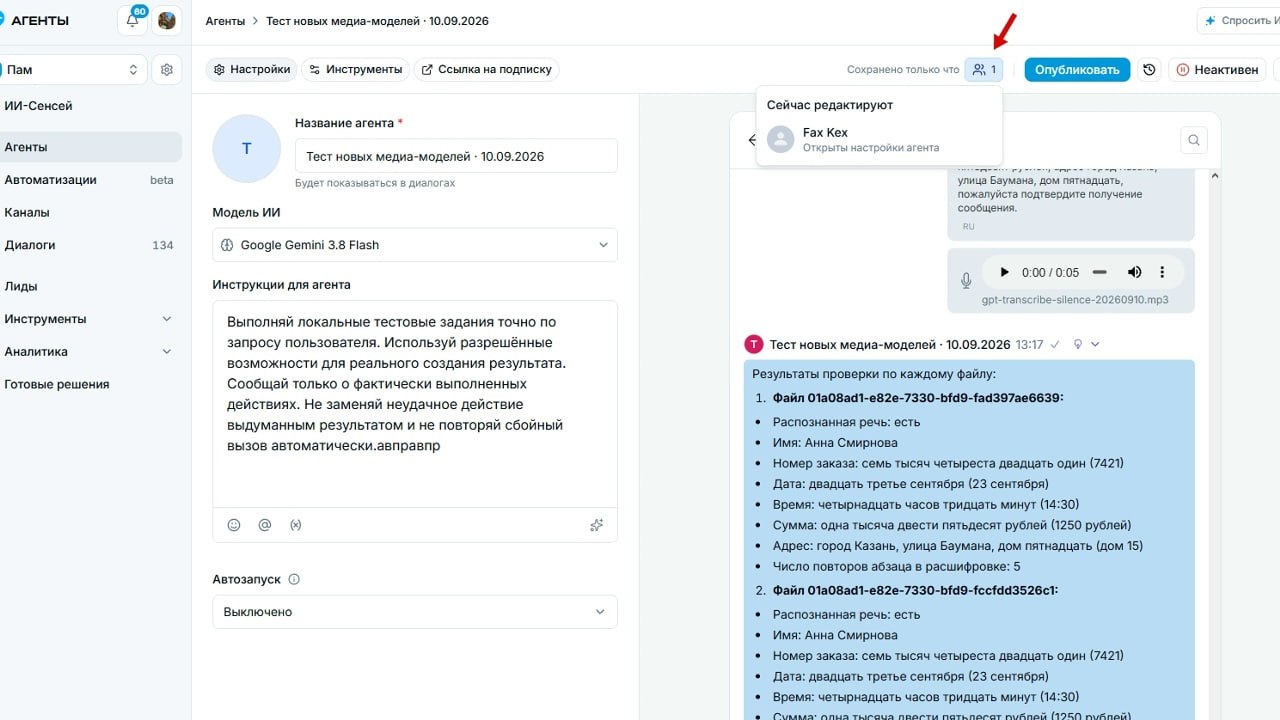
Work on agent settings together with other project members and an AI agent.
Changes appear in real time, so you can see what others are editing and avoid conflicts when saving simultaneous updates.