
Agent Metrics
Summary
Metrics let the agent extract data from conversations. Event metrics evaluate individual messages and the agent's result, while discussion categories help AI group dialogs by topic in the Insight summary.
In agent form
- metrics collection is enabled;
- the evaluation goal is selected;
- events and discussions are configured separately.
Events and discussions
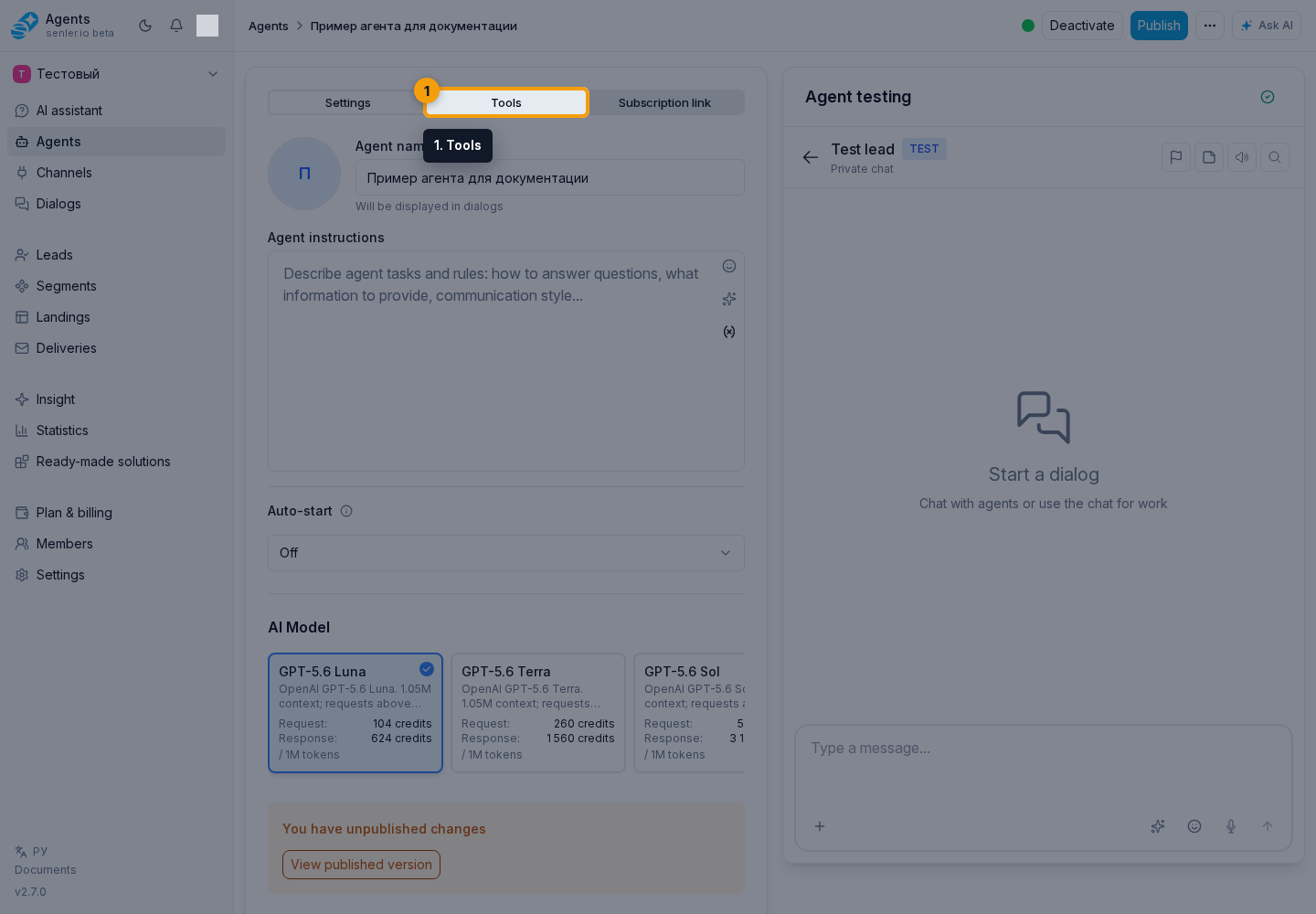
Click Configure metrics. The opened window has two tabs:
The Events tab contains values stored on messages and used in regular analytics, such as conversation outcome, sentiment, or goal completion.
The Discussions tab contains categories that AI uses to group dialog topics in the summary. They do not replace event metrics: one group answers "what happened in the message," while the other answers "what was the conversation about."
Modes
The mode is selected independently for events and discussions:
- Use default metrics provides a ready-made set for the agent type;
- Configure manually uses a set selected by the user.
For example, you can keep default event metrics and configure custom discussion categories. The first time a group is switched to manual mode, the cabinet copies that group's default set so you can adjust it instead of rebuilding it.
Selecting metrics
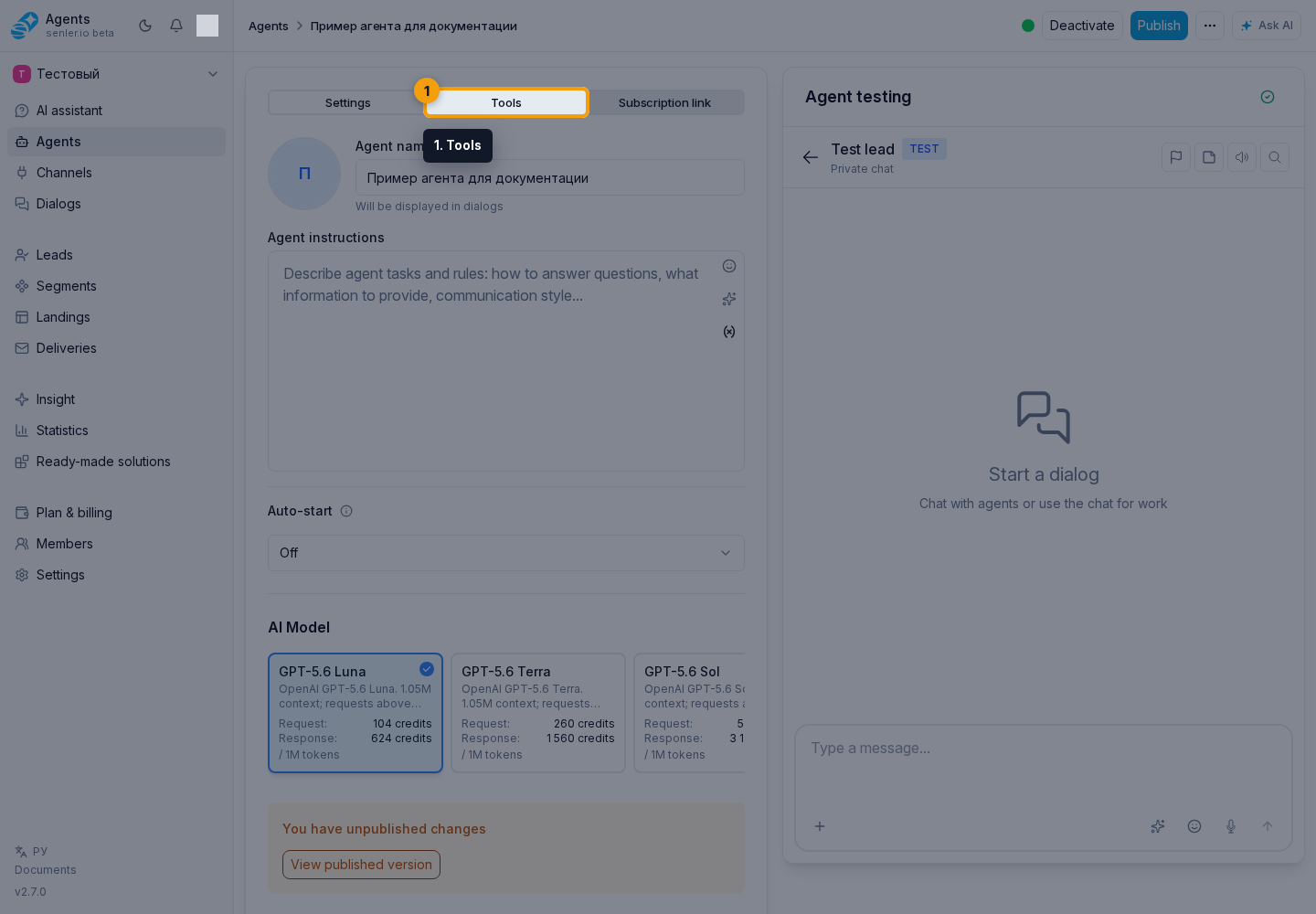
On the required tab, enable manual mode and click Add metric. In the list, use search and show all, only built-in, or only custom metrics. Choose the required metrics and click Add selected.
If no suitable metric exists, use Create metric. Fill in its settings and click Save. Then select the created metric in the list. You can view, edit, or remove a metric from the agent. Finish with Save, then publish the agent itself.
An agent's effective set can contain no more than 20 metrics in total across events and discussions. This limit includes both default and manually selected metrics. The effective set can contain no more than six additional discussion attributes and only one primary discussion category. If the set does not save, remove extra manual metrics or switch the required section to manual mode and build a shorter set.
Where and how the metric is measured
When creating a custom metric, choose where and how it is measured through one of the options:
- Event metric is stored on messages and used in regular analytics;
- Primary discussion category defines the main topic list in the summary. Use a text metric with a fixed value list; an agent can have only one primary category;
- Additional discussion attribute evaluates the whole topic and adds context without creating another main list. It can contain one value from a fixed list, multiple values from a fixed list, or a yes/no answer.
A useful primary category contains stable conversation areas such as Payment, Delivery, or Returns. An additional attribute answers a narrower question, such as "Urgent?" or "Needs escalation?"
After you choose how the metric is measured, the cabinet shows only compatible value types. Select the required option: a primary category supports only text with a fixed list, while an additional attribute supports a text list, an array of values, or yes/no.
Draft and publishing
- the standard or custom metrics selection is saved in the agent draft;
- event and discussion modes are saved independently;
- real dialogs use the published metric settings;
- publish the agent after changing metrics;
- draft rollback returns both modes and selected lists to the published version.
Custom metric fields
- name;
- description;
- value type;
- example value;
- AI extraction instruction.
The metric key is created automatically and is only shown when viewing the metric; you do not fill it in manually.
Types of metrics
- numeric;
- text;
- logical — yes or no;
- array — multiple values;
- object — a free-form JSON structure.
String restrictions
Allowed values and maximum length are configured in the constraints section.
- the list can contain from 1 to 50 unique non-empty values;
- the maximum free-text length can be set from 1 to 10,000 characters;
- free text is not included in analytics as a numerical indicator.
Limitations for numbers
- minimum value;
- maximum value;
- only integers.
When both boundaries are set, the minimum cannot be greater than the maximum.
Limitations for arrays
- the allowed element list can contain from 1 to 50 unique non-empty values;
- the maximum number of elements in the result can be set from 1 to 50.
Restrictions for objects
- free JSON;
- such values are usually not included in aggregate analytics as a numerical indicator.
How constraints affect collection
Before saving, the system checks the AI response against the metric's type and constraints. Leading and trailing whitespace is removed from strings, and duplicate array elements are merged. A value is not saved when a string is empty, the type is wrong, the value is outside the allowed list or numeric boundaries, an array contains an invalid element, or the maximum string or array size is exceeded.
If a metric is skipped, check its instruction and example: they must lead to a value with the same type and format specified by the constraints. The system does not automatically replace an invalid value with the nearest allowed one.
Analytics settings
- in analytics settings, you can choose whether the metric participates in good and problematic result comparisons;
- when this setting is available for the selected type, specify which direction is considered good. The cabinet shows only compatible options;
- for a Boolean metric, first enable analytics participation, then explicitly choose whether yes or no represents a good result;
- a primary discussion category groups topics and does not itself participate in good and problematic metric rankings;
- additional discussion attributes with comparable levels can participate in rankings and trends together with event metrics. For example, default attributes compare urgency, issue severity, or the absence of objections;
- built-in metrics are available for viewing, but cannot be edited.
If metric skipping is enabled in agent capabilities, the agent can exclude a specific message from statistics. This does not turn metrics collection off completely and should only be used for test, irrelevant, or noisy messages.
Changing a metric after collecting data
Before a custom metric has results, you can change its settings. After results appear, you can still correct the name, description, example, and AI instruction, but you cannot change the meaning of already collected values:
- value type;
- measurement location and discussion role;
- allowed values, boundaries, and other constraints;
- good-result direction for analytics.
If you need a different meaning or scale, create a new metric and select it for the agent. This keeps the old history comparable. Built-in metrics cannot be edited regardless of whether results exist.
When a metric is deleted
- only a custom metric can be opened and removed with Delete;
- before confirming deletion, note that the metric will be removed from all agents where it is used;
- historical data may remain in history, but the new setting will no longer collect this metric;
- if a primary discussion category is deleted, select another one before the next agent publication; otherwise summary topics will be less structured.
Where this is in the interface
Main elements in this section:
- agent settings form
- agent list
- Agents item in the side menu