
Transactions and Deposits
Summary
On the main payment page there is a list of transactions.
Transaction filters
- search;
- transaction type;
- period start;
- period end.
Add a hidden filter with the plus button. Clear filters removes all filters.
Transaction types
- balance deposit;
- charge;
- tariff purchase;
- credit purchase;
- automatic credit purchase;
- refund;
- balance adjustment;
- currency conversion;
- agent and model spending.
Transaction details
- type;
- sum;
- date;
- balance after;
- balance changes;
- purchased object;
- order status;
- operation summary;
- activity summary;
- spend events;
- tokens;
- period;
- breakdown by agent;
- breakdown by model;
- cached, request, and response tokens.
Click a transaction to open its details. When several operations belong to one order, expand the group first and then select the required operation.
Transaction payment details
Payment transaction details may include order and payment IDs, an external payment ID, payment system, payment method, order status, order items, and payment date. Currency conversion also shows the source and target currencies, the amount before and after conversion, and the exchange rate.
If a transaction is linked to an order, the "Order items" block shows what was purchased: tariff, credit package, or balance deposit. Each item has an amount and item status.
For spend operations, details may show grouping by agents and models: spend events, tokens, cost, request and response tokens, and cached token share.
Replenishment
- the user enters the deposit amount;
- selects a payment system and an appropriate method when several options are available;
- there may be a warning about an inaccessible country;
- starts payment with the confirmation button or closes the window with Cancel;
- after payment a result window may appear.
The same payment method selection is used when purchasing a credit package or tariff. Available options depend on the project and payment settings.
Cryptocurrency payment
When a cryptocurrency method is selected, a cryptocurrency payment window opens. It belongs to an order that has already been created: do not start a second payment while the first one is awaiting a transfer or confirmation.
The payment flow depends on the selected network:
- WalletConnect and TonConnect: click Connect wallet, choose a wallet, verify the network, amount, and asset, and confirm the operation in the wallet. A token may require a separate approval before the payment itself;
- USDT TRC-20: send the transfer using the QR code or the payment details. Use exactly the specified network, copy the exact amount and address, and do not round the amount.
The connected wallet must hold enough of the required asset and enough native network currency to cover the fee. An error may mean the wrong network, insufficient tokens, insufficient funds for the fee, user cancellation, or a wallet failure to submit the transaction. Correct the stated cause and retry within the same order when the window allows it.
After the transaction is submitted, the status updates automatically: the service first detects the transfer, then waits for the required blockchain confirmations, and completes the order. Do not pay again at this stage, even if crediting takes longer than usual.
You can close the window and payment checking will continue. A Resume payment action appears on billing pages and returns to the same order after the window is closed or the page is reloaded.
USDT TRC-20 payment details are valid for a limited time. If they expire before the transfer, close the window and repeat the original deposit or purchase to create a new order. Do not send funds using expired details.
When Payment requires manual reconciliation is shown, the transfer has already been found but must be matched to the order manually. Do not send another payment. Contact support and provide the order ID and transaction hash when available.
Never share your seed phrase or private wallet key. The order ID, transaction hash, amount, network, and transfer time are enough to investigate a payment.
Payment results
- successful;
- failed;
- cancelled;
- awaiting confirmation.
After returning from an external payment form, the cabinet opens the tariff and payment page of the original project and shows the payment result. If payment return opens an empty screen or a different project, check the account, project access, and whether the return link is current.
Order statuses and confirmation wait
"Awaiting confirmation" means the cabinet has not yet received the final response from the payment system. The result window provides a refresh button.
"Paid" means the payment succeeded. For a failed, cancelled, or expired payment, check the reason and try again when needed. Full and partial refunds have separate refund statuses.
The result window may show
- order ID;
- amount;
- payment system;
- reason or status;
- order items;
- update/wait for confirmation button.
If payment fails
- check the payment status;
- check the country and payment system;
- check your email for receipts;
- save the order ID, amount, date, payment system, and status;
- do not send card details.
Where this is in the interface
Main elements in this section:
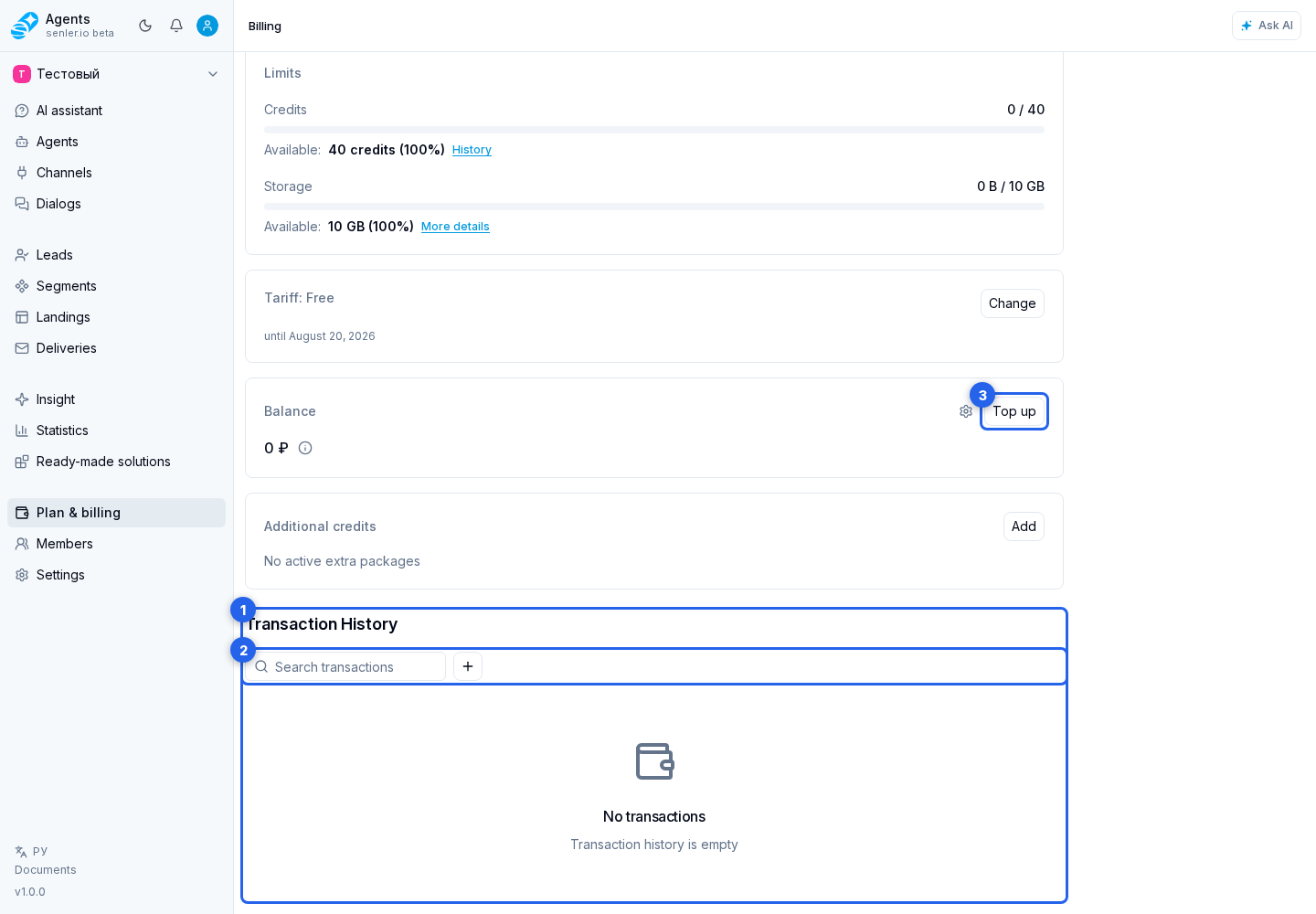
- billing page
- transaction list
- transaction filters
- transaction row
- balance top-up button
- balance top-up dialog
- top-up amount
- continue to payment button
- Billing item in the side menu