
MCP Servers for Agents
Summary
MCP servers connect external tools to an agent: CRM, knowledge base, API, or another service.
Connect MCP to an agent only when the tool is actually needed in answers or actions. The broader the toolset, the more important it is to clearly describe in the agent instruction when tools may be called and which data must not be sent outside.
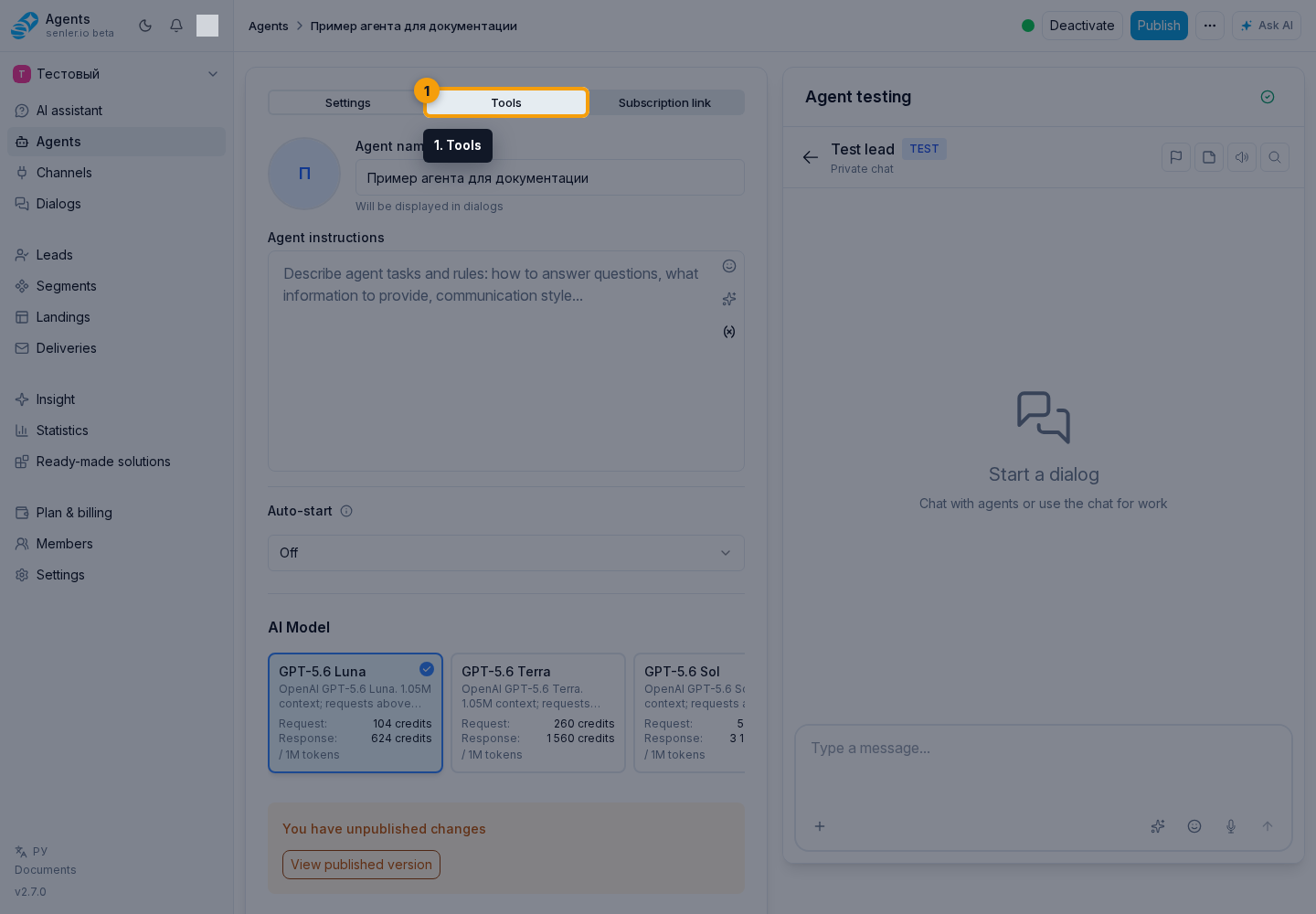
The agent form has an MCP block
- the MCP settings button opens the available server selection;
- if there are no servers, you must first create them in “Settings” -> “MCP Servers”;
- No servers disables external MCP tools for the agent;
- Use a server list connects a prepared list through the server list field;
- Select servers individually connects specific servers directly;
- direct servers become available as specific tools;
- a set of servers works as a common gateway to several tools.
For individual selection, click Add server, find a server with search, choose the required servers, and click Apply. You can remove a selected server from the agent. Confirm the setup with Save.
After changing MCP settings, save the draft, test a scenario with the tool, and publish a new agent version. Real channels use the published version, not an unsaved draft.
If the tool is not used
- check whether the MCP server is selected in the agent settings;
- check if a new version of the agent has been published;
- check if the agent is active;
- check the authorization of the MCP server;
- check “History” for tool start, completion, and error events.
Where this is in the interface
Main elements in this section:
- agent settings form
- agent list
- Agents item in the side menu