
Dialog List, Search, and Filters
Open Dialogs in the project side menu. The section page shows the conversation list on the left; after you choose a dialog, its chat opens on the right.
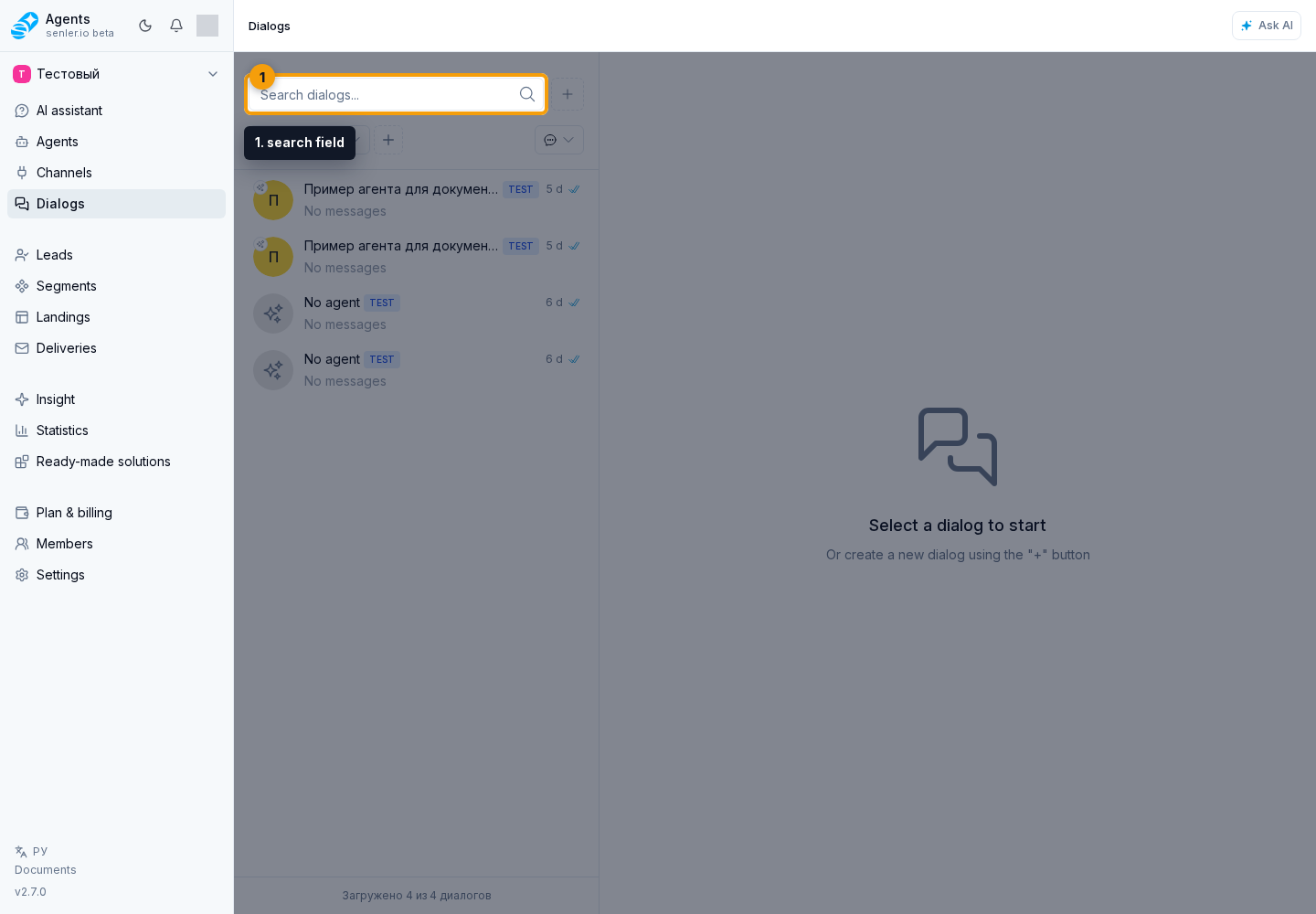
Search
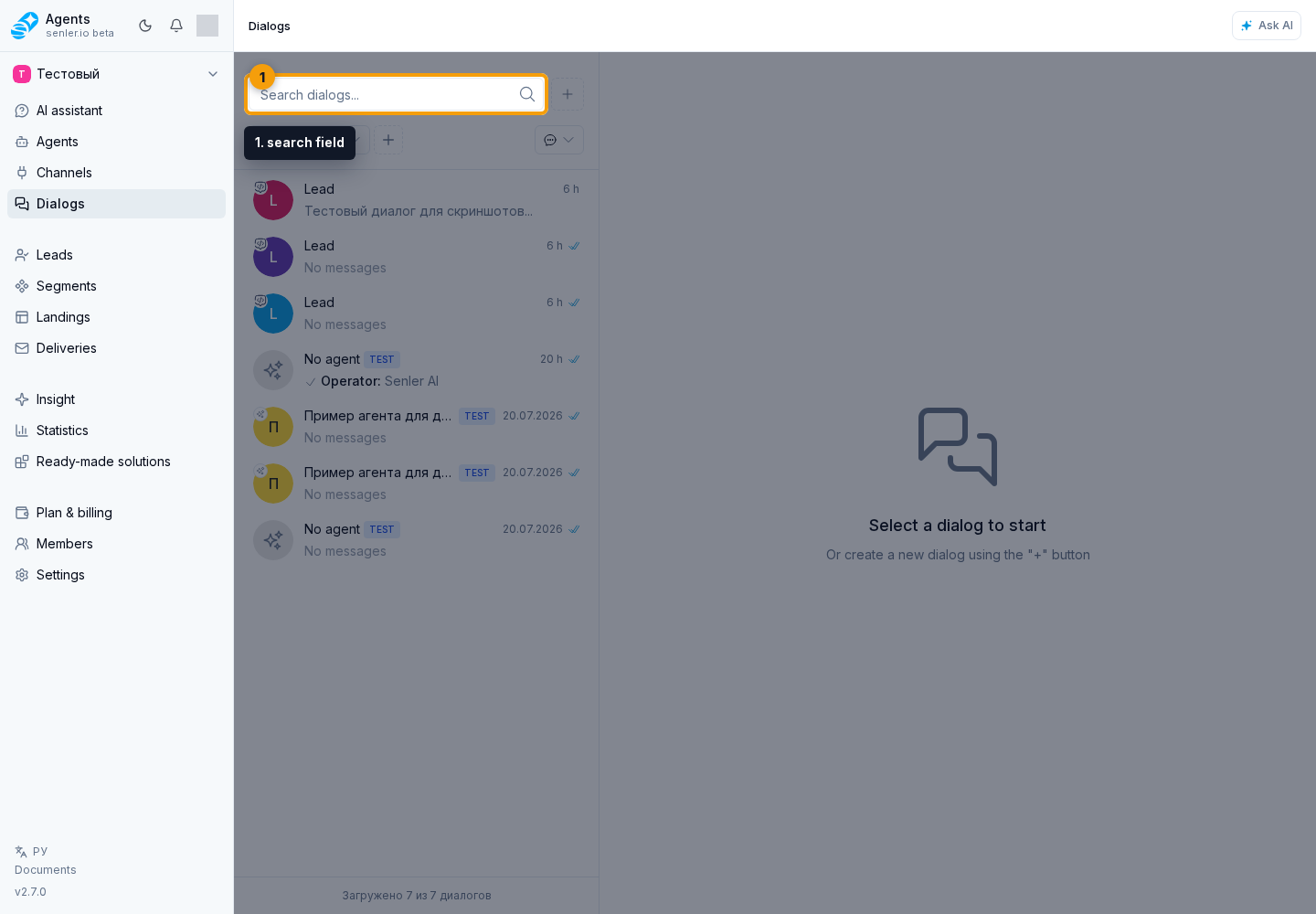
You can search the conversation list by messages and conversation data. If a search query is enabled, the sorting and some of the normal list logic may differ from the non-search mode: the best matches are shown first.
If the search string looks like a 24-character dialog ID, with or without the # prefix, the cabinet additionally searches for the exact dialog by this ID. If the found dialog matches the current filters and channel, it is raised to the top of the results. This is useful when the user sends a dialog ID from an event, log, or link.
Enter a name, ID, or message fragment in the search field. Search runs as you type; the magnifying-glass button runs it again, and the close button clears the field.
Search Inside The Selected Dialog
Search in the chat header works inside the already selected dialog, not across the whole list. Click the search button in the chat header and enter a query in the chat search field. Results show the sender, time, and a message fragment. If the found fragment can be highlighted, the cabinet shows the highlight.
Clicking a result moves the chat to the found event. If the event is not loaded in the current history slice, the cabinet loads the history slice around the found message and then scrolls to it. The close button in the results panel closes search.
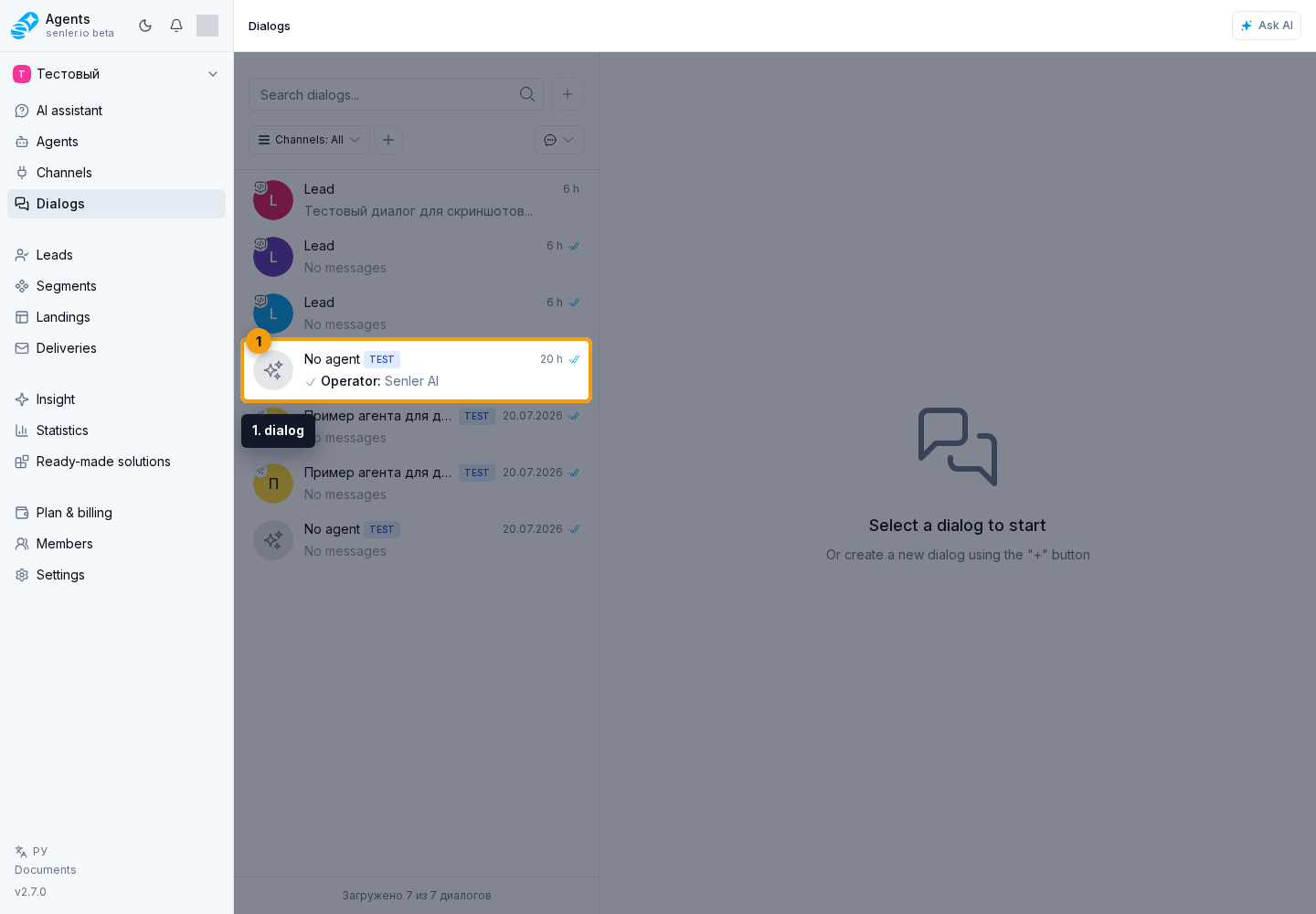
Sorting
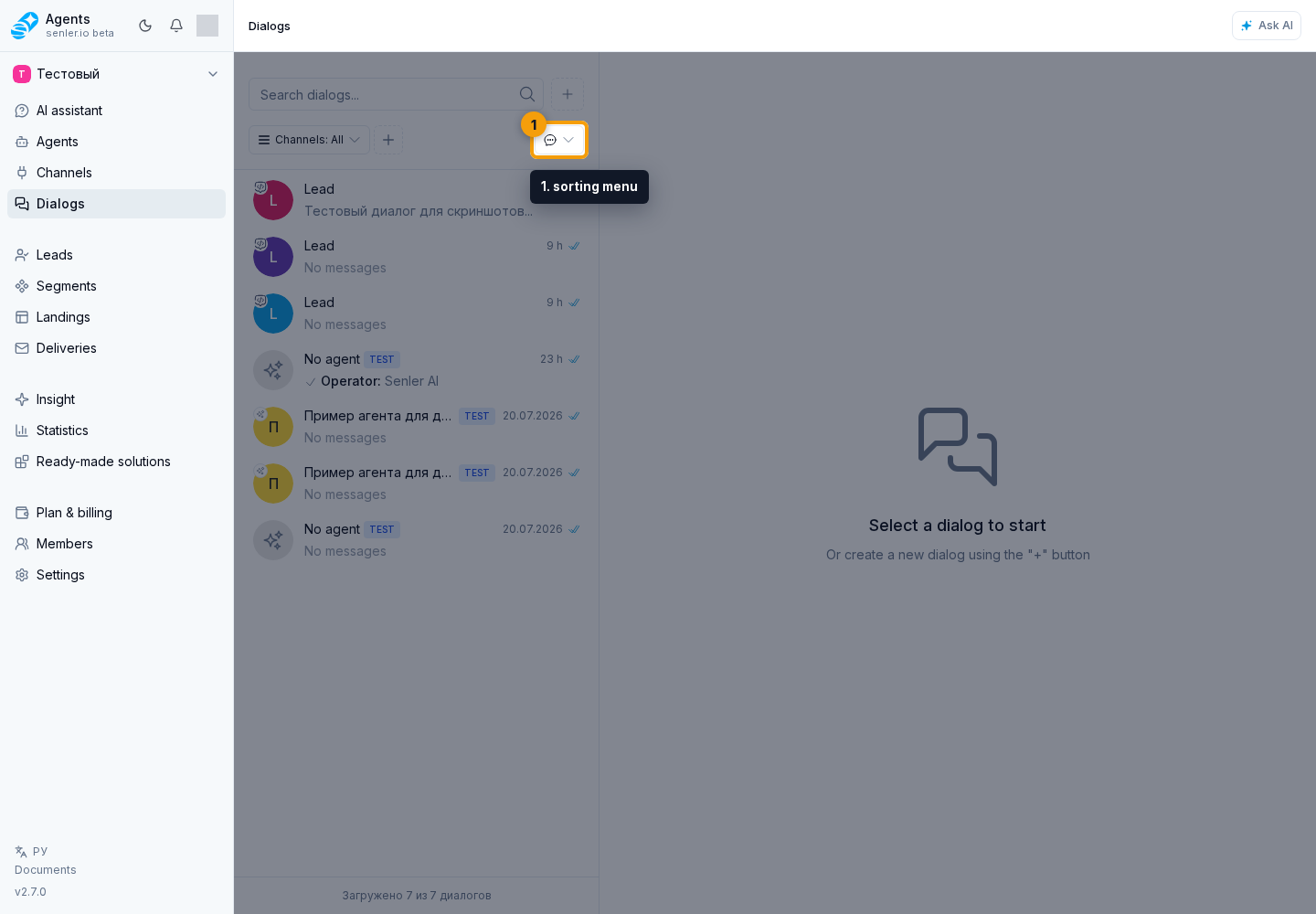
Without an active text search, open the sorting menu and choose:
- "Support queue" - dialogs where the customer is currently waiting for an operator reply come first;
- "Last message date" - conversations with the newest message come first;
- "Last event date" - dialogs with the newest event come first, including changes without a new message.
"Support queue" does not hide other dialogs; it changes their order. Among dialogs where the customer is waiting, SLA breaches come first, followed by SLA warnings, higher priority, and longer waiting time. Dialogs that already have a reply remain lower in the list. By default, the list is sorted by last message date.
When search is active, sorting is hidden because search results are ranked by match to the query.
How to search for a dialog
- Open the Dialogs section.
- Enter a name, ID, part of a message, or another known detail in the search field.
- If there are too many results, add a suitable filter.
- If there are no results, clear search, reset active filters, and check the selected channel.
The assistant or a link can open one dialog directly or a filtered list of found dialogs. The AI summary can also open a saved selection of conversations that support the selected topic. If there are several matches, show a list instead of a separate button for each dialog.
Filters
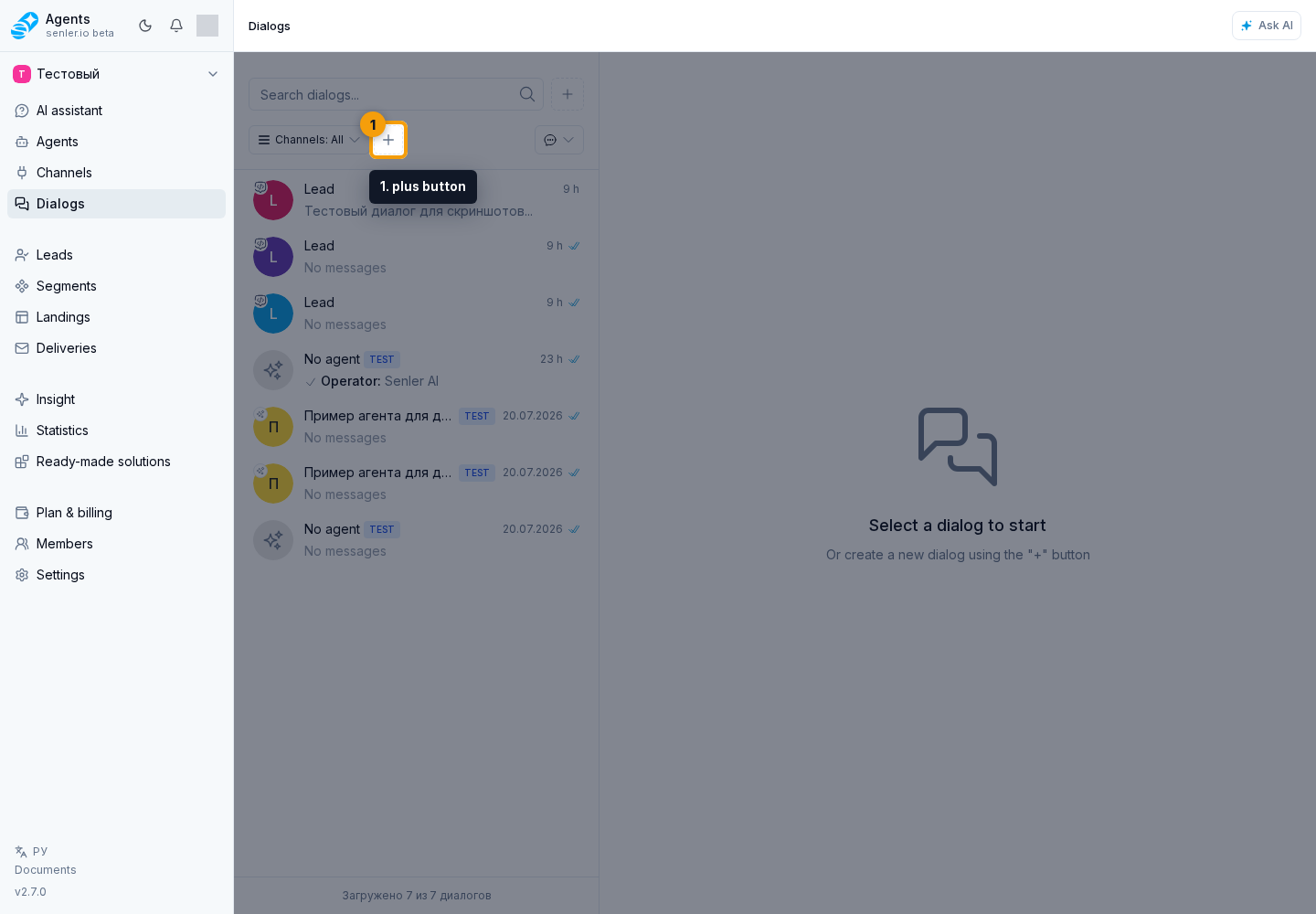
Filters are in the panel above the list. Click the plus button to open a menu where you can choose a filter type. The added filter appears in the same panel; open it, choose a value, and apply it.
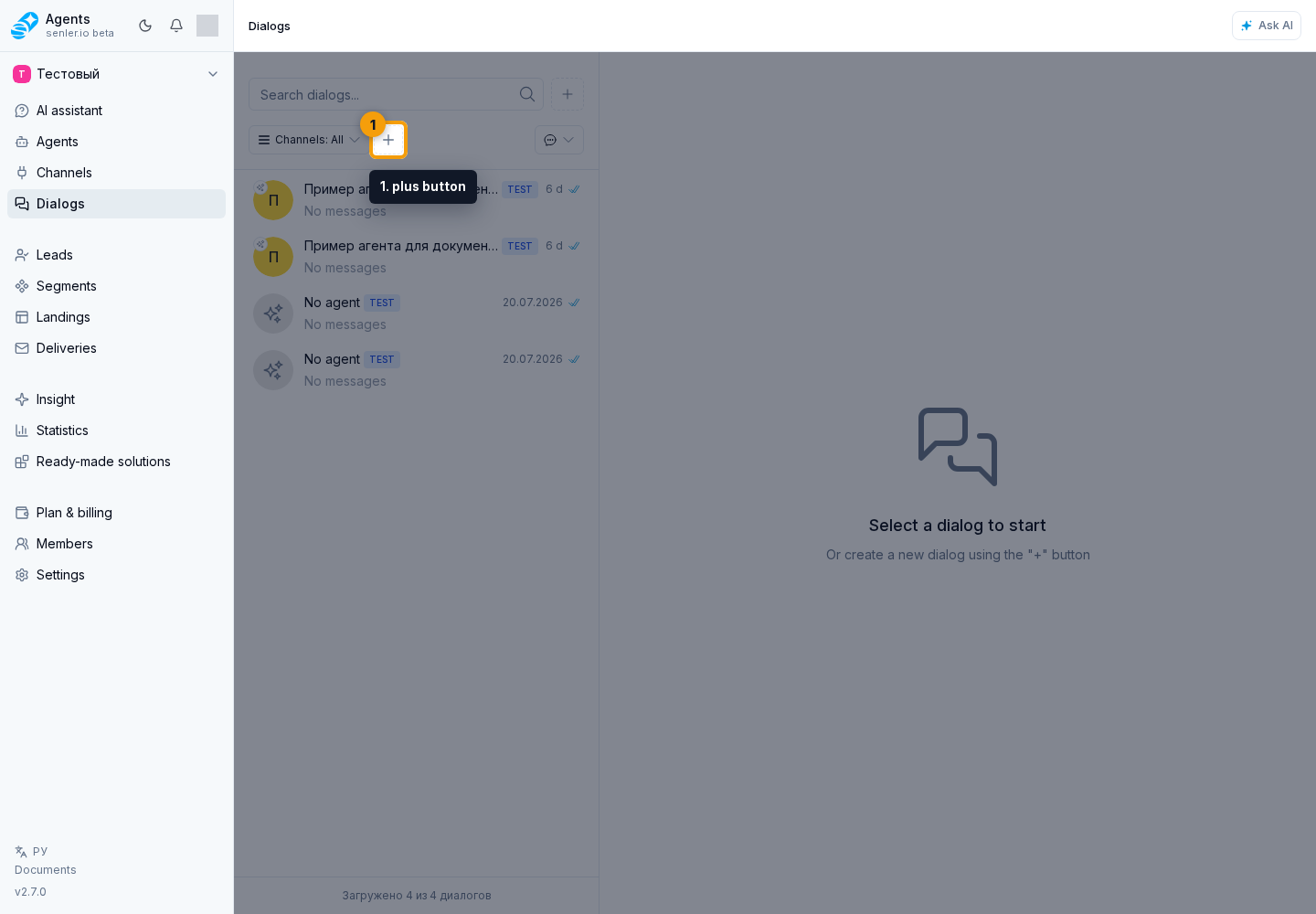
Available filters:
- status: Active, Completed, Archived;
- "Unanswered" filter: All, Answered, Unanswered;
- dialog type: Private, Group, Comments;
- sound status: all, muted, not muted;
- spam status: all, spam, not_spam;
- agent;
- lead;
- dialogs opened by a link or assistant action;
- presence of a lead;
- presence of events;
- tags;
- period.
Regular filters are saved locally in the browser. Temporary constraints used to open the list from a link, an assistant action, or the AI summary are shown as separate chips above the list.
The AI summary selection chip means that only conversations supporting the selected topic are currently shown. Click the chip with the close icon to remove only this selection and return to the full list. The active filters reset button clears both regular filters and these temporary constraints; it appears only when at least one filter is active.
If the required dialog is missing, first remove the temporary selection or reset filters, then check the selected channel.
Each filter follows the same pattern: open it, choose a value, and apply.
- Status: select the required status and apply.
- Dialog type: choose private, group, or comments and apply.
- Agent: find it through search, select the required agent, and apply.
- Lead: use search, select the required lead, and apply.
- Has lead: choose an option and apply.
- Has events: choose an option and apply.
- Sound: choose a state and apply.
- Spam: choose a state and apply.
- Tags: enter a tag in the field, add it, remove it when necessary, and apply.
- Period: choose a preset or enter the from and to dates, then apply.
This is how status selection looks:
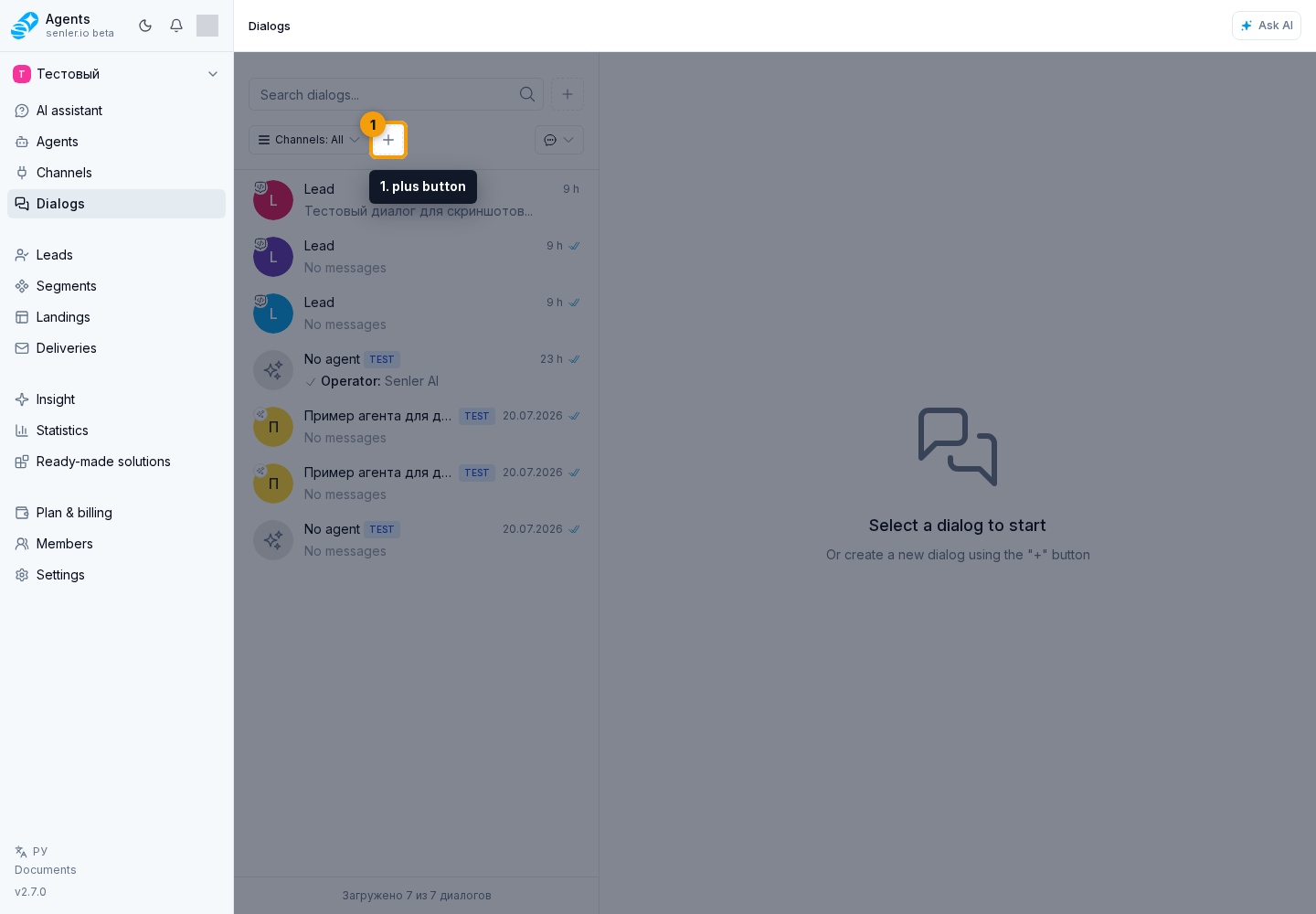
The agent filter provides search and selection from the project's agents:
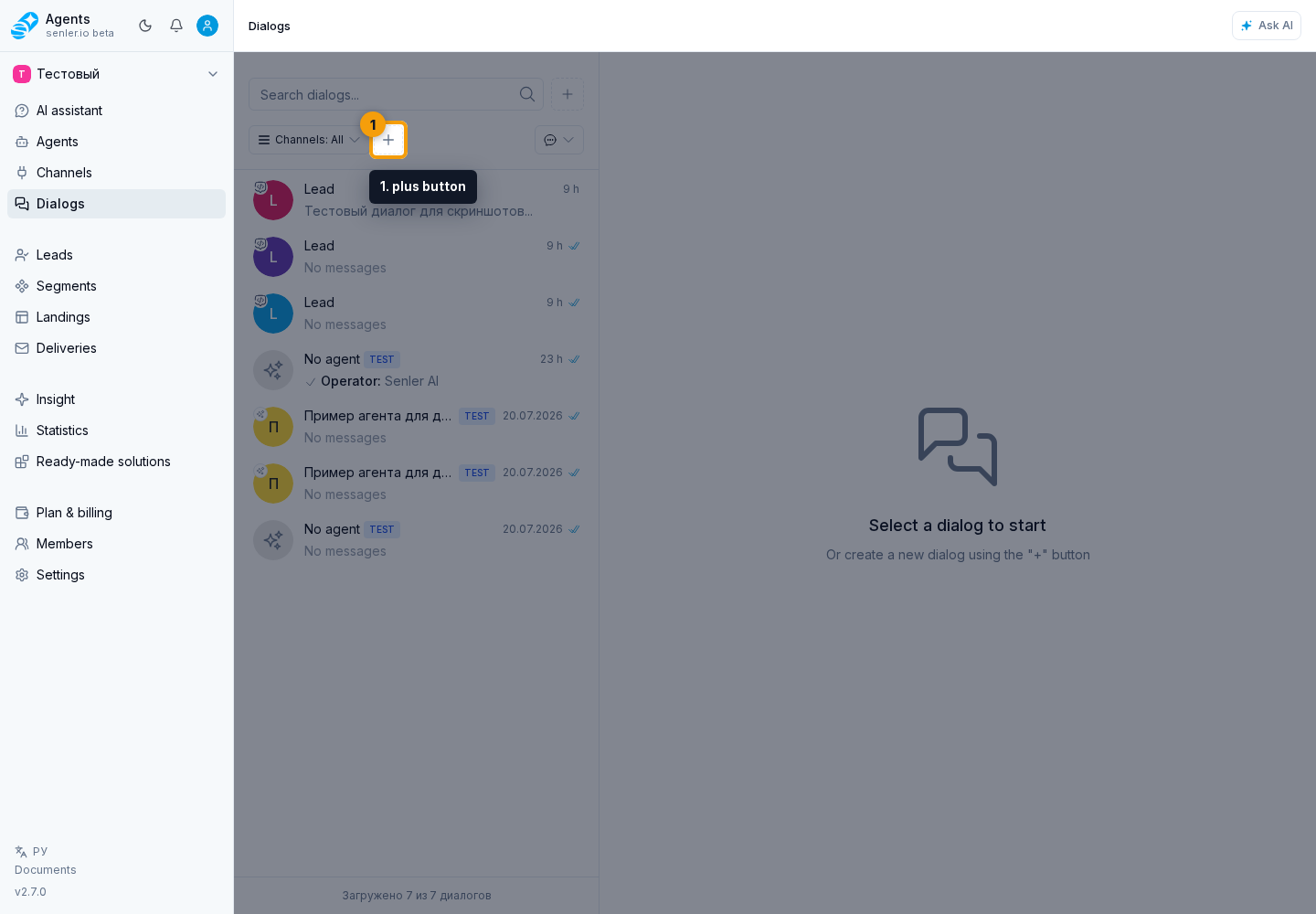
In the period filter, you can use a preset range or two exact dates:
How to view unanswered dialogs
- Open the section through the Dialogs item in the project side menu.
- Click the plus button for adding a filter.
- In the dropdown, choose the "Unanswered" filter.
- In the active filter, open the "Unanswered" filter, choose the "Unanswered" value, and click Apply.
Use the visible interface label: "Unanswered".
Selected dialog behavior
If a dialog is already open, the list may temporarily keep it at the top even when the current filters or a realtime update would remove it from the normal result set. This prevents the selected dialog from disappearing while the operator is working. With active text search, the list behaves as search results and does not manually pin the selected dialog.
Channel filter
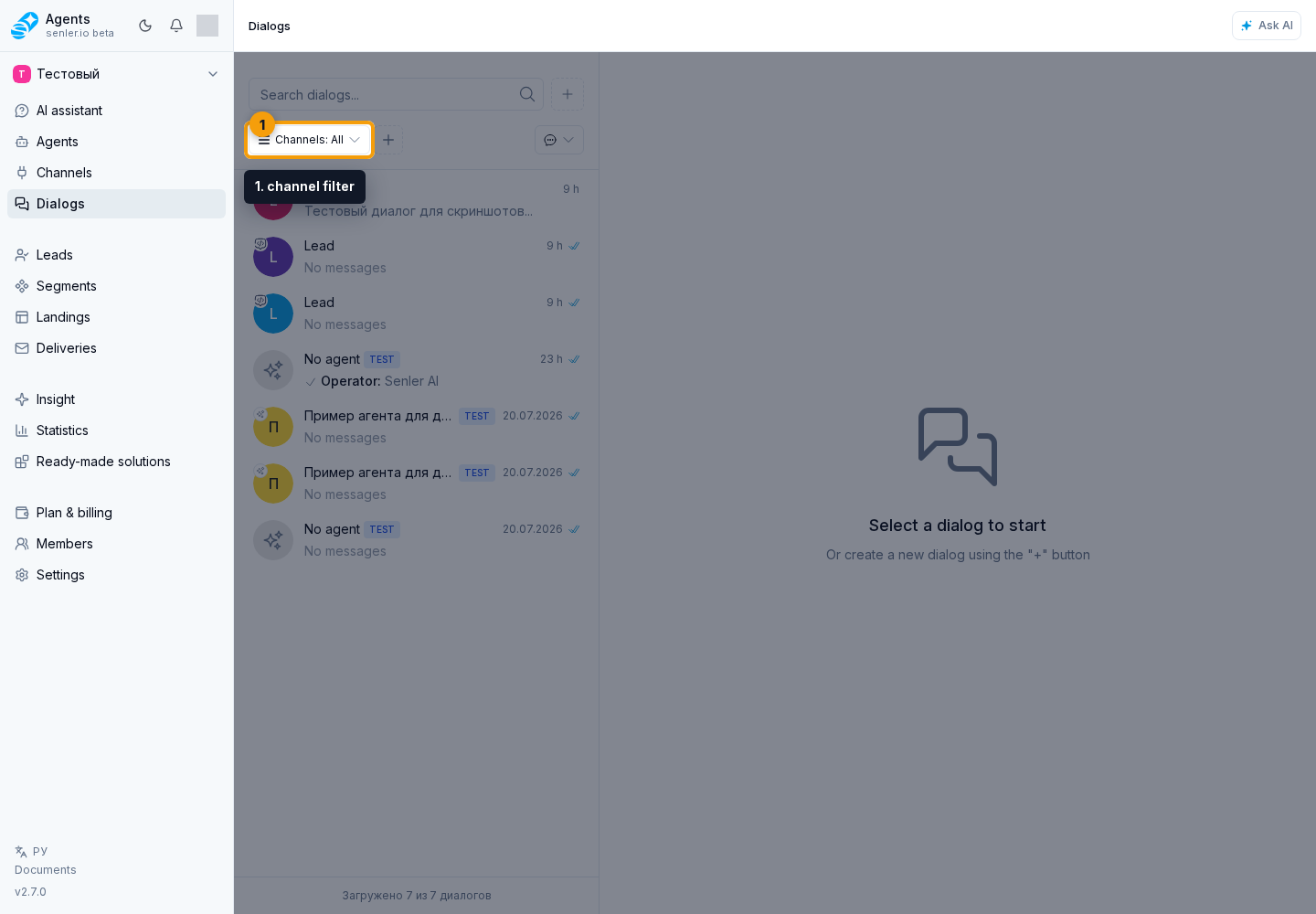
If several channels are connected, open the channel filter. You can use search, select a channel type, mark a specific channel or dialogs without a channel, and then apply the filter. An incorrect channel selection is a common reason why messages from another messenger are not visible.
Diagnostics
If the required dialog is not available:
- Reset the search string.
- Remove the AI summary selection chip if it is shown.
- Click the filters reset button. If the button is not visible, there are no active filters.
- Check the selected channel.
- Check whether the Completed or Archived filter is selected.
- Check spam status.
- Find the lead in the "Leads" section and open related dialogs.
- If the list failed to load, click Retry.
- Check the channel’s event history if there are no messages in your account at all.