
Invitations
Summary
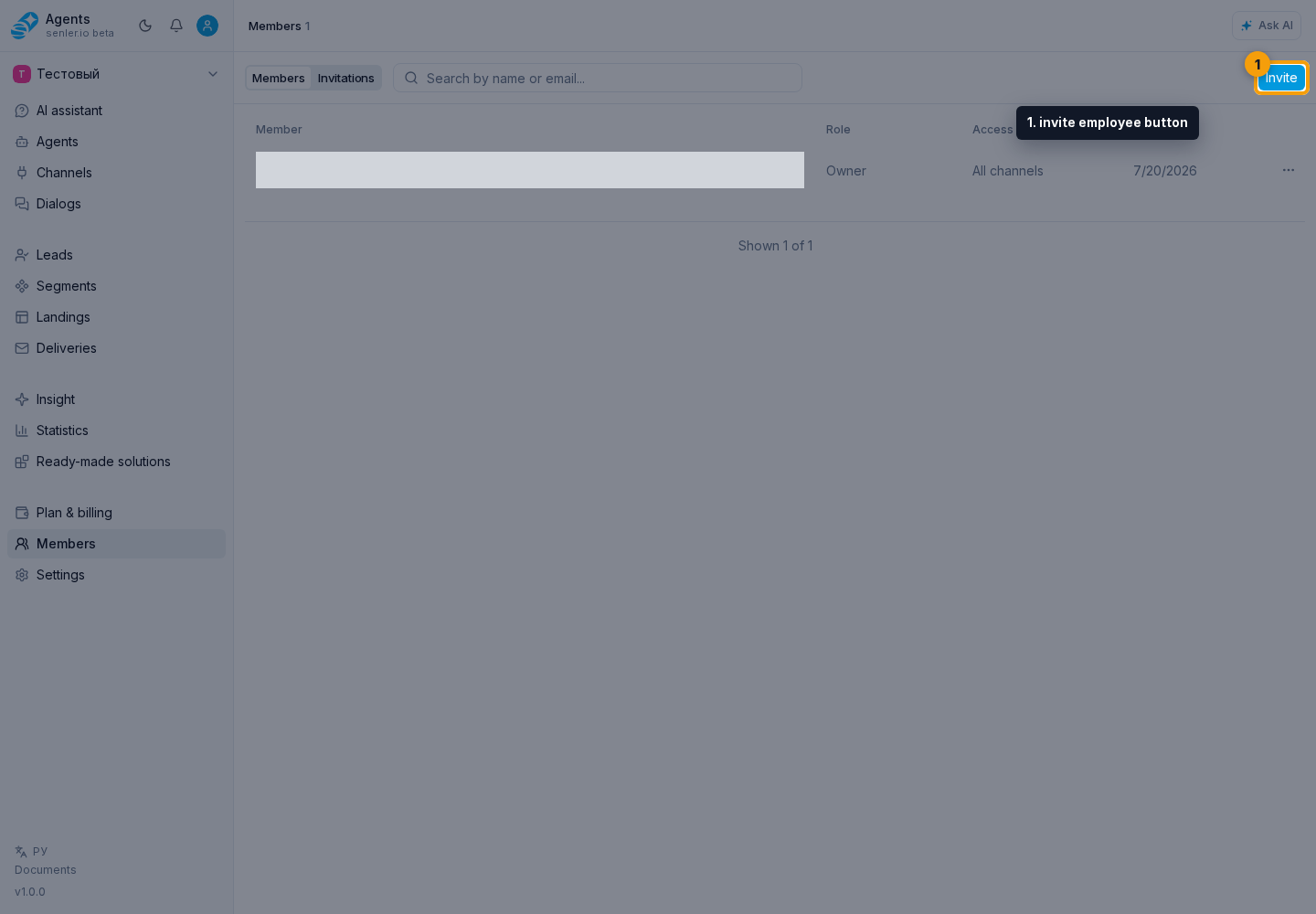
Path: Members in the project side menu, the Invitations tab, or the Invite button.
You can invite
- by user ID;
- by email.
Invitation form
- invite member form;
- By ID or By email tab;
- User ID field or email field;
- choice of role;
- send invitation.
Roles in the invitation
- Administrator;
- Member;
- Viewer.
The invitation form offers only Administrator, Member, and Viewer. Project ownership cannot be transferred through a regular invitation.
After creation
- if Senler AI creates an invitation link, you can copy it with the copy button;
- the invitation appears in the invitations tab.
Invitation statuses
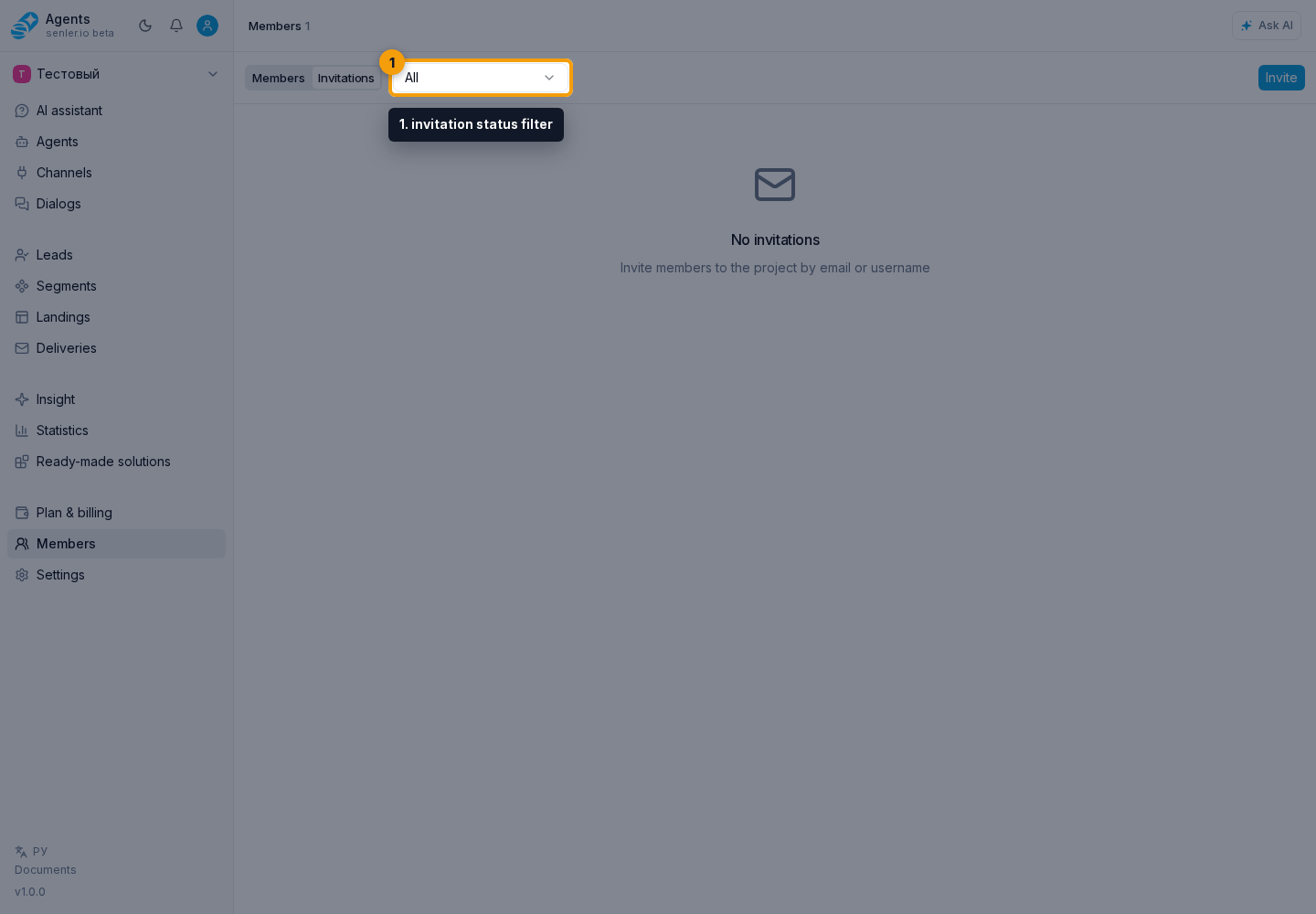
- invitation status filter;
- All;
- Pending;
- Accepted;
- Declined;
- Expired;
- Cancelled.
Actions
- view invitations in a table with the user, role, status, inviter, creation date and actions;
- filter invitations by status;
- resend if available;
- cancel with confirmation.
Invitation acceptance page
- shows the inviter;
- project;
- role;
- accept or reject buttons;
- a clear page state: expired, already processed, unavailable, not found, or still loading.
If the invitation doesn't work
- check the expiration date;
- check if it has already been accepted/rejected;
- check whether the user is logged in with the same account;
- if necessary, send a new invitation.
Where this is in the interface
Main elements in this section:
- Members item in the project side menu
- project members page
- invite employee button
- member invitation form
- invite by ID method
- user ID field
- send invitation button
- project invitation acceptance page
- developer app invitation acceptance page