
Lead Variable Definitions
Summary
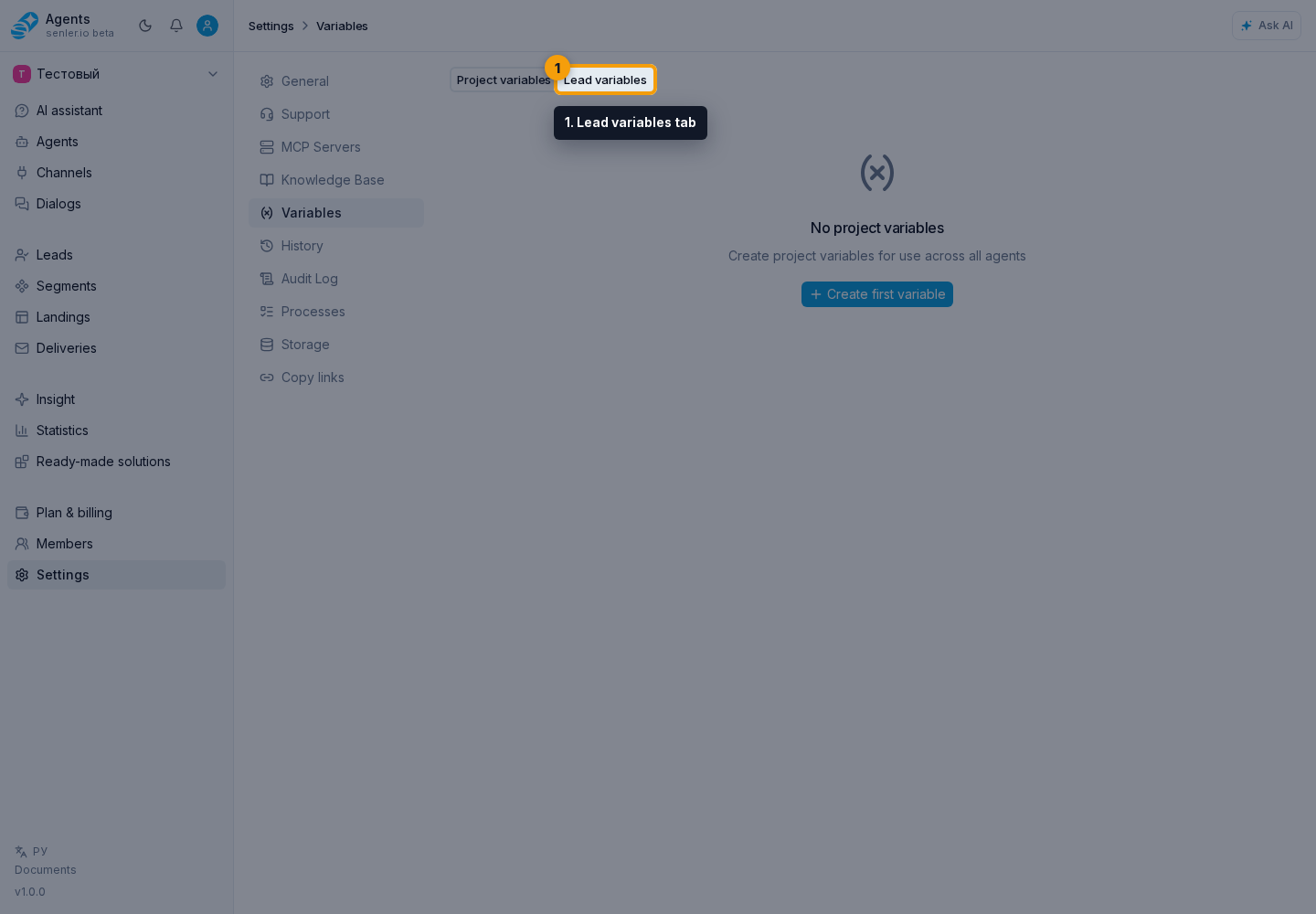
Path: "Settings" -> "Variables" -> Lead variables. Defining a lead variable specifies what data can be stored for each customer.
Creation and editing happen in the definition form.
Form
Open the Lead variables tab and click Add. In the opened definition form, fill in:
- name;
- type;
- description;
- AI instruction;
- then click Save or close the form without changes with Cancel.
Examples
city- client city;interest- product of interest;budget- budget;next_contact_at- date of next contact;order_status- order status.
If the agent needs to populate variables
- create a definition;
- enable lead variables in the agent;
- give the right to write;
- write in the agent instructions what values to extract and when to update.
Copying And Sharing
A lead variable definition can be moved to another project through copying or an access link. The definition settings are transferred, not values of specific leads.
Removing a definition
In the existing definition form, click Delete, then confirm through the delete button in the confirmation dialog.
Removal is dangerous when the variable is used in scripts: dependent data or automation may stop working.
Where this is in the interface
Main elements in this section:
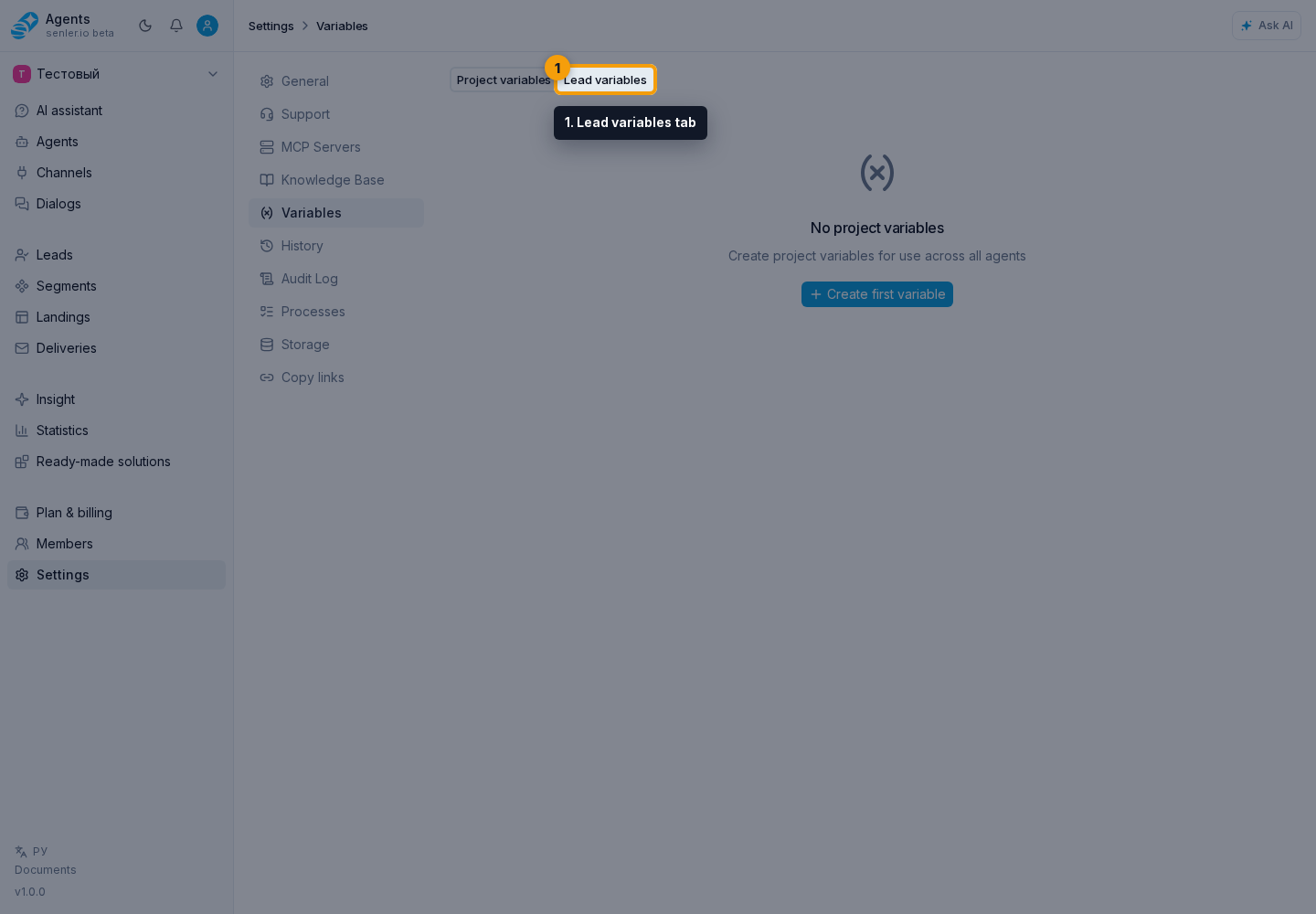
- project settings page
- Settings item in the side menu
- project variables page
- Project variables tab
- Lead variables tab
- create variable
- variable definition in the list or form
- definition copy button
- definition share button