
Lead Variables
Summary
The variables block in the lead card stores values for this customer: city, budget, order status, or other project data. A definition sets the variable name and type for the whole project, while a value belongs to one lead.
Adding a variable
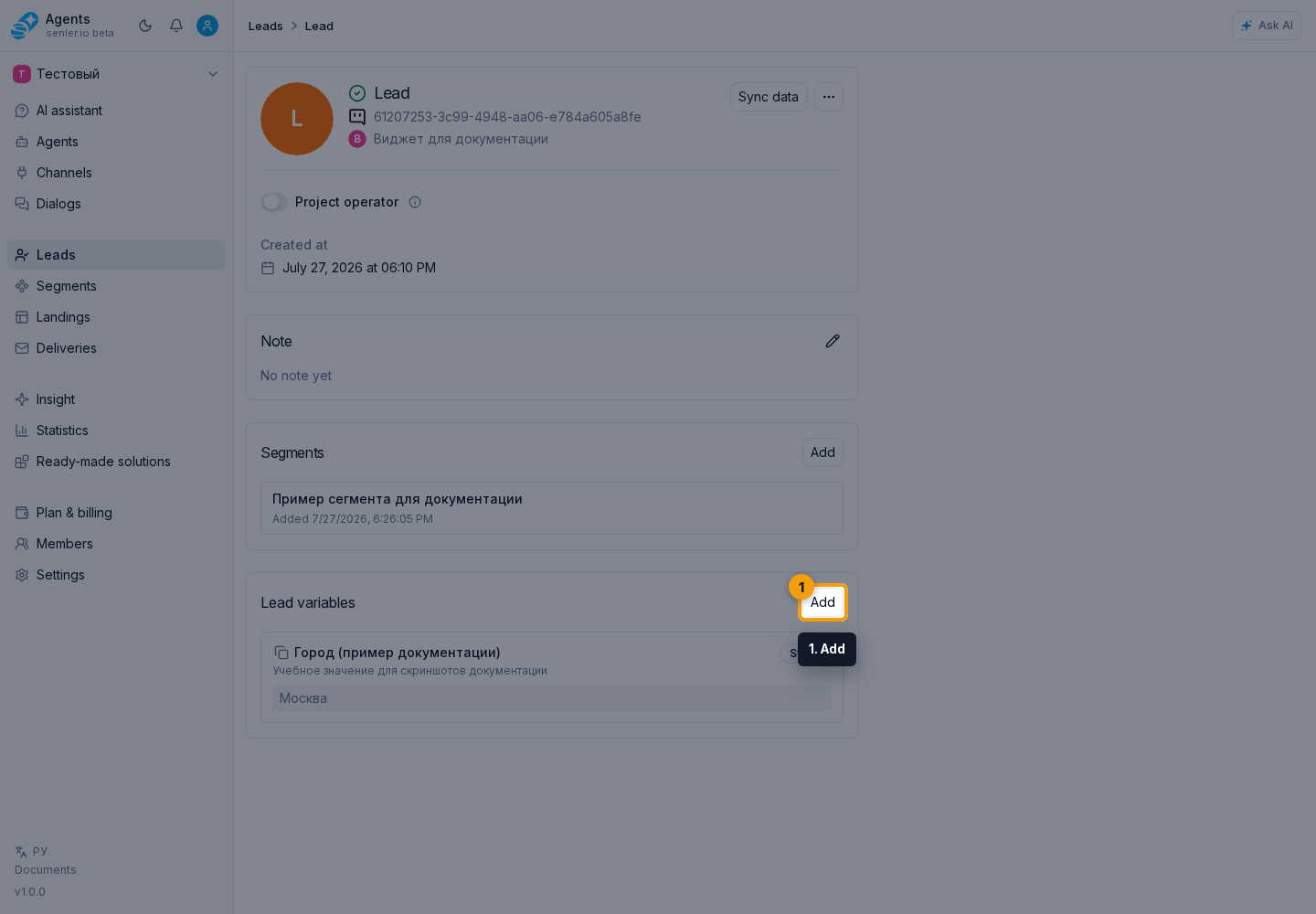
- Click Add.
- In the add dialog, open the definition list and choose the required variable.
- Fill in the value. The field depends on the variable type.
- Click Add.
The list contains only definitions for which this lead does not yet have a value.
Creating a variable definition
If there is no suitable definition, click Create new variable. Enter the name, type, description, and an AI instruction when needed. After creation, the cabinet returns to adding a value and selects the new variable automatically.
Creating a definition requires a separate permission. All project definitions are also available under Settings -> Variables -> Lead variables.
Editing a variable
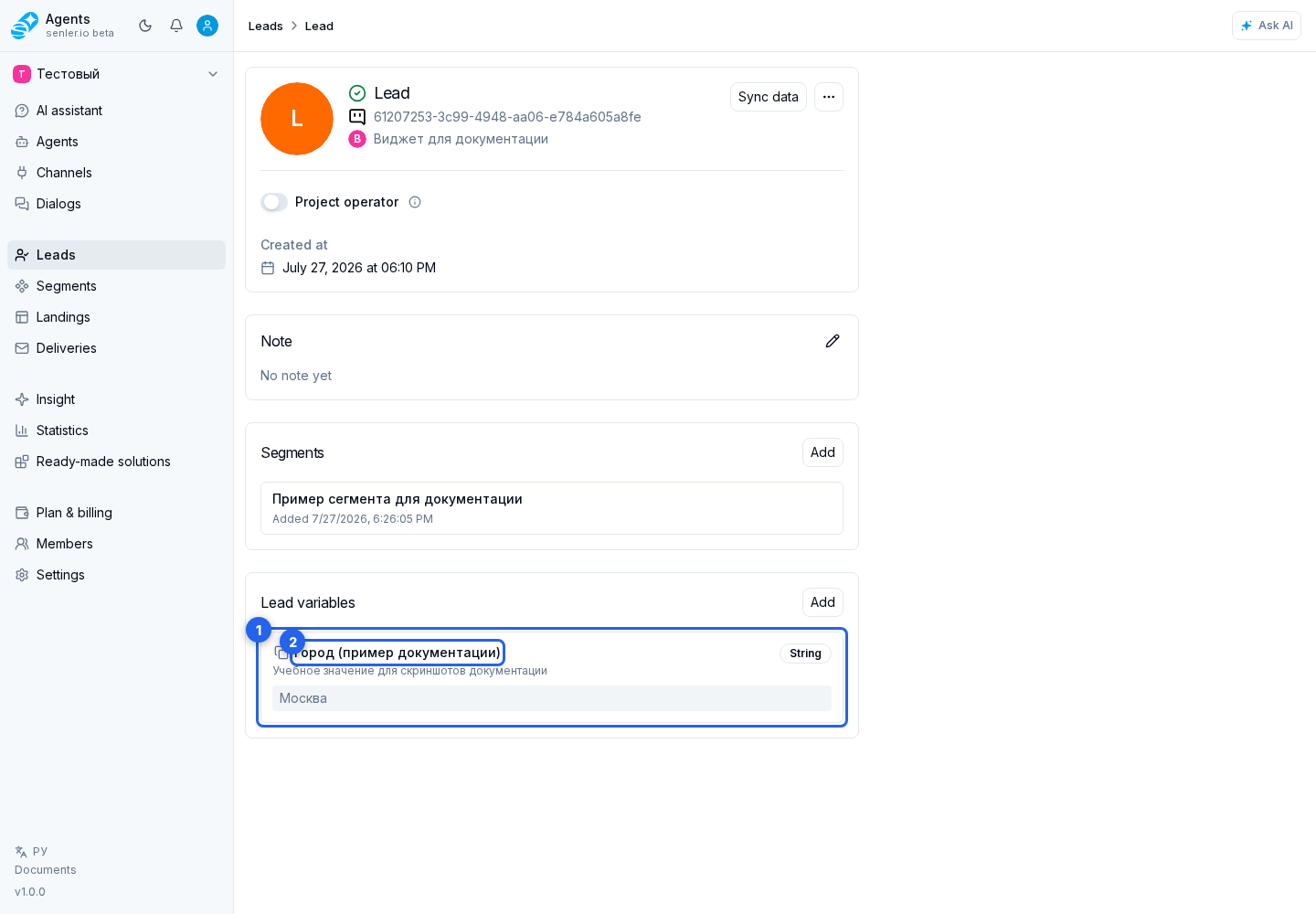
Find the variable in the list and open it through its name. In the edit dialog, change the value and click Save.
Delete removes the value only from the current lead card. The definition remains in the project and is available for other leads. Use the copy action next to a variable to get its name.
Value types
- String - plain text;
- Number - a numeric value;
- Boolean -
trueorfalse; - Array - a list of separate values; use add item and remove item;
- Object and JSON - structured data in JSON format;
- Date - a calendar date.
Validation
- an array does not require manually entered JSON: the cabinet builds it from separate rows;
- Object and JSON must contain valid JSON, for example
{"status":"paid"}; - a Boolean value is selected as
trueorfalse; - the number field must contain a number, and the date field must contain a valid date.
If the variable should be filled by the agent
- the definition of the variable must exist;
- you need to enable lead variables in the agent;
- give write access;
- in the agent instructions, explicitly indicate when and how to update the variable.
Where this is in the interface
Main elements in this section:
- Dialogs section
- Dialogs item in the project side menu
- lead list
- Leads item in the side menu
- variables in the lead card
- add a value
- definition selection
- value field
- saved lead variable
- open editing
- save a value
- delete the current lead's value