
Channels Overview
Channels
Open the section through the Channels item in the side menu. Channel - connection to an external platform. Messages are received through the channel and replies are sent.
In the channel list you can
- search for channels;
- add a new channel;
- open channel settings;
- configure the table view: channel ID, type, and status;
- open the external channel page when the platform has a public link;
- copy the channel ID when the ID column is enabled;
- refresh data for a specific channel;
- see channel status;
- pause or unpause a channel;
- move a channel to another project;
- delete a channel if you have permission;
- run background channel updates;
- view the update history with the number of updated, missed and erroneous elements.
Adding a channel
- Open the section through the Channels item in the side menu.
- Click Add channel.
- On the Add channel page, select the connection platform. After selection, a separate URL of the form
/channels/add/:platformopens. - Fill out the connection form.
- After success, go to the channel settings.
- Check token, webhook, synchronization and status.
If the platform card is not available
- explain that the platform may be under development or may not be available for the current project/tariff;
- another available channel can be selected;
- do not bypass the restriction manually.
Where this is in the interface
Main elements in this section:
- add channel page
- connection platform selection button
- connection platform selection block
- add channel button
- channel row in the table
- channel list
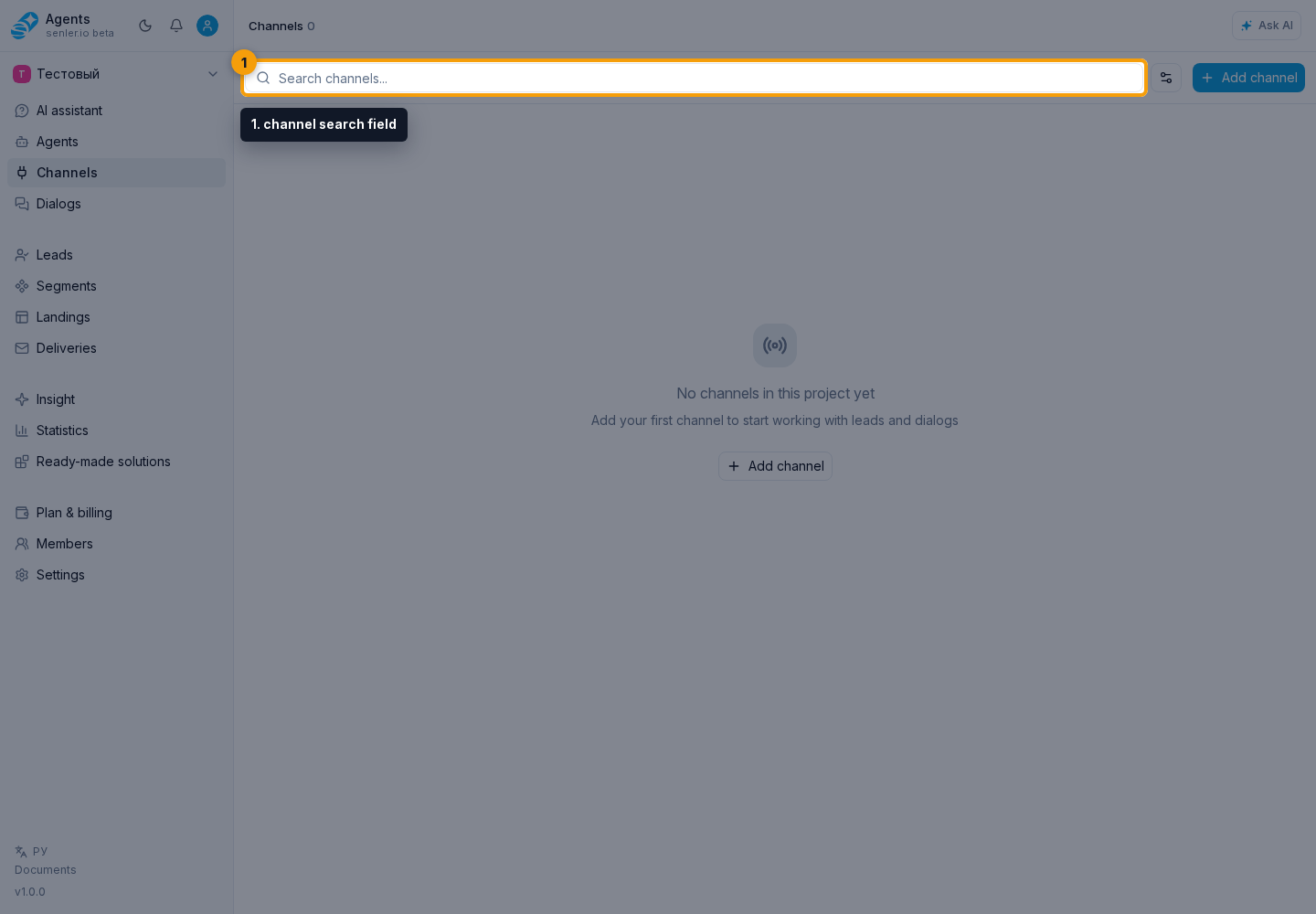
- channel search field
- channel table settings button
- channel settings page
- Channels item in the side menu