
Dialog Attachments
Add a File
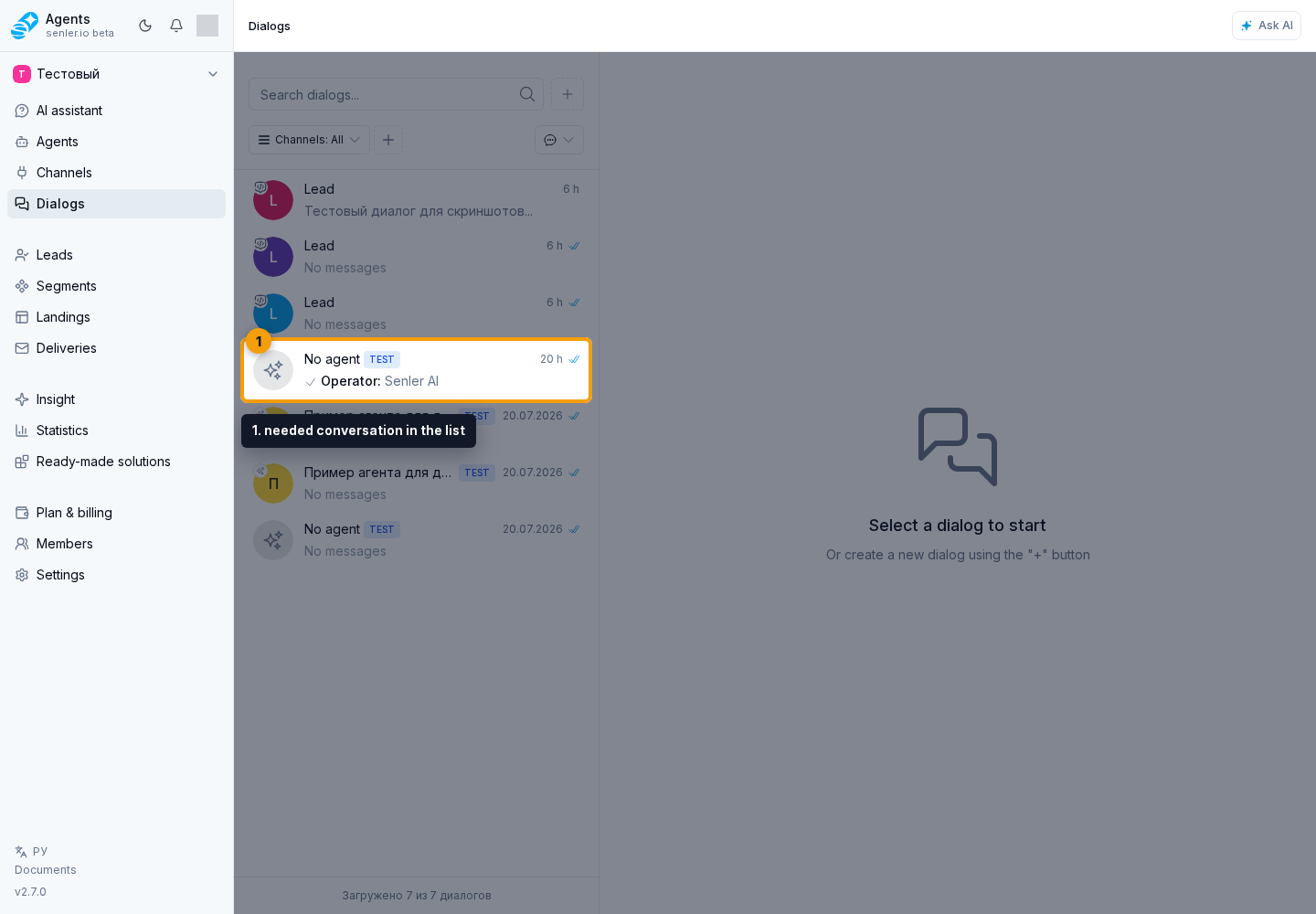
Open Dialogs in the project side menu and choose the needed conversation in the list. At the bottom of the conversation, select the plus button to add a file. Before sending, remove an unwanted file with the close button in its preview.
The history can display photos, images, stickers, videos, documents, voice messages, and other attachments. For some attachments, the cabinet shows AI speech recognition or image analysis.
Several photos or videos sent as one Telegram album appear as one message with multiple attachments. Individual parts may have no caption without preventing assembly. Senler AI assembles the album before processing begins. The album does not create a separate run for each file; the final number of replies depends on the assigned agents and their dialog roles.
To record a message, use voice messages. File preparation states and errors are covered in the attachment delivery guide.
Download and links
For attachments where the source file is available, the cabinet may show the "Download" action. It creates a short-lived link to the file from storage or the platform and opens it without exposing platform tokens.
While the file copy is being saved to Senler storage, the attachment may already open through a safe platform link. After preparation is complete, the cabinet uses the stored copy; the user does not need to switch the source manually.
The attachment context menu may also show "Open by link" if the event has an external platform link. Photos and stickers usually open through the viewer rather than through a separate menu download.
If an attachment is still processing or has failed but the platform already provided an external link, the card itself may show a separate open-by-link button. It opens the original item on the platform without waiting for the file to upload to Senler.
Loading from history and protection from cleanup
If a file has not been saved, is waiting for space, failed to load, or its copy was removed by automatic cleanup, click the Load into storage icon in its card. It is available when the service has a file source and project rules allow loading it. If the platform source is no longer available, this button cannot restore the file.
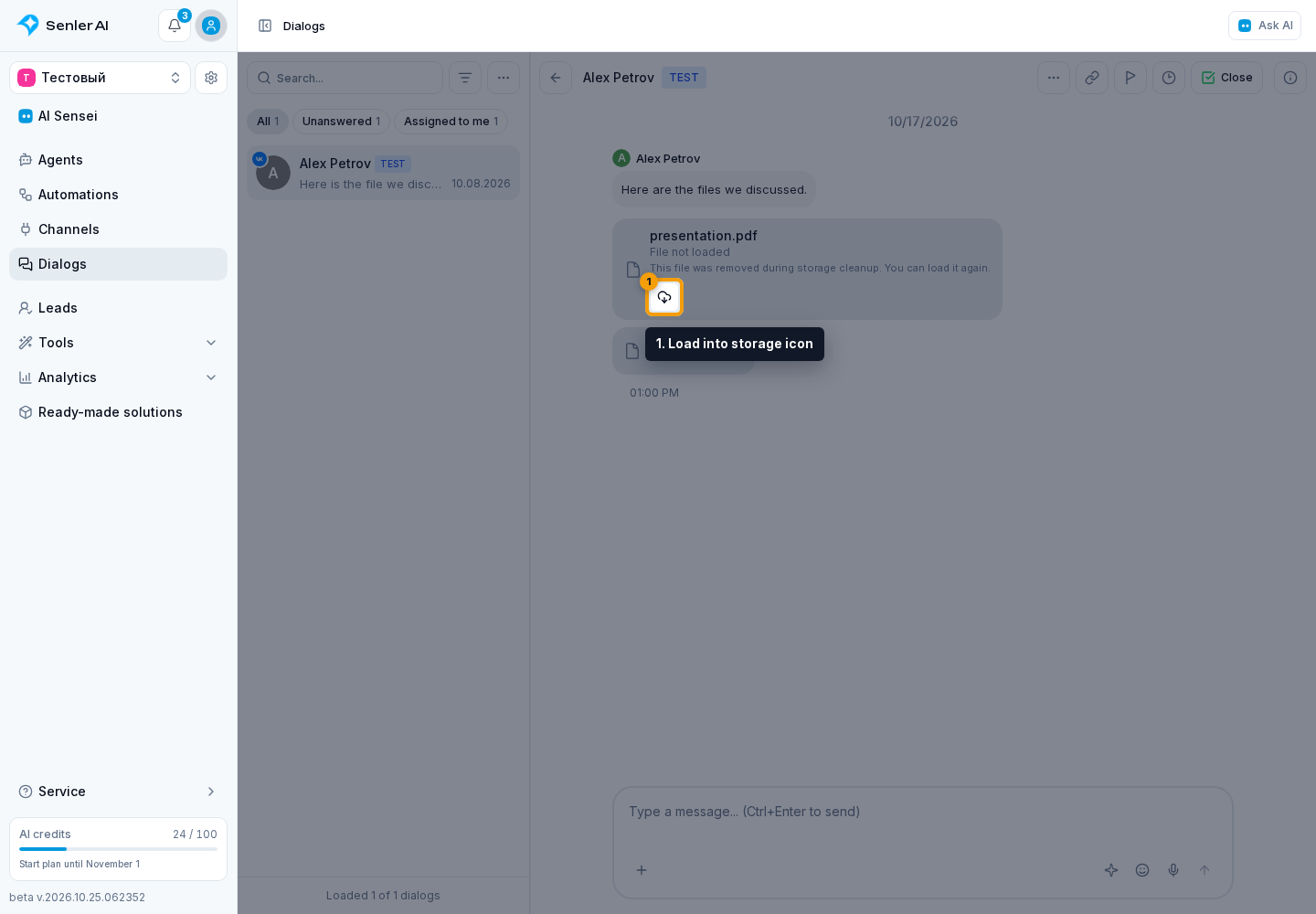
After a successful upload, the file is protected from automatic cleanup for 24 hours. The original message date and existing recognition results stay unchanged. Loading with this button still respects the total limit, message attachment share, and attachment size limit.
Configure the message attachment share and automatic cleanup in project storage.
Documents in agent replies
The agent can read a document from the current conversation when its contents are needed for a reply. For example, a client attaches a PDF and asks: “Find the return conditions in this document”, or sends an XLSX file and asks to compare prices. When there are multiple files, identify the intended one by name.
Reading supports TXT, Markdown, PDFs with a text layer, DOCX, CSV, and XLSX. The file must fit both the 5 MiB limit and the project's limit. This method does not recognize scans without a text layer. The file is not automatically added to the knowledge base; see agent document reading for details and text limits.
Image recognition
If image recognition is enabled for the agent and the channel sent an image, a lightbulb button may appear on the photo. It opens a dialog with the AI image description and detected tags.
Recognition statuses:
- analyzing - the description is still being prepared;
- completed - you can open the description and tags if they exist;
- error - the image could not be recognized.
The button appears only after the completed status when the result contains description text or detected objects. While processing or after a failure, the corresponding status is shown instead; if recognition was not started for the attachment, there is no separate block.
Structured attachments
Besides files, the dialog can display structured attachments: contact, location, checklist, forwarded message, and platform cards.
A contact shows available fields from the platform: name, phone, username, user ID, profile link, vCard, and bot flag if the platform provided this data. If a MAX contact has no username or public link, the cabinet cannot open the profile and shows only the available identifiers.
To pass a client's contact to a manager, use a lead contact in the Message step or allow the agent to attach contacts. The outgoing format depends on the platform: it may be a MAX card or a name with a link rather than a file.
A location shows title, address, and coordinates. If coordinates are available, the card can be opened on the map, and from the dialog info panel you can open Yandex Maps.
Checklists and forwarded messages
A checklist shows items, completion progress and, if the platform provided this data, who completed an item and when. This helps the operator see task state without going to the source platform.
For forwarded messages, the cabinet shows a source preview if the source event is found in the project history. You can jump from the preview to the related message; if the source is not found or unavailable, only the information provided by the platform remains.
For forwarded VK messages, AI can account for the available forwarded text, attachment details, and nested forwards. This allows a response to use the forwarded content even when the user adds no new text. If VK did not provide the text, AI knows only that a forward exists and should ask for details instead of inventing its content.
Forwarding the Original Attachment
If a file cannot be downloaded conveniently, use forwarding to yourself.