
Account Notifications
Summary
Open account settings and select Notifications. On the notifications page, you can manage delivery channels and configure events for each project separately.
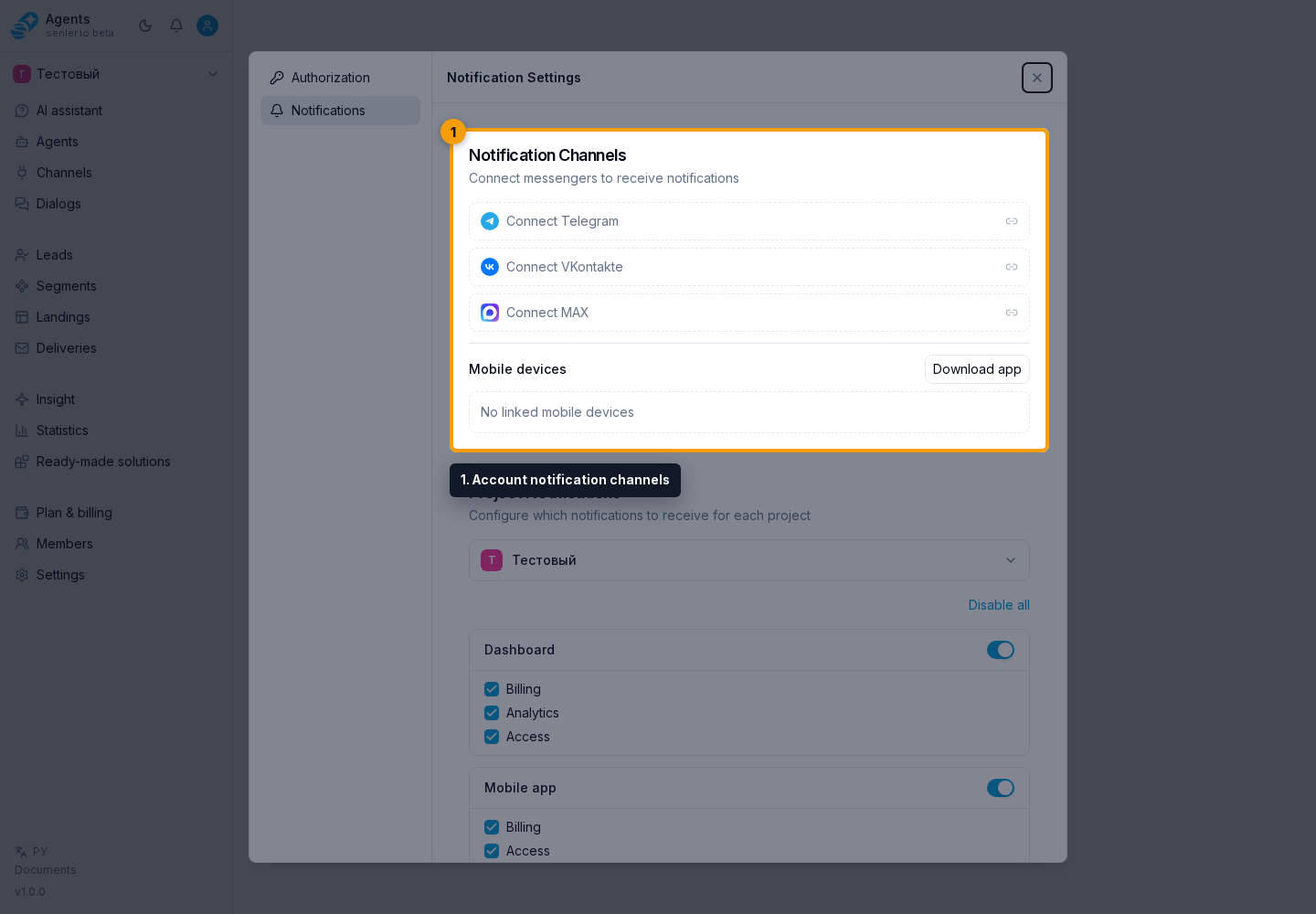
Consists of
- notification channels;
- notification settings for projects;
- the notification list under the bell icon;
- screen notifications for the open project;
- list of mobile devices, if the application is connected.
Notification channels
Account notification channels determine where Senler AI can send events:
- Cabinet receives notifications inside Senler AI;
- Telegram, VK, and MAX receive notifications after the bot is connected and confirmed;
- the mobile app receives push notifications on linked devices.
Cabinet and Mobile app are always available in project settings. Telegram, VK, and MAX appear there only after the corresponding notification channel is connected successfully.
States
- connected;
- disabled;
- awaits confirmation;
- waiting for subscription;
- open the link again;
- go to the bot;
- cancel.
VK
- may require allowing messages from the community;
- may require you to link your VK account.
Mobile
- the section shows linked devices and their latest activity;
- in the app download dialog, you can download the Android version or open the iPhone version in TestFlight;
- when the download dialog opens, the cabinet loads current Android details and requests the currently available iPhone build;
- if the iPhone version cannot be loaded, it shows Current version is temporarily unavailable, while Open TestFlight remains available;
- you can remove a device you no longer use;
- a new message push shows a preview of the latest message even when the dialog already has several unread messages;
- long preview text is shortened; when there is no text, the push shows a clear content type such as a poll, photo, file, voice message, sticker, or button text;
- the unread count and channel name are kept separately and do not replace the message text in the push;
- on Android, an individual notification opens the required dialog, while the group summary opens the project's dialog list; notifications are grouped by project and do not mix conversations from different projects;
- an expanded Android notification may show several recent messages from one dialog, while the project summary shows recent active dialogs and the total unread count;
- signing out unlinks the mobile device from the current account and stops its push notifications; after signing in again and granting notification permission, the app links the device again.
Screen notifications
The notification bell contains notifications from every project available to the account. They have read/unread status; you can open a specific notification, mark all as read, or load older items.
Screen notifications appear over the cabinet only for the open project. They may have an action button and can be closed with the dismiss action. If the bell or screen notifications do not update, check that you are signed in, verify the internet connection, and review browser extensions that may block site connections.
Notification Links
Notifications may open a specific cabinet section: the account notifications page, a project, billing, or a dialog. An invitation notification may have an Accept invitation action. A mobile push about a new message opens project dialogs and can select the required conversation immediately.
If a notification opens an empty screen or the wrong project, check the account, project access, dialog permissions, and whether the link is current. External project links use the public project identifier, not the project ID from the cabinet.
Project notification settings
In Project notifications, first open the project selector. You can use search and select the required project. Settings are independent: changing one project does not change the others.
For the selected project, you can enable or disable everything, enable individual channels, and select categories inside them. Click Save after making changes.
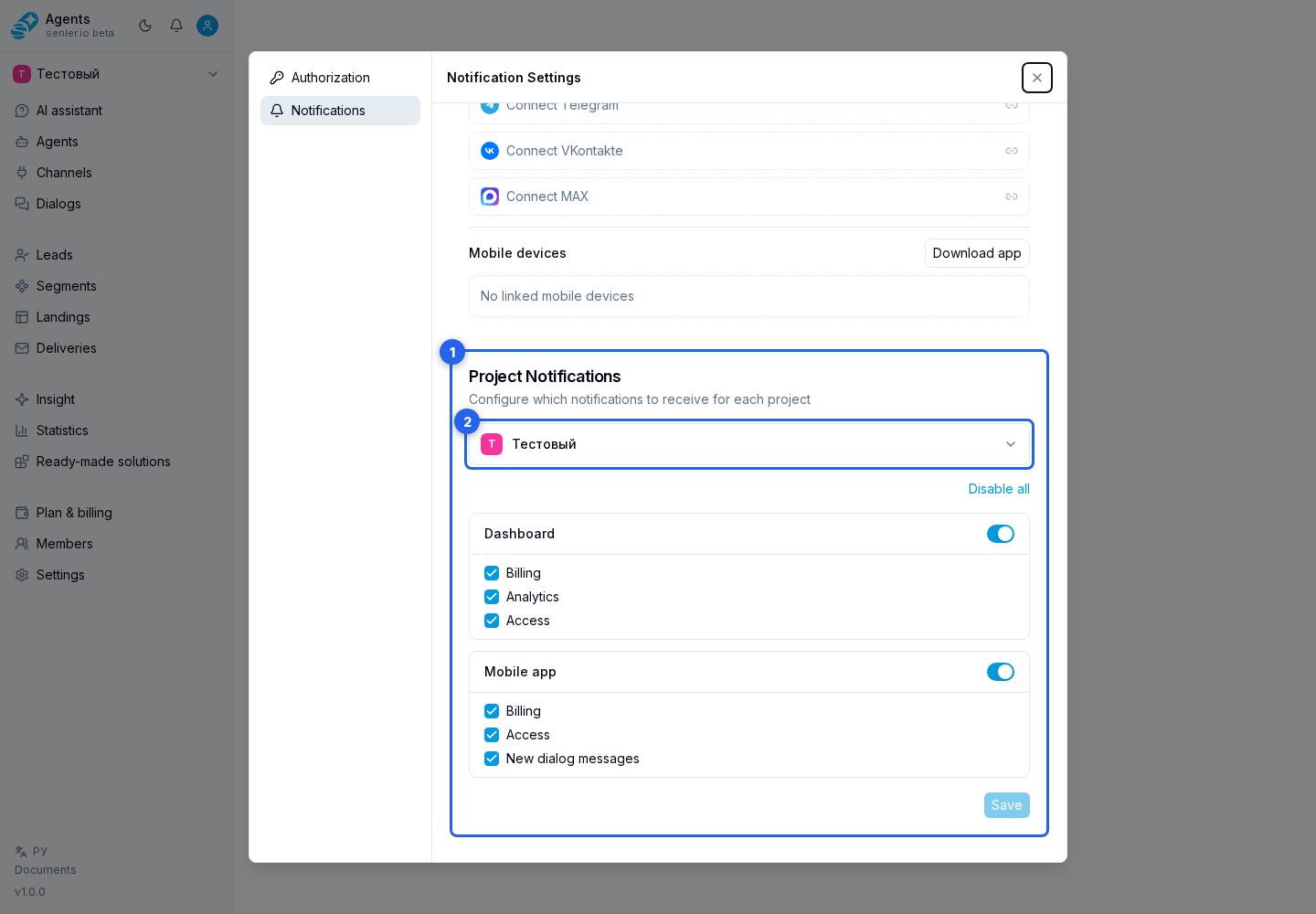
Categories
- for Cabinet: Billing, Analytics, and Access;
- for Telegram: Billing, Analytics, and Access;
- for VK: Billing, Analytics, and Access;
- for MAX: Billing, Analytics, and Access;
- for the Mobile app: Billing, Access, and New dialog messages.
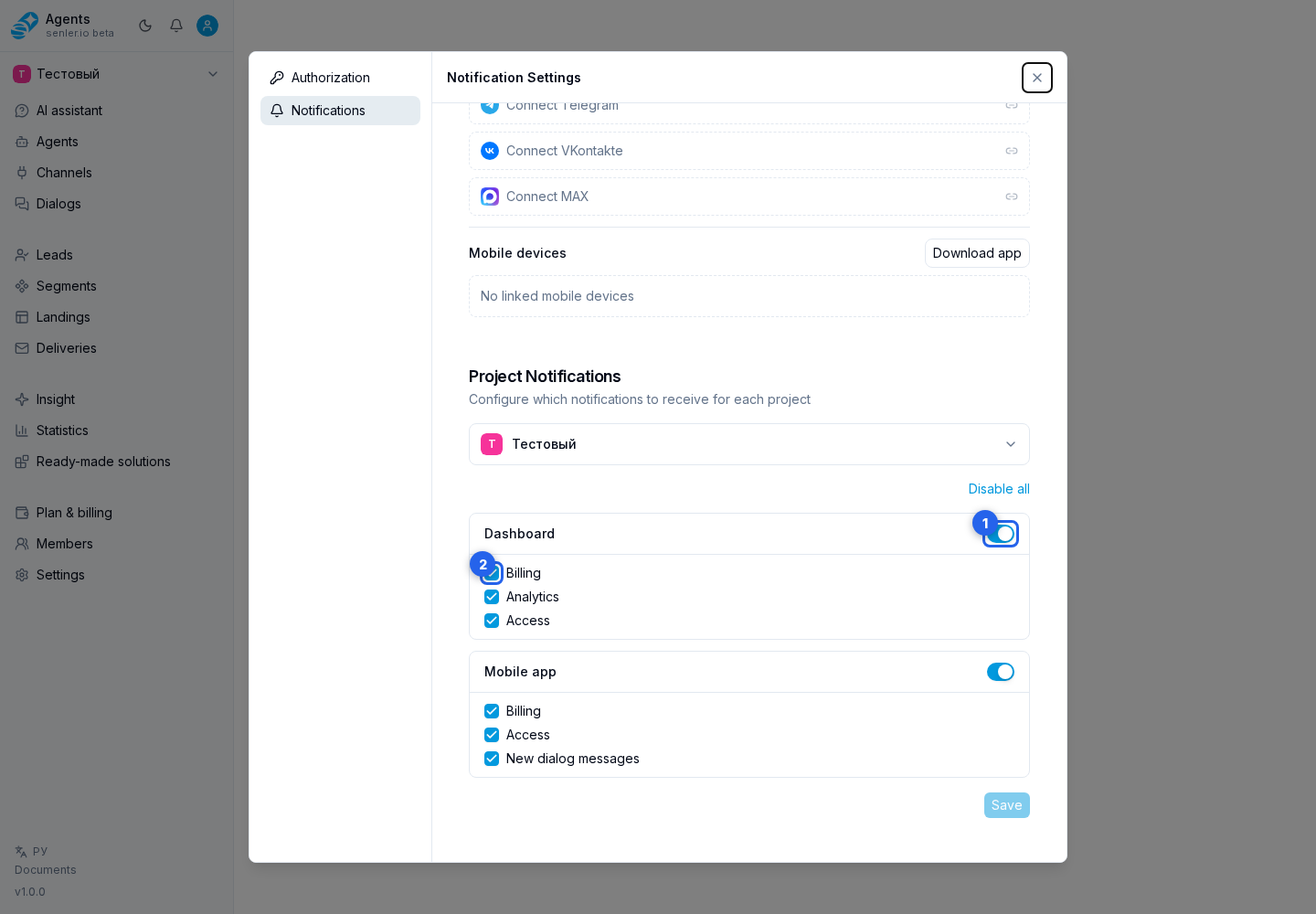
The channel switch controls all notifications for that channel, while the checkboxes below retain only selected categories. To receive pushes for new messages, enable the Mobile app and New dialog messages. Messenger project settings do not have this category.
When switching projects with unsaved changes
The cabinet shows an unsaved changes warning: you can stay and save, or switch projects and lose the changes.
If settings were changed in another tab, the cabinet loads the current state and asks you to review it, repeat your changes, and save again.
If notifications do not arrive
- check if the notification channel is connected;
- check if the subscription/bot is confirmed;
- check the settings of a specific project;
- check the selected categories;
- check if notifications are disabled in the messenger itself or on the device.
- for mobile pushes, check notification permission and whether the device appears in the list;
- if you edited settings in several tabs, refresh the data and save again.