
MCP Server Wizard
Summary
Path: "Settings" -> "MCP Servers" -> add.
The wizard can show
- search for templates;
- custom MCP server;
- recommended templates;
- all templates;
- empty state if nothing was found.
Pattern Form
- connection name;
- URL, if the template requires a custom URL;
- connection description;
- tags;
- authorization method.
Authorization methods in the template
- without authorization;
- OAuth MCP;
- manual headers;
- token/API key.
If the template requires manual fields
- the fields specified by the template are filled in;
- fields may be required;
- fields can be secret;
- the field can have a prefix.
For manual access, fill in the token or add a header with its name and value. An unnecessary header can be removed.
If the template uses generic API key
- the token is usually sent as
Authorization: Bearer; - do not send tokens to chat.
After creation via OAuth
- an authorization window may open;
- the user must complete authorization with the provider.
Finish with "Save", or leave without changes through "Cancel".
Where this is in the interface
Main elements in this section:
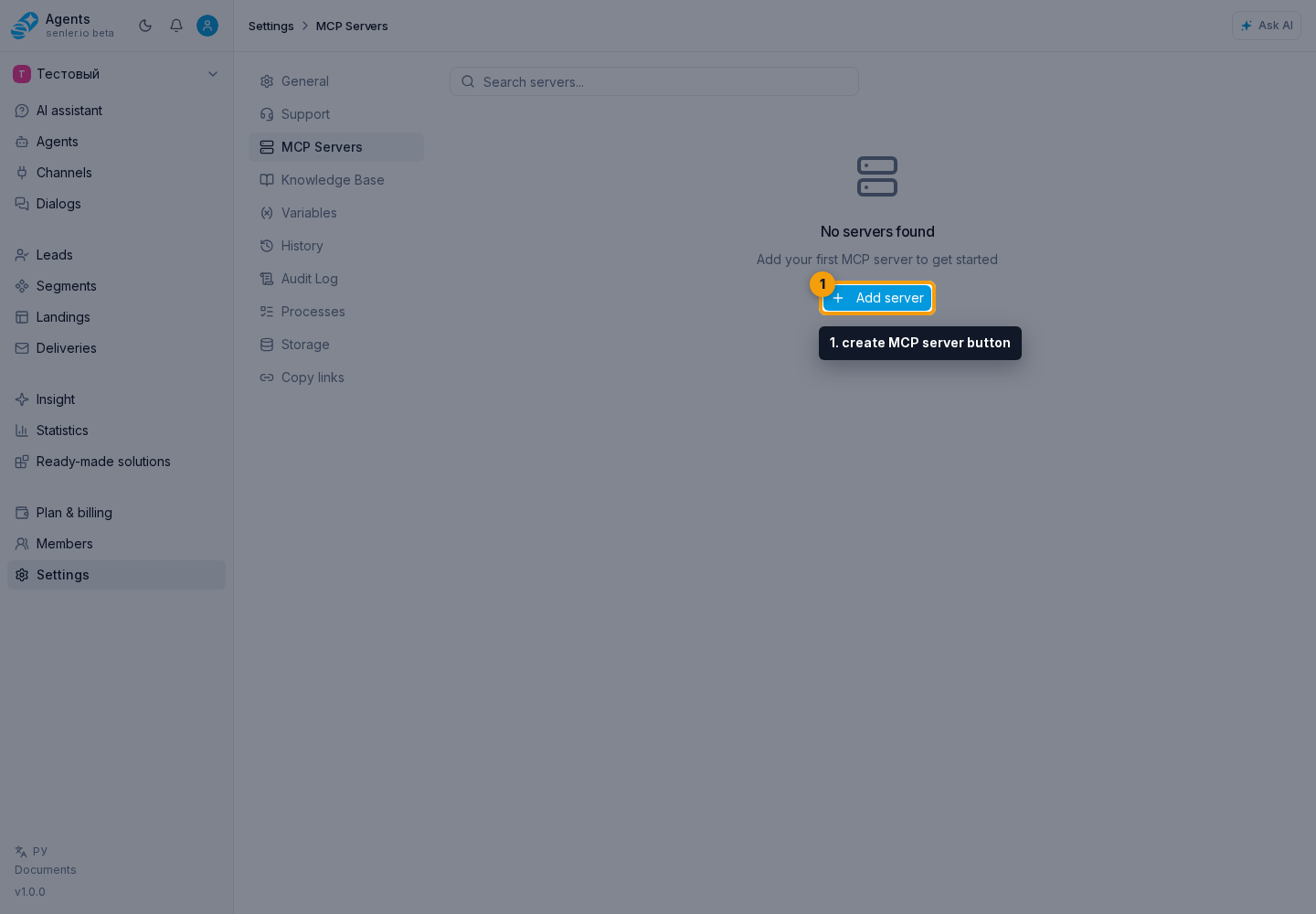
- project settings page
- Settings item in the side menu
- create MCP server button
- MCP server form
- connection name
- MCP server URL
- connection description
- connection tags