
Payment settings
Select the Settings gear button to the right of the project name, then select Plan & billing. On the billing page, select the payment settings button next to the balance. The payer details form opens.
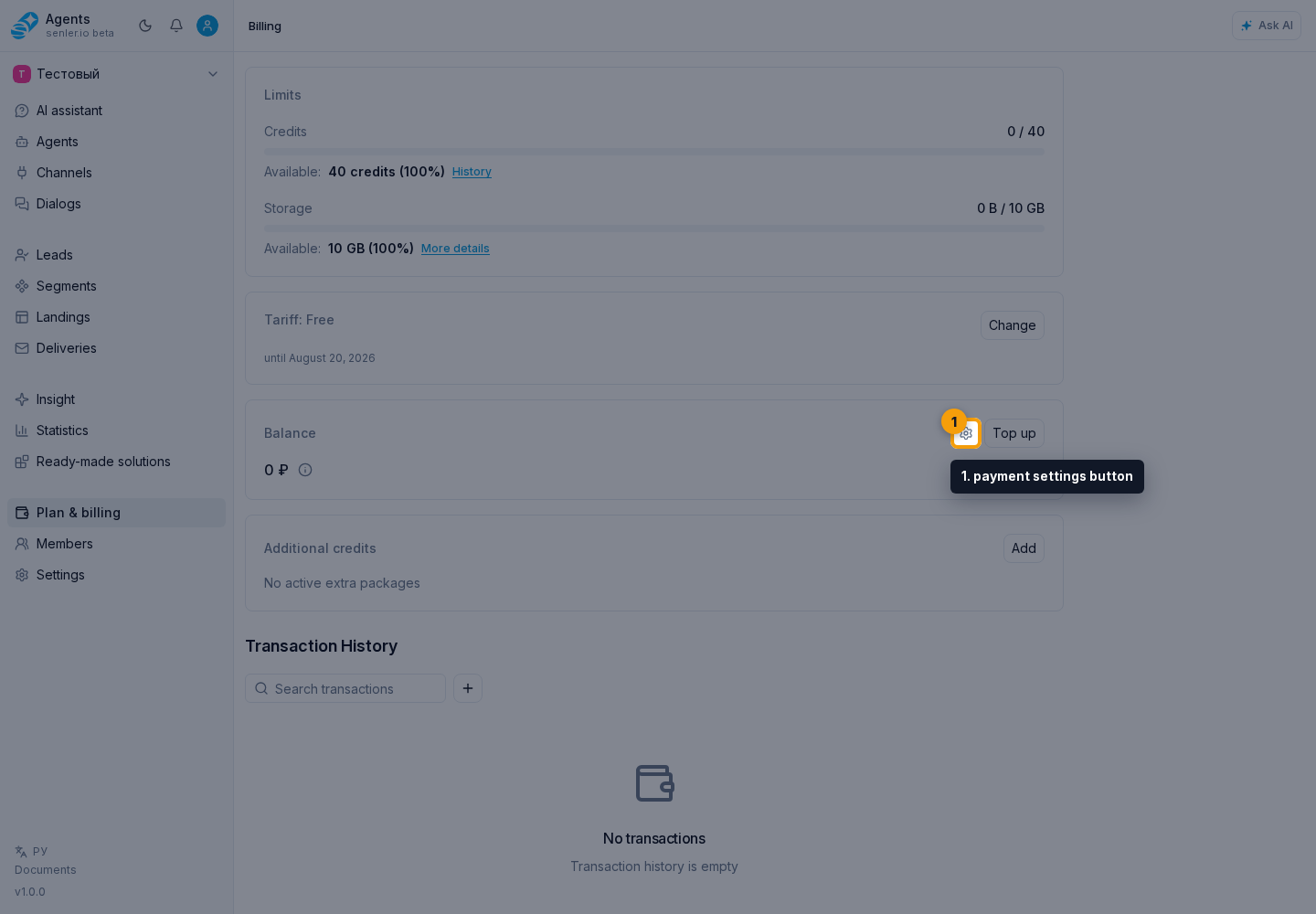
Country, currency, and payment system
Open the payer country field.

In the opened list, use search when needed, then select the country from the list.

The cabinet sets the project currency: RUB for Russia and USD for all other countries.
Select a payment system and an appropriate option for that currency.
Payer details
The receipt email is required for every country. For a country outside Russia, also enter the full address:
- state or region;
- city;
- street;
- house number;
- postal code.

State, city, and street must each contain at least two letters. The postal code accepts 3–12 Latin letters, digits, spaces, and hyphens. The house number accepts Latin letters and digits, plus spaces, /, and -.
The company name and additional information are optional.
Select Save to apply the settings. Cancel closes the form without saving new values.

Changing the country
Changing between Russia and another country changes the project currency. The cabinet displays the rate before confirmation, then converts every part of the money balance and creates an entry in transaction history. The exact amounts before and after conversion appear in that entry's details.
The saved payment system must always match the new currency. If the previous method is incompatible, the cabinet selects an available option for the new country; review it before the next payment.
Order payment method
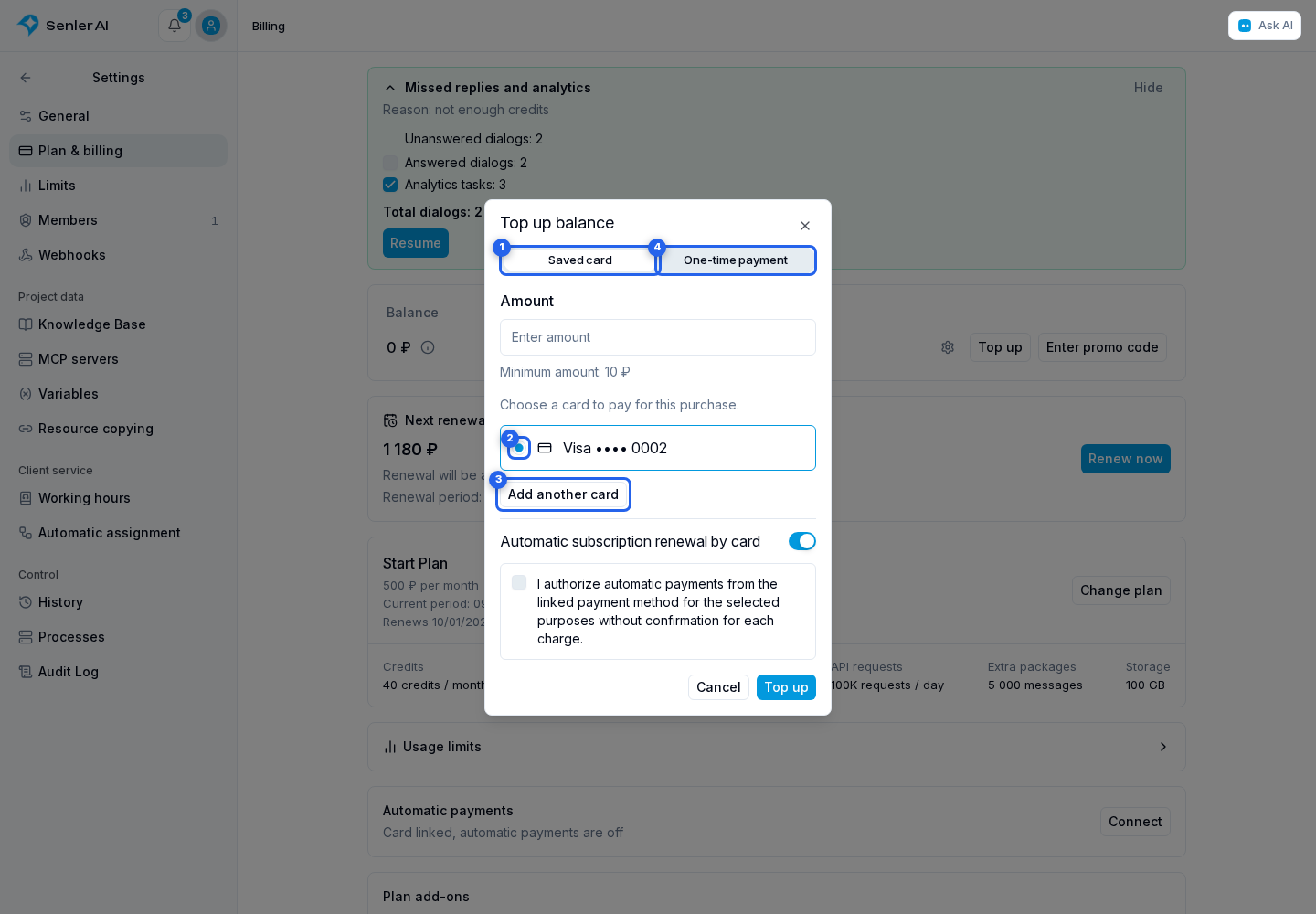
When topping up the balance or buying a plan, add-on, or package, choose how to pay the external amount:
- Saved card: select a card from the list. It will be charged for this purchase. To use a new card, select Add another card;
- if no cards are saved yet, the same tab is called Save a card. Complete the card setup on the bank page, return to the cabinet, and separately confirm payment for the purchase;
- One-time payment: choose a payment system and pay without saving a card.
Saving a card for a purchase does not enable autopay by itself. If saving cards is unavailable for the current payment settings, the cabinet shows only the payment system selector.
Subscription renewal by card
If project autopay has not been configured or is disabled, the card payment tab lets you separately allow subscription renewal:
- Check the Automatic subscription renewal by card switch. It is on by default in the form: leave it on to allow card charges for renewal when the project balance is insufficient. Turn it off to pay only for the current purchase.
- Read and select the autopay consent, then confirm payment. Renewal permission is saved when you confirm payment, not when you toggle the switch.
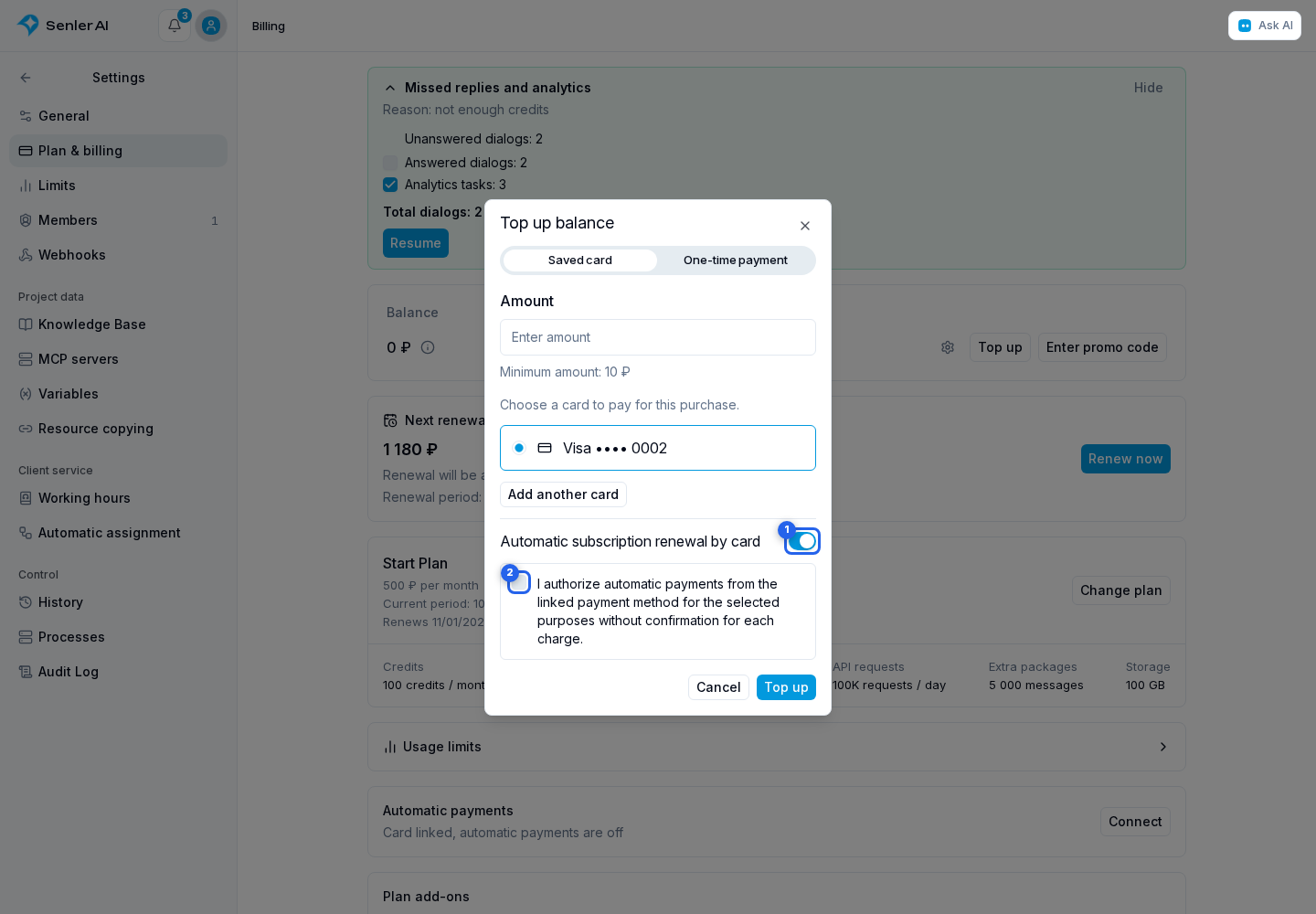
After changing the card, select the consent again. This permission only covers subscription renewal: automatic credit purchases and cash balance top-ups are not enabled. Automatic purchase limits do not restrict subscription renewal, so this dialog has no limit fields.
If autopay is already configured, a message appears instead of the switch. Paying for a purchase with another card does not change existing autopay. Change the card, allowed charges, and automatic purchase limits in Automatic payments on the Plan and billing page.
Card payment result
After confirming a card charge, the payment status dialog opens. Payment received means the funds have arrived but the purchase is still processing; Payment completed means it has been applied. You can close the dialog and return with Check payment. Refreshing the status does not create a new payment.
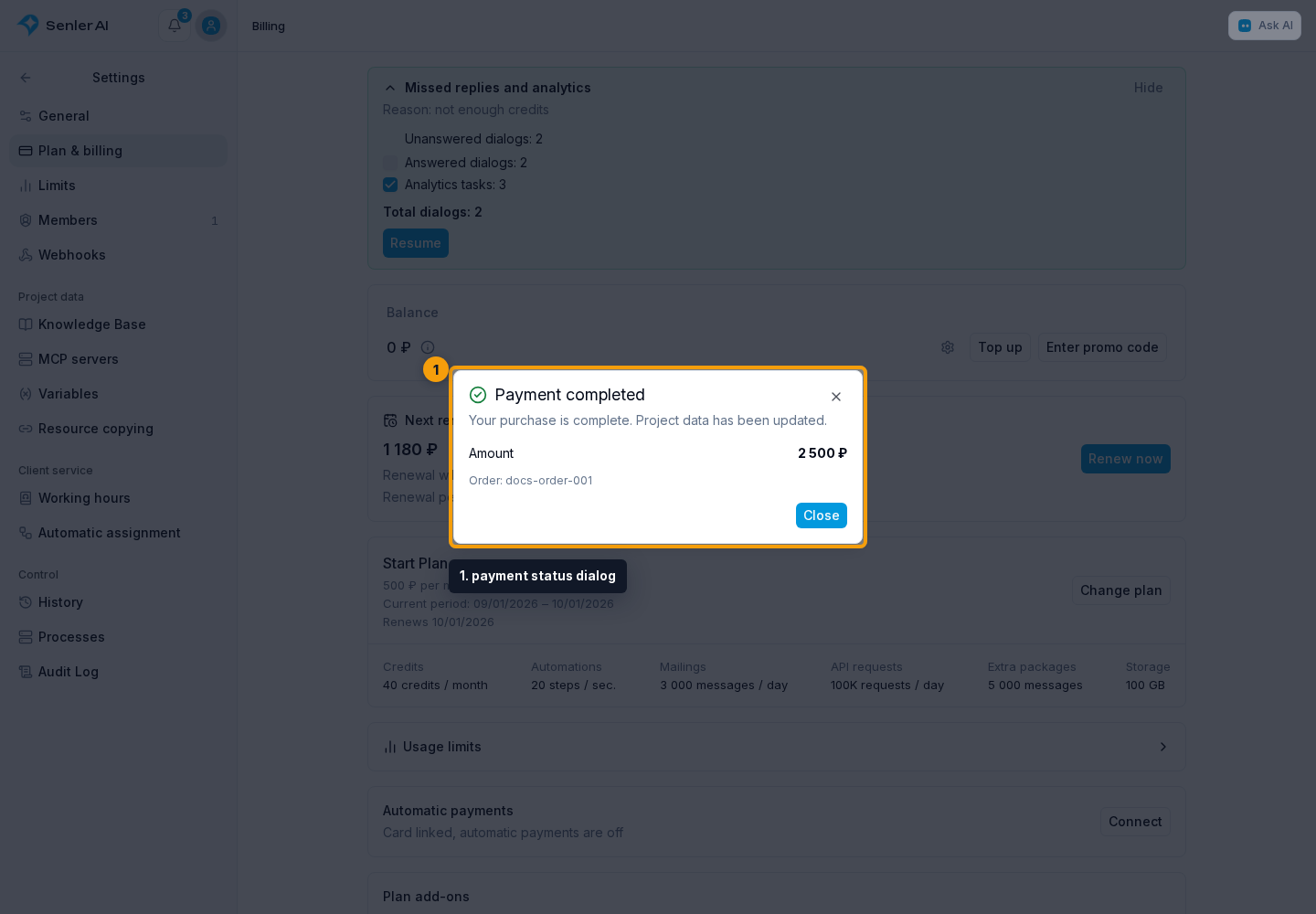
If Funds credited to your balance appears, payment was received but the purchase could not be applied. Repeat the purchase using the project balance. Order details and related charges are available in transaction history.
Access permissions
Viewing saved details requires permission to view billing. Changing the country, payment system, and payer details requires permission to manage project billing.