
Text Documents and Context Keys
How to create a text document
- In the left menu, open Settings and go to the knowledge base.
- Click Add.
- Select Text document.
- Enter the title and content.
- Click Create.
This creates a regular text document without manually specified context keys. To add keys or use the full editor, open the new document. You can also open its menu and select Edit.
Form fields
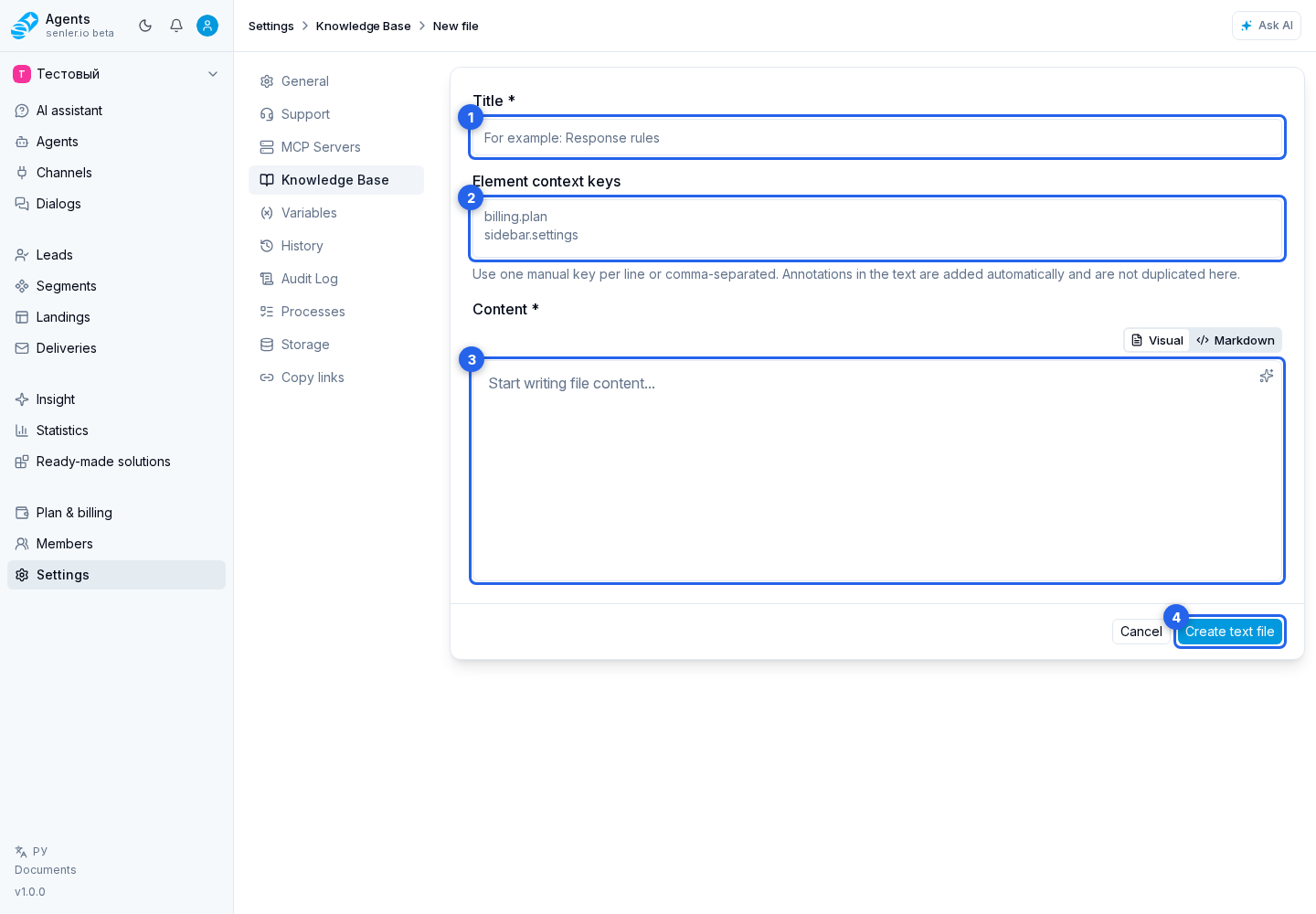
In text file form there is:
- title;
- context keys for elements;
- content;
- create or save button and cancel;
- deletion when editing, with a separate confirmation.
Title and content are required. The title should be clear for searching: for example, “Return Rules”, “FAQ on Tariffs”, “Instructions for the Add Channel Button”.
Content
Content can be written as structured Markdown: headings, lists, tables, example questions and answers. More useful support documents include:
- purpose;
- where the function is located;
- what each field means;
- frequent mistakes;
- what to check before escalation.
If Markdown contains an extra fields block at the beginning of the file, these fields help search and link the answer to the document source: for example article ID, section route, source importance, or an external link. Do not store secrets there: these fields are for search, routing, and explaining the source, not for private data.
Markdown links and images can use regular syntax:  or [policy](docs/rules.pdf). If the target file is uploaded to the knowledge base, the cabinet can show it in preview or connect it with the document for the answer.
Editor modes
The Visual Editor is suitable for regular formatting: work with text, headings, lists, quotes, links, and code blocks without editing Markdown punctuation manually.
Markdown mode shows the source text and is suitable for tables, images, and other markup that must be preserved exactly. Switching modes does not create a document copy: both editors change the same content, which is saved as Markdown.
If the document contains markup that the visual editor cannot change without data loss, the cabinet opens Markdown immediately. If you try to switch to the visual mode, it shows a warning and a read-only preview; continue editing in Markdown. The content is not deleted or simplified automatically.
Editing selected text with AI
In both the visual editor and Markdown mode, you can select a fragment and choose Ask AI. The edit is scoped to the selected text, which makes the action useful for shortening, rewording, or clarifying a specific paragraph.
The result does not replace or save the document automatically. The cabinet first previews the proposed complete text: check how the selected fragment changed and whether anything else was affected, then accept or reject the edit. Open the related assistant chat when you need a less constrained discussion.
If the document cannot be saved
If the content is empty or fails another form check, the reason appears in a message below the editor. Correct the indicated error before saving.
If a newer version of the same file appears on the server while you are editing, the cabinet shows a newer-version warning and blocks saving. Copy your text, reload the page, compare the new version with your changes, and apply them again. This prevents overwriting changes made by another user or process.
Context keys
The same key must be set on the website or in the Senler AI cabinet in the data-ai-context-id attribute. When a user selects an item and asks a question, this key becomes a precise hint for finding the document.
If the file came from an MD/ZIP upload, check this field after import. The import extracts keys from inline data-ai-context-id in the Markdown body. When a user selects an element on the page, documents with the same key get priority.
The Element context keys field associates a key with the whole document. Enter one manual key per line or separate keys with commas.
Annotations inside the text
If only a specific document fragment is associated with an interface element, add an annotation directly in Markdown:
Click the <span data-ai-context-id="channels.add">Add channel button</span>.The key must contain at least two dot-separated segments, such as channels.add or widget.custom-action.create. Latin letters, numbers, hyphens, and underscores are allowed; the total length is limited to 120 characters. Spaces, Cyrillic letters, and empty segments are not supported.
To add an annotation, open Markdown mode and wrap the required text in a span as shown in the example. You can then return to the visual mode, where the annotated fragment is highlighted. Click it to open the context annotation panel.
In the panel, change the context key and apply it with Save. Remove annotation removes only the association and keeps the text in the document. Closing the panel does not apply an unsaved key change.
The cabinet adds keys from these annotations to the document automatically and does not duplicate them in the manual-key field. If the annotation markup is invalid, correct it in Markdown; visual editing may remain unavailable until it is fixed.
Example:
billing.plan
sidebar.settings
channels.add
And the corresponding markup:
<button data-ai-context-id="channels.add" data-ai-kb-query="how to add a channel">
 Add channel
</button>
If the document is not found by the selected element
Check:
- The document contains the required context key.
- On the site element there is the same
data-ai-context-id. - The key is written the same way, without extra spaces.
- The file is active and associated with the agent or accessible through the selected folder.
- The document contains enough words for regular text search, not just a short key.