
StreamVi Connection
The StreamVi channel links a Senler AI project to a StreamVi account. It is usually used to keep StreamVi requests and events alongside the other project channels.
What to prepare
- access to the required StreamVi account;
- permission to connect integrations in this account;
- browser permission to open the authorization window;
- the selected Senler AI project that should be linked to StreamVi.
How to connect
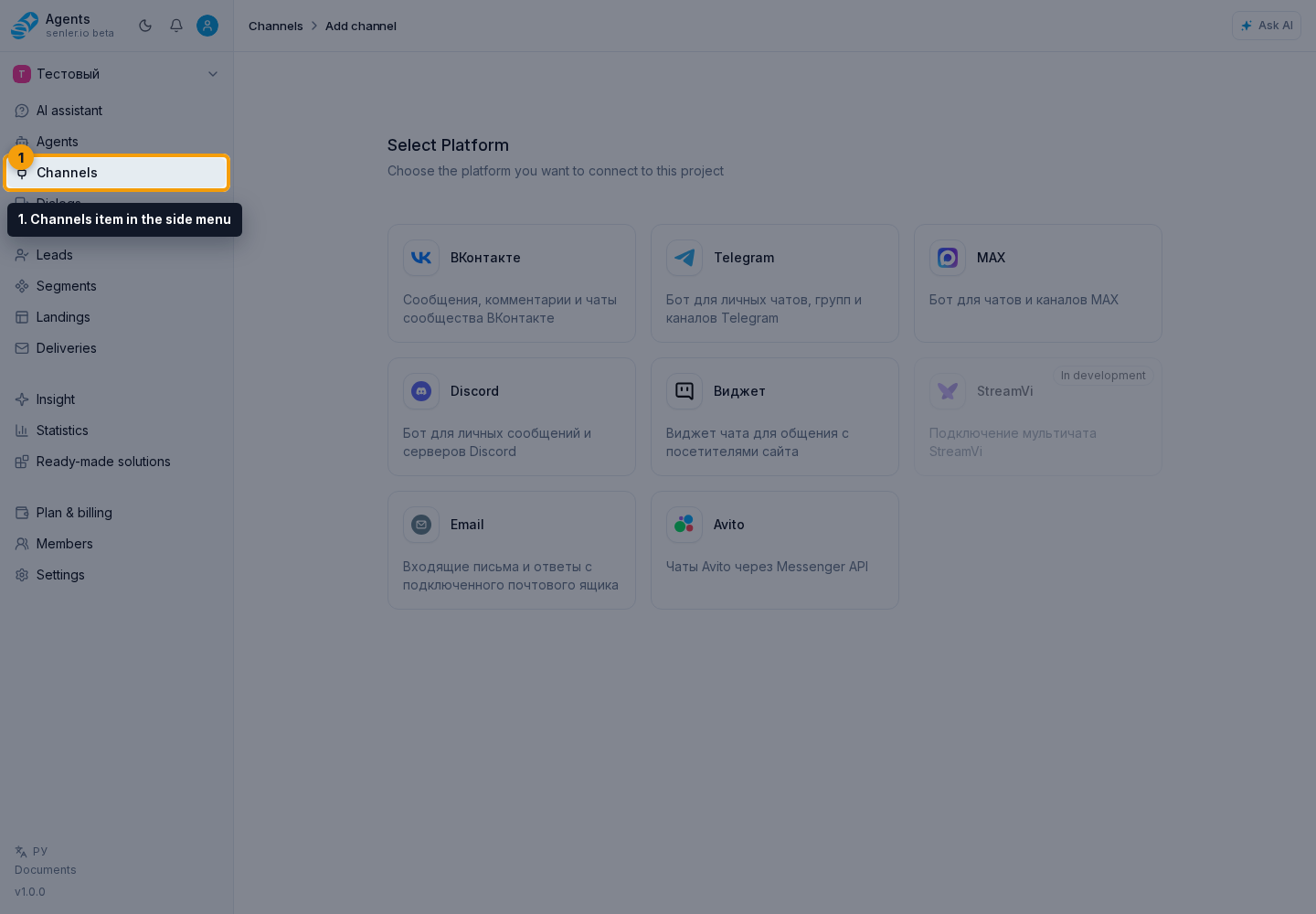
- Open the section through the Channels item in the side menu and click Add channel.
- Select StreamVi. If the card is marked In development or is unavailable, StreamVi cannot be connected in this project yet.
- Start authorization.
- In the opened window, choose the required StreamVi account and project.
- Confirm access.
- Return to Senler AI and check that the channel appears in the list.
After connection
- open channel settings;
- check which StreamVi account is linked;
- assign an agent if the channel should be handled automatically;
- check the first events or messages in history.
If the connection does not finish
- repeat authorization;
- check that the popup is not blocked by the browser;
- check the selected account and StreamVi project;
- save the error text and attempt time for diagnostics.
If the StreamVi card is unavailable before authorization starts, retrying will not help because this is not a connection error. Wait until the platform becomes available or ask support about availability.
Where this is in the interface
Main elements in this section:
- channel list
- Channels item in the side menu
- Add channel button
- StreamVi platform selection button
- channel settings page