
MAX Connection
A MAX channel connects a MAX bot to a Senler AI project. After connection, messages from MAX can be processed in dialogs, assigned to an agent, and tracked through project events.
What to prepare
- a created bot or application in the MAX partner platform;
- an access token or bot token;
- permissions to manage the bot;
- the selected Senler AI project where the channel should work.
How to connect
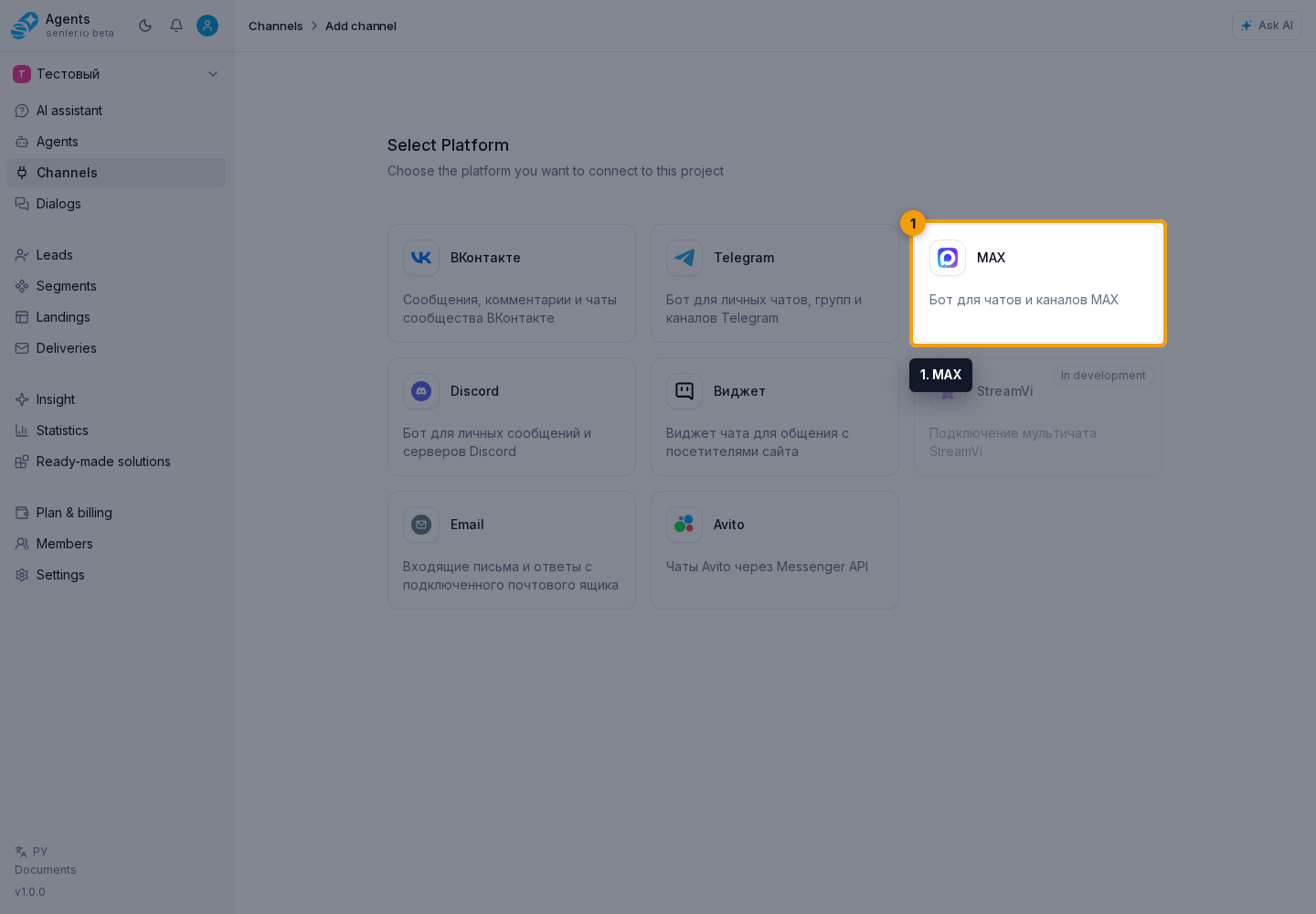
- Open the section through the Channels item in the side menu and click Add channel.
- Select MAX.
- Paste the token from the MAX partner platform.
- Click "Connect".
- Open channel settings and check bot information.
- Assign an agent and check message receiving.
After connection
- check the channel status;
- check bot information;
- configure the webhook if your scenario requires it;
- synchronize data;
- check a test message in dialogs.
If MAX does not connect
- check the token;
- check that the bot has been created and is accessible;
- check your rights in the MAX partner platform;
- check the error text in your account.
Where this is in the interface
Main elements in this section:
- channel list
- Channels item in the side menu
- Add channel button
- MAX platform selection button
- channel settings page