
App Settings
Developer application settings
This form controls the application's basic details, settings for the selected type, OAuth parameters, and dangerous actions such as deletion or secret regeneration. Before giving the app to users, check the name, description, purpose, redirect URI, and permission set.
General settings
- the avatar and avatar removal are available after the app is created;
- the name and description are entered during creation and can be edited later;
- website URL is entered in the settings of a created app;
- the application type is selected during creation and cannot be changed later;
- Create saves the new app.
Application type
The type is selected when the application is created and cannot be changed later. Create a new application with the appropriate type when you need a different flow.
- select one option card;
- Website integration uses OAuth settings;
- Ready-made solution does not use OAuth and appears in the ready-made solution catalog;
- Agent tool and Embedded page are currently marked "In development", but may use OAuth settings;
- the "Documentation" link opens help for the selected purpose.
How to create an app
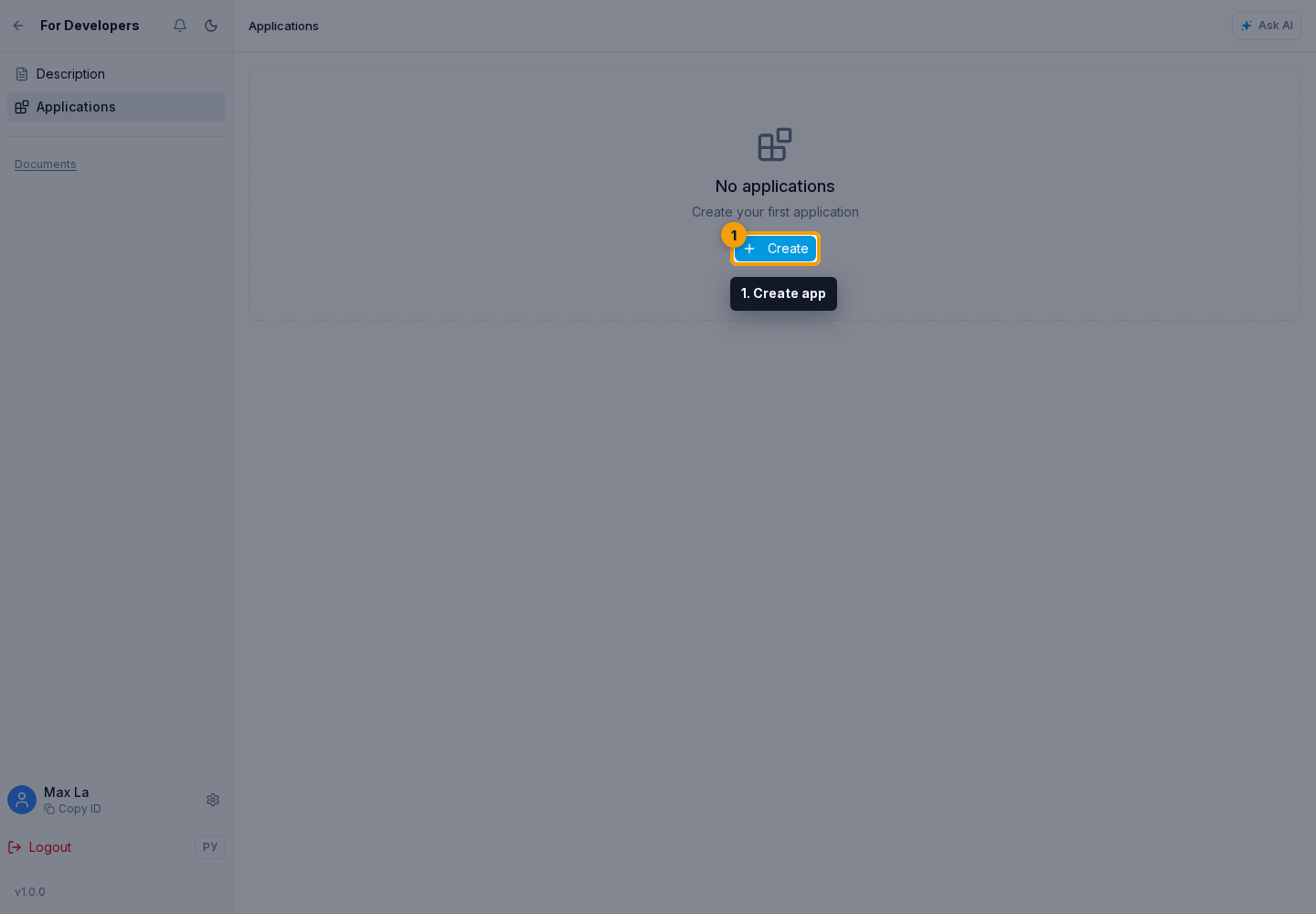
Open the developer app list.
- Select Create app.
- Enter a name and, if needed, a description.
- Select the app type. It cannot be changed after creation.
- Select Create.
Ready-made solution settings
- the developer access switch for related dialogs is shown automatically for a ready-made solution and is enabled by default during installation;
- the owner of the installing project can turn access off before installation or later in app management;
- there is no separate author setting for this capability: the author cannot require or enable access independently in another project;
- when the project owner enables access, the developer sees only dialogs where agents of this ready-made solution participated; other dialogs and project entities remain unavailable;
- "Show agent settings in projects" controls whether installed agent settings are visible;
- if settings visibility is disabled, the ready-made solution agent can be tested in the project, but instruction, model, MCP, knowledge base, variables, and other settings are hidden.
Danger zone
- deleting the application;
- warning: installations and tokens will be revoked;
- the action is dangerous and requires confirmation.
OAuth settings
OAuth settings are available for the Website integration, Agent tool, and Embedded page types. This screen is not used for a ready-made solution.
The OAuth credentials section contains the Client ID and Client Secret. The Client ID identifies the application; transfer it to the integration with Copy Client ID. The Client Secret authenticates the application: do not publish it or place it in client-side code. When needed, show or hide the value, or use Copy Client Secret.
Client Secret regeneration
Regenerate secret opens a warning dialog. Cancel keeps the current secret, while confirmation issues a new secret and immediately invalidates the old one.
After confirmation, show or copy the new Client Secret and update every integration that used the previous value. Until they are updated, OAuth requests using the old secret will fail.
Redirect URI
The Redirect URIs section lists the addresses that can receive a user after authorization. Select Add URI, enter a complete URL in the new address field, and use Remove when an address is no longer needed.
The redirect URI in the authorization request must match one of the saved addresses. Check the protocol, domain, path, and trailing slash; an address mismatch can cause authorization to be rejected.
Permissions
Application permissions define the maximum set of actions the application can request from a project. Select only the required access level for each group. The basic permission required for the application to work with a project is locked and cannot be removed.
Select all or Deselect all changes the optional groups; review them individually before distributing the application. Permission and Redirect URI changes take effect after saving the OAuth settings. Client Secret regeneration is a separate immediate action and does not wait for this button.
App members
The members page lets you invite developers and review invitations. The status filter separates pending, accepted, declined, expired, and cancelled invitations.
Where this is in the interface
Main elements in this section:
- OAuth app credentials
- developer app name
- create app button
- app card
- developer's application list
- developer's section