
Developer Overview
Developer section
Open section "Developer" or "For Developers". The section is intended for external integrations, ready-made solutions, and other application types available in the current cabinet version.
Features
- external website integrations via OAuth;
- ready-made solution catalog;
- installation of applications in the project;
- installed application management;
- ready-made solutions;
- versions of ready-made solutions;
- agent tools and embedded pages, when these types are available;
- webhooks;
- links to API documentation and Storybook.
Application types
- Website integration - an external site connects the project using a Client ID, Client Secret, redirect URL, and selected permissions.
- Ready-made solution - a ready-made workflow or funnel that users install into their project; this type does not have OAuth settings.
- Agent tool - an application that adds new actions to an agent; availability depends on the product version.
- Embedded page - an application with its own page inside the cabinet; availability depends on the product version.
Creating a developer application
- name;
- description;
- application type: select one card.
Application members
A developer application has a separate "Members" screen. It belongs to the team that develops and publishes the application, not to the projects where the application is installed.
Project members are managed separately: open the Members item in the project side menu, then the project members page and the invite employee button. Do not use developer application members to grant project access.
The "Members" tab shows active and inactive members, role, and date added. Search works by name, email, or ID. Roles are owner, administrator, developer, and viewer. The owner cannot be edited from the regular menu; administrators and the owner can manage members.
The "Invitations" tab shows invitations by user ID or email. An invitation can be awaiting a response, accepted, declined, expired, or cancelled. An invitation awaiting a response can be resent after a short delay or cancelled; after cancellation, its link no longer works.
How to invite a member
- On the application members page, click Invite.
- Choose invitation by user ID or by email.
- Enter the user ID or email, depending on the selected method.
- Choose a role: administrator, developer, or viewer. The owner role cannot be transferred through an invitation.
- Click Create invitation.
- The cabinet shows the invitation link. Click copy and send the link to the invited person.
The person does not become an application member until the invitation is accepted. The created invitation also appears on the "Invitations" tab, where its status can be checked.
How to edit or remove a member
Open a member on the "Members" tab. On the edit page, choose the role and click Save. The permissions block shows the rights granted by the role; individual permissions are not toggled on this page.
To revoke application access, click Remove member and confirm through Remove. This removes the person from the developer application team, but not from projects where they have separate membership. The application owner cannot be changed or removed this way.
Catalog and settings
- the current catalog shows only ready-made solutions available for installation;
- external website integrations are not shown in the project installation catalog;
- availability of agent tools and embedded pages depends on the product version;
- the installation may request access to the project and configuration steps;
- for a ready-made solution, developer access to related dialogs is enabled by default during installation, but the project owner can turn it off before installation or later; access is limited to dialogs where agents of that solution participated;
- an installed app can be removed when it no longer needs project access;
- if installation fails, check the published version, required setup steps, and user permissions in the target project.
Where this is in the interface
Main elements in this section:
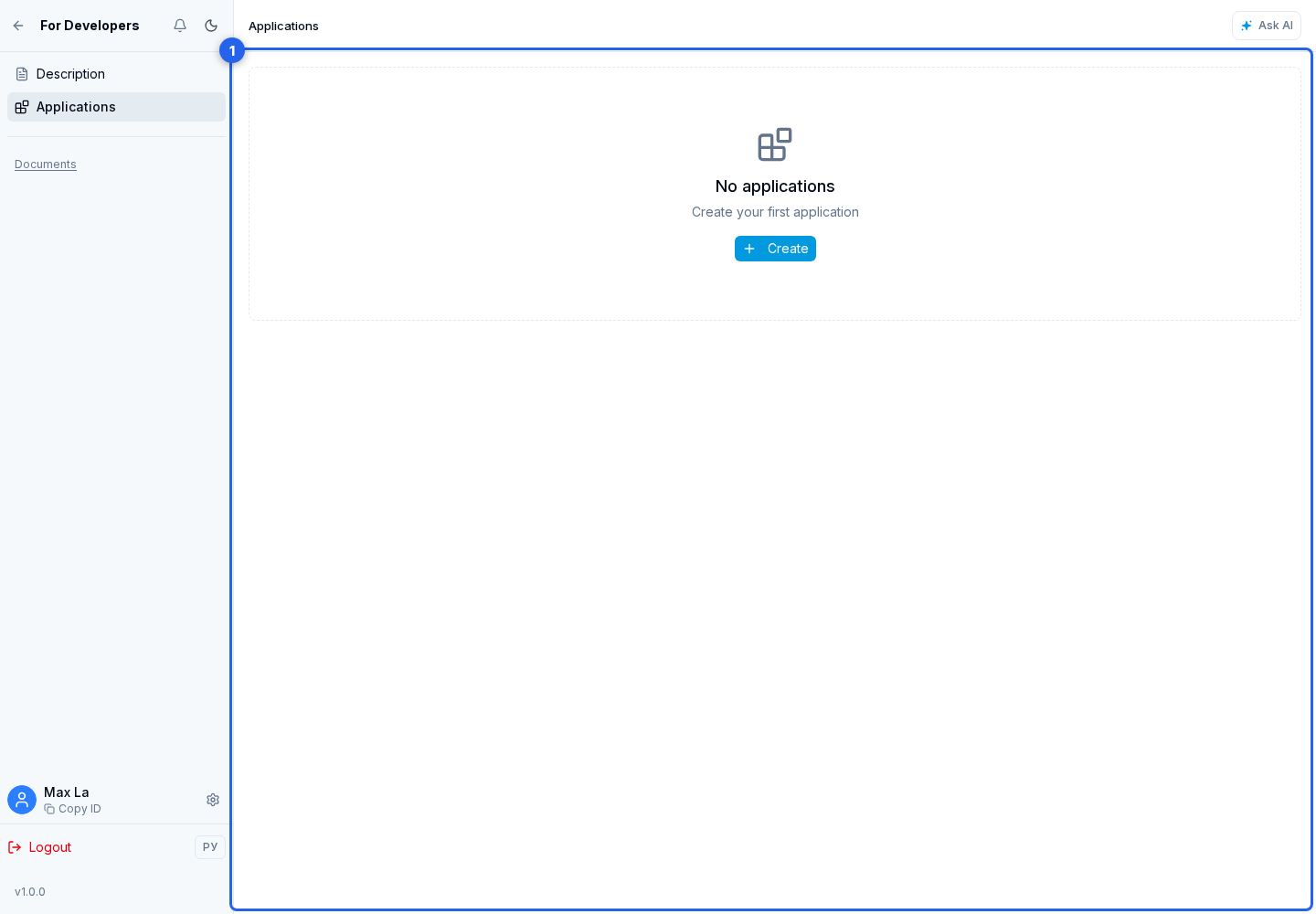
- Applications item in the project side menu
- OAuth app credentials
- developer's application list
- developer's section
- developer app creation page
- developer app creation button
- developer app page
- developer app settings page
- ready solution versions page
- ready solution version page
- version setup step page
- developer app webhooks page
- developer app members page
- developer app member editing page
- application member role
- rights granted by the selected role
- save the role
- remove a member from the application
- invite developer app member