
Copy links
A resource package is a portable set of project items. It can copy an agent, a delivery, a segment, selected knowledge base materials, project variables, or lead variable definitions into another project. A secret link with a selected lifetime is created when the package needs to be shared with another user.
What Can Be Packaged
- an agent;
- a delivery;
- a segment;
- segment consent documents;
- knowledge base sources linked to the agent;
- selected knowledge base folders, files, and tables;
- project variables;
- lead variable definitions.
When an agent is copied, linked knowledge base sources and variables can be included as well. Project variable values are not copied by default: include them only when the value is safe to share with another project.
What Is Transferred For An Agent
The package transfers the agent name, instructions, model, temperature, keywords, metrics settings, and supported capabilities. Its response behavior also keeps the rule that cancels a pending AI response when a project operator replies first. If an older package does not contain this setting, cancellation is enabled by default during import.
MCP server connections and the source agent's live state are not transferred automatically. In the target project, check available models, knowledge base sources, variables, and external tools, then test and publish the agent. The imported copy does not participate in live dialogs before publication.
Why the transferred cancellation setting is needed and how it works are covered in Project Operator and Agent Replies.
What Is Transferred For Segments And Deliveries
A segment package transfers the name, payment settings, required consents, and linked consent documents. Segment members, subscription events, and ready links are not transferred: a new segment is created in the target project, and its links must be generated again.
A landing is not included in a segment package. Its presentation, blocks, button actions, phone or email request, and channel launch methods must be created or copied separately in the target project. An agent subscription page is also not part of a regular agent package.
A delivery package transfers name, audience filters, message text, attachments, and dependencies on segments or variables. Run history, send results, and scheduling are not copied: the imported delivery is created as a draft for a new start.
Copying Within The Account
- Open the agent, delivery, segment, knowledge base, or variables.
- Click Copy.
- Check the resource package dialog.
- Enter the copy name.
- Select the target project.
- If needed, include linked knowledge base sources, project variable values, or add variables.
- Click the action start button.
Copying starts a background process. The window can be closed while it runs, and the final result can be checked in processes.
Sharing By Link
- Click Share.
- Enter the package name and choose the link lifetime.
- Create the link.
- Copy the secret link and send it to the person who should import the package.
The lifetime can be limited or never expire. A never-expiring link does not expire by itself, so it must be revoked manually when access is no longer needed.
The link is secret: do not publish it in public places. If the link is no longer needed, revoke access.
Managing Links
The main project settings contain the Copy Links block. It manages link access: active and archived links, package name, item count, source section, expiration time, and URL.
In this block you can:
- switch between active and archived links;
- open a link and inspect the package contents;
- edit the package name;
- change the link lifetime, make the link never expire, or keep the current lifetime;
- copy the link;
- revoke access.
An active link may store the source section: agents, deliveries, segments, knowledge base, project variables, or lead variables. This helps understand where the link was created from.
A revoked or expired link remains in the archive. The archive shows the reason: access was manually closed or the lifetime expired. Such a link can no longer be imported.
Importing By Link
The recipient opens the package import page, checks the contents, selects the target project, and starts the import.
Before importing, they can click Build plan. The plan shows which items will be created, which will be reused, where there is a conflict, and what will be skipped.
To start, click the package import button. After completion, the result shows created, reused, and failed items.
Import passes through stages: project variables, lead variables, segments, deliveries, knowledge base materials, tables, reindexing, agents, and relations between resources. If the process stops at one stage, open the background process details: they show which resource failed and which dependencies were already mapped.
If Import Does Not Work
Check in order:
- The link was copied fully and opens without being truncated.
- The link has not expired and has not been revoked.
- The user has access to at least one project.
- The target project grants enough permissions to create the required items.
- The user can manage every imported resource type: deliveries, segments and consents, agents, knowledge base materials, and variables.
- Open Settings -> Processes and find the resource package import.
- If individual items failed, open the process details and pass them to support.
Where It Is In The Interface
Main section elements:
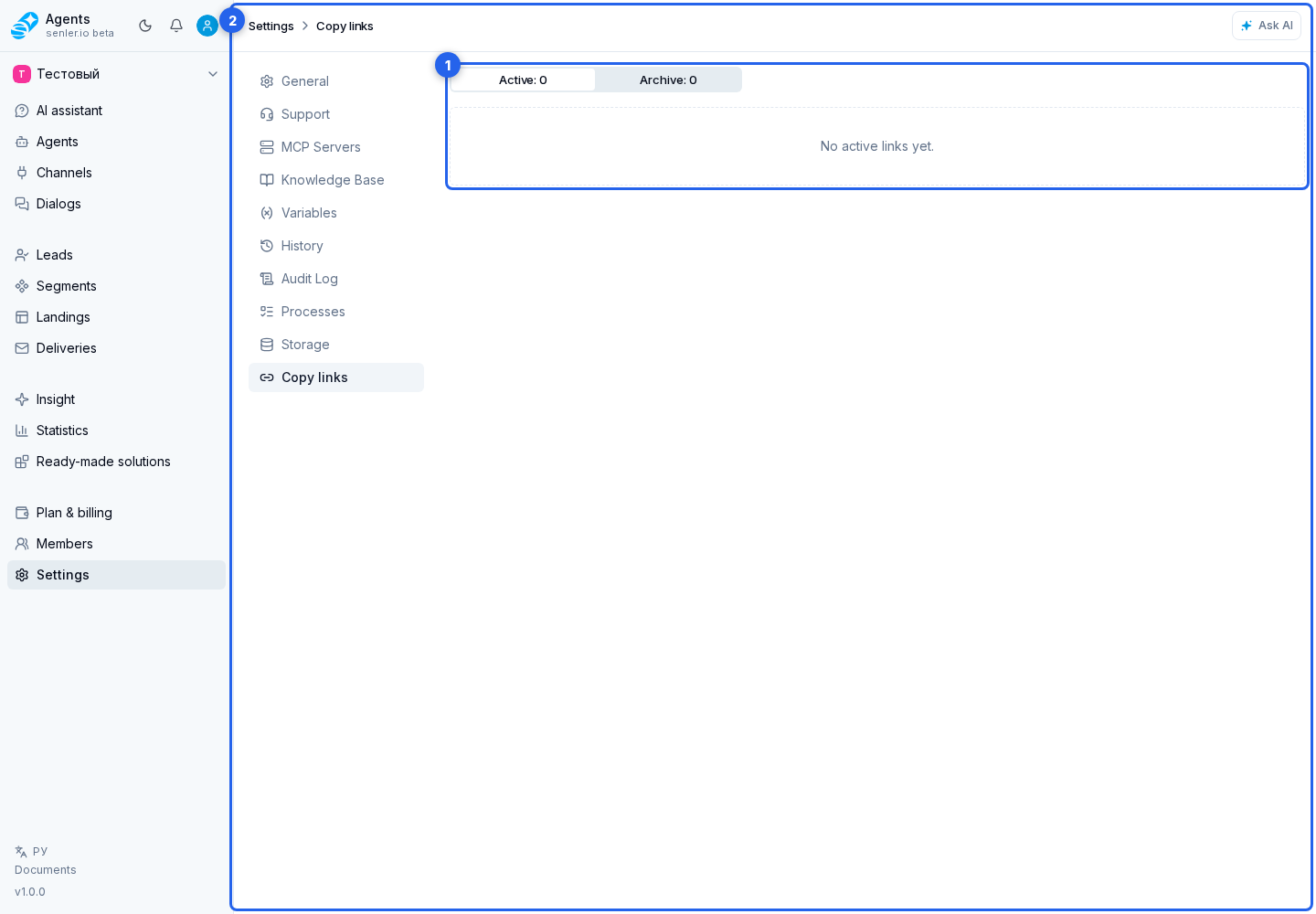
- access link management block
- copy links page
- resource copy button
- resource share button
- resource package dialog
- package import page
- project settings page
- Settings item in the sidebar