
Channel Settings
The channel settings usually have
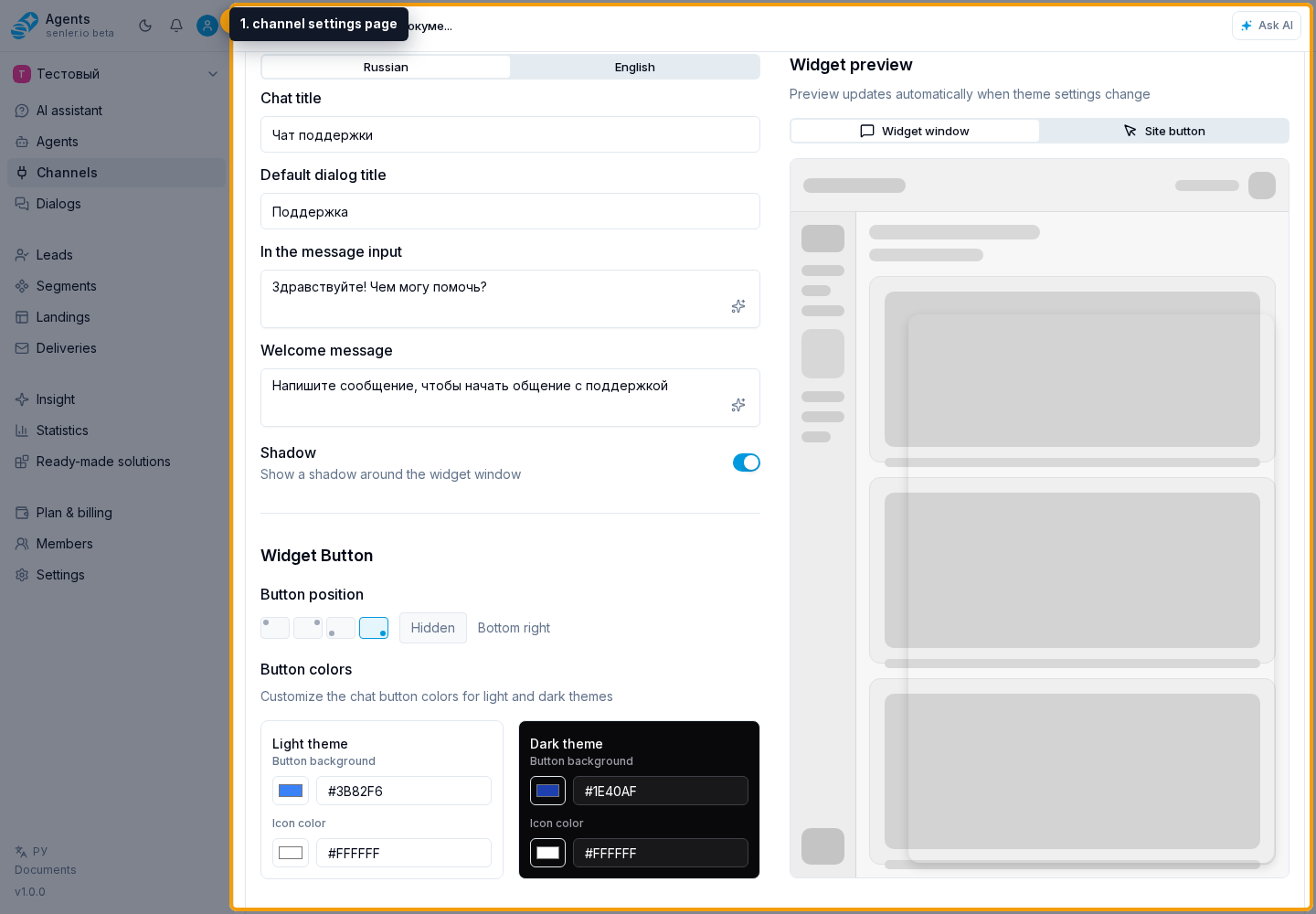
Open channel settings when you need to check the connection, pause processing, update the webhook, synchronize data, or perform a dangerous action such as deletion or migration. The exact fields depend on the platform, but the check usually follows the same order: status, token, webhook, synchronization, and error history.
- channel identity card;
- status;
- ID;
- actions;
- token or connection;
- webhook;
- data synchronization;
- special platform settings;
- pause/resume;
- removal;
- channel migration.
Channel actions
Channel actions change the state of an already connected channel. Before pausing, deleting, or migrating it, check whether there are active dialogs and whether the channel is used in agent assignment rules.
- pause;
- resume;
- delete;
- transfer to another project.
Token and validity check
In channel settings, the token card shows whether the token is linked, whether it is valid, when the last check ran, and the validation error text if the platform rejected access.
For Telegram, VK, MAX, and Discord, you can update the token or run a manual check when the action is available for that connection. If the token is invalid, first check whether it was revoked on the platform, then update the token and run the check again.
Some Telegram channels may have a separate "token from Senler". It is used for long polling and is shown as read-only. Do not move this token into agent settings or external integrations; it can be changed only through channel settings in Senler or by the channel administrator.
For VK, the check status belongs to the community token or the connected VK account. If the cabinet shows that the VK token expired or is invalid, refresh VK authorization and then synchronize channel data.
Pause
- the channel is temporarily stopped;
- useful if you need to turn off processing without deleting;
- before taking action, check whether a pause or complete deletion is required.
Removal
- dangerous action;
- restoring the connection and history may not be possible;
- before deleting, export the necessary data or check whether there are active dialogs.
Webhook
- the platform needs to send events to Senler AI;
- states can be: on, off, installed, being checked, not installed, error;
- you can install, update, check or delete webhook;
- for MAX, after token binding the cabinet tries to enable incoming notifications automatically;
- for MAX and Avito, status checking may show a warning, an error, and the last checked time;
- a background process may refresh channel webhook statuses without manually opening settings;
- if messages do not arrive, webhook is one of the first check points.
Synchronization
- updates channel data from the platform;
- can run as a background process;
- see results and errors in history or processes.
Channel history
For supported channels, the cabinet can retrieve older messages from the platform. Settings show the loading state, covered period, and the latest error when one occurs.
Loading can be waiting, running, completed, partially completed, unavailable for the platform, or failed. The usual period is 30 days, with a maximum of 365 days.
If loading completes partially or fails, some messages may already have been saved. Check the error, channel token, and platform permissions. You can retry through the agent auto-training flow when the wizard offers to use channel history.
Where this is in the interface
Main elements in this section:
- channel list
- Channels item in the side menu
- channel settings page
- channel connection settings
- settings for a Website widget channel
- channel token
- channel webhook
- email channel filters
- move channel to another project