
Agent Capabilities and Tools
Summary
Capabilities determine how the agent replies, what it can recognize and create, which tools it can use, and which actions it may perform. Change them in the agent draft; the new configuration applies to live dialogs after publication.
Open the capabilities
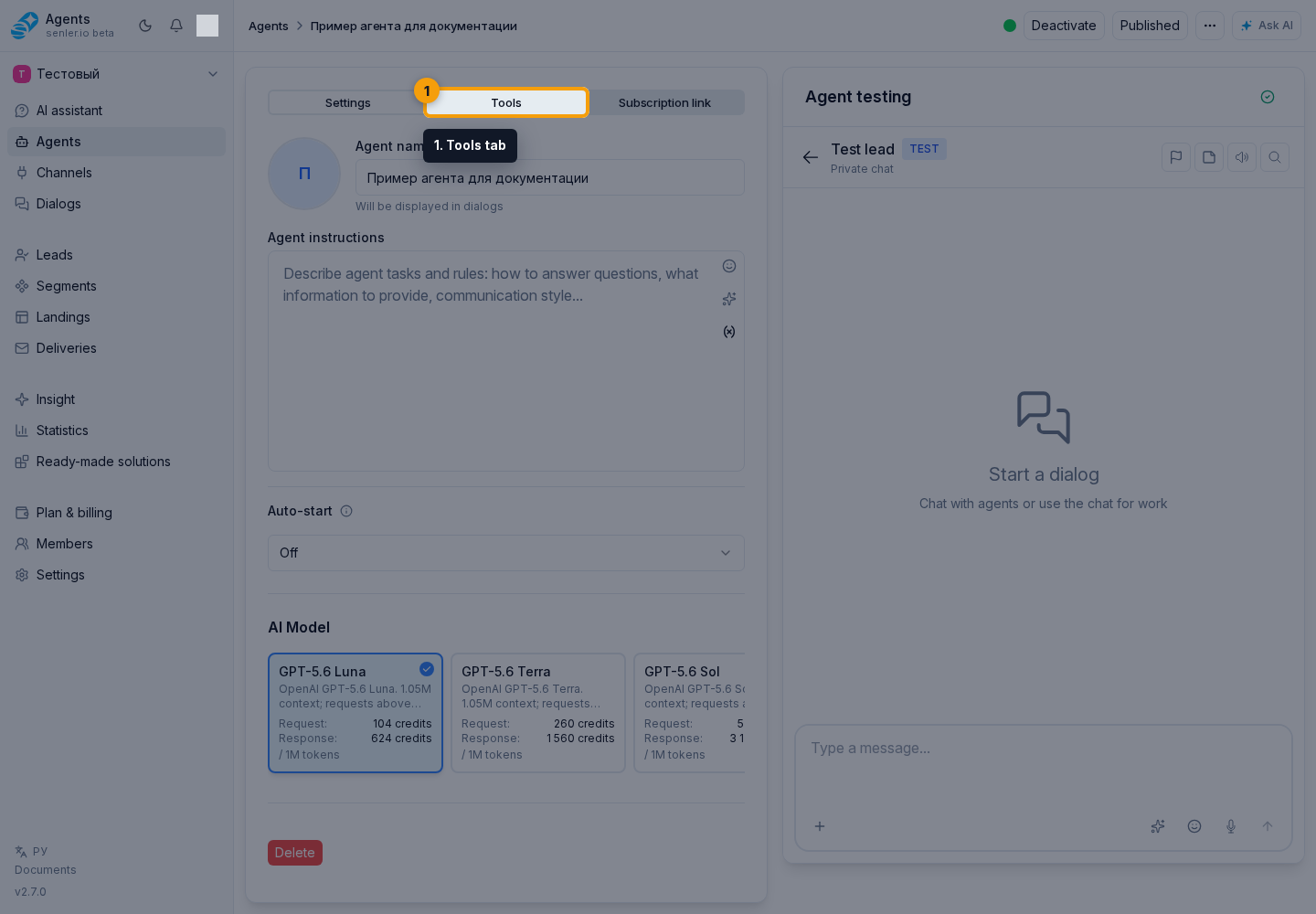
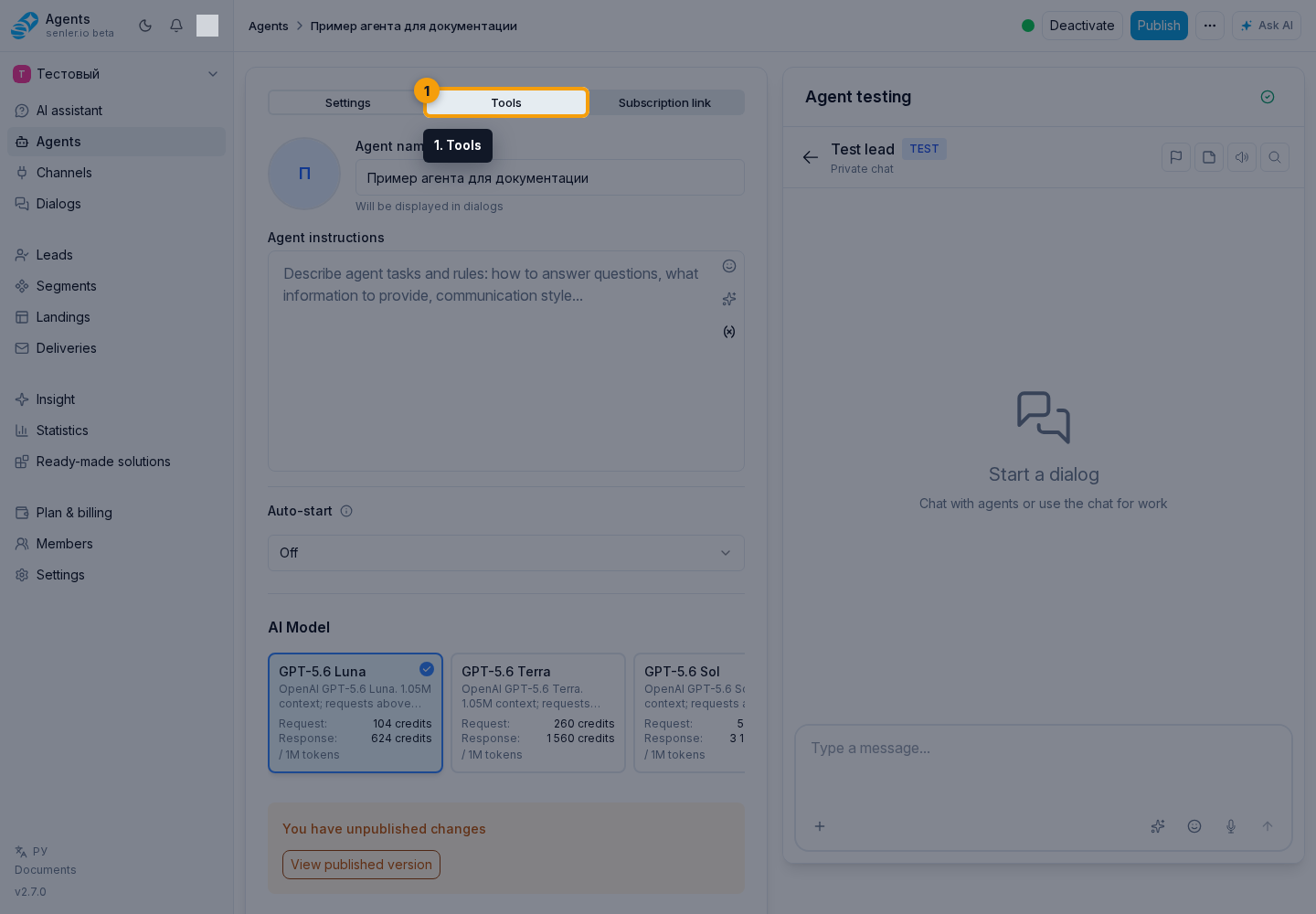
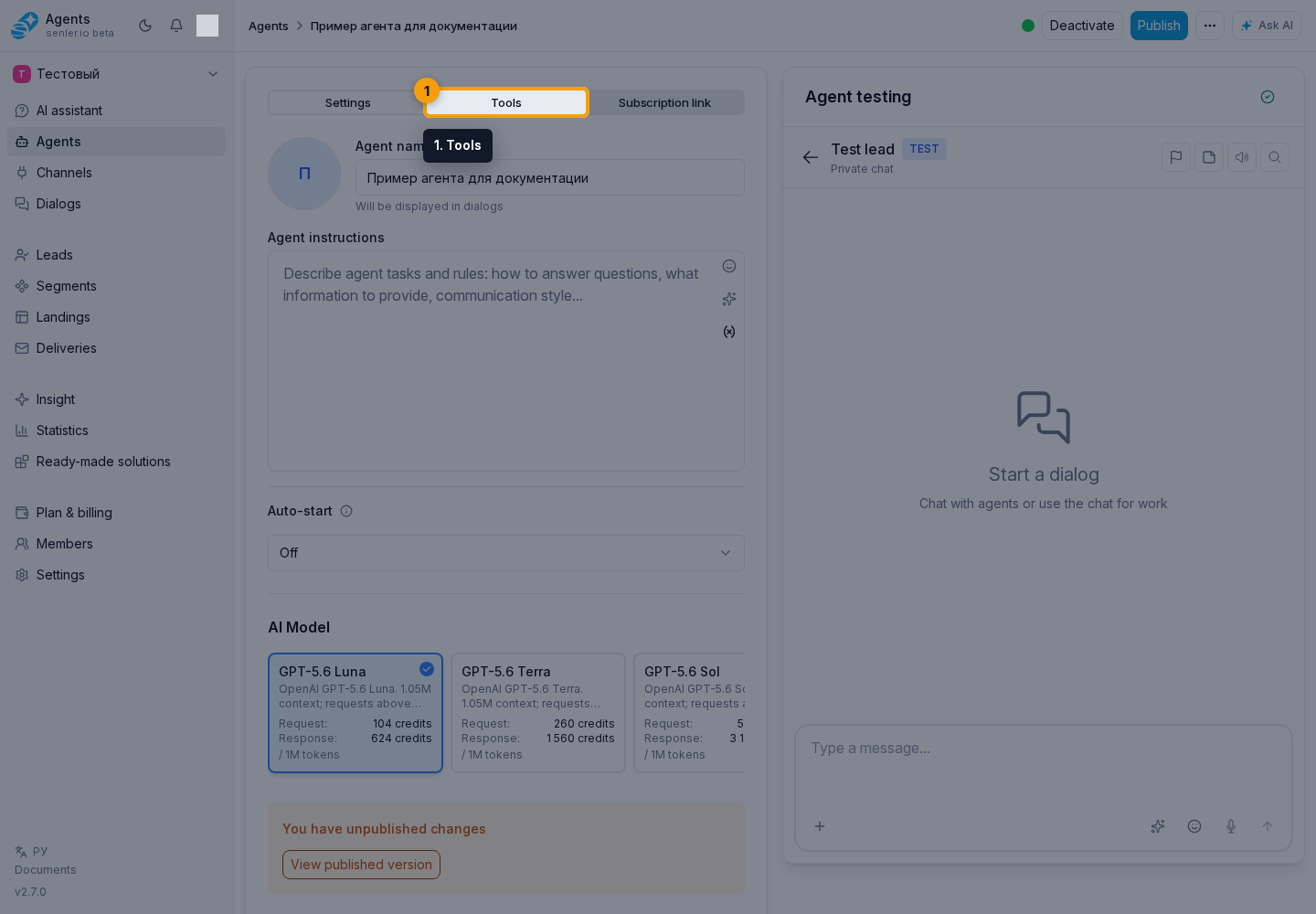
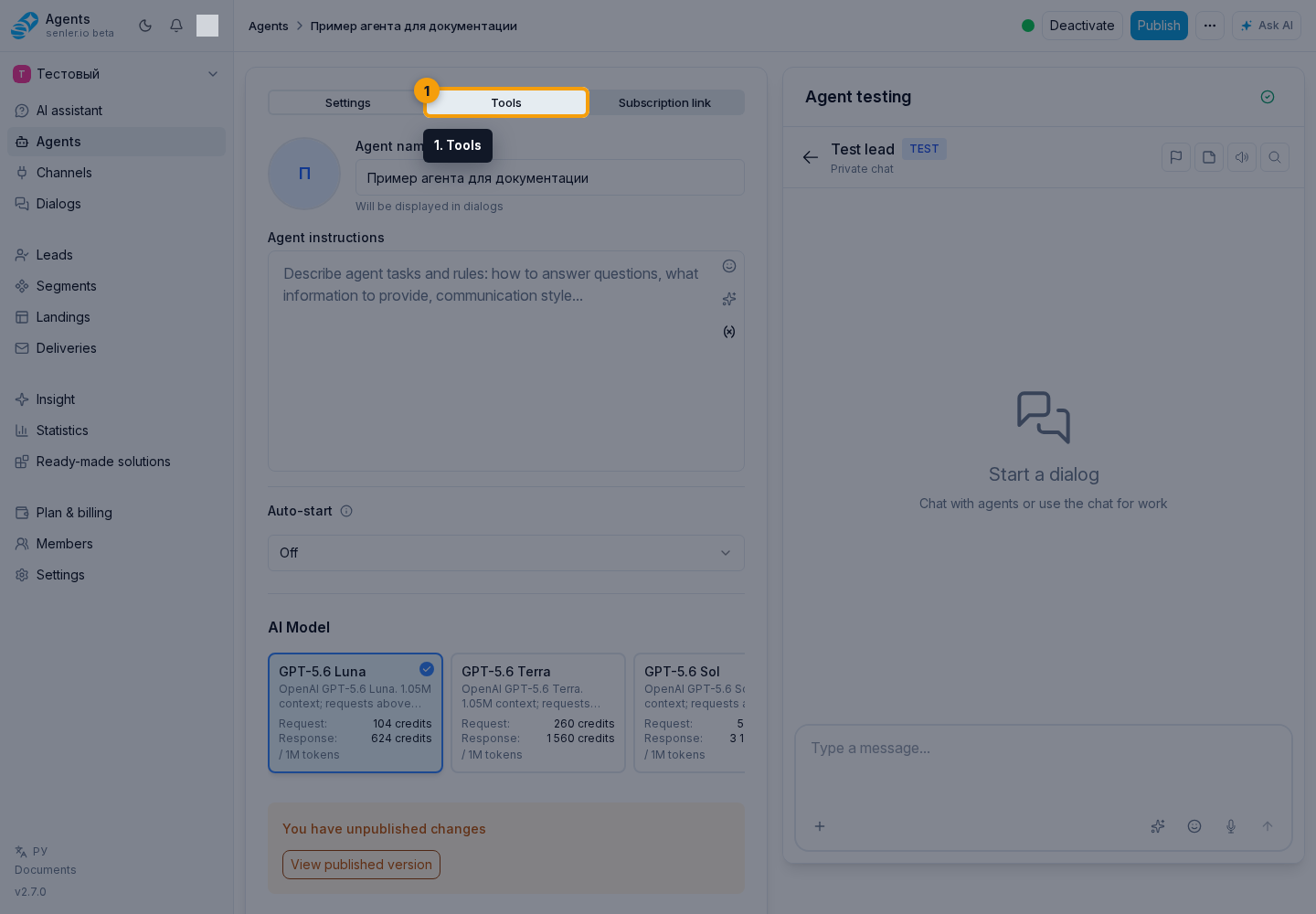
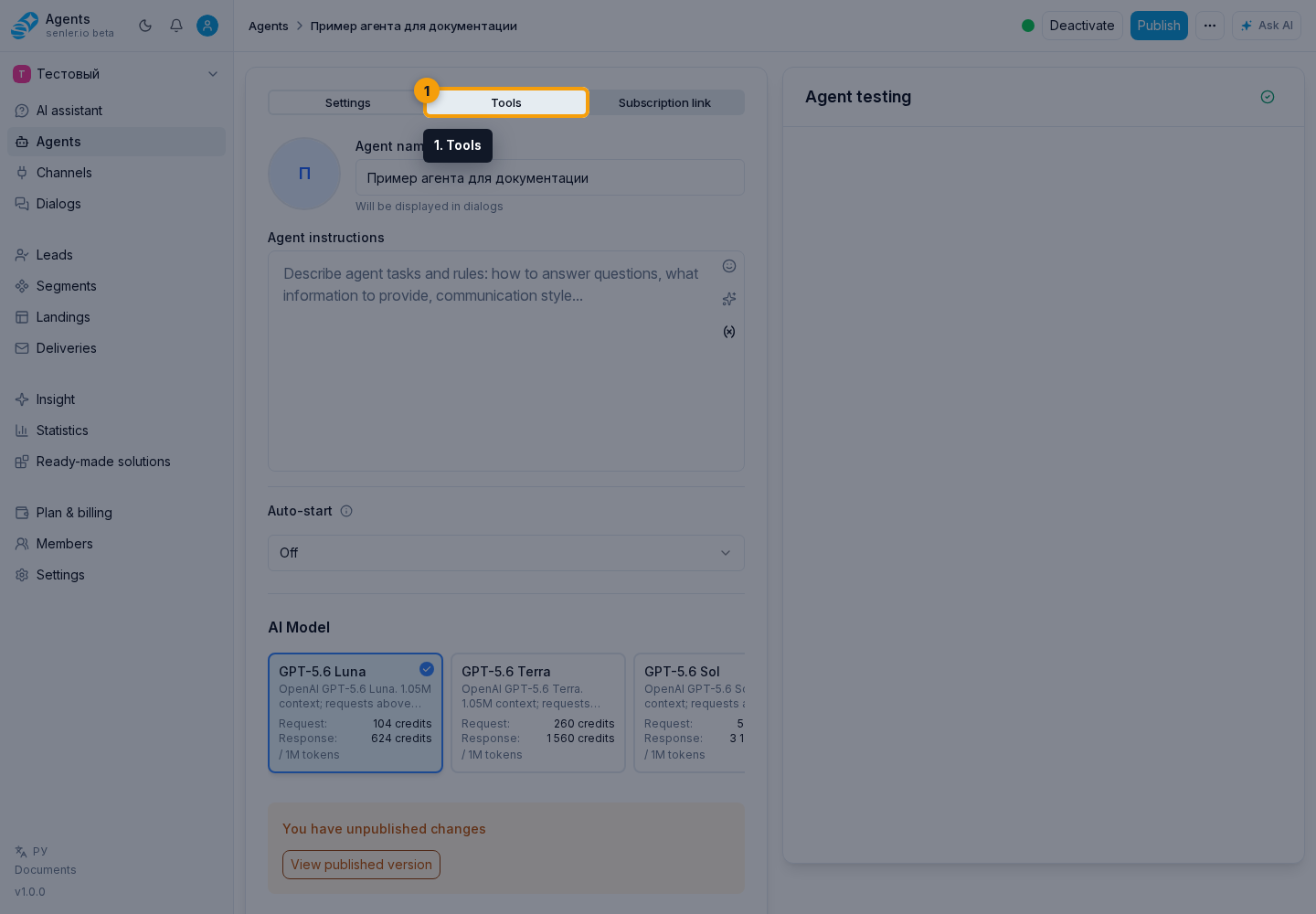
- In the agent form, open the Tools tab.
- Configure AI response generation and the other required capabilities.
Choose settings for a scenario
| Goal | What to enable or check |
|---|---|
| Reply to clients automatically | Enable Generate AI response and disable Forbid sending the response to the client |
| Collect analytics without replying to the client | Disable Generate AI response and keep metrics collection enabled |
| Give the operator a ready draft instead of an automatic reply | Enable Generate AI response, Selective answers, and Operator reply draft |
| Avoid a second reply after a person has responded | Keep pending response cancellation after a project operator message enabled |
| Notify the client before lengthy processing | Enable Preliminary answers |
| Show the response as it is generated | Enable Streaming generation and verify that the current channel supports it |
| Highlight or change website elements at the user's request | Enable Website element actions, use a Widget channel, and mark up the required page elements |
Dependent settings may stay hidden until their parent capability is enabled. For example, pending response cancellation is shown only with AI response generation, while operator drafts require selective answers. Verify the final combination in the published agent version, not only in the draft.
Reply mode
- generate an AI response;
- forbid sending the response to the client;
- streaming generation;
- selective answers;
- operator reply draft;
- cancel a pending reply if a project operator responds first;
- preliminary answers.
Generate AI response
- if enabled, an AI response is generated for the client;
- if disabled, but metrics collection is enabled, the scenario can work only as an analytics collector.
Forbid sending the response to the client
- if disabled, the agent response is sent to the client normally;
- if enabled, the message can be processed, available tools can run, and the result is saved in the cabinet, but the final response is not sent to the channel or widget;
- useful for testing, moderation and scenarios where an operator should review the result first.
Stream generation
- the answer appears in parts;
- works in the Senler AI cabinet and website widget, if supported by the current channel.
Selected answers
- some messages can be left without an automatic response;
- useful if not every message requires a reaction.
Operator reply draft
- available only when selective answers are enabled;
- the automatic client-facing reply may be skipped, while the suggestion is saved only for the operator;
- the client does not see the suggestion;
- the suggestion should be ready client-facing text, without service headings such as "Client reply:", "Template:" or explanations for the operator;
- the reason for the suggestion is only for the operator and processing history, the client does not see it;
- the suggestion may include text and prepared attachments from agent tools;
- in the dialog, the operator can send the suggestion as is, move it into the draft, edit text and attachments, or discuss the suggestion with AI;
- image links in suggestion text are not treated as attachments: an attachment must be prepared by an agent tool or added by the operator;
- the suggestion itself already means the automatic client-facing response is not sent, so there is no need to separately skip the response only for that.
Preliminary answers
- short message before lengthy processing;
- useful for long queries, image generation, external queries and waiting for tools.
If an operator replies first
A message from a project member or a sender marked as a Project operator does not trigger the agent. If the agent is already preparing a response to the client's previous message and an operator replies first, the pending AI response is canceled by default. This prevents the client from receiving consecutive replies from both a person and the agent.
The cancellation affects only the response that was still being prepared at that moment. The client's next message is processed under the regular agent assignment rules again.
Cancel a pending reply if a project operator responds first is in Reply mode, enabled by default, and shown only when Generate AI response is enabled. If you turn it off, an AI response that has already started may arrive after the operator's message.
Change the setting in the draft, save it, and publish a new version. Until publication, live dialogs continue to use the previous value. You can verify the effective value in the published version dialog.
How to choose a lead or space, how this mark differs from a project member role, and how to verify the result safely are covered in Project Operator and Agent Replies.
Input recognition
- speech recognition;
- image recognition.
Speech recognition
- allows you to process voice messages;
- the recognition model is selected.
Image recognition
- allows you to understand pictures, screenshots and images if the channel transmits attachments.
Content synthesis
- generation of audio/voice-over response;
- TTS model is selected.
Media and attachments
- custom URL attachments;
- image generation;
- generation of QR codes;
- generation of charts;
- web search.
Capability models
Some capabilities use a separate model:
- speech recognition uses a recognition model;
- image generation uses an image model;
- audio generation/voice-over uses a voice model.
If you enable such a capability and do not select a model, saving may return an error for the corresponding field. Image recognition is enabled with a separate checkbox; this form section does not show a separate model selector for it.
Tool and media billing
Model cards show credit cost depending on the model type: per response, per image, per 1M tokens, per 1K characters, or per minute. For modern models, price may account for text, images, audio, cached tokens, and the final generation volume.
When an image generation, audio generation, speech recognition, or image analysis tool runs, event history shows the work of the corresponding tool. Charges then appear in credit history and spend operation details.
Interface
- buttons in answers;
- actions with site elements through the widget;
- taking message reactions into account.
Actions with site elements
- the checkbox is in the agent form: “Tools” -> “Capabilities” -> “Interface” -> “Actions with site elements”;
- enables the tool for highlighting and acting on elements of the open page;
- works only in Widget channel dialogs;
- the widget must be installed on the site, and the required elements should be marked up according to the guide in the "Widget on the website" section;
- if the checkbox is disabled, site element actions are unavailable, even if the widget and markup are present;
- together with the message, the widget attaches context tags: the open page, project, recommendation, or selected element;
- the page tag is usually labeled with the open page title, and the project tag with the project name;
- acting on an element should happen only after an explicit user request: highlight, scroll to, focus, click, fill, clear, select, or toggle;
- in the dialog, the action card shows execution status: completed, executing, not found, blocked, or failed.
Automation
- passing the support schedule;
- timers and schedule;
- muting the dialog for the duration of the timer;
- detaching the agent from the dialog;
- blocking leads;
- skipping metrics for individual messages.
Enable schedule usage so replies take into account the current date and time in the schedule time zone and whether support is working or closed. During working time, the end of the current continuous coverage is used. While support is closed, the start and end of the next coverage are used. A reply can also account for the absence of future assignments.
Overlapping and touching operator assignments are treated as one continuous interval. For example, assignments from 09:00-13:00 and 13:00-18:00 make 18:00 the support end time, not 13:00.
This capability is independent from Use schedule in response statistics in Support settings. The agent checkbox determines whether replies account for working hours, while the project setting controls statistics and SLA calculation. Enable it in the draft and publish the agent for it to apply in real dialogs.
Lead blocking
- can exclude from group chats;
- can block a VK user;
- can add a lead to the blacklist.
If the feature is enabled but does not work
- check if the channel supports it;
- check the published version of the agent;
- check agent activity;
- check the availability of rights, balance and the required model;
- open “History” and check events and errors;
- in the dialog, expand the tool or site action card: it shows the target, status, reason, error and result.
Where this is in the interface
Main elements in this section:
- agent settings form
- configuring agent actions on a site page
- agent list
- Agents item in the side menu