ruLog in to Senler

Dialog Message Actions

Available actions

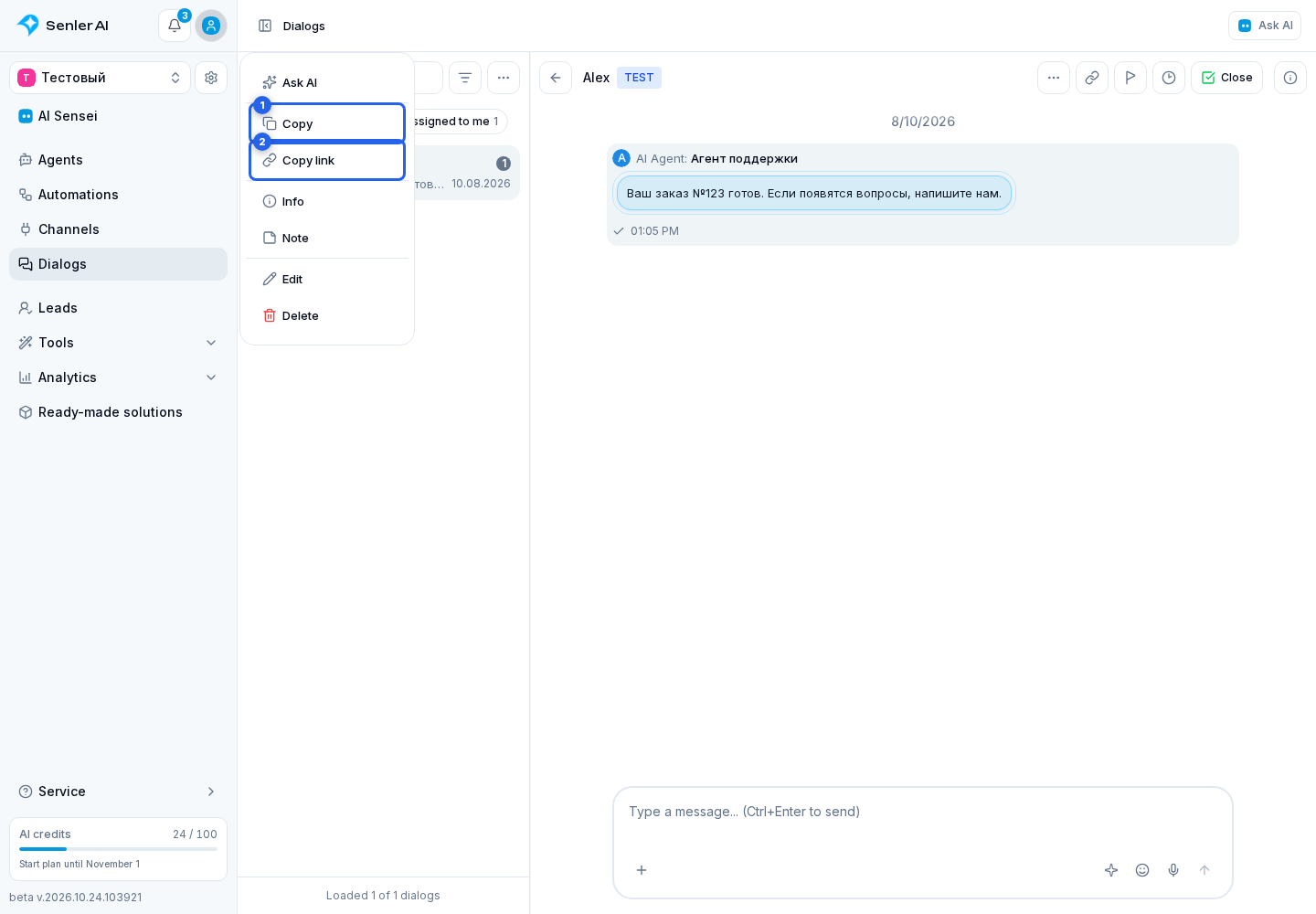
Open Dialogs in the project side menu, choose a conversation on the section page, and find the required message in the chat. On a computer, right-click it; on a phone or tablet, press and hold it. This opens the message actions menu.

Available actions. Step 1: 1. message in the chat
1 / 3
1. message in the chat

Depending on the channel, role and message type, the following are available:

  • ask AI about a message: this opens a new assistant dialog and attaches the selected message as context;
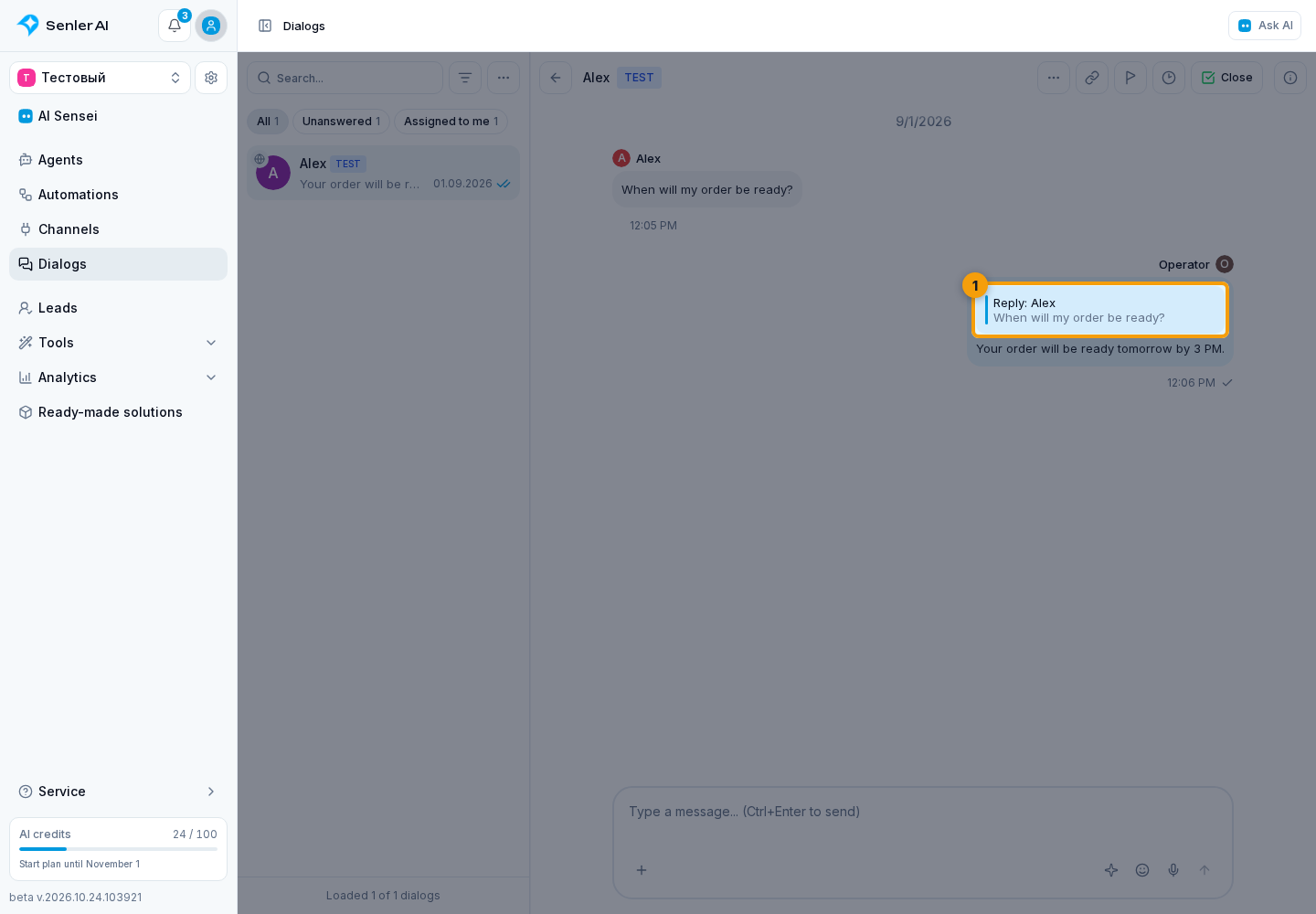
  • reply to a message;
  • edit;
  • delete;
  • copy the text or message link;
  • open message information;
  • open edit history;
  • download an attachment, open it by link, or send the file to yourself when the action is available for that file;
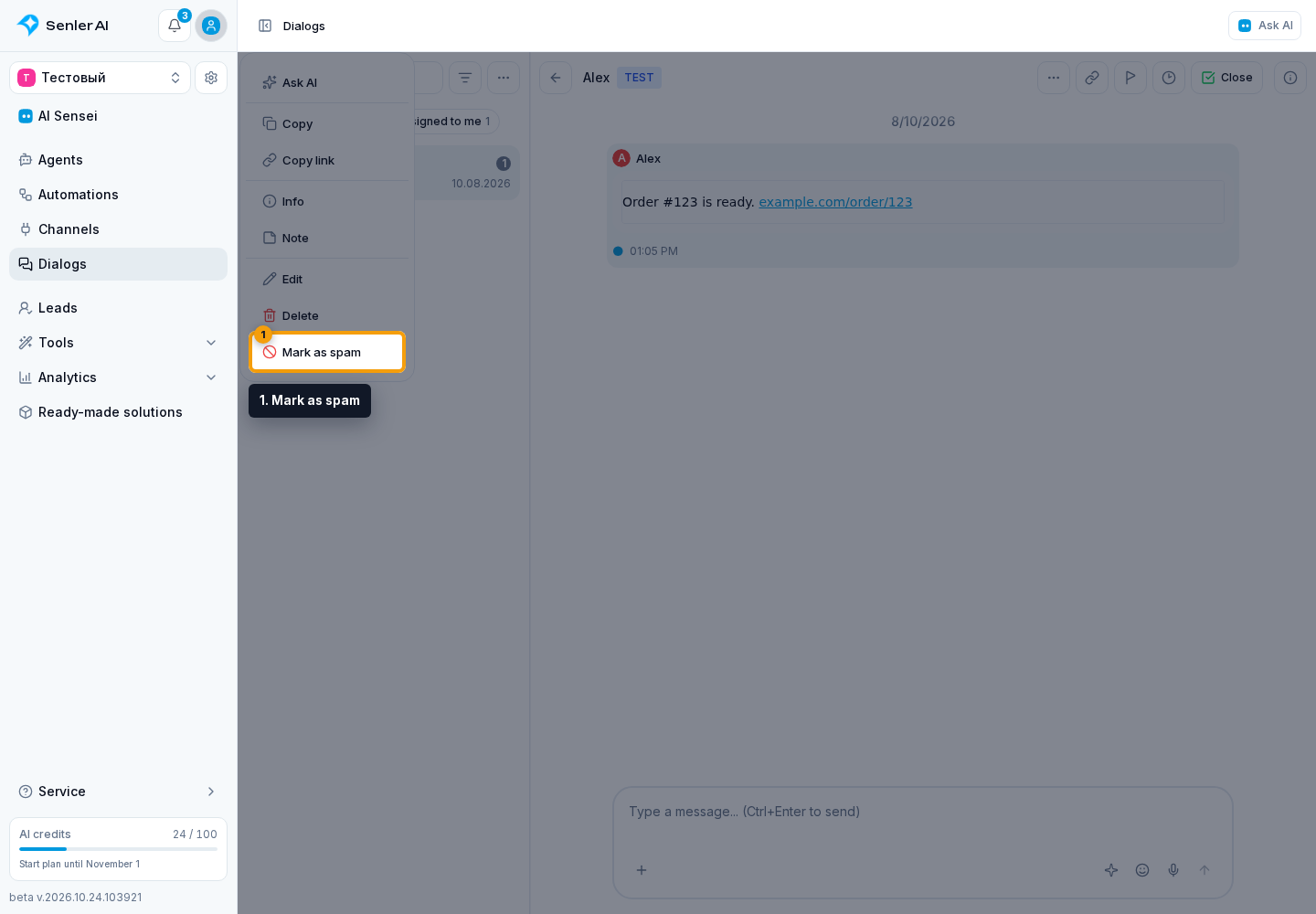
  • mark an email message as spam when supported by the channel;
  • press the message button if the event contains a button with a supported action;
  • open Telegram post comments when the message is linked to an available discussion thread.

If the action is not available, the cabinet displays "Editing is not available" or "Deleting is not available." The reason is usually channel restrictions, message type, user rights, or event status.

If the message is a reply or forward, click the source message preview or forwarded message preview to jump to the linked event in the history.

How to ask AI about a message

On a computer, right-click the message. On a phone or tablet, press and hold it. Select "Ask AI" from the menu that opens.

A new assistant dialog opens with the selected message or event attached as context. The input is focused immediately: add what you want AI to explain, check, or prepare, then send the question. This action does not edit the selected message or send anything to the client.

Only the selected event is attached automatically, not the entire conversation. If the answer needs messages before or after it, phrase the question around the whole dialog. The assistant uses available tools to retrieve the history or explains which information is missing.

Regular message hover does not show a separate Ask AI card. Messages use the context menu so that the AI action does not cover buttons, attachments, or other chat actions.

If "Failed to open AI chat" appears, make sure the dialog is open inside the cabinet and try again. The selected message is attached only after the new assistant dialog opens successfully.

If a message contains a formatted code block, use the copy button in its top-right corner. It copies the entire block without manual selection and briefly shows success or failure. Long lines wrap inside the block, but the original text is placed on the clipboard.

Telegram post comments

A forwarded Telegram channel publication may be shown as "Post in channel ...". When Senler knows its linked discussion thread, a View comments button appears below the message.

Clicking it opens Post comments mode: the publication comments temporarily replace the general history, together with a loading state and the number of messages found. Up to 200 comments are loaded at a time; scrolling toward the beginning of the history loads earlier messages in additional batches.

While this mode is open, new comments, edits, and deletions in the thread appear without returning to the general dialog. If the list stops updating after a connection loss, wait for the connection to recover; if necessary, return to the dialog and open the comments again.

The post also becomes the reply target, so a new message can be sent to its comment thread. Check the reply preview above the composer before sending. Back to dialog restores the regular history and clears that reply target.

When an agent handles a comment in a recognized Telegram post thread, it uses the history and metrics from that discussion only. Comments from other publications in the same discussion chat are not mixed in. If the agent scheduled a follow-up from this thread, the delayed message also returns to the same post discussion. An operator reply in another thread or in the regular chat does not cancel a response being prepared here.

The view button and per-post history separation are available only when Telegram supplied linked discussion data and Senler recognized the thread. If comments fail to load, the cabinet shows an error and returns to the regular dialog; you can try opening them again. It is normal for the button to be absent on a regular forwarded message or a post without a discussion.

Message buttons

A message button can:

  • send a response back to the bot or connected platform;
  • open a link;
  • run an action on the website if the message was sent through the widget and the site declared that action in advance.

Button support depends on the platform. Telegram, VK, MAX, and Discord support button responses and link opening within their platform limits. The website widget can additionally pass a button action to the site so the page can run its own scenario, such as opening a form, applying a filter, or adding an item.

An automatic site action is possible only when the page explicitly passed it to the widget. If there is no suitable action, the answer explains the next step or suggests opening the required section without promising that the action was completed automatically.

If the platform does not support a specific button, the system tries to adapt the button set safely. If it cannot be adapted, that button is not sent.

Event information and history show button rows, text, and button data for checking. The exact developer setup is described in Widget Public API.

AI action cards in messages

A message with an AI action may show a separate card: action name, status, duration, and details. It shows what AI was doing: checking data, performing an action in the cabinet, preparing media, or changing message elements.

Separate toggles reveal AI reasoning and tool call details. A message may also have an analytics button; its summary opens separately.

The cabinet tries to show understandable names: knowledge base search, image generation, button setup, page action, and others. If the name is unclear, open the card details and explain the action by its result, not by the technical name.

The card can be successful, executing, or failed. A failure means the action did not finish normally or returned a clear refusal reason. In that case, rely on the red status and the error text inside the card.

Action, result, and error details open through the card details toggle. When explaining it, describe the action by meaning: "data was checked", "request was sent", or "the action ended with an error."

Site page actions are shown in a separate card: action, target, status and execution details. If the card shows that the action is blocked, the element was not found, or the action ended with an error, do not treat the action as completed. Use the card status and a clear manual step: open the required section or complete the action manually.

If an action card visually hangs, refresh the dialog and open the details through the card toggle. Usually this means the chat has not yet received the latest action status.

If an unknown event type appears instead of a clear event, open its details only for diagnostics and send them to support. Do not explain the technical contents of this block to the client.

Delete

Deleting a message is a dangerous action. Confirm that the user understands the consequences. After deletion, the system status “Message deleted” may remain in the chat.

Edit history

Click the edited label to open the history. It shows who sent or edited the message, when it happened, and what the text was. If an event does not have enough data, the cabinet reports that the history is not available.

Attachment actions

If you open the context menu directly on an attachment, "Download", "Open by link", and "Forward to me" may appear at the top. "Download" prepares a short-lived file link. "Open by link" opens the external platform link if the attachment has one. "Forward to me" sends the source attachment to a selected project member if that action is available for the file.

If an attachment action cannot be prepared, check the attachment status, dialog access, "Forward to me" recipients, and whether the original platform link has expired.

When to escalate

Prepare these details for support: the dialog ID, event ID, channel, error text and an example message if:

  • the action is visually accessible, but always falls;
  • the message was deleted in the cabinet, but remained on the platform;
  • the edit history does not match the actual changes.