
Credit history
The credit history page shows every change to the project's credit balance. The total at the top combines remaining plan and purchased credits. For the effective amount after usage still being processed, use the Credits block on Plan & billing.
Search and filters
The default period is the last 30 calendar days, including today. Change the dates to find earlier grants or charges. Scrolling loads more operations.
Search finds operations by text and identifier. Click + to choose a filter condition.
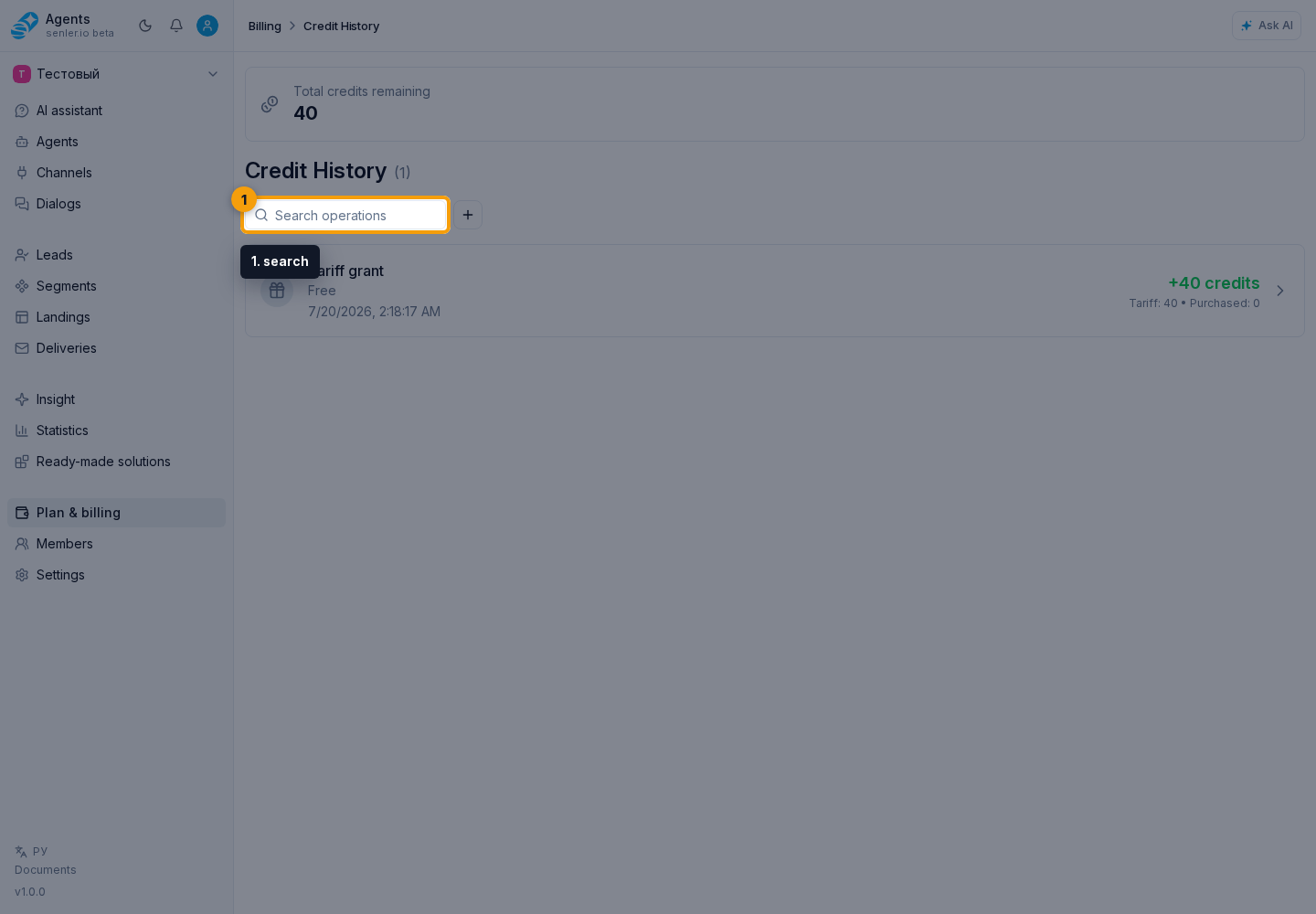
Select an operation type to show only operations of that kind. Set the period's start date and end date.
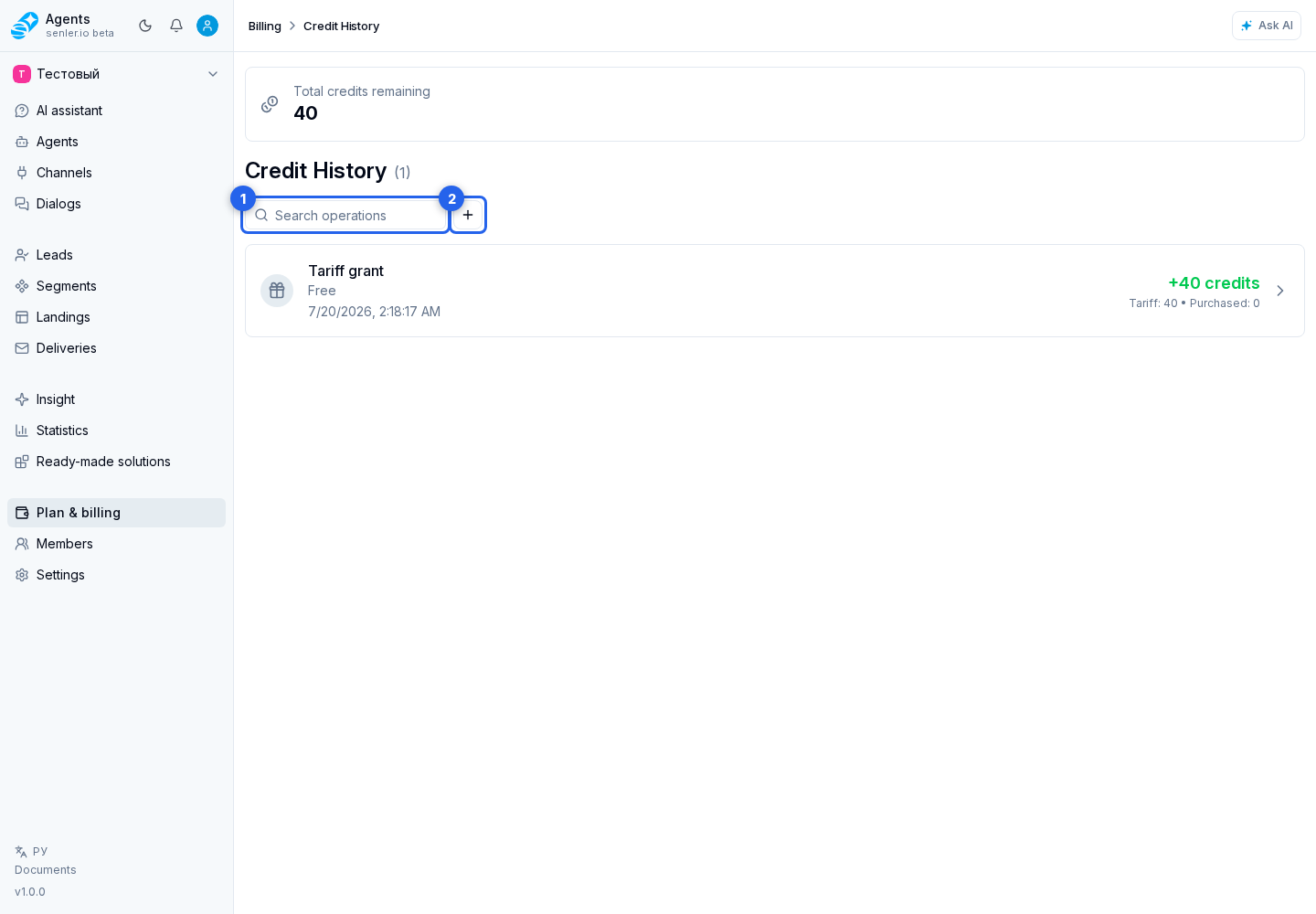
Reset clears search and operation type, restoring the last 30 days.
Operations in this history
- Usage is credits spent on AI operations.
- Plan grant is credits for a new plan period.
- Purchase and Auto purchase are credits from additional packages.
- Expiration is unused plan credit balance that ended with a period or an immediate plan change.
- Adjustment is a credit balance change made by an administrator.
Each history row shows the type, date, credit change, and remaining plan and purchased credits after the operation. A purchase includes its package, a grant includes its plan, and a usage operation may also show event count, tokens, and estimated cost.

Operation details
Usage operations offer "By agents" and "By models" tabs. These are two groupings of the same usage, not separate charges. Missing token details are marked explicitly and do not mean zero usage. The cache percentage is calculated from incoming text tokens, not all tokens in the response.
Click a row to open its details. Depending on the operation, they include:
- the granted or deducted amount and date;
- a plan or package;
- plan and purchased credit balances after the operation;
- usage-event count, tokens, and usage period;
- usage breakdowns by agents and models;
- prompt, completion, and reused tokens;
- estimated cost of the credits used.

If the operation is still running, its details show “Accumulated usage”. The amount grows as AI operations are accounted for and updates automatically. Before any events have been accounted for, “Calculating…” appears instead of zero. Credit balances after the operation appear only once it is complete. The intermediate usage is therefore not the final cost of the entire task.
The usage-event count in usage details opens project event history, already filtered by this credit operation. This lets you move from the total to the specific generations, tool calls, and media processing that produced it.
Estimated cost uses the actual price of the plan and purchased credits that covered the usage. It is an informational estimate, not a separate monetary charge. If the calculation is not applicable or lacks enough data, no amount is shown.