
Developers
The Developers section turns your integration or prepared workflow into a product for other Senler AI projects. This is where an author creates an application, configures its capabilities, tests it, adds documentation, and submits the result for publication.
An application does not remain only in the author's cabinet. After publication, users find it in their project catalog, read its description and, when the author has provided it, its documentation. They can then connect an integration, install a plugin, or deploy a ready-made solution.
How to open the section
- In the project side menu, click your avatar.
- In the menu that opens, select For Developers.

The Description page opens.
What is in the section
The section menu contains two pages:
- Description gives an overview of application types and links to the documentation, API, and Senler UI;
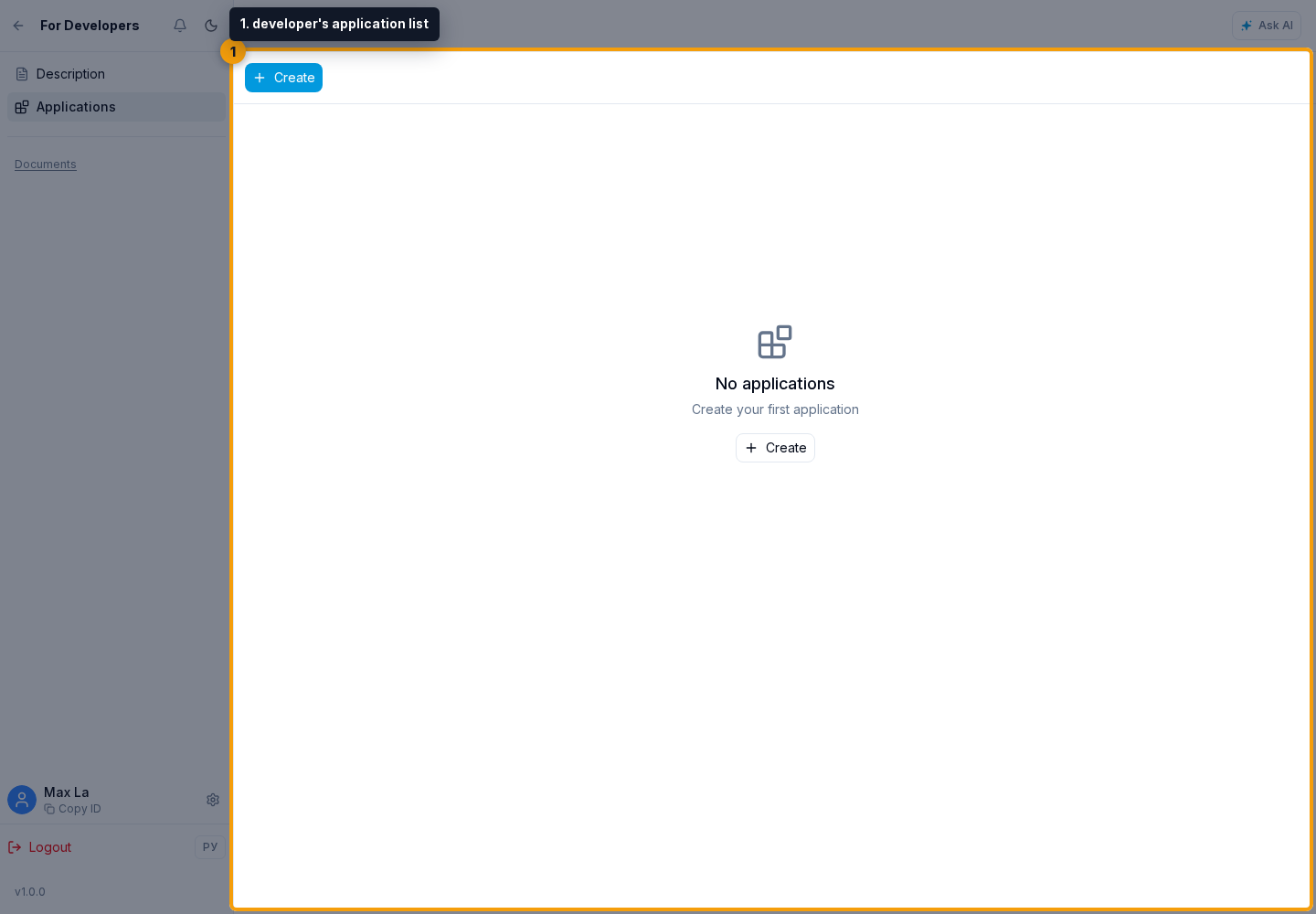
- Applications contains the applications you have created and the button for creating a new application.
What you can build
Website integration
A Website integration connects an external service to Senler AI data and capabilities through OAuth and the API. This can connect a CRM, analytics service, payment system, or another product. The user finds the integration under Plugins, opens the developer website, and confirms the required permissions.
Plugin
A Plugin adds HTTP or MCP actions for agents, custom automation steps, MCP application actions, an embedded interface, or several capabilities together. The user installs it from the plugin catalog, then uses the available features in agents, automations, and the embedded page.
Ready-made solution
A Ready-made solution contains a prepared set of agents, segments, landings, and other resources for a specific workflow or funnel. The user installs a published version from Ready-made solutions and completes the setup steps defined by the author.
To keep the terms clear: an application is what the author creates in the Developers section. After publication, Website integration and Plugin applications are listed under Plugins, while Ready-made solution applications appear in the separate Ready-made solutions catalog.
How users find and use an application
Project catalogs have three tabs:
- Catalog contains published applications that can be connected or installed;
- Installed contains applications already added to the current project;
- My contains applications created by the current user and provides a way back to their developer settings.
A published application card explains its purpose and links to the author's website or documentation when provided. The next step depends on the type:
- a Website integration continues on the external service and requests access through OAuth;
- a Plugin is installed into the project, after which the user works with its embedded page, adds the required actions to agents, and uses published steps in automations;
- a Ready-made solution creates resources from its published version and guides the user through the steps defined by the author.
How to release an application
- Decide what result the user should receive and choose the appropriate application type.
- Create the application, set its shared name, and prepare the description in Russian and English.
- Configure the selected type's capabilities and test them in a project before publication.
- Add public documentation, the developer website, and a clear connection or installation flow.
- Submit the application for review in publication settings.
- After publication, open the matching catalog in a regular project and complete the entire user flow yourself.
Libraries for development
Choose packages for your task; you do not need to install all of them.
@senlerio/ui: React components for your application interface: buttons, forms, tables, dialogs, shared styles, and frontend utilities. See Senler UI for setup and examples.@senlerio/widget: chat integration for your website, a loader, TypeScript types, and widget control. Start with Public API and Events.@senlerio/bridge: communication between an application inside an iframe and the Senler cabinet: receiving context, theme, and language, and handling cabinet commands. For a plugin interface, see Embedded page; for a tool configuration form, see Senler Bridge.@senlerio/api: a typed client for requests to the public Senler.io API. See API SDK for installation, authorization, and request examples.
@senlerio/widget/react contains the React component and hooks within the Widget package, not a separate library to install. This import path is only needed for a React integration; the base widget works without React. See TypeScript and React for examples.
See RefLink for a complete plugin example with an embedded page, OAuth, and an automation step. To configure an application with AI, follow the separate Senler.io User MCP guide.
For chat on your own website, start with widget integration. This is a separate scenario: installing a chat widget alone does not require creating a developer application.
Project access
Creating or publishing an application does not give it access to other projects' data. An integration receives only the OAuth permissions confirmed by the user. Installing a Plugin does not grant API access by itself either. A Ready-made solution separately controls developer access only to dialogs associated with that solution's agents.
Request only the permissions you need, keep secrets on the server, and never put tokens, Client Secret, or private parameters into public documentation or chat messages.