
AI assistant
Summary
A project brings together channels, agents, the knowledge base, dialogs, and access settings. If you do not have a project yet, create one from the project creation page and enter its name.
After creation, Senler AI opens AI assistant with the embedded assistant and screen notifications for the current project. Other project work sections are available through the side menu.
To create an agent, open the Agents item in the side menu, then click the agent creation button.
To connect a channel, open the Channels item in the side menu, click Add channel, and choose the connection platform.
Quick-action cards can differ depending on available features and permissions. The side menu remains the main way to open a section.
Quick actions
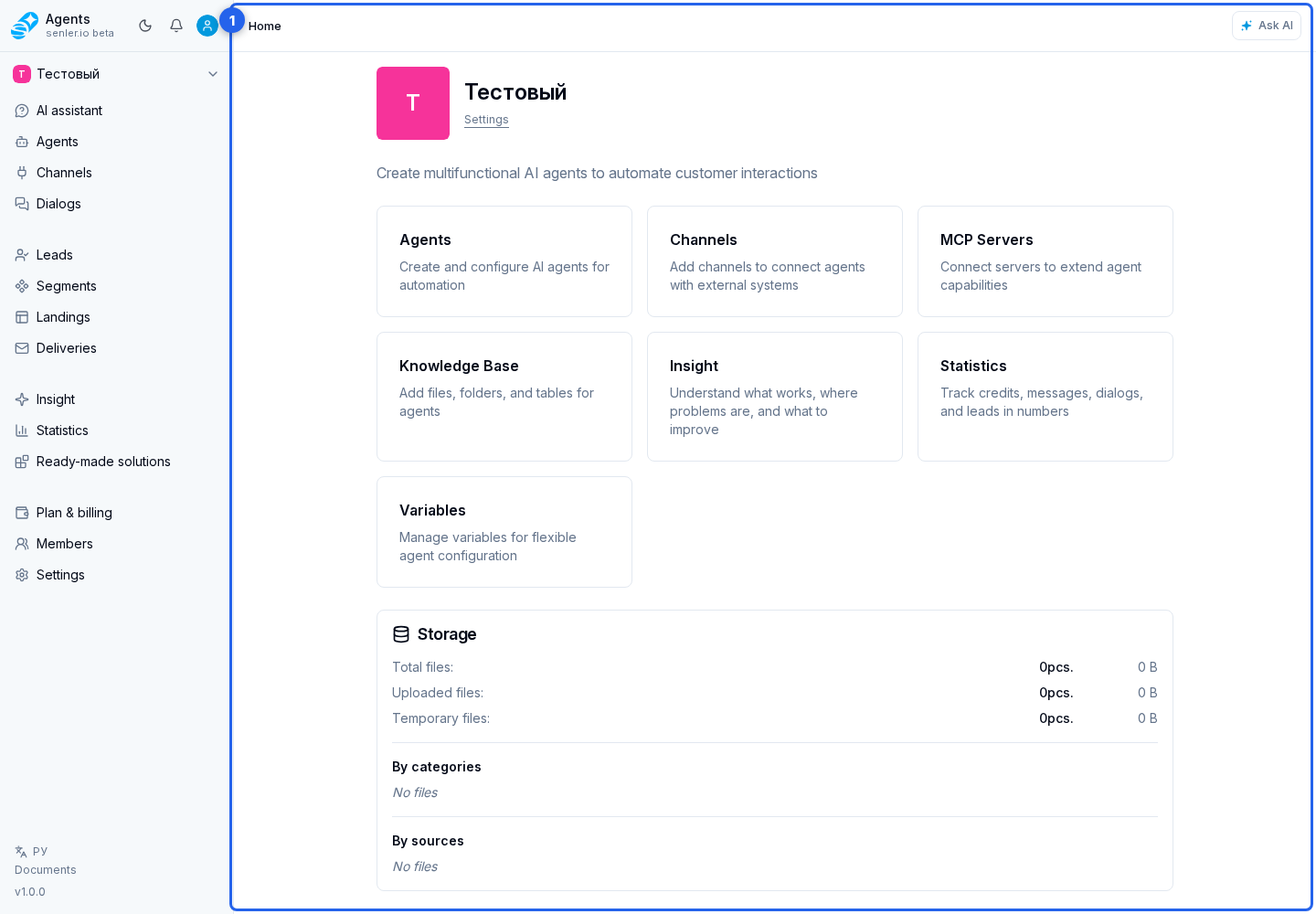
The project overview may show cards that open common actions directly:
- agent creation quick action;
- channel adding quick action;
- knowledge base quick action;
- MCP server adding quick action;
- variables quick action;
- Insight quick action;
- Statistics quick action.
If a card is absent, open the corresponding side menu item.
If the current project looks wrong
- check the selected project in the cabinet;
- if the project is deleted or you do not have rights, it may not be displayed;
- if an invitation was accepted, access is granted to the project from that invitation.
Where this is in the interface
Main elements in this section:
- AI assistant item in the side menu
- project AI assistant page
- project overview with quick actions
- new project page
- project creation form
- Agents item in the side menu
- Channels item in the side menu
- project settings page
- Settings item in the side menu