
Insight AI Summary
Summary
The AI summary in Insight helps explain what happened in the project during the selected period: which metric changes stand out, which discussions matter now, and which agents or problems deserve attention. It interprets the data rather than replacing it, so verify conclusions against metric history, statistics, and specific conversations.
Contains
- general overview of the situation;
- important discussions when enough data is available;
- positive aspects;
- problem areas;
- recommendations for agents;
- business recommendations.
Important discussions
The Important discussions section groups recurring topics in the selected period. Each discussion can include:
- title and high, medium, or low priority;
- unique dialog count and the topic's share of dialogs in the selected period;
- state: Ongoing, Completed, Mixed states, or State unknown;
- trend within the period: New topic, More conversations, No notable change, or Fewer conversations;
- last-seen date;
- short explanation;
- possible customer or business impact;
- recommended actions.
The percentage shows the topic's scale among dialogs available for analysis in the selected period that contain lead messages, not its share within the short topic list on screen. It is an analytical estimate: one conversation can contain several discussions, so percentages for different topics do not have to add up to 100%. Grouping quality depends on available dialog content and the agent's configured discussion categories.
Click Open dialogs to go to the saved selection of conversations that support the topic. The list shows the AI summary selection chip: while it is active, only supporting dialogs are shown. Click the chip with the close icon to remove the selection and return to the full list.
The number on the button shows the topic's total scale. For a very large topic, the saved review selection may contain fewer dialogs than that number. The button is unavailable when the discussion has no accessible dialogs. If an old selection no longer opens, refresh the AI summary and open it again. Check specific messages and factual metrics before acting; use equal durations and refresh the summary separately when comparing periods.
Discussing a recommendation
An agent recommendation has an agent, priority, issue list, and suggestions. The cabinet may show the agent avatar next to the recommendation so it is easier to see who it belongs to.
The Discuss change button opens the cabinet assistant and attaches the project, selected agent, issues, and suggestions from the recommendation to a new dialog. The user does not need to copy text manually: the dialog opens with the needed context. Clicking the button does not change the agent; a change is possible only after a separate explicit request and user confirmation. If the project has not loaded yet, the button is unavailable.
The answer is based on the specific agent and the specific recommendation the user opened. The user does not need to explain again which summary they mean.
Generating and refreshing
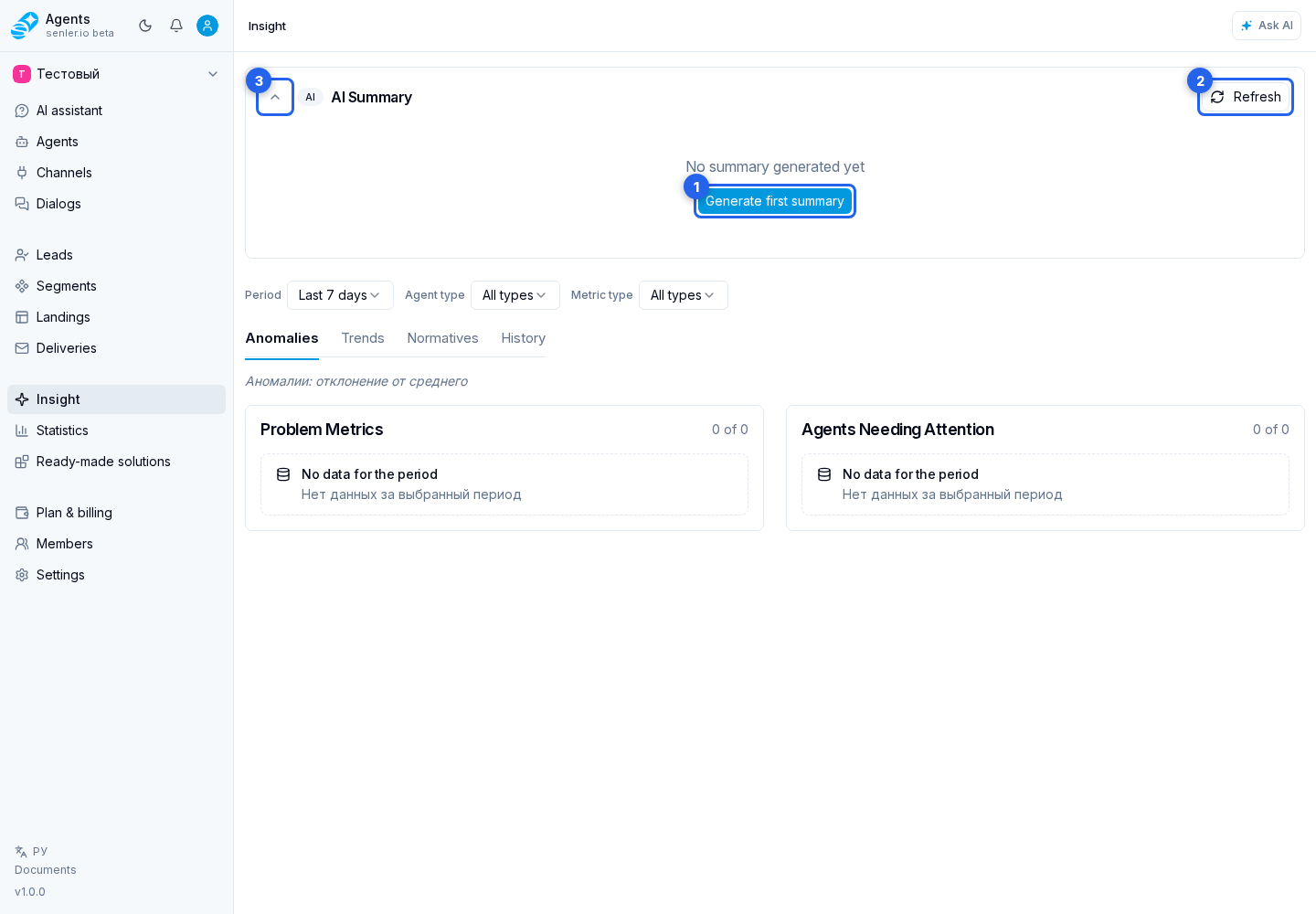
If no summary exists yet, use Generate first summary. For an existing summary, click Refresh. In both cases:
- model selection opens;
- the cabinet shows an approximate cost estimate with a margin for possible additional analysis steps;
- shows available models;
- shows the current model;
- shows the approximate consumption of credits;
- shows the balance of the project;
- warns if the balance is insufficient.
The estimate helps select a model and check the balance, but it is not the final debit amount. After generation, the footer shows the actual consumption next to the preliminary estimate.
Use the header button to collapse or expand the summary. Collapsing it does not delete the result.
Generation details
- model;
- tokens;
- expected and actual credit consumption;
- generation time;
- generation date.
If you need to understand why the summary is not being generated
- check the balance;
- check the selected period;
- check the presence of dialogs and metrics;
- check the model;
- check generation errors.
Where this is in the interface
Main elements in this section:
- Insight page
- Insight AI summary
- Insight item in the side menu