
Members
Summary
Open the Members item in the project side menu. Allows you to manage a project team.
How to add an employee
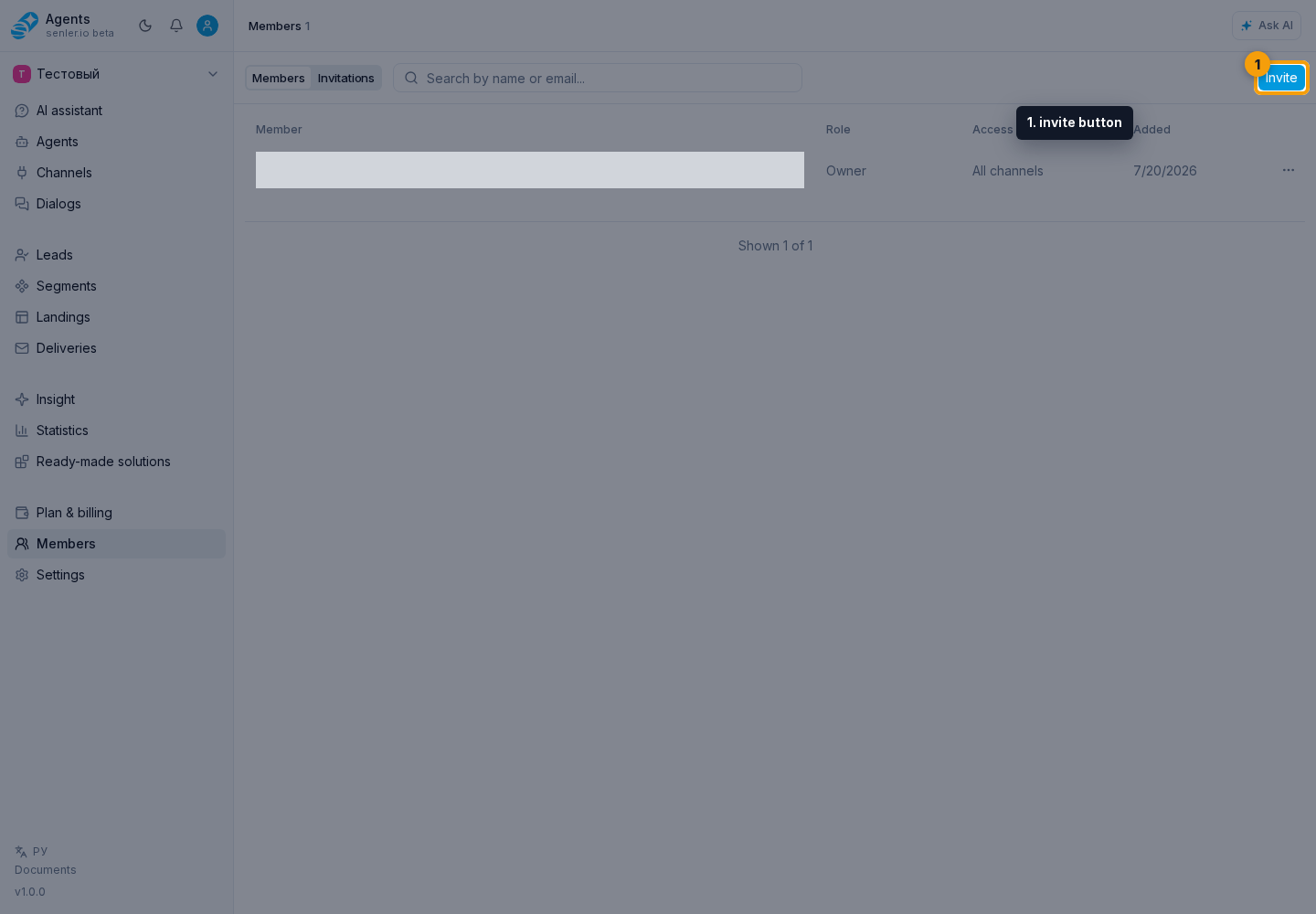
Open Members in the project side menu, wait for the members page, and click the invite button.
In the invitation form, you can choose the user ID method and fill in the User ID field. Then choose a role: Admin to manage the project, Member for regular work, or Viewer for view-only access. If the ID is unknown, switch to invitation by email and fill in the email field. Click Send invitation.
Tabs
- participants;
- invitations.
List of participants
The members page shows who has access to the project and which role each person has. Use it when you need to grant access, check permissions, or understand why a user cannot see a required section.
- search by first name, last name and email;
- active participants;
- inactive participants;
- sorting by roles;
- table with member, role, channel access and added date;
- go to editing the participant.
Project roles
- Owner - full access, including deletion;
- Admin - full access, except for deleting the project;
- Member - work with agents, servers and analytics;
- Viewer - view only.
If a section or button is not visible
- the current role most likely does not include the required permission;
- contact the project owner or admin.
- after changing a role, refresh the page and try the action again.
Where this is in the interface
Main elements in this section:
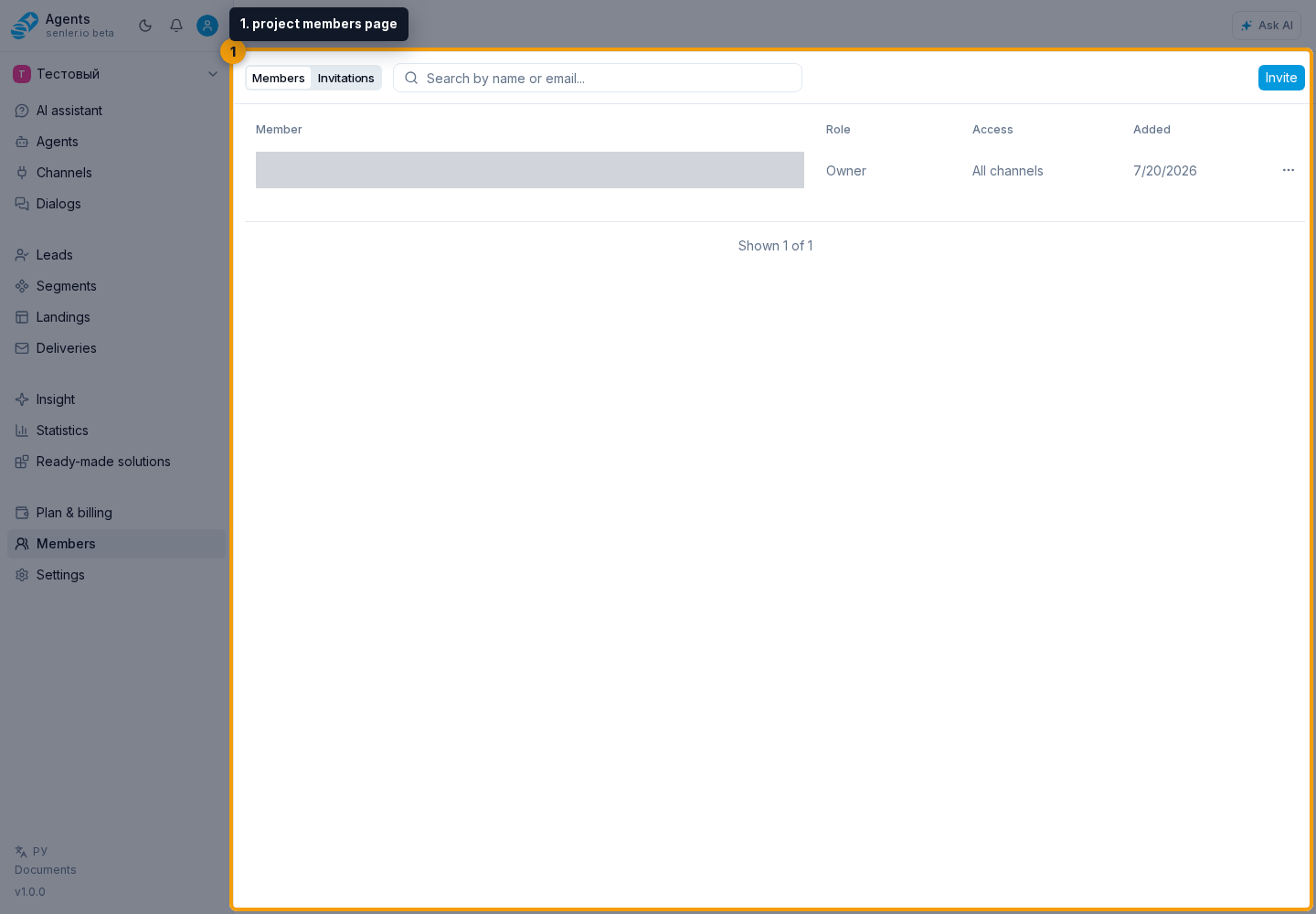
- Members item in the project side menu
- project members page
- invite employee button