
Send Messages in a Dialog
Input field
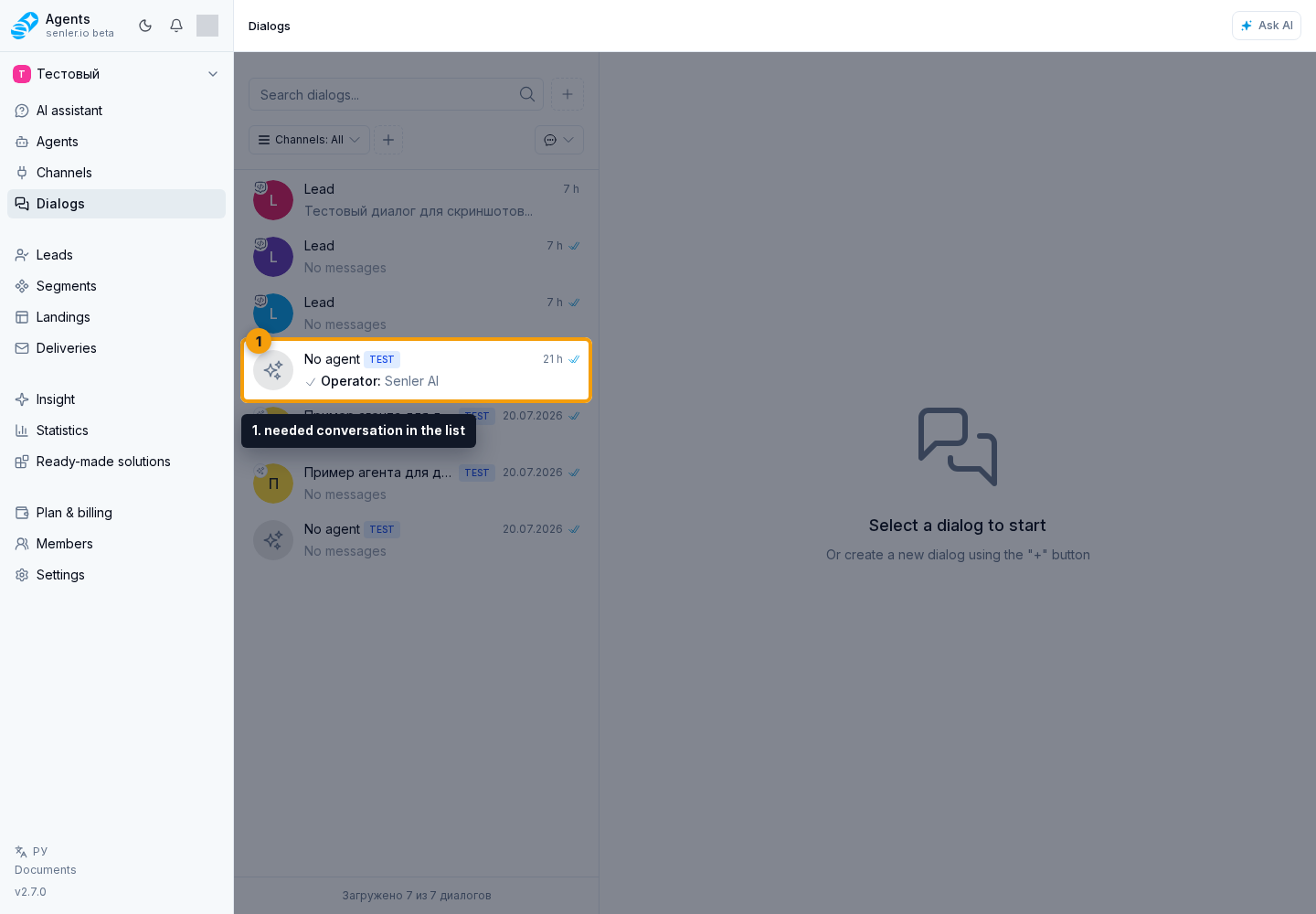
Open Dialogs in the project side menu and choose the needed conversation in the list to open the chat. The operator writes to the client in the input field, the emoji button adds an emoji, and the send button sends the completed message. On a computer, you can also press Ctrl+Enter; in edit mode, this shortcut saves changes.
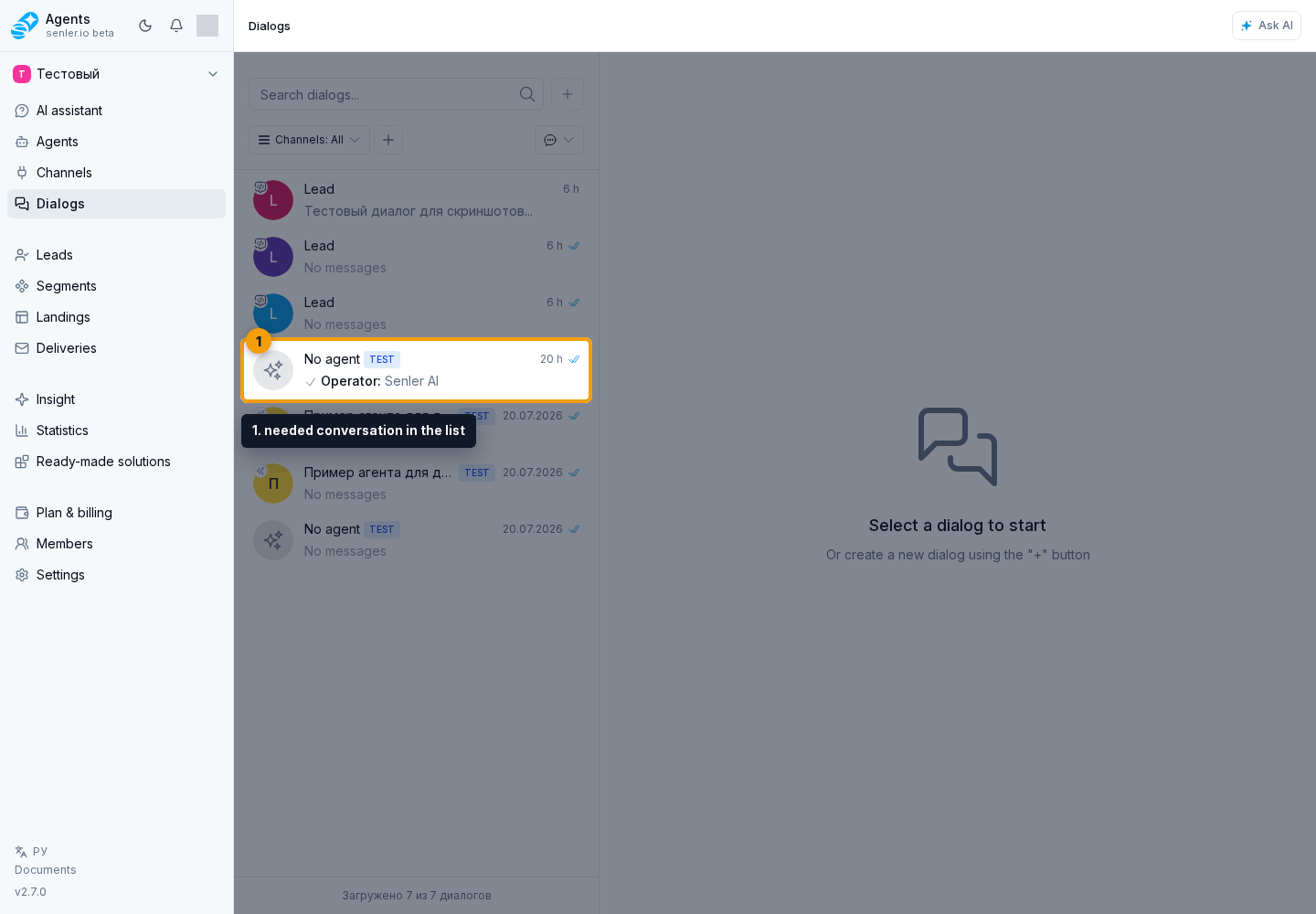
If the dialog is not selected, the input field is grayed out and the cabinet asks you to select or create a dialog. On a narrow screen, the back button in an empty chat or the back button while loading returns to the list.
Reply
Open the menu of the needed message and choose Reply. The new text will be linked to that message. In the Reply block, click the preview to jump to the source message, or cancel the reply before sending.
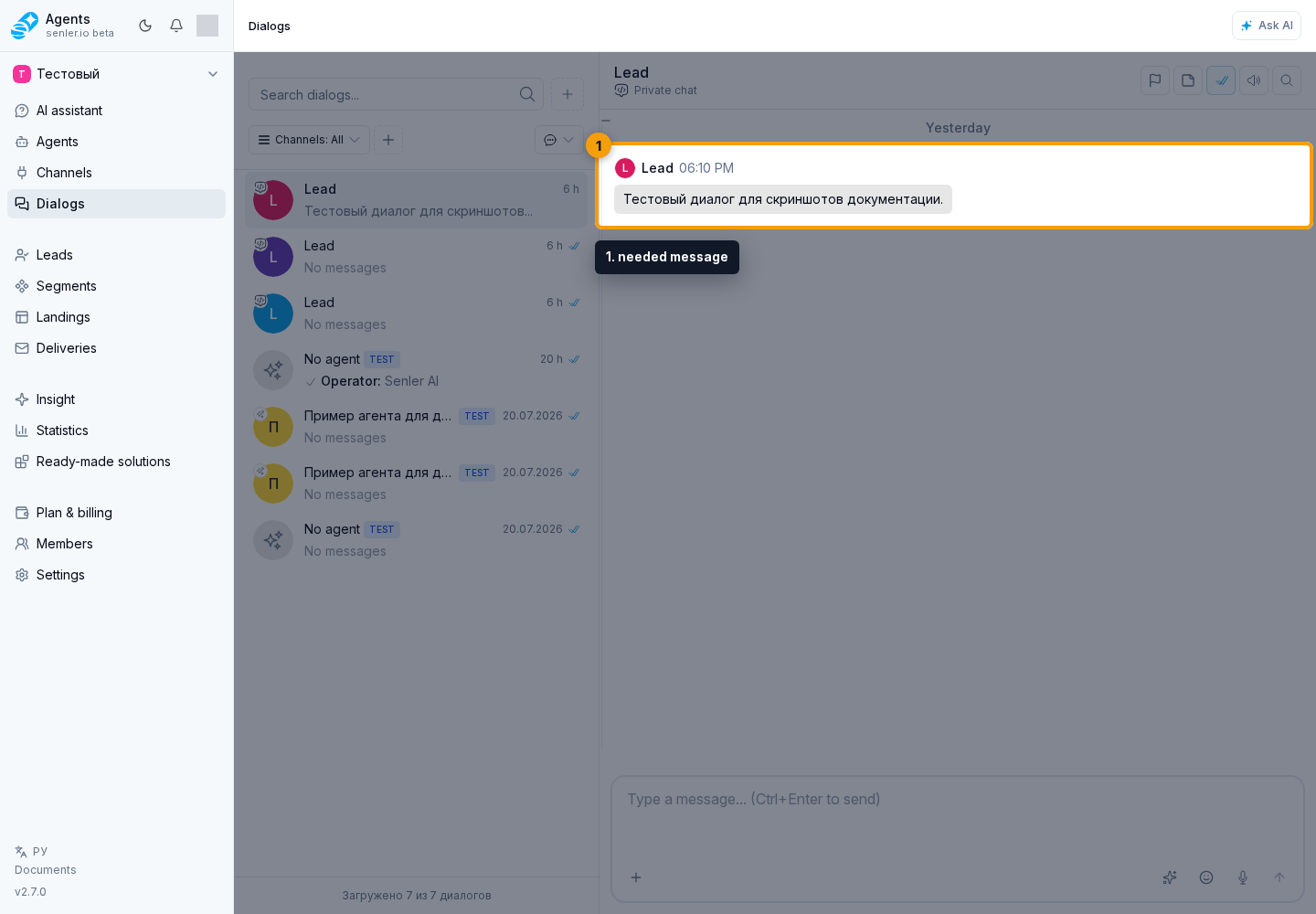
Use reply when you need to answer a specific message rather than send a new message to the end of the chat.
If the user replied to a specific message, that link is saved together with the current message. An automatic reply is built around the new message, while history is used as context, without returning to an old topic unless the current message clearly continues it.
Editing
Open the menu of your message and choose Edit. The input field switches to the "Message Editing" mode. You can save the changes, cancel, or jump to the edited message before sending.
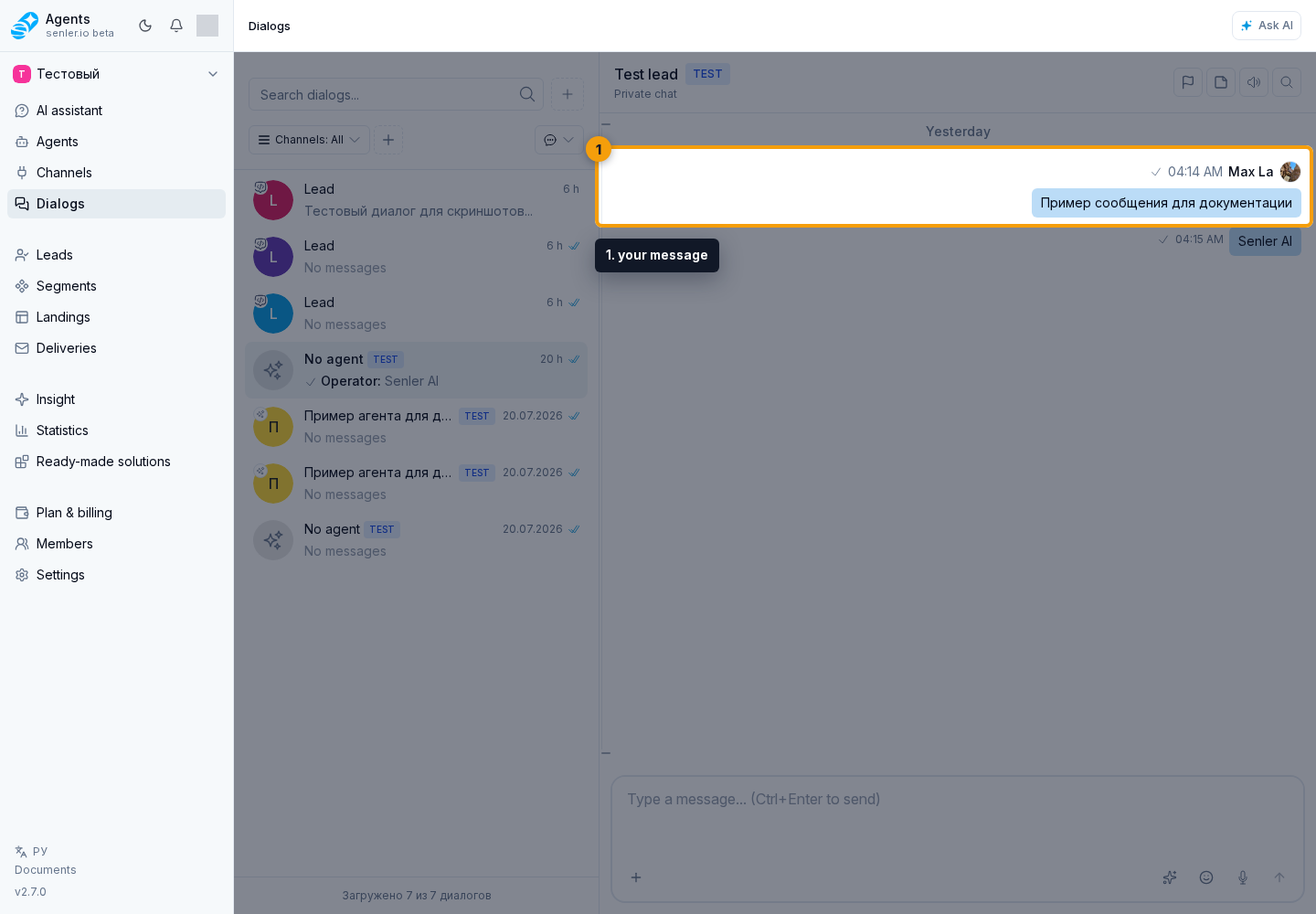
The edit mode is shown above the input field, so you can verify which message will change before saving.
AI help in the input field
If AI help is available in the input field, you can choose improve wording, shorten, clarify, or fix errors. An empty field also offers text generation. If a text fragment is selected, AI works with it; if nothing is selected, it works with the field content.
You can enter your own task in the request field and submit it. "Open chat" transfers the same text and context to a full dialog.
AI help prepares an edit preview. You can accept it, restore the original text, close the edit, or discuss it in chat. It does not send a client message or change the field without operator confirmation.
Message context
Context chips may appear next to a message: page, project, selected element, table, sheet, cell, range, recommendation, or another entity. They show what the question or action referred to.
If a chip opens, it can show readable details: name, section link, table sheet, selected cell, start cell, or range. Do not replace this context with a similar entity from history: if the question came with a table and selected cell, the answer should refer to that table and that place.
Header and search
The chat header contains a back button, search, dialog information, notification sound, priority, and a manual operator-answer marker.
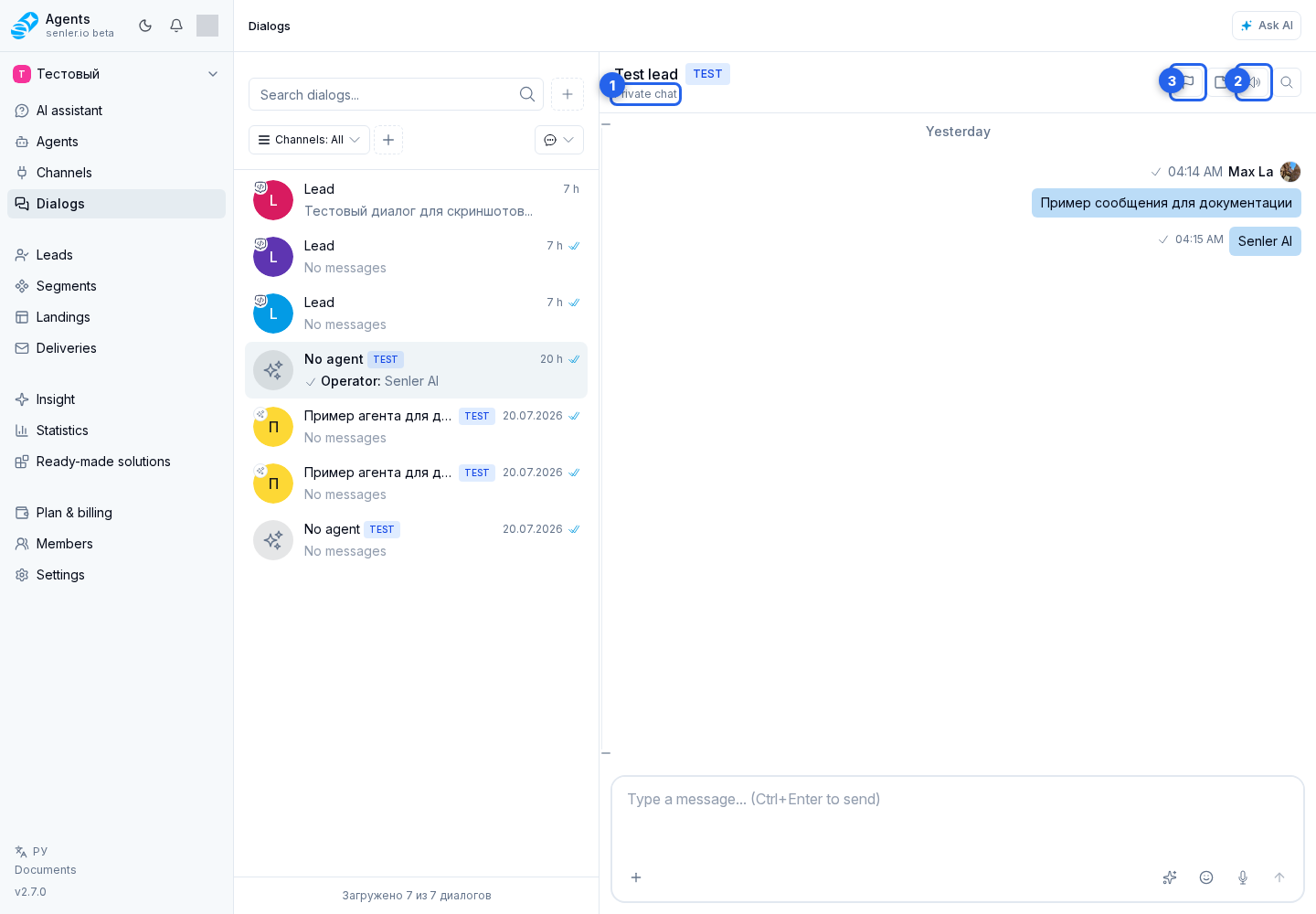
Message history is the scrollable area of the selected dialog. Chat search, reply navigation, and navigation to an edited message all target this area; if the required event is not loaded yet, the chat first loads the surrounding history.
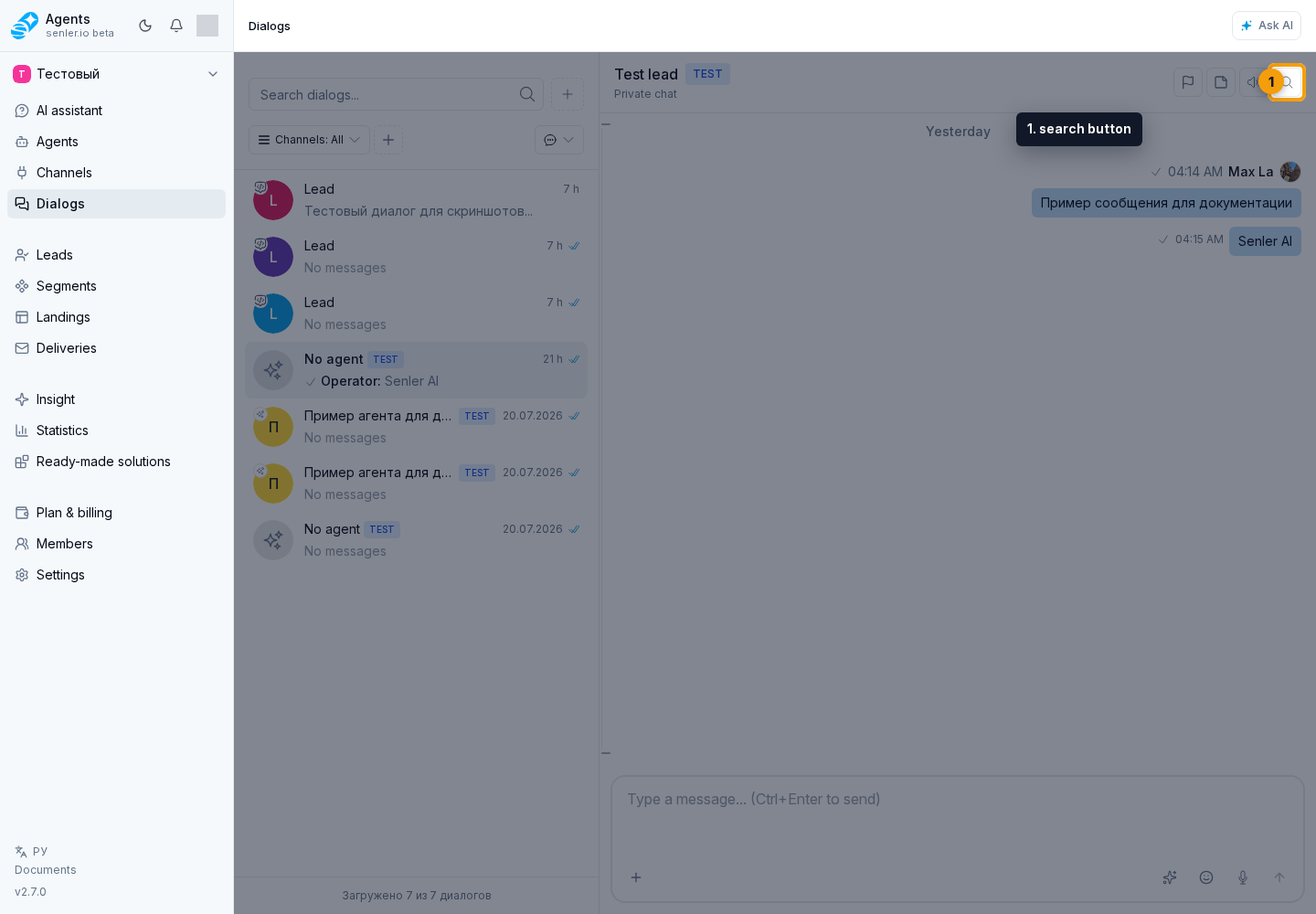
Chat search is useful when you need to find a message inside the selected dialog.
Chat search
The search button opens an input or a separate results panel inside the selected dialog. Search runs over messages in the current dialog; the previous unfinished search request is cancelled when the user types a new query or switches dialogs.
Results show the sender, time, and a message fragment. If the found fragment can be highlighted, the interface shows the highlight; if there is no highlight, it uses the regular message text or attachment label.
Clicking a search result moves the chat to the found event. If the message is not in the already loaded part of history, the interface loads the required history slice around the found event and then scrolls to it. Close the results to return to the history; on a narrow screen, a back button is also available, while the close button closes the search input.
In test mode, a test-dialog creation button may appear next to search.
Semantic history navigation
In a long dialog on desktop, a semantic navigation rail may appear to the left of message history. It is built from summaries that are already available for the dialog, so the rail is not shown for a short conversation or while no summaries exist.
Hover over a dialog section marker to see its topic, date, short summary, and the number of combined summaries. Clicking it jumps to that section's anchor message; if the event is not loaded yet, the chat first loads the surrounding messages.
The active marker follows the visible part of the conversation. Its position helps estimate where a topic is located in the full dialog, but it does not replace exact text search: one marker can combine several nearby summaries.
Drafts
A draft text is saved for the current dialog. When switching between dialogs, the old text should not be lost instantly.
Operator reply suggestion
If selective responses and "Operator reply template" are enabled for the agent, the agent may skip sending a client-facing reply while saving a suggestion only for the operator. The client does not see this suggestion.
In the chat, the suggestion appears in the processing message. It may include text and prepared attachments, for example a file or image created by an agent tool. The operator can send the suggestion as is, move it into the draft for editing, or discuss the suggestion with AI.
If the suggestion belongs to a specific client message, a preview of the source message may appear above it. Clicking the preview moves the chat to that message.
When inserted, the text goes into the message input field, and supported attachments are added to the draft. The operator can then edit the text, remove unnecessary attachments, and send the message through the send message button.
The suggestion remains visible only to the operator: the client does not see it until the operator sends the message manually. If the operator is already editing an existing message, the suggestion is not inserted automatically. Image links inside the suggestion text do not become attachments by themselves: an attachment must be prepared by an agent tool or added by the operator.
Submission statuses
Messages may contain the following statuses:
- “Queued” - the message is waiting to be sent.
- "Sending attachments" - files upload first.
- “Sending to the platform” - the message is sent to the messenger or channel.
- “Not delivered” or “Send error” - check the channel, attachments, or platform restrictions.
If attachments are still uploading, wait until the upload is complete.
If the history does not load, click Retry. If the error repeats, use the copy button and send the error text to support together with the dialog ID.