
Drafts, Publishing, and Starting Agents
Summary
An important principle: editing an agent does not always immediately change its performance in real dialogs.
Draft
- current changes in the form;
- is saved automatically in edit mode and can be used for testing;
- not necessarily used in production.
If the autosave indicator shows an error or saving is still in progress, it is better to wait before testing or publishing. Even a successfully saved draft does not change real channels until the agent is published.
The draft includes more than the instruction text. It includes the model, response modes, capabilities, variables, MCP servers, knowledge base sources, their permissions, metrics, and Autostart. If any of these blocks changes, it is considered an unpublished change.
Publication
- makes the current draft a working version;
- it is the published version that is used in the channels;
- after changing instructions, keywords, functions, MCPs, variables, knowledge base, metrics, or Autostart, you need to publish the agent;
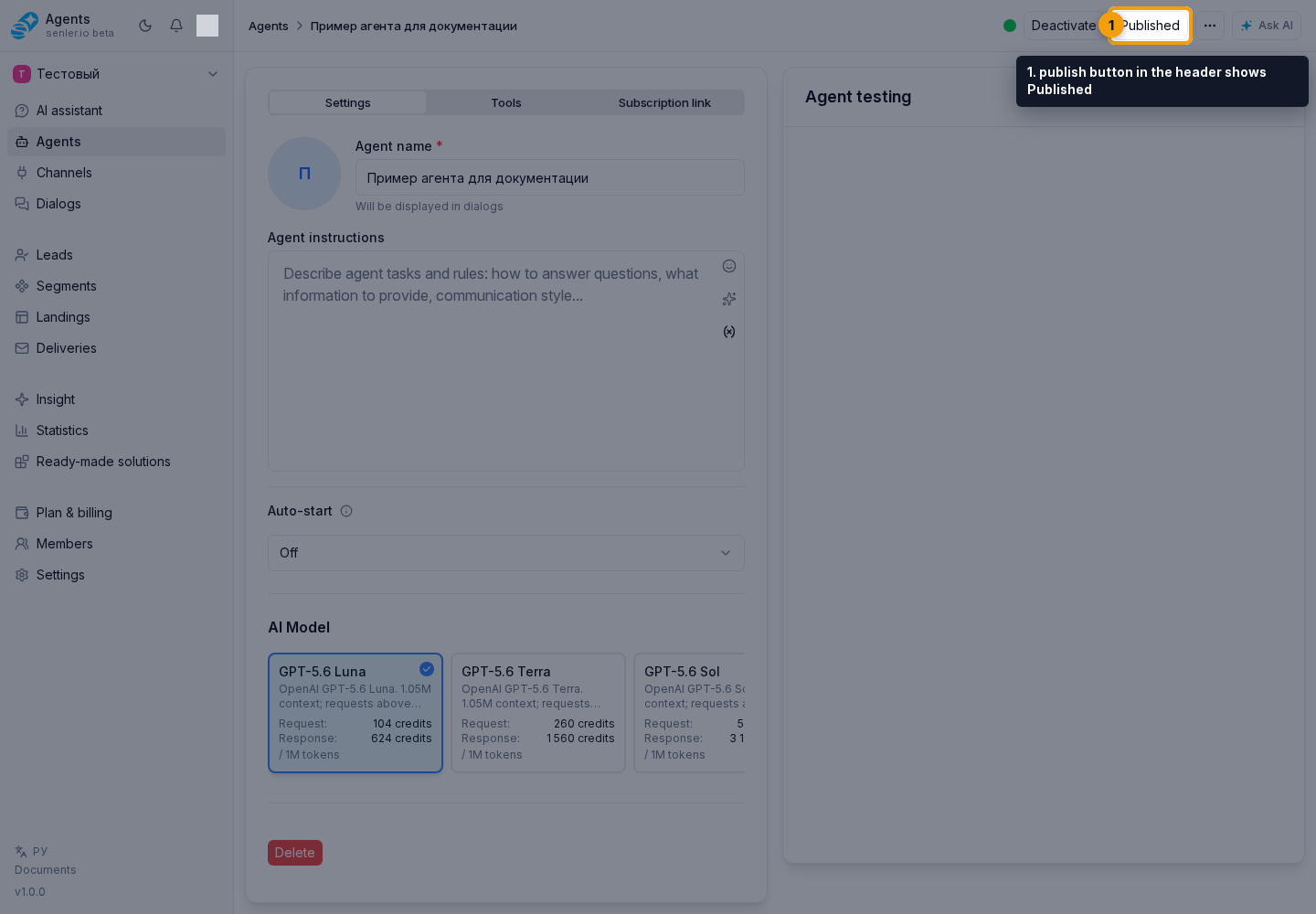
- when the draft matches the published version, the publish button in the header shows Published and is unavailable; after new changes, the Publish action appears.
If publication does not complete, the cabinet shows a Failed to publish agent dialog with the reason. Select Retry to publish the same saved draft again. Until publication succeeds, real channels continue to use the previous published version.
Autostart Conflicts
If Autostart is enabled in the draft, publishing checks the published project and channel rules. When another published setting already uses the same area, a warning appears.
Review the Autostart conflict list. If the old rules should be replaced by this agent, confirm rule overwrite. After confirmation, old rules for this role and area are disabled.
Segment assignment rules are configured on the specific segment page. They have higher priority than channel and project rules, but they are not included in the overwrite from the agent form.
Start/Stop
- the agent can be active or stopped;
- the stopped agent does not respond;
- use the Activate or Stop button in the form header to change this state; changing it does not require republishing the draft;
- if the agent is silent, check its activity and published version.
Rollback to published version
- if the draft is damaged, you can return the draft settings to the published version;
- rollback returns form fields, Autostart, MCP binding, knowledge base sources, their permissions and selected metrics to the published state;
- if autosave is still running before rollback, wait until the action finishes in the interface;
- unsaved or unpublished changes may be lost.
Removing an agent
- dangerous action;
- restoration may not be possible after deletion;
- if an agent is assigned as primary, background, or used in rules, assign another agent first.