
Project Operator
Summary
The Project operator mark is needed when a team member writes through an external account, chat, or channel that Senler would otherwise treat as a customer. Once marked, new messages and button clicks from that sender remain in the dialog but do not trigger or assign the agent.
This is not a job title or an access right. The mark only tells automation: "this sender acts on behalf of the team."
When the mark is needed
Use it when all of the following are true:
- the account, chat, or channel really belongs to the project team;
- its messages arrive as inbound activity from a regular lead or third-party space;
- the agent must not reply to those messages as customer requests.
Do not mark a customer only because they sometimes reply to other chat participants. An incorrect mark stops automatic replies to that sender until it is removed.
Who Senler already treats as the project side
A separate mark is usually not needed for:
- a project member replying from the cabinet;
- a project administrator;
- a message sent as the connected group or channel itself;
- a sender that the connected platform already identifies as a team operator.
When the agent does not start for this activity, that is expected behavior rather than an assignment error.
Automations separately evaluate the Operator condition in the Incoming message step. For example, a message sent as the connected community without an operator author already belongs to the project side and does not start the agent, but does not by itself match this condition. When checking broadcasts, consider the sender rather than only the message direction.
Lead or space
Use the sender entity shown in Senler:
| Situation | What to do | Expected result |
|---|---|---|
| A team member replies from the cabinet as a project member | Do not add a mark | The reply is treated as team activity and does not trigger the agent |
| A team member writes through an external account shown in Leads | Mark that lead | New account messages remain saved but do not trigger the agent |
| The team writes as an external chat or channel shown in Spaces | Mark that space | Activity sent as the space remains saved but does not trigger the agent |
| A message is sent as the connected group or channel itself | Usually do not add a mark | Senler already distinguishes the space's own activity |
| A customer writes | Do not add a mark | The message follows the regular assignment rules |
If the same name appears in both leads and spaces, first open the source dialog and check the actual sender. Do not mark both entities without a reason.
The mark applies to one specific lead or space. Another team account, channel, or space must be checked separately.
What changes after marking
- new sender messages continue to appear in the dialog and history;
- button clicks from that sender are also saved;
- the agent is not assigned or started by this activity;
- an operator can continue replying to the customer manually;
- other customers and senders continue under their existing rules.
The mark does not delete old events or change messages that have already been sent.
If the agent is already preparing a reply
By default, when a project operator replies first, an AI response that has not yet been sent is canceled. This prevents two consecutive replies: one from a person and then one from the agent.
Cancellation applies only to the response that was still being prepared. It does not recall a message that was already delivered. The customer's next new message can trigger the agent again under the regular rules.
In Telegram, cancellation respects conversation boundaries. An operator reply in another comment thread or in the regular chat does not cancel an AI response being prepared for the current post discussion.
On the agent's Tools tab, this behavior is controlled by Cancel a pending reply if a project operator responds first under Response Mode. It is enabled by default for a new agent and appears only when Prepare replies and perform actions is enabled.
Change the setting in the draft and publish a new version to apply it. Until publication, live dialogs use the previous value; you can verify it in the published version dialog. When cancellation is disabled, an AI response that has already started may arrive after the operator's message. The matching integration parameter is documented in API SDK.
What the mark does not do
Project operator does not:
- add a person to the project or grant cabinet access;
- assign a project member role or permissions;
- make a person a support operator or add them to the schedule;
- connect an external channel or change platform rights;
- assign or remove an agent that is already assigned to the dialog;
- disable notifications, hide unread messages, or automatically exclude events from statistics.
A project member, a support operator, and an external sender marked as a Project operator are different concepts. One person may match more than one, but each is configured separately.
The mark controls only whether the selected sender's activity starts the agent. Notifications are configured separately in Account Notifications, while metric composition is described in Statistics.
How to add or remove the mark
For an external account, open Leads, select the lead profile, and change the Project operator switch. For an external chat or channel, open Channels, go to the selected channel's spaces, open the space details, and change the same switch.
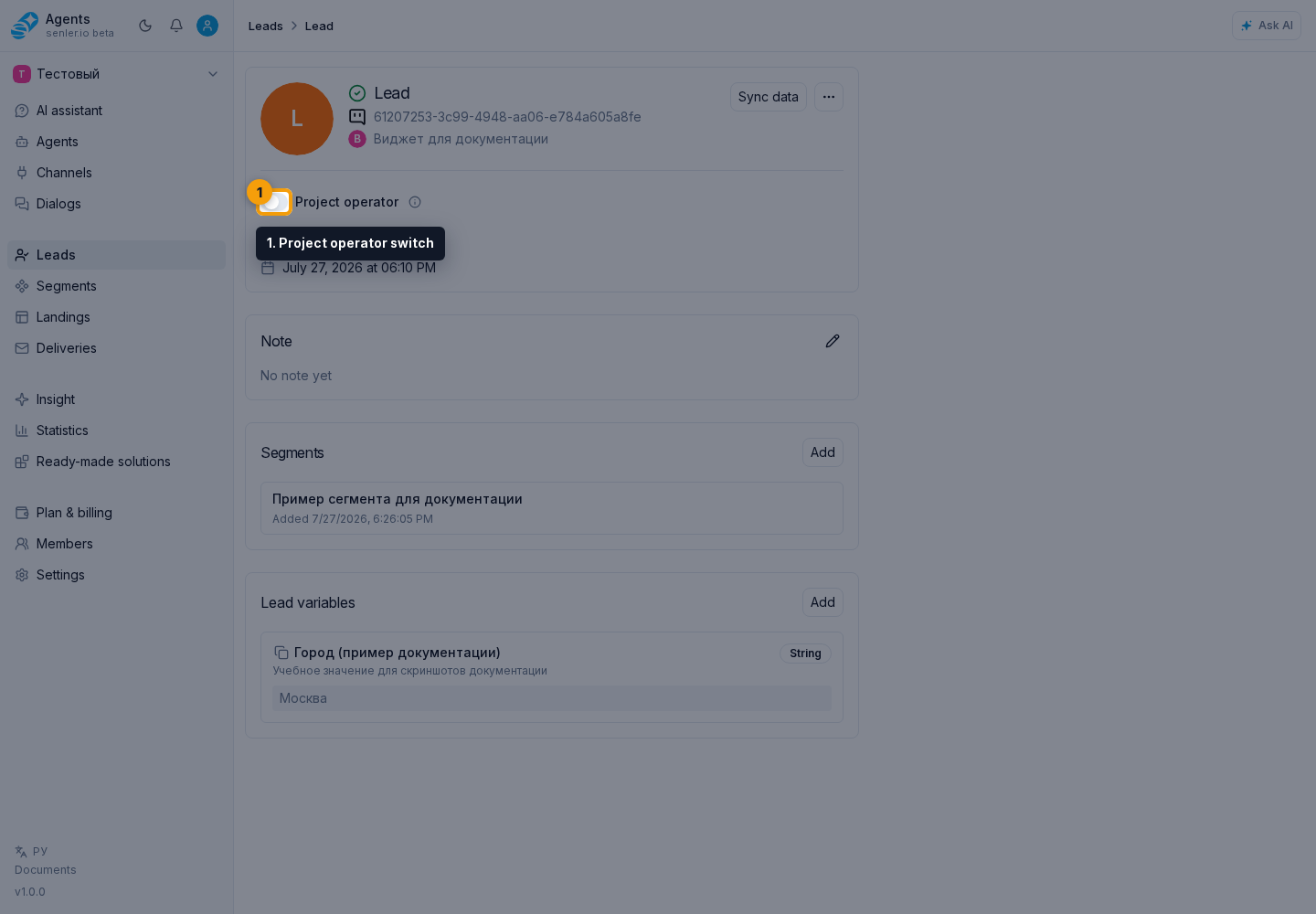
Managing a lead requires permission to manage leads; managing a space requires permission to manage spaces. If the switch is disabled, check the current project member's permissions first. The mark can also be changed through an available Senler management AI tool or the API.
Before changing it, identify the exact lead or space and confirm that this sender belongs to the team. An assistant can make the change when management tools are available. If it only has documentation access, it should explain the steps instead of claiming that the mark was changed.
The lead or space switch is saved immediately and affects new events. Remove the mark from the same entity to restore regular agent triggering. Integration requests and parameters are documented in API SDK.
How to verify the result
- Record which lead or space sends the message.
- Enable the Project operator mark for that exact entity.
- Send a new test message from the same account, chat, or channel.
- Confirm that the message appears in the dialog but the agent does not start.
- Send a separate test message from a regular customer and confirm that their assignment flow is unchanged.
Use a new message for the check: changing the mark does not turn an existing event into a new trigger.
If the result is unexpected
If the agent still replied after the operator, check:
- whether the entity marked is the actual sender of the new message;
- whether the team member used another account or another space;
- whether the AI response had already been sent before the operator message;
- whether pending response cancellation is disabled in the published agent version.
If the agent unexpectedly stopped replying to a customer, first check whether the customer's lead or space was marked as a Project operator by mistake. Remove the mark and repeat the check with a new message.