
Email Connection
Summary
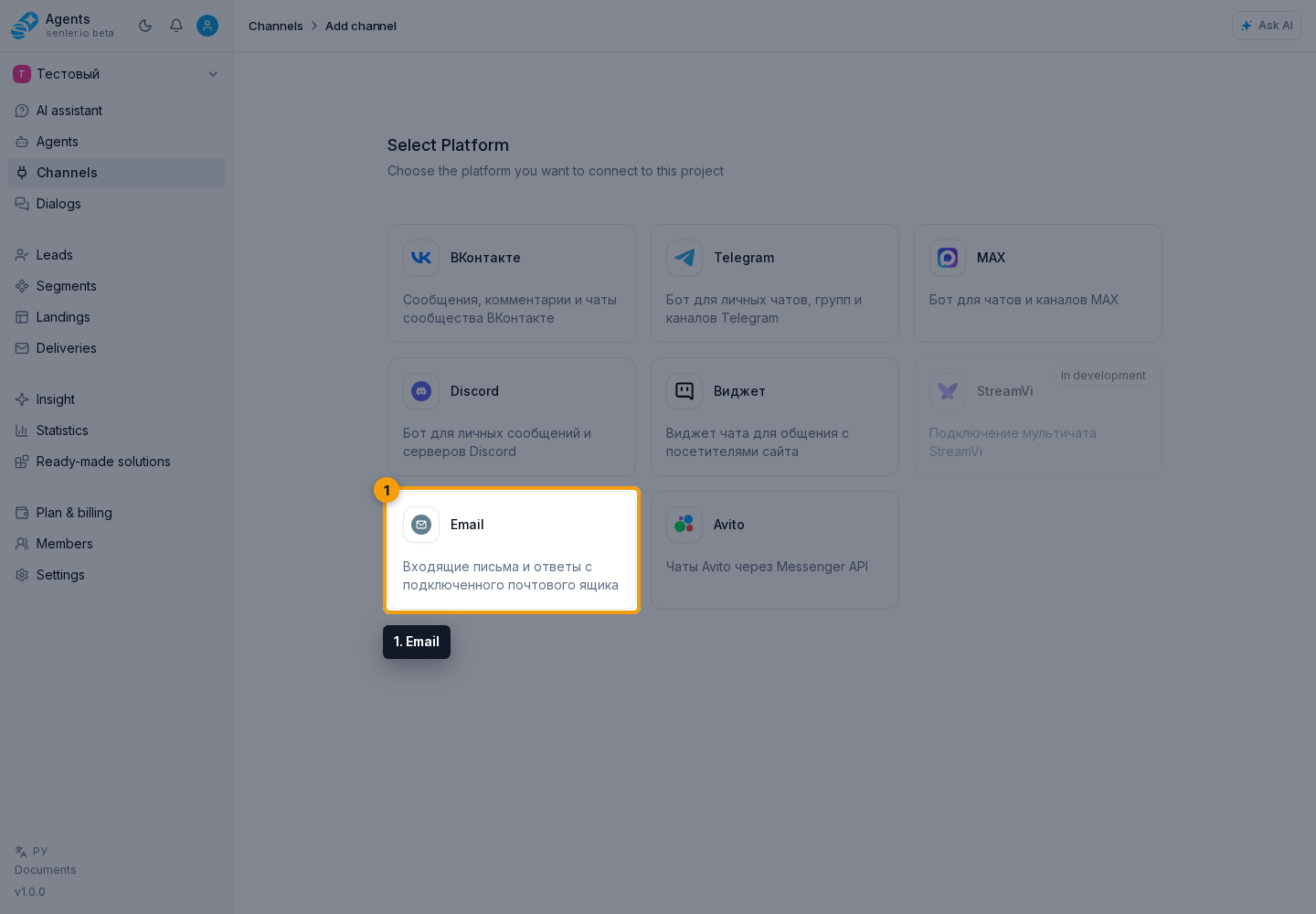
Path: Channels item in the side menu -> Add channel -> Email.
Form
- provider;
- custom provider, if the provider is not in the list;
- email address;
- "Email corresponds to login" switch;
- login, if it differs from email;
- password or application password;
- channel name;
- custom Send From;
- Send From email;
- advanced IMAP/SMTP settings;
- after checking the fields, click "Connect".
Advanced fields
- IMAP host;
- IMAP port;
- SMTP host;
- SMTP port;
- TLS.
When connecting Gmail, Yandex, Mail.ru, or another service
- you often need an application password, not a regular email password;
- the exact method of creating a password depends on the provider;
- the password must be entered only in the cabinet form.
After connection
- IMAP and SMTP status is visible in the Email channel settings;
- you can edit the name, avatar, email, login, password, Send From, provider, and IMAP/SMTP settings;
- you can configure filters for incoming letters.
Email Filters
- action: include or exclude;
- field: recipient, sender, subject;
- filter value;
- you can add and remove filters.
If emails do not arrive
- check IMAP;
- check the application login and password;
- check incoming filters;
- check if your provider is blocking the connection;
- check the history of events.
If emails are not sent
- check SMTP;
- check Send From;
- check TLS and port;
- check the application password;
- check your provider's restrictions.
Where this is in the interface
Main elements in this section:
- channel list
- Channels item in the side menu
- Add channel button
- Email platform selection button
- channel settings page