
Segments
Segments
A segment is a group of leads, not a subscription page. It stores subscribers, required consents, and agent assignments. A landing controls page presentation, forms, and buttons and can subscribe a lead to a selected segment. In the project menu, open Segments.
Creation and list
To create a segment:
- In the project menu, open Segments.
- On the segments page, select Add.
- Enter a name.
- Select Add.
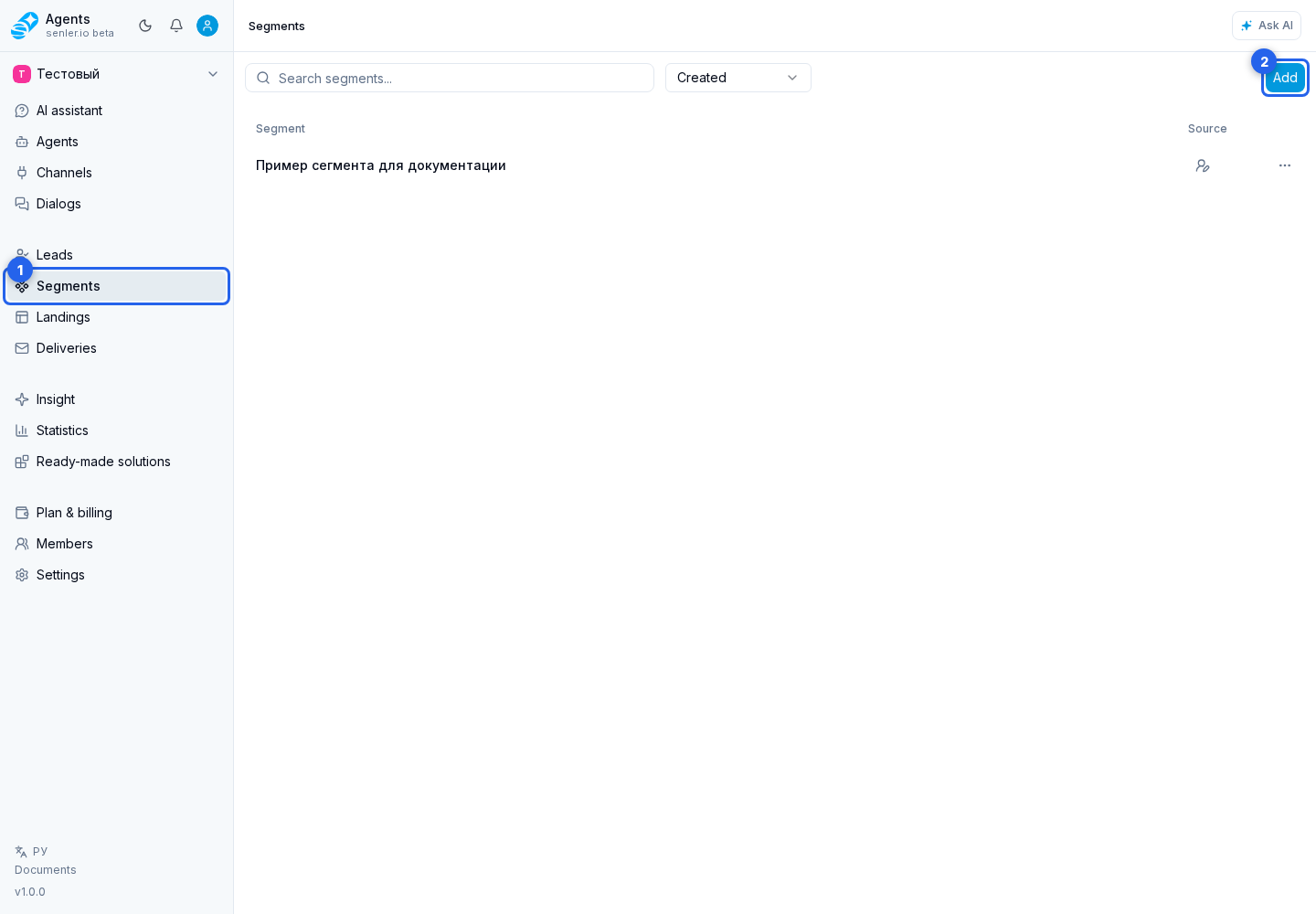
The empty state also has its own add button. Use search to find an existing segment. Each row has an actions menu, which can open settings or delete the segment. Automatically managed segments have the Managed badge. In the Source column, the manual creation icon identifies an ordinary segment, while the agent icon identifies the segment for its subscription page.
Segment settings
The selected segment page lets you change its name, required consents, and agent assignments. Presentation, blocks, channel selection in a form, and phone or email requests are configured on a landing, not in the segment.
The main settings areas are:
- Segment name.
- Adding a required consent.
- The primary agent and background agent.
- The subscription link and saving changes.
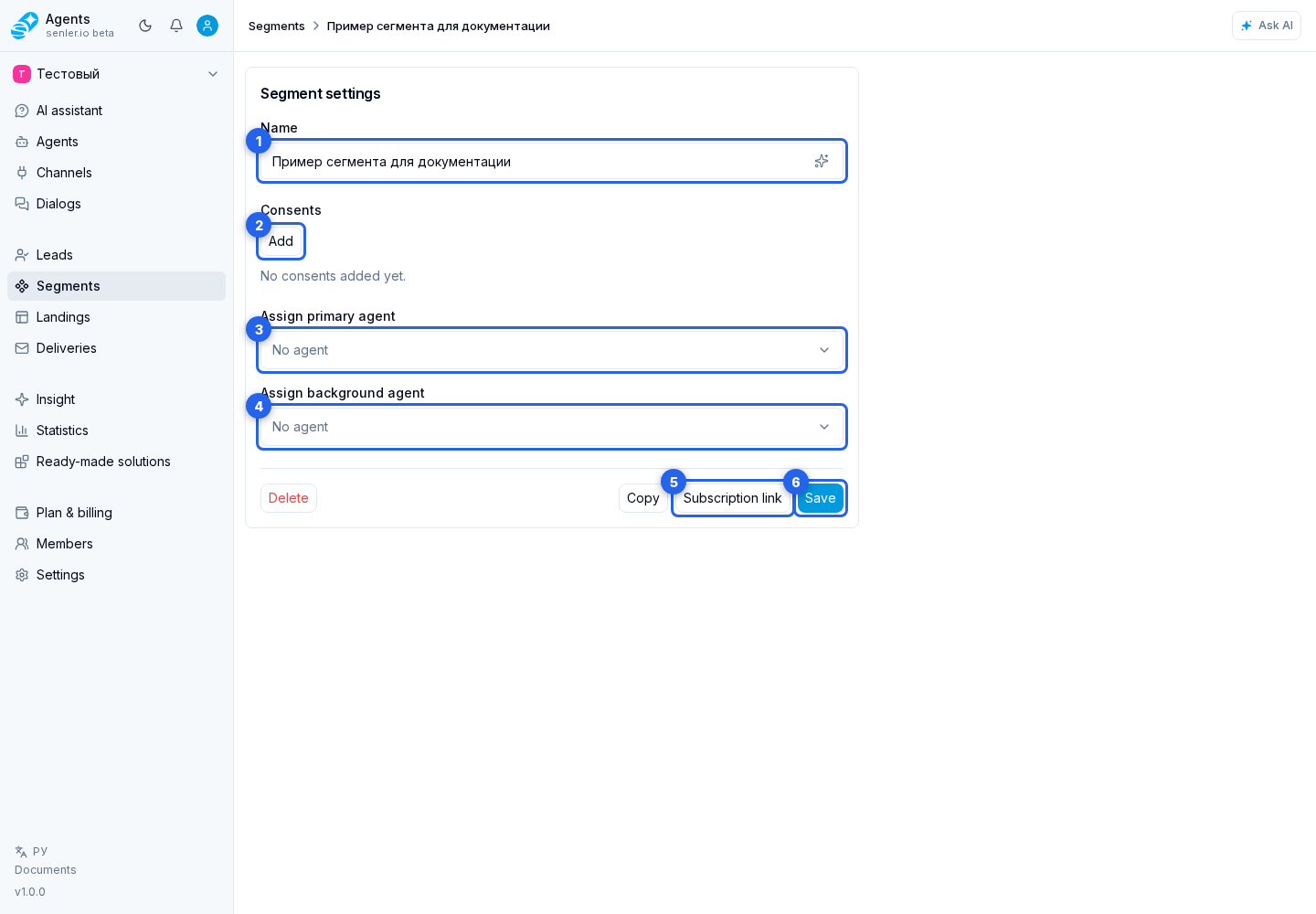
Apply ordinary segment changes with the Save button. The page also provides copy and delete. The cabinet warns about unsaved changes before leaving the page.
Consents
Use Add consent to select an existing document, create new text, or upload a PDF. An attached consent can be edited or removed from the segment.
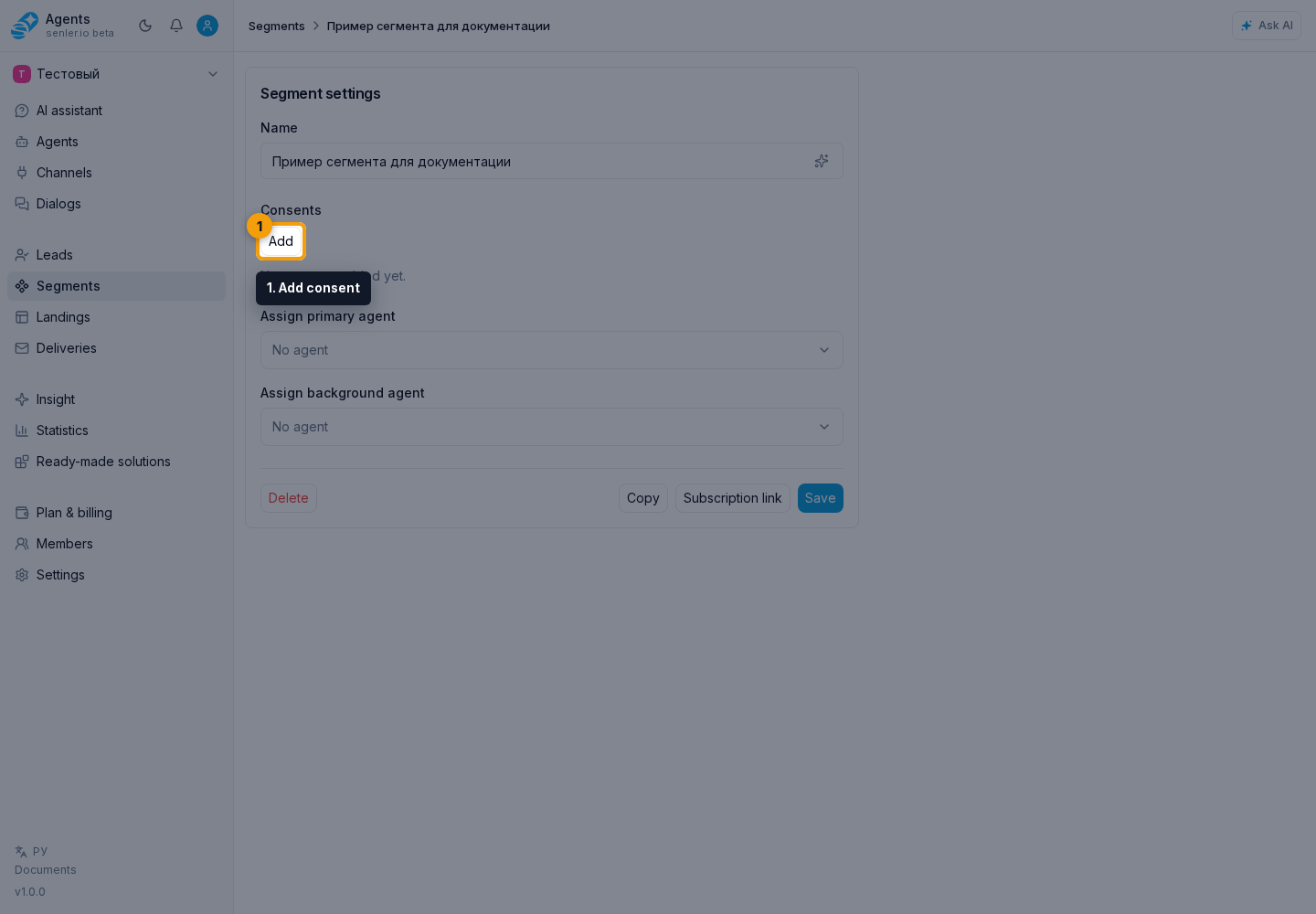
Saving a document creates a new version, but an existing segment continues to use the version selected earlier. This prevents the text accepted by users from changing without an explicit decision. When a newer version is available, click Update to version …, then save the segment. Earlier variants remain in version history; the selected version can be opened for viewing.
A segment can be saved without consents. When consents are attached, use a landing with a form if the user must explicitly accept the documents.
Segment agents
Segment members can have a primary and a background agent. The selector provides search and agent options, including no assignment.
Subscription link
The Subscription link button opens the direct subscription dialog. In the channel selection area, use search by name and, when several platforms are connected, the platform filter. After you select a channel, the cabinet can show:
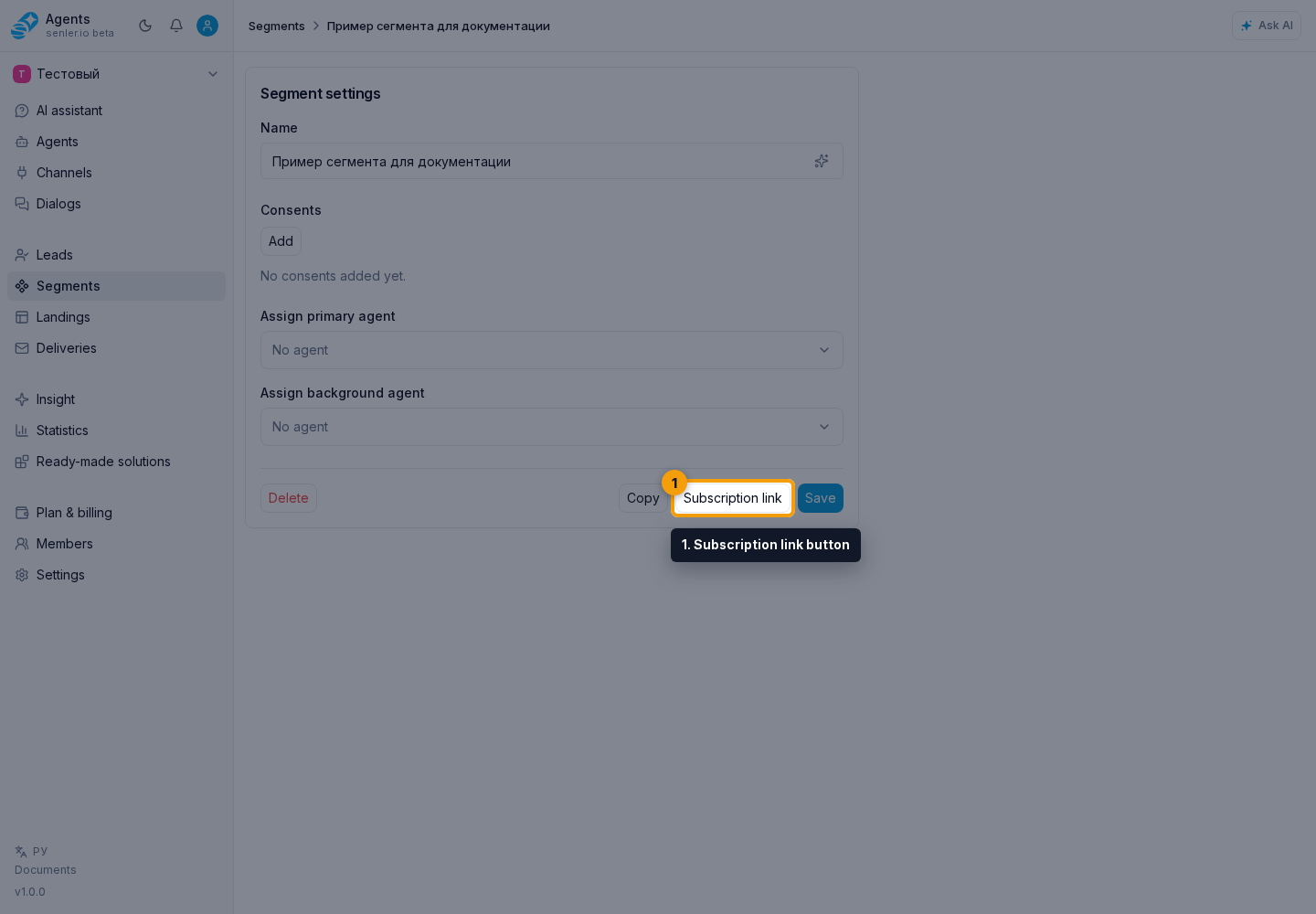
- external and direct links for VK messages;
- subscription through a Telegram bot;
- subscription through a MAX bot.
A ready link can be copied or opened. It subscribes the user immediately and does not open a form, so it does not request a phone number or email or record document acceptance. When those details or consents are required, send a landing link with a Subscribe button action even if a direct link is also shown.
A direct link is unavailable for a paid segment. It can also be unavailable when the channel is paused, has no valid token, the VK community cannot be identified, or a Telegram or MAX bot has no username. The dialog shows the specific reason.
Segment created by an agent
A segment is created automatically for an agent subscription page. Select the agent icon in the Source column to view the agent's name and state or open its settings. The segment page shows a read-only notice: the name, state, and assignment rules are controlled from the agent settings. This segment cannot be copied or deleted. Publishing the agent applies changes to its page and segment together.
Where this is in the interface
The main section elements are identified above next to their corresponding actions. Subscription pages and their channel launch methods are in the separate Landings section.