
Dialogs
In the Dialogs section, you can read conversations with clients, see agent replies, and respond as an operator.
Find the required dialog
In the project side menu, click Dialogs.
Enter a name, dialog ID, or part of a message in the search field.
If needed, click the add filter button and narrow the selection using filters.
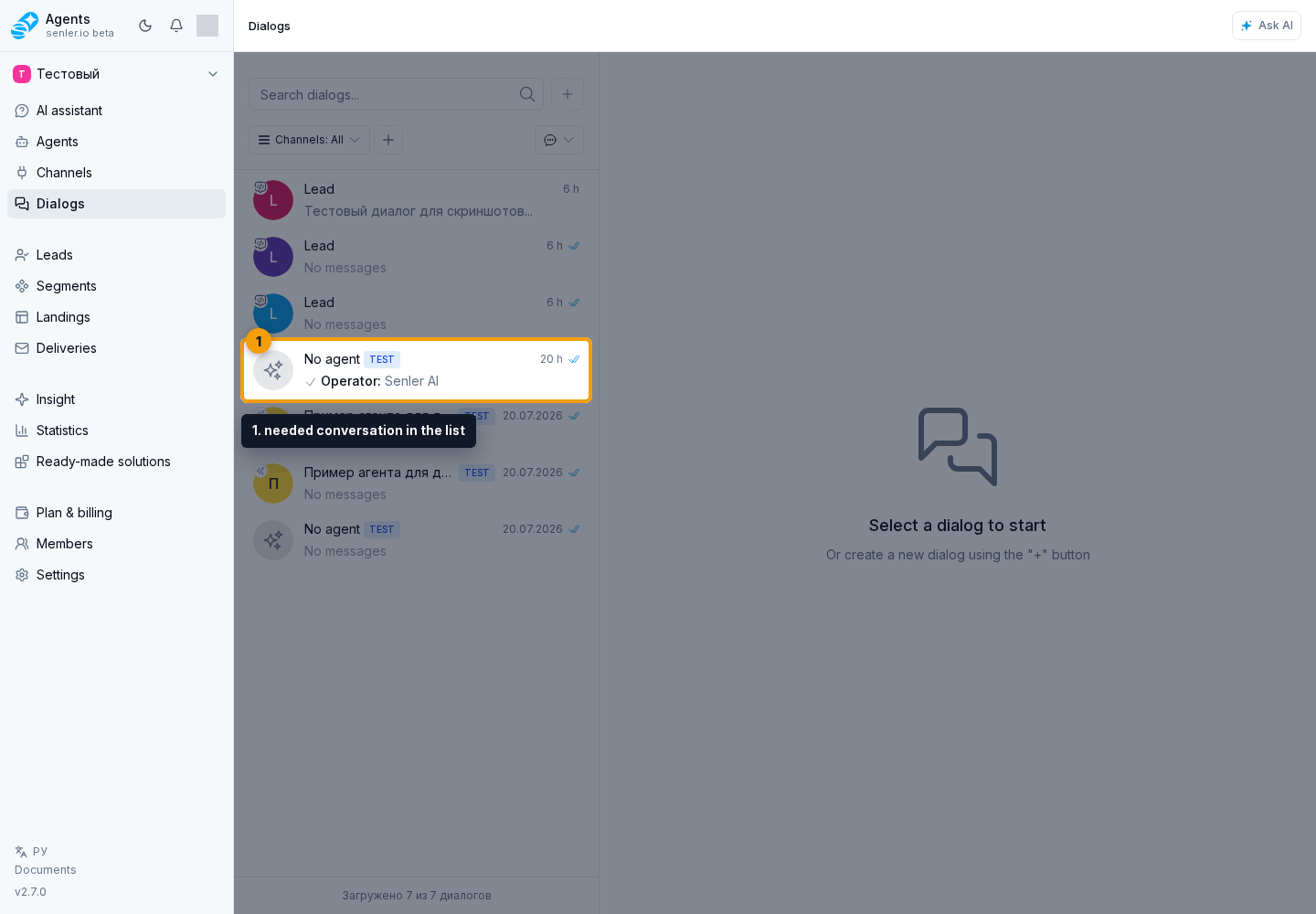
Click the required dialog in the list to open the conversation.
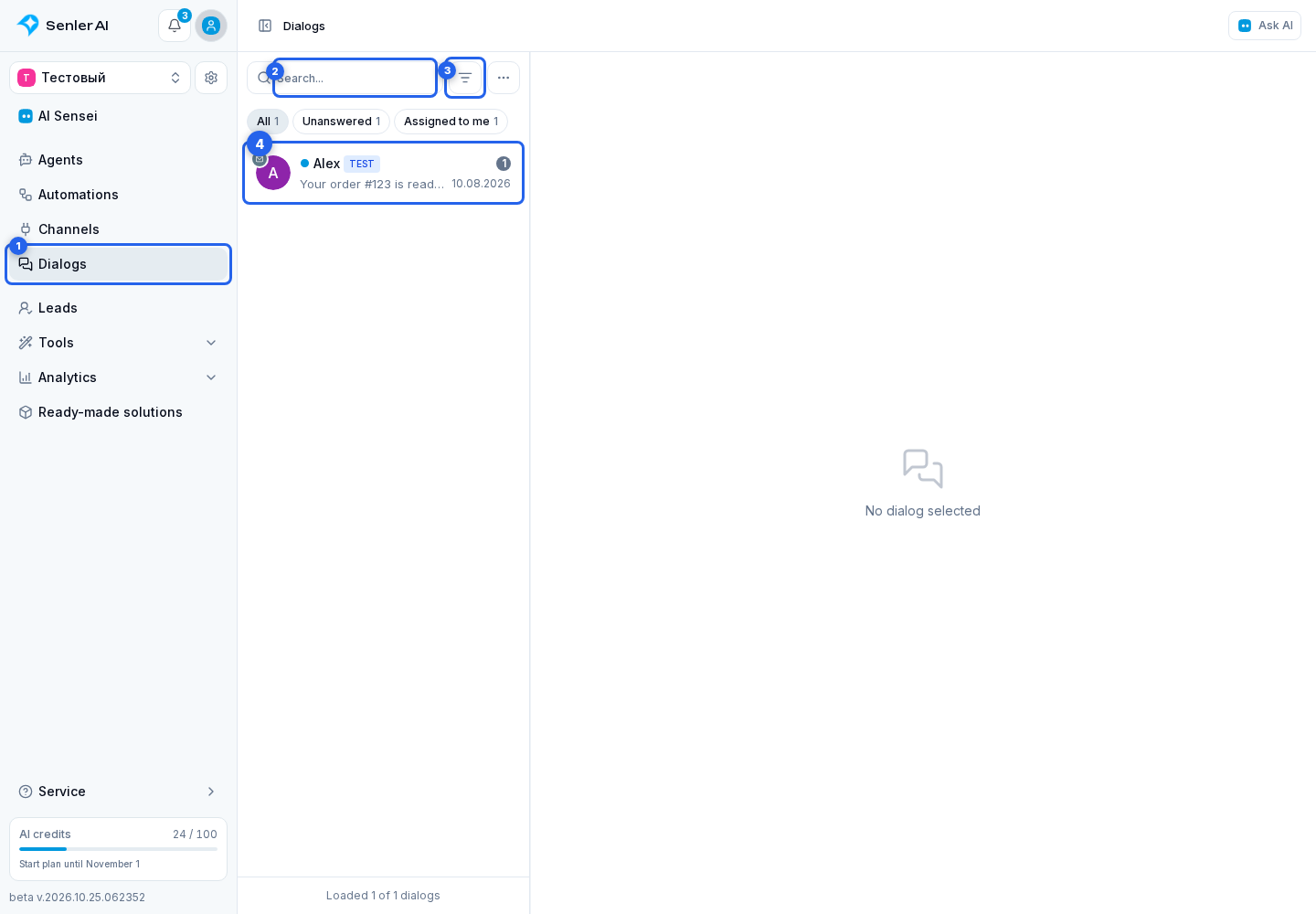
The section page contains the conversation area. On a computer, the dialog list is on the left and the selected conversation is on the right. On a phone, the list and conversation open one at a time.
If the AI summary selection chip appears above the list, only dialogs for the selected topic are shown. Remove the chip to restore the full list.
If the conversation does not exist yet, follow Creating a dialog, which covers creating a dialog with or without a lead.
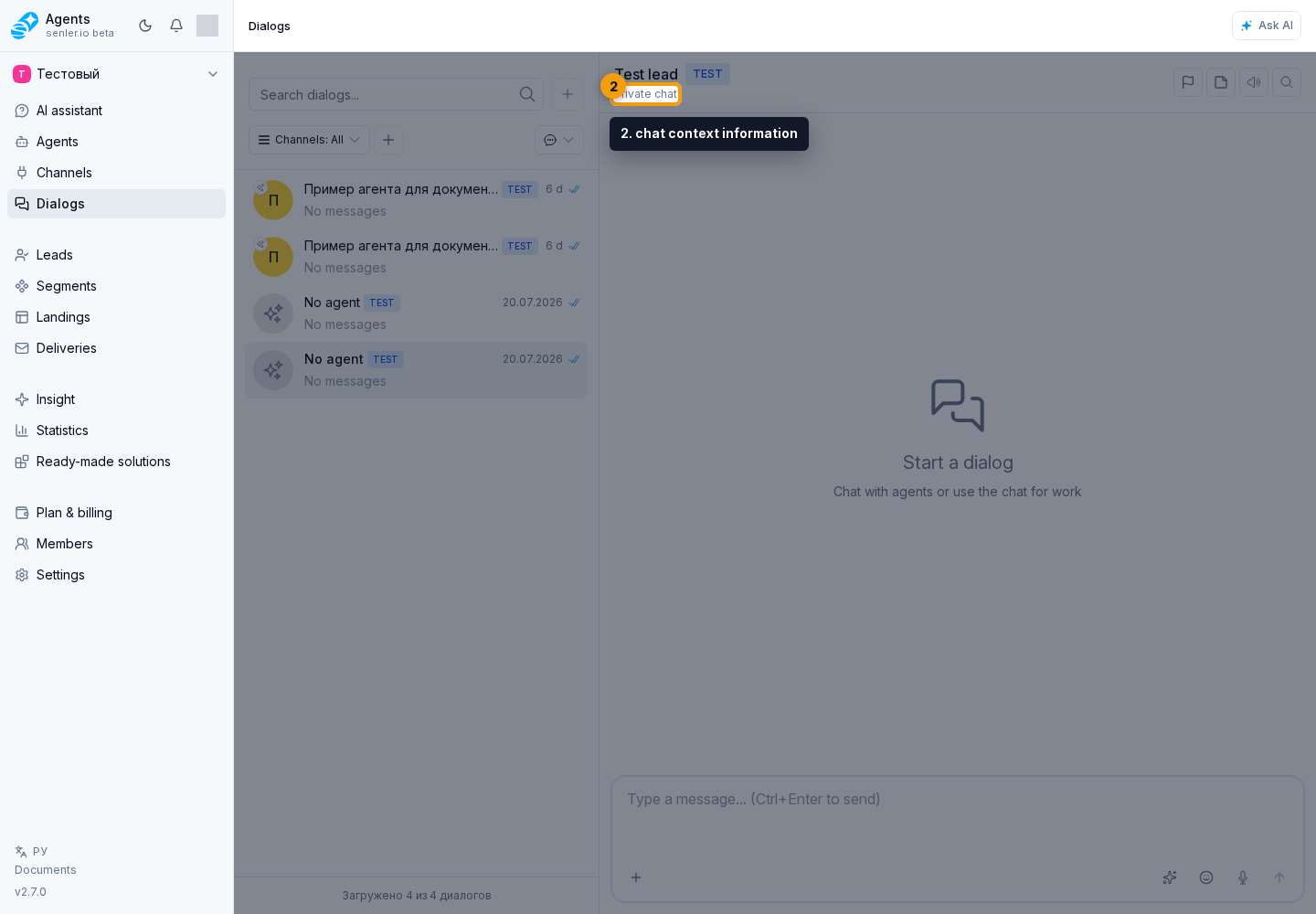
If the lead has several private dialogs in one channel, open combined conversation history using the counter next to the name in the chat header.
Reply to the client
Open the required dialog and review its history. To write to a client, follow sending messages. Replying to a particular message is covered in message actions, and changing sent text is covered in editing a message.
Files and images are added from the same input field; see attachments. To record audio, follow the voice message instructions.
For Email conversations, see viewing emails safely. Polls and reactions are covered separately.
New messages are covered in conversation updates, read markers in read statuses, and AI progress in agent response preparation.
When the issue is resolved, close the conversation or defer it until the required time.
If the dialog shows that you only have view access, you can read the conversation but cannot reply, edit messages, or change the conversation's state. Access depends on permissions in that dialog's channel: being able to work in one channel does not grant the same rights in another. Roles and channel access are configured for the project member.
Use the message menu
To reply to a message, copy its text, or open other available commands, open the message menu. All commands and their limits are covered in Message actions.
Use message notes to leave an internal comment on a specific message and return to it through a history marker. These notes are not sent to the customer.

View dialog details
Details about the whole conversation, such as assigned agents and lead data, are available in Dialog Information.
Details about an individual message open from its menu and are covered in Message Information.