
Deliveries
Summary
The "Deliveries" section is used to prepare a message for selected leads, check a test send, and start mass sending as a background process.
Open Deliveries in the project side menu. On the deliveries page, you can create a delivery or check one that has already started.
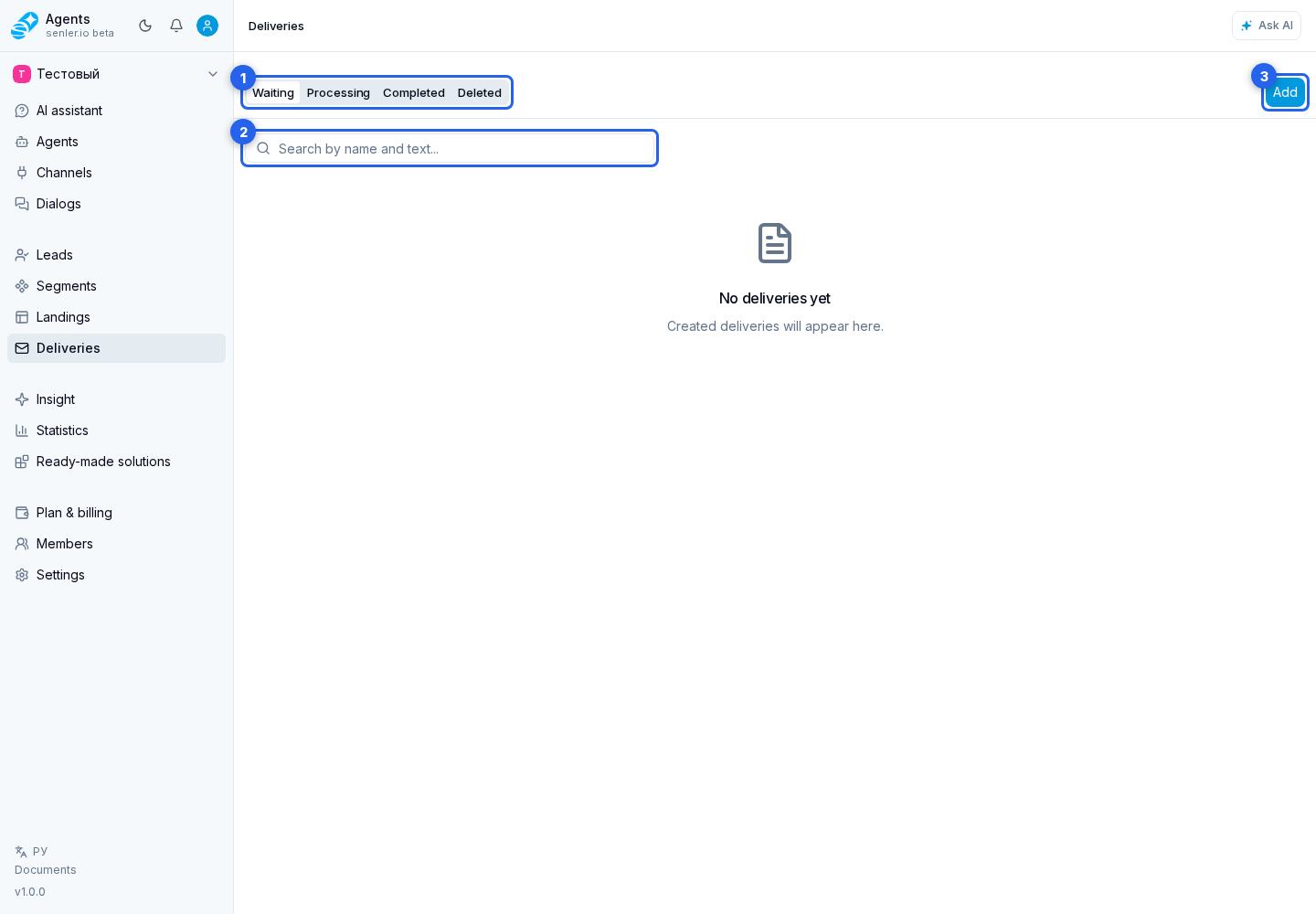
What Is On The Page
- status tabs: Waiting, Processing, Completed, and Deleted;
- delivery list with name, status, recipient count, progress, sent, not sent, and update date;
- search by delivery name and message text;
- delivery creation button;
- an action menu for each delivery;
- the Copy action for completed or already started inactive deliveries;
- delivery page with name, message text, lead filters, and attachments.
Creating And Configuring
Click Create delivery and enter its name. After that, the delivery card opens, where you can:
- edit the name;
- write the message text;
- choose lead filters;
- attach files;
- wait for autosave to finish.
Project and lead variables can be inserted into the message text. The variables button offers two options: Value inserts the selected variable, while Condition displays different text depending on whether it is filled. Before a mass start, check the preview for several recipients: a lead variable resolves separately for each recipient.
Lead filters define who will receive the delivery. Check filters especially carefully before starting: this is a mass action.
The audience editor always limits sending to subscribed leads who are not blacklisted and are not blocked by the platform or channel. These three conditions are locked in a delivery and cannot be removed. The user can additionally narrow the audience by channels, channel type, search, spaces, and segments.
Filters show only channel types and channels that support deliveries. Unsupported platforms are excluded from recipients, and the cabinet explains this next to the audience. If an older saved delivery still contains a channel that is no longer available, testing, starting, and scheduling are blocked until recipients are changed. These actions are also unavailable until channel support is loaded or when it could not be checked.
The name, text, audience, and attachments are saved automatically. The card header shows autosave status and the time of the last successful save. If autosave is still running or finished with an error, start and test can be temporarily blocked.
Limits: the delivery name is 1 to 255 characters, message text is up to 4000 characters, and attachments are limited to 10 files. Attachments must use a supported type; the cabinet immediately shows "File type is not supported" or "You can attach no more than 10 files" if a file cannot be added.
Audience Preview
Audience preview shows not just the number of leads, but the number of unique delivery recipients. The cabinet excludes project member recipients, unsubscribed leads, the blacklist, and platform blocks, and tries not to count the same recipient more than once.
The interface shows the total unique recipient count, the first recipients, and infinite loading while scrolling. If one recipient has several matching channels, the card shows the main sending channel and alternatives so the user understands where the message will go.
Test And Start
Before the mass start, use the Test action. For a test, first choose a channel. Tests are supported only for Telegram, VK, and MAX channels.
Test recipients are not the whole delivery audience and not arbitrary channel leads. The cabinet shows project members who can receive a test in the selected channel: active members with dialog management access and a linked platform account or an already created project member recipient. The current user is marked as "This is you". Up to 10 recipients can be selected in one test.
If the needed recipient is missing in Telegram or MAX, click "Add recipient". The cabinet opens a bot link and refreshes the list until the user starts the bot and appears as a recipient. The link is created for the current user and is valid for about 10 minutes; if it is opened later or the recipient does not appear, create a new one.
For VK, you may first need to connect your VK account to your Senler profile and then allow the community to send messages in the VK consent window. After confirmation, the cabinet checks the permission and refreshes the list. If the window was closed or the recipient did not appear, click "Add recipient" again, grant permission, and click "Check".
The test can be sent only to recipients selected from the test list. Before the delivery text, the dialog receives the "[Delivery test]" marker so the test is easier to distinguish from a normal message.
The Start action creates a background sending process. While it runs, the cabinet shows progress: sent, skipped, and errors. Messages that were already sent remain with recipients. If the delivery should start later, use scheduling instead of manual start.
Delivery search looks through delivery names and message text. For ready and scheduled deliveries on the Waiting tab, the cabinet may show the unique recipient count by current filters. For started deliveries, the count comes from the sending result; if the result is not available yet, the field may be empty. On the Processing tab the interface also shows progress percentage, and on the Processing and Completed tabs it shows sent, not sent, and recipients.
Scheduling Start
Open scheduling for a delivery without run history when it is ready to send: message text exists and audience settings are valid. Set a future date and time and click the save button. The cabinet rejects an invalid or past date.
Schedule cancellation works only for a scheduled delivery. After cancellation, the delivery returns to waiting for start; if there is no schedule, the cabinet shows that the delivery is not scheduled.
When the start time comes, the system starts normal sending and then shows the delivery as started. If the delivery is temporarily busy with another operation, the start is retried later.
Statuses
- "Waiting for start" - the delivery is ready to start;
- "Scheduled" - a future start is selected;
- "Queued" - the delivery is queued;
- "Collecting audience" - leads are being collected by filters;
- "Sending" - sending is in progress;
- "Completed" - sending finished;
- "Error" - the delivery finished with an error;
- "Stopped" - sending was cancelled;
- "Deleted" - the delivery was moved to deleted.
The Waiting tab contains ready and scheduled deliveries. The Processing tab shows deliveries that have already started or are being prepared for sending. The Completed tab groups completed, failed, and stopped deliveries, and Deleted shows deleted deliveries.
Only a delivery that has not been started yet and is waiting for start or scheduled can be edited. If you need to repeat or change an already started delivery, use copying.
Copying A Delivery
The Copy action is available for completed and already started inactive deliveries. Stop an active delivery first; a deleted delivery cannot be copied.
If the copy name is not entered manually, the cabinet creates it automatically, usually with the "Copy of " prefix. The name length follows the same limits as a regular delivery.
The new delivery is created as ready for configuration and start. Filters, message text, and attachments are copied from the source. Run history, processes, scheduling, and send results are not copied. After successful copying, the cabinet shows "Delivery copy created" and opens the new delivery card.
Before starting the copy, check audience preview, test sending, and autosave again: settings are copied as a draft for a new start, but the actual audience and channel availability may have changed.
Stopping And Deleting
Use Stop for an active delivery. The cabinet asks for confirmation and warns that already sent messages will stay with recipients.
The Delete action moves the delivery to deleted. Only an inactive delivery can be deleted: it must not be queued, collecting audience, or sending. A deleted delivery is not used for new starts.
If Delivery Does Not Work
Check in order:
- The user has permissions to view and manage dialogs.
- The project has leads matching the selected filters.
- The needed leads are subscribed, not blacklisted, and not blocked.
- Recipients do not include channels where deliveries are no longer supported; change the filter if a warning is shown.
- The channel availability check finished without an error.
- For a test, the selected channel is Telegram, VK, or MAX.
- For a test, the selected recipients exist in this channel's test recipient list.
- If the recipient is missing in Telegram or MAX, the add link was opened and the user started the bot; for Telegram, the channel must also have a bot username.
- For VK, the account is connected to the Senler profile, the user allowed community messages, and the permission check completed afterwards.
- The message text is not empty: the cabinet marks the field and will not start the test or delivery without text.
- Attachments use supported types, there are no more than 10 of them, and the message text is no longer than 4000 characters.
- Autosave finished without an error.
- If scheduling is not saved, the start date is correct and in the future.
- If schedule cancellation does not work, the delivery is currently scheduled.
- If the cabinet asks to copy the delivery instead of changing or restarting it, this delivery has already been started: create a copy, check it, and start the copy.
- The sending process in "Processes" did not finish with an error.