Buying credits
Buy one-time project credits when you need an extra reserve beyond the plan's monthly allowance. The remaining package balance does not expire when you renew or change the plan. Credits for your personal cabinet assistant are purchased separately and do not top up project credits.
How the price is determined
Choose the amount and review the cost of a one-time package in the purchase dialog on Plan & billing. It uses the project's active plan price: packages cost less on Large Agent than on Start. Check the final amount before paying.
Do not confuse this purchase with the credits slider on Plans and limits: that slider configures a monthly allowance within the subscription, while this purchase adds a separate non-expiring reserve.
How to buy a package
- Open Plan & billing.
- In Plan add-ons, select Buy next to credits. If previously purchased credits remain, the button is labeled Buy more.

- In the one-time add-on dialog, choose an amount with the slider and review the price.
- Enable or disable payment from the project's monetary balance.
- If an external amount remains, choose a saved card or one-time payment.
- Select Confirm or Pay: confirmation is also required when paying entirely from the balance.

When the balance is sufficient, credits are granted immediately after confirmation. With an external payment, they are granted after payment succeeds. Country, currency, and receipt details come from payment settings.
What happens to the remaining amount
Purchased credits are stored separately from monthly plan credits. They do not reset on the renewal date, remain after a plan change, and are used after plan credits. Grants and deductions appear in credit history.
The package uses the price of the plan that is active when the calculation is made. Selecting a future plan in the comparison table does not by itself change the price of an already opened one-time purchase.
Personal assistant credits
The cabinet assistant can open the Buy agent credits dialog. This is a personal purchase by the current user, not a project plan add-on; it does not require permission to manage project billing.
Payment details
If personal payment details have not been configured, the receipt details form opens first. Enter the country, payment system, and email.
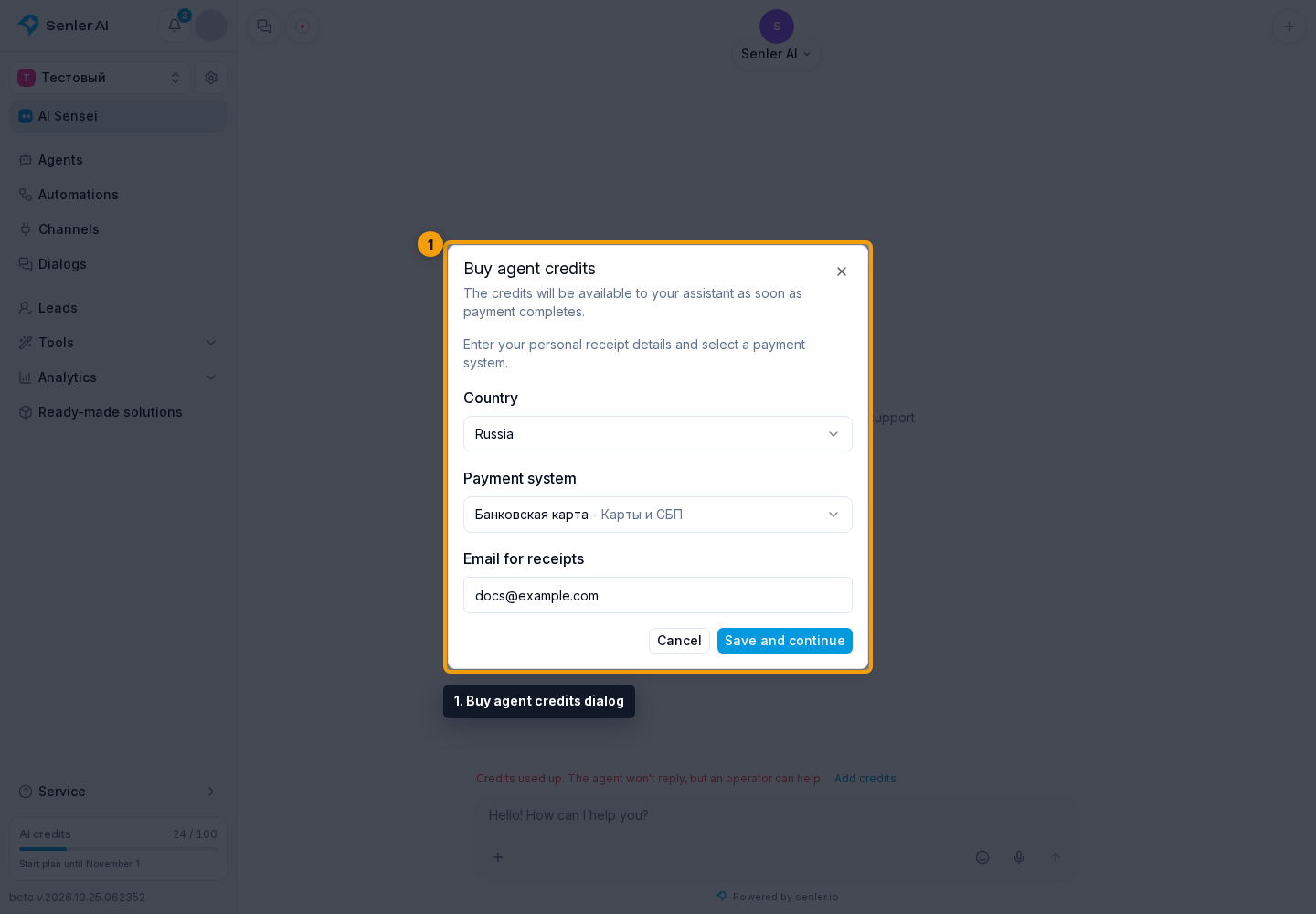
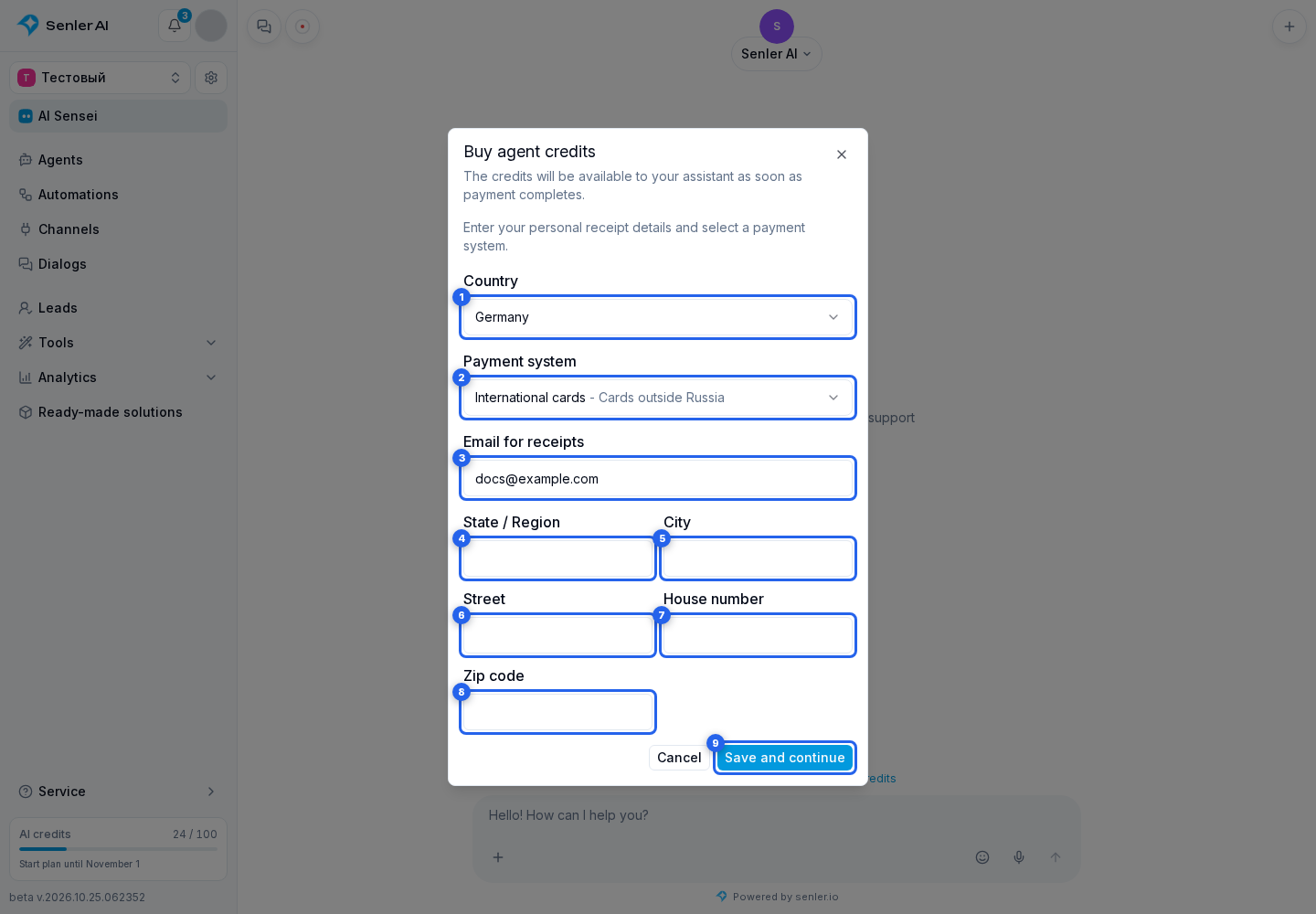
For a country other than Russia, also provide the state or region, city, street, house number, and postal code. Select Save and continue. You can reopen this form later with Payment details.
Package and payment
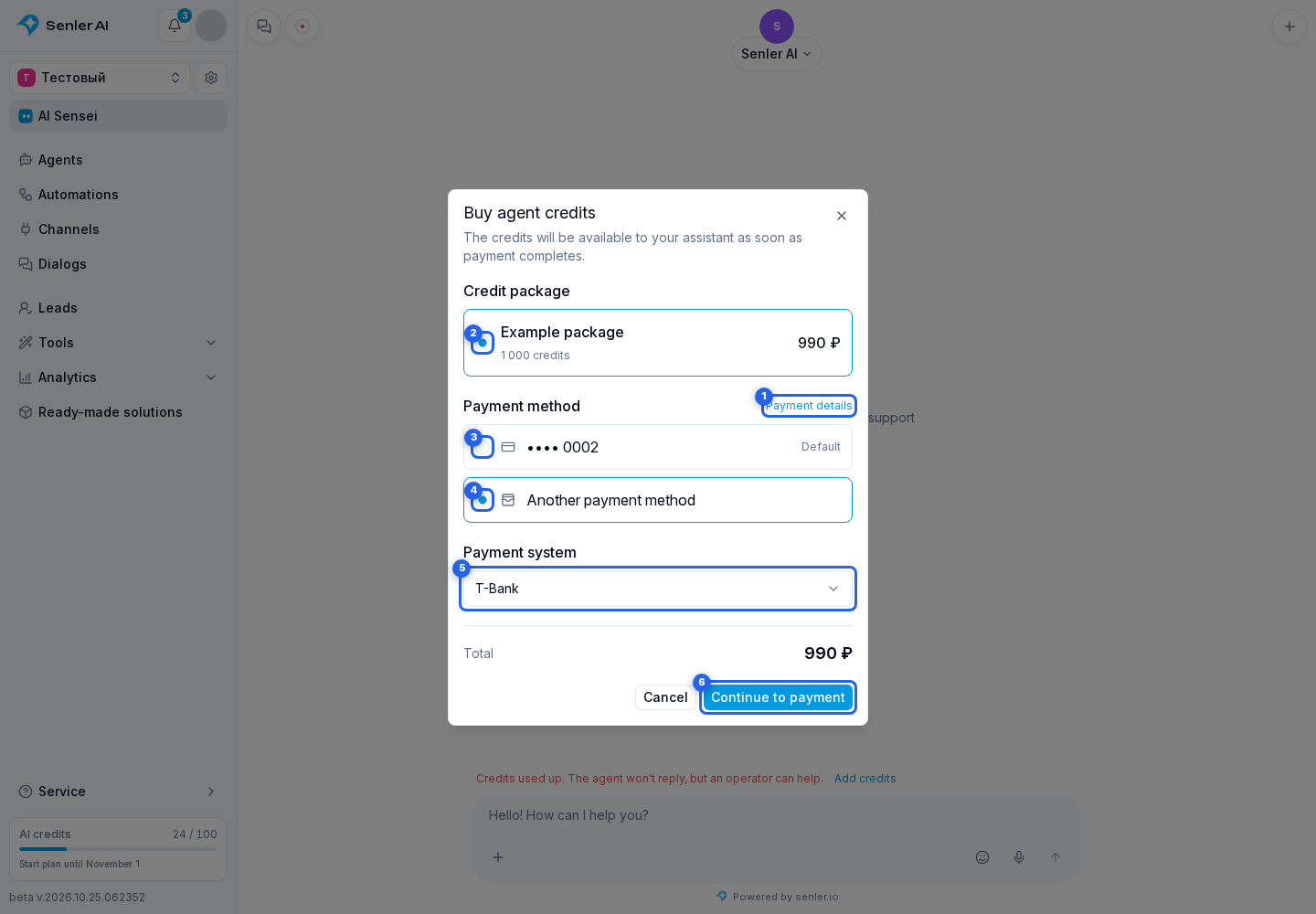
- Choose a credit package by volume and price.
- Select a saved personal card or Another payment method. The latter reveals the payment system selector.
- Check the total and select Pay with card or Continue to payment.
Available systems and the currency depend on the country in your personal payment details. Cancel closes the dialog without a new purchase.
Credits are added after successful payment. If payment is still processing, you can close the dialog: credits will be added automatically if it succeeds. When the outcome is uncertain, Check again repeats the same attempt without creating a second order.
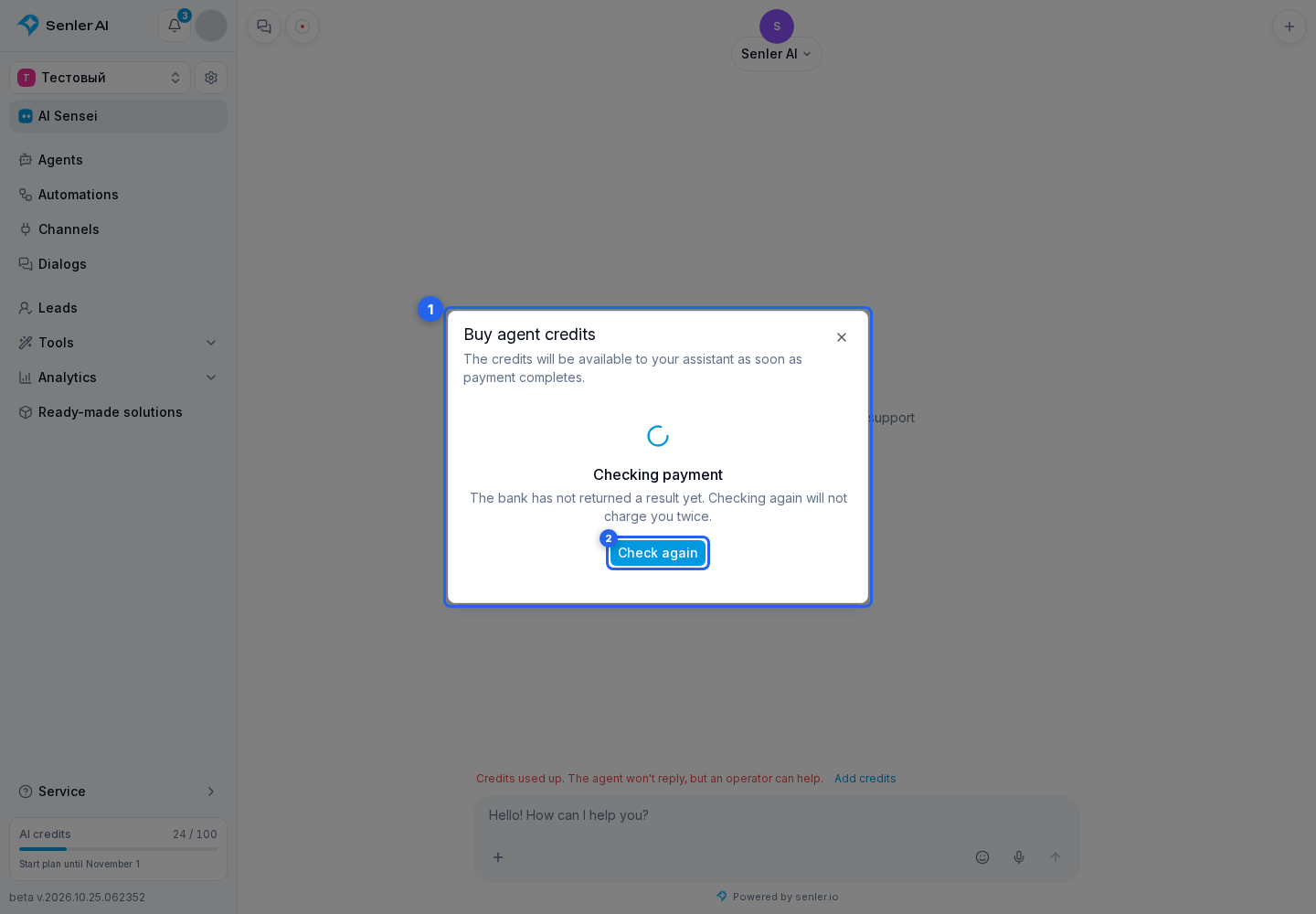
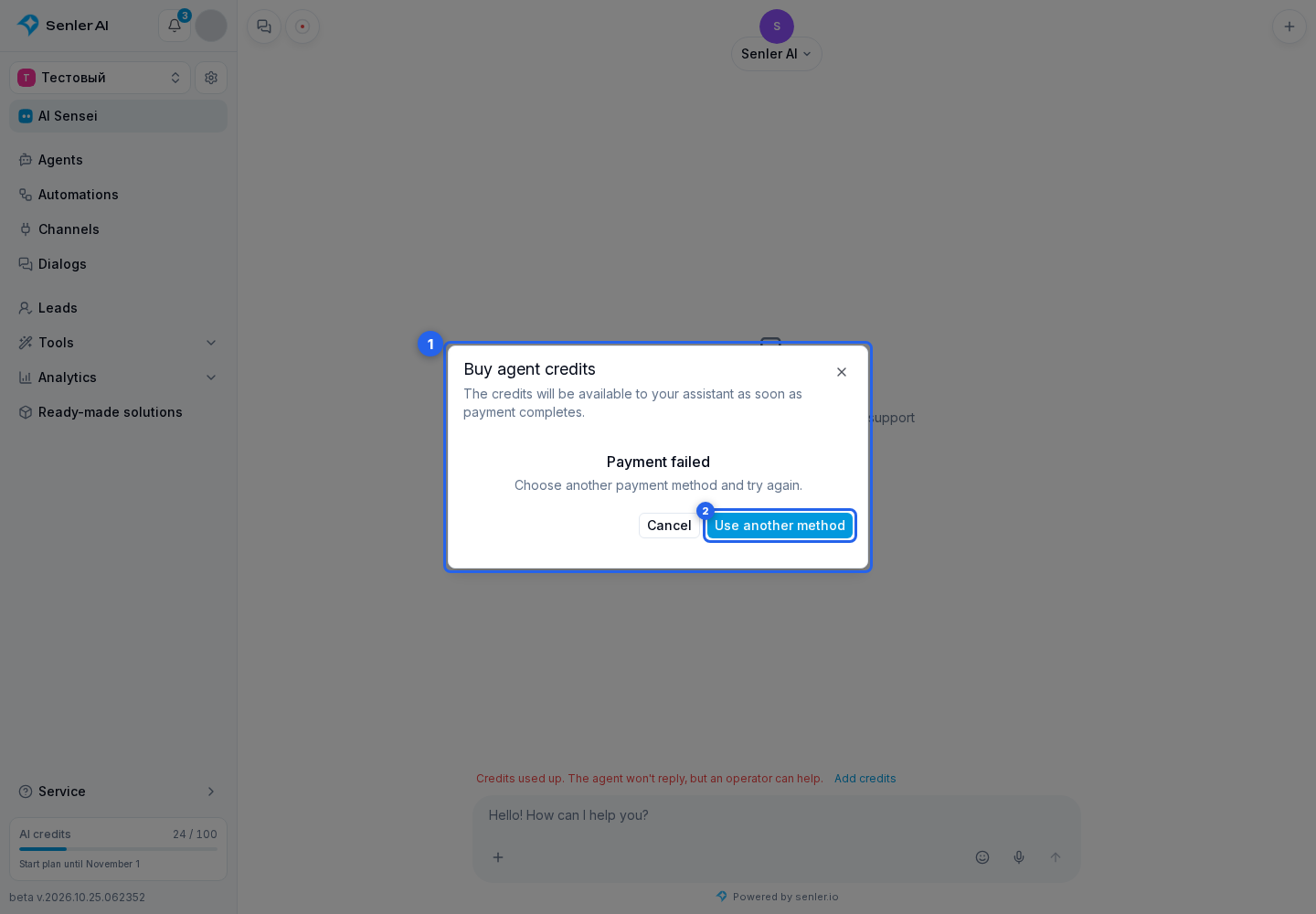
If payment failed, select Use another method to return to payment system selection.