
History
Summary
Path: "Settings" -> "History". History shows what happened in the project: whether a message arrived, the agent ran, a tool was called, delivery failed, a lead event happened, a metric was extracted, or credits were charged.
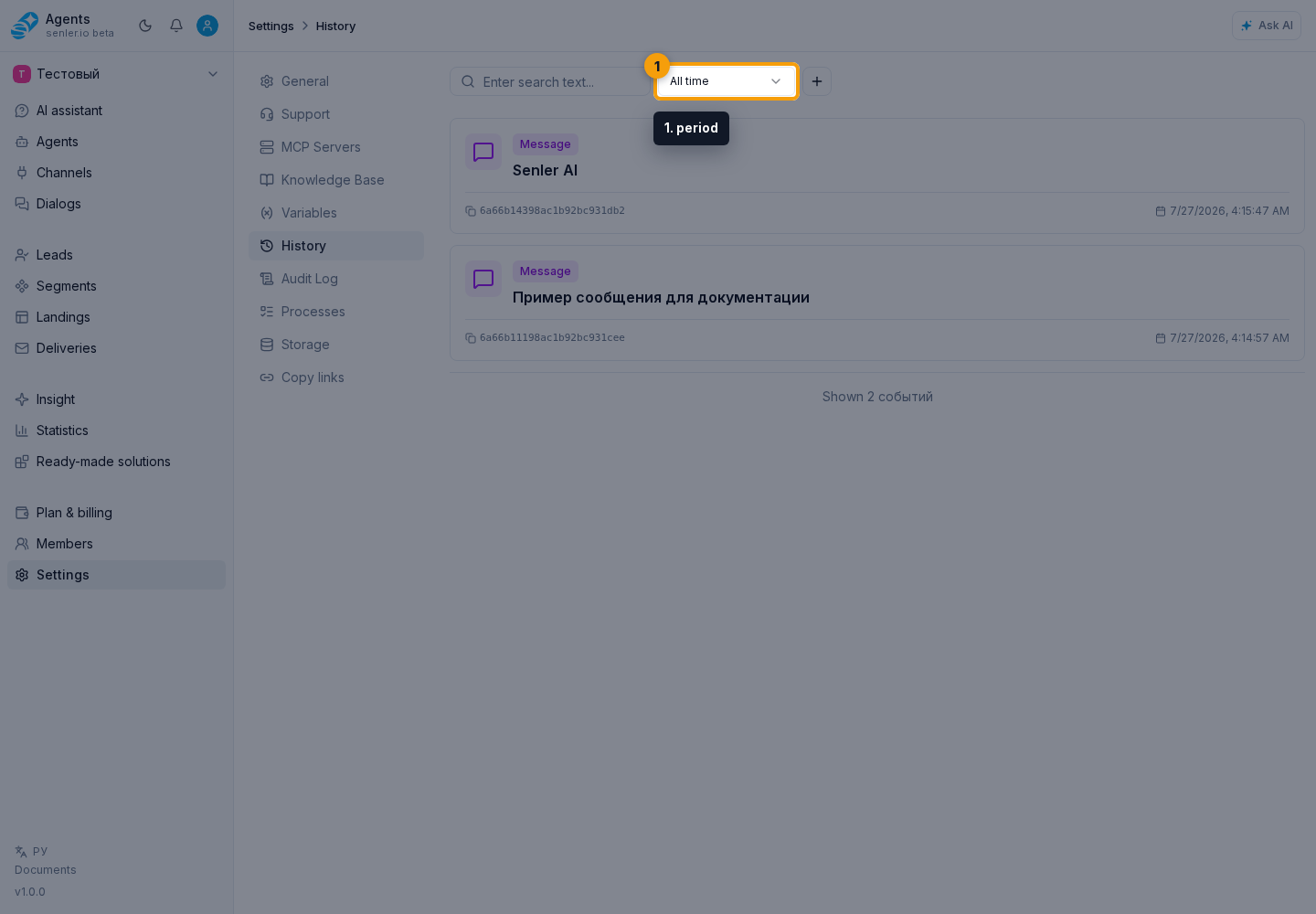
Filters
- period: the last 24 hours, 7 days, 30 days, 90 days, or all time;
- event type;
- event search;
- dialog ID;
- MCP server ID;
- credit operation ID;
- agent ID;
- channels by name or ID;
- lead ID;
- newest or oldest events first;
- all events, only reverted events, or events excluding reverted ones.
Open another filter with Add filter. Clear filters restores the initial event list.
Event types
- messages;
- tool started;
- tool completed;
- state changed;
- errors;
- rolled back;
- reasoning;
- metrics extracted;
- delivered/read;
- lead created;
- lead updated;
- dialog started.
Event cards can show
- Event ID;
- AI metrics;
- price;
- tokens;
- model;
- productivity;
- tags;
- tool, message, lead, dialog, reaction, and broadcast data.
Event details may include
- tool request;
- tool response;
- action or tool error;
- buttons, their purpose, and clicks;
- attachments;
- sender;
- original context;
- delivery reference;
- status;
- interactions;
- typing indicator;
- timer;
- AI information;
- price;
- generation;
- error;
- related events and reverted actions;
- trigger context;
- moderation;
- broadcast;
- reaction;
- chat change.
Event data tabs
Event details show only tabs that contain data:
- tool request, tool result, and tool error;
- message buttons and button click;
- attachments, sender, and original context;
- delivery, status, and message interactions;
- typing indicator and timer;
- AI data, cost, and generation details;
- event error, related events, and trigger reason;
- moderation, broadcast, reaction, and chat change.
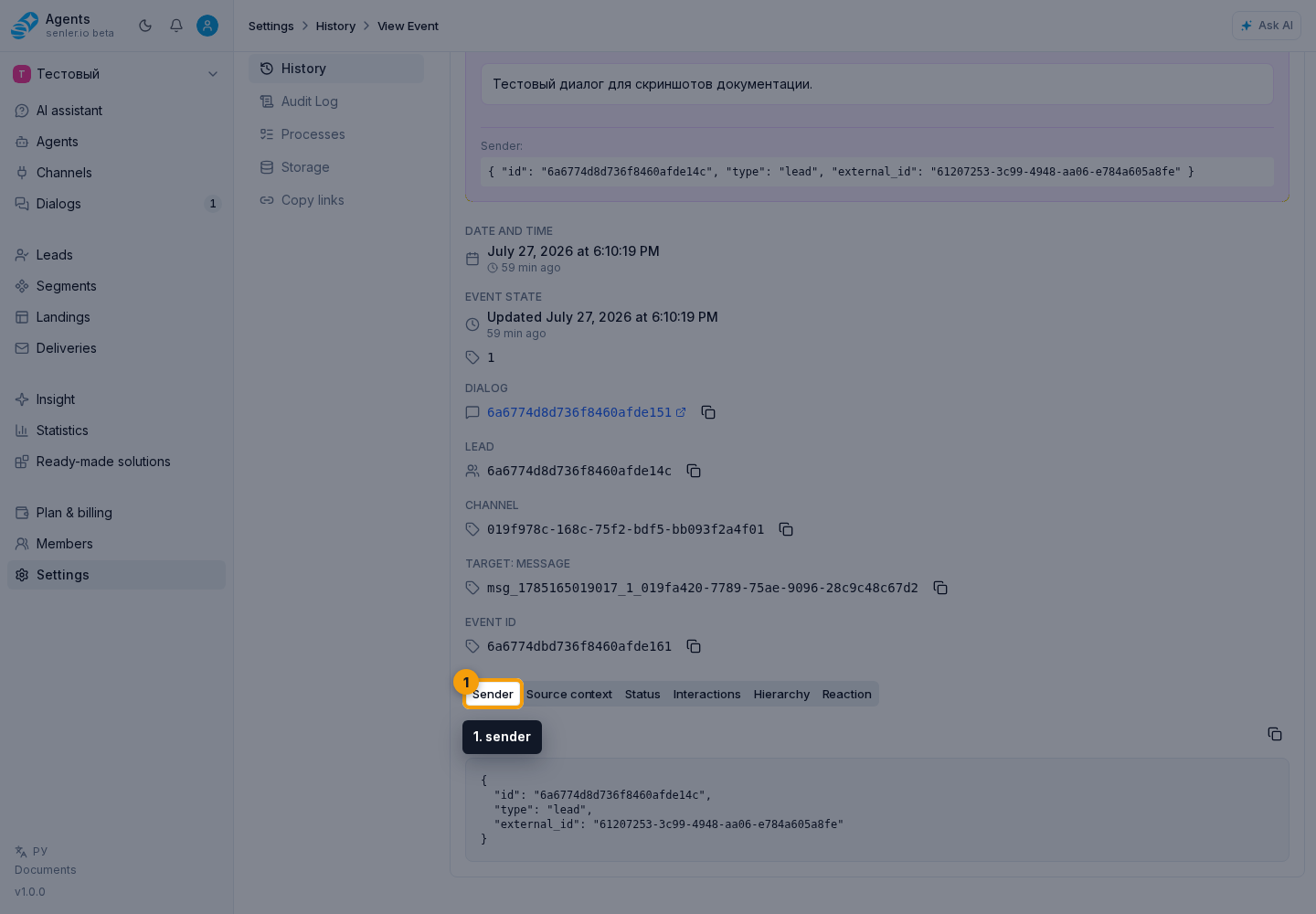
The buttons tab shows rows, text, and the button action type. If a button did not work or did not appear on the platform, check the action type, channel limits, and button data first.
The "Interactions" tab shows reactions, poll state, a Telegram checklist, editing details, replies, and forwarding. If a poll, reaction, or checklist card looks incomplete in the dialog, check this tab and the event details.
Widget Event Context
For widget events, message context is visible as tags next to the message in dialogs: page, project, selected element, AI summary recommendation, or another entity. These tags help the knowledge base choose the related guide.
In event details, the same data may appear as original context. When reviewing the situation, name it in human-facing words: "page context", "selected element", "project context", or "AI summary recommendation".
Older events may present context differently or in a separate block. Use the meaning of the tags rather than their technical representation. A selected element is not an action command by itself: highlighting, scrolling, focusing, clicking, filling, clearing, selecting, or toggling happens only after an explicit user request.
Duplicate Event Deduplication
Platforms sometimes send the same event more than once. If that event has already been stored, the system does not process it as a new message: it does not create a second agent response or repeat delivery. This is normal duplicate protection, not a lost message.
AI responses also ignore repeated runs for the same incoming event. Event details may show that an AI run was repeated; the dialog should still contain one response, not two identical replies.
If the agent did not respond
- open history;
- filter events by lead ID, dialog ID or channel ID;
- see if there was an incoming message;
- see if the agent was launched;
- see if there was AI response generation;
- see if there was a tool error;
- see if there was a delivery error.
If you need to check credit charges
- open event history and credit history;
- find generation events;
- look at the model, tokens and usage;
- check the transaction details in billing.
Where this is in the interface
Main elements in this section:
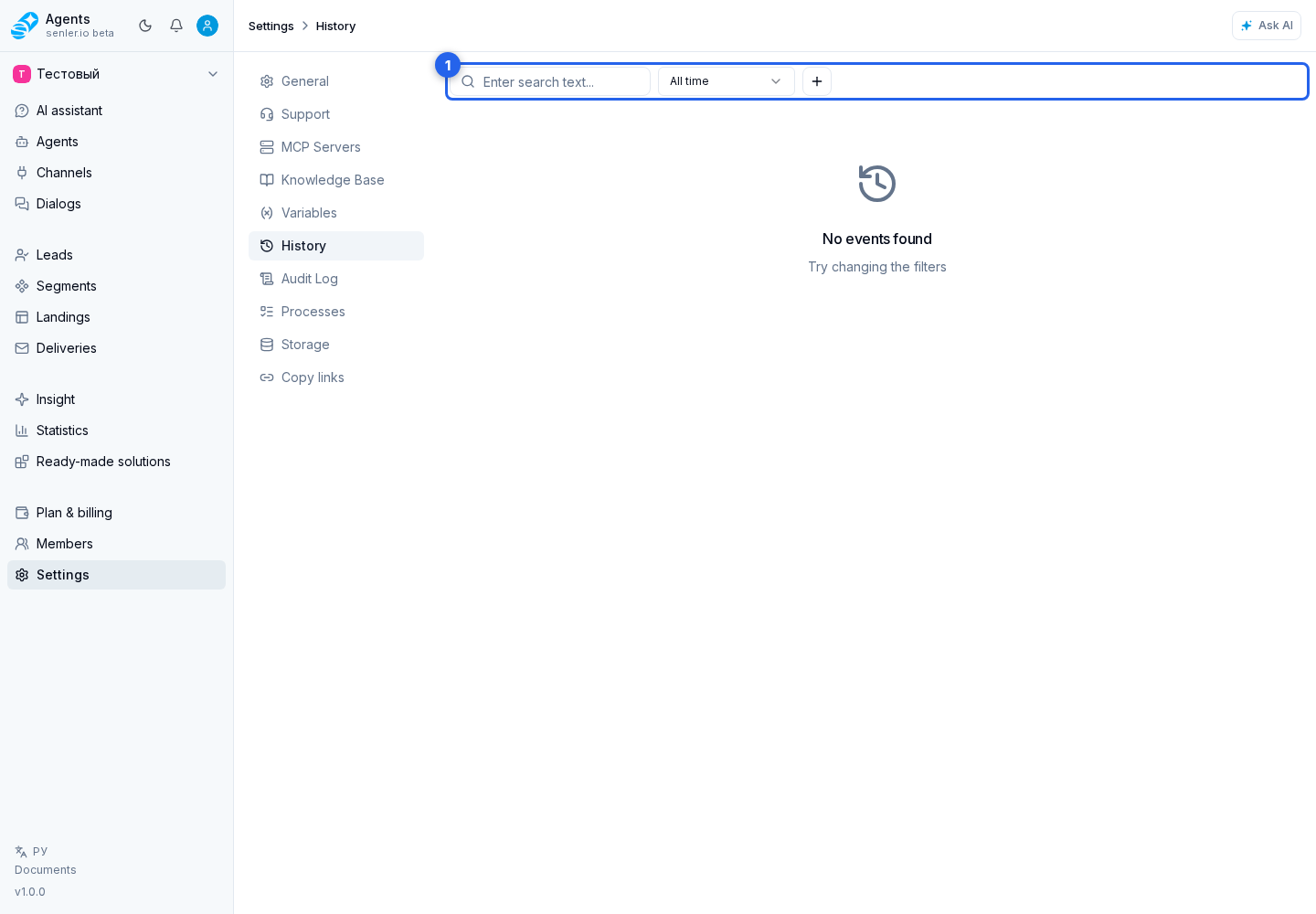
- project settings page
- event history page
- event history filters
- event details
- event data tabs
- Settings item in the side menu