
Plan & billing
Here you can choose a plan for your project's workload, add funds, and understand your spending. The plan sets recurring limits, credits pay for AI usage, and the monetary balance pays for the subscription and one-time purchases.
If you have a promo code, apply it before selecting a plan: the discount is included at checkout.
- Select the Settings gear button to the right of the project name.
- Select Plan & billing.
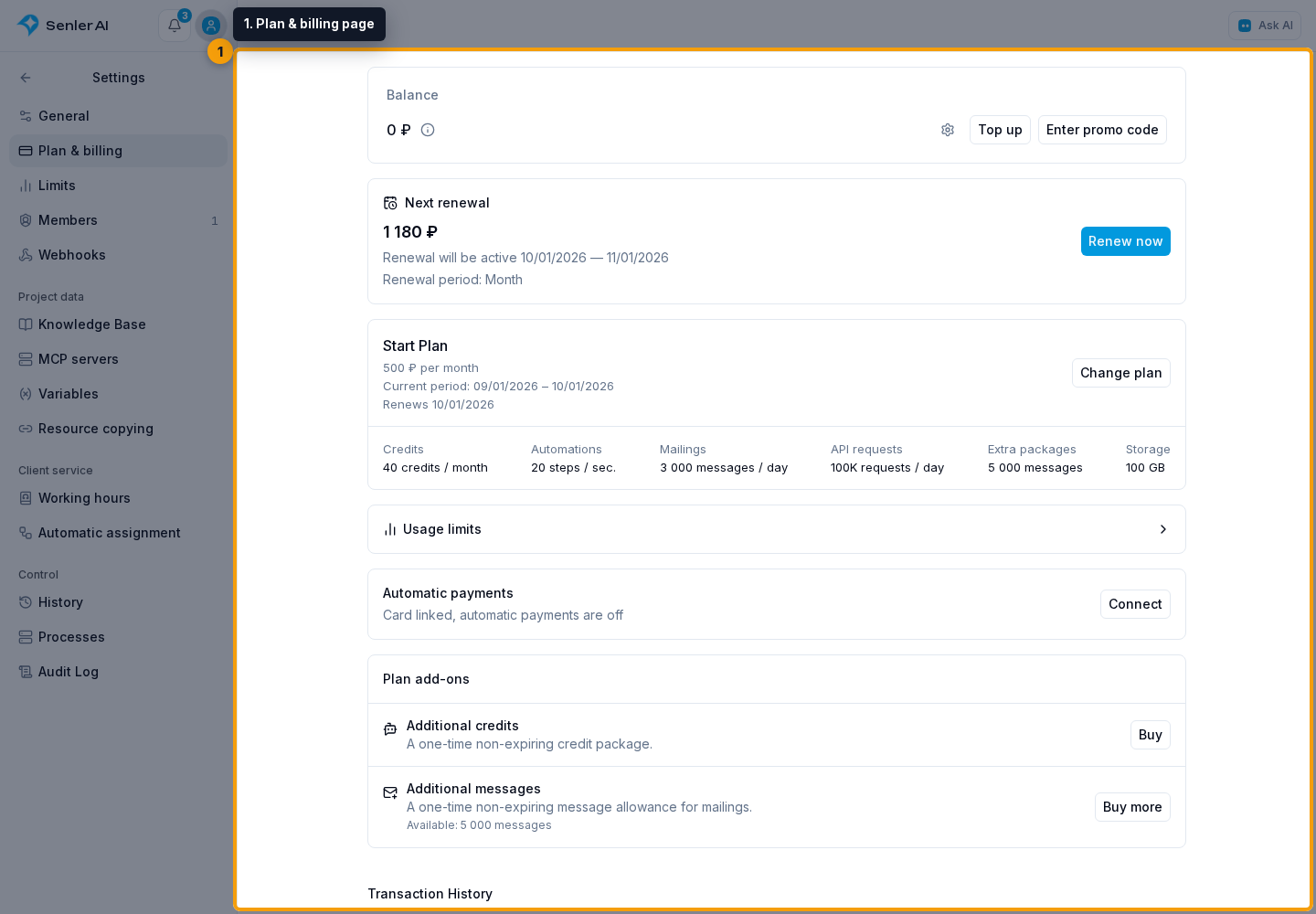
The Plan & billing page opens with data for the current project.
The upper section contains the monetary balance, next renewal, current plan, and a link to Limits.
Below them are automatic payments, plan add-ons, and the project's transaction history. Connect your AI accounts in Settings → General.
Quick summary in the sidebar
If you have billing view access, a compact limits card appears at the bottom of the project's working menu. When closed, it shows AI credit usage, a progress bar, and the current plan period.
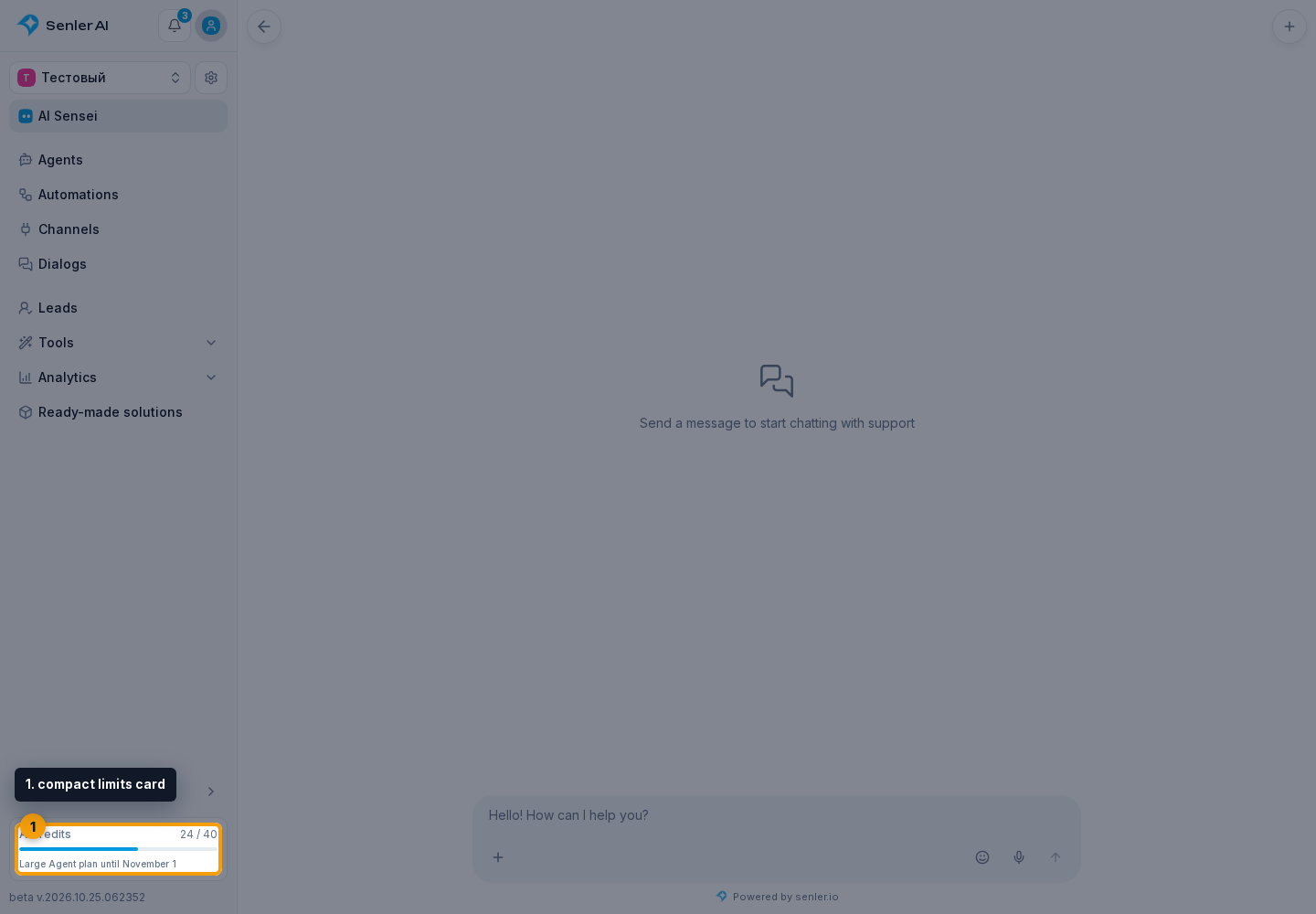
Select the card to open details: credits, storage, today's deliveries, API request usage and the daily limit, plus average speed and maximum automation delay. The Plan & billing button opens the full billing page. You can copy the project ID in the project selector menu.

If no plan is active, the indicators are replaced by a notice that AI, automations, and uploads are paused, with a Choose plan button.
Project limits
Open Settings → Limits. This page shows full current values and contains lead credit-limit settings.
-
The Credits block shows the amount already used, the total capacity, and the effective remaining amount. Usage from unfinished AI operations is already deducted from the available amount and is marked as processing. The History link opens all grants and deductions.
-
The Mailings block shows the daily message limit. The used amount includes messages already sent and messages reserved by active mailings; the amount still available today is shown next to it. A new day for this limit starts on Moscow time. Purchased one-time stock appears separately in the subscription contents.
-
The API requests today block shows used requests, the current daily limit including paid increases, and the remaining amount. The default allowance is 100,000 requests per day. The counter is shared by the project's external integrations and resets at 00:00 Moscow time. Billing view access is sufficient to see it here. You can increase the limit in plan settings.
-
The Automations block shows the plan's allowed step rate and a summary for the last 24 hours. Values beside the charts are the maximum speed and maximum delay caused by the plan limit. Point to a chart value to see five-minute averages. History opens detailed automation statistics when the member has access to them.
-
The Storage block shows used and available space. Details opens file and quota management.

To understand the contribution of a specific workflow, open its load chart. It separately shows started steps, share of project load, and the number of tariff-delayed steps.
Plan, renewal, and funds
-
The balance is the project's funds in its current currency. It is used to pay for plans and credit packages. The details button opens the total breakdown: deposited, bonus, and earned funds. Settings next to the balance open payer details, while Add funds opens payment creation.
-
The Next renewal card shows the date, period, and total amount. Renew now opens the payment calculation.
-
The plan card shows its name, monthly price, paid period, auto-renewal state, and main limits. Change plan opens plan comparison. If a switch, renewal, or cancellation is already scheduled, it appears below this card with its date, price, and change or cancel actions.
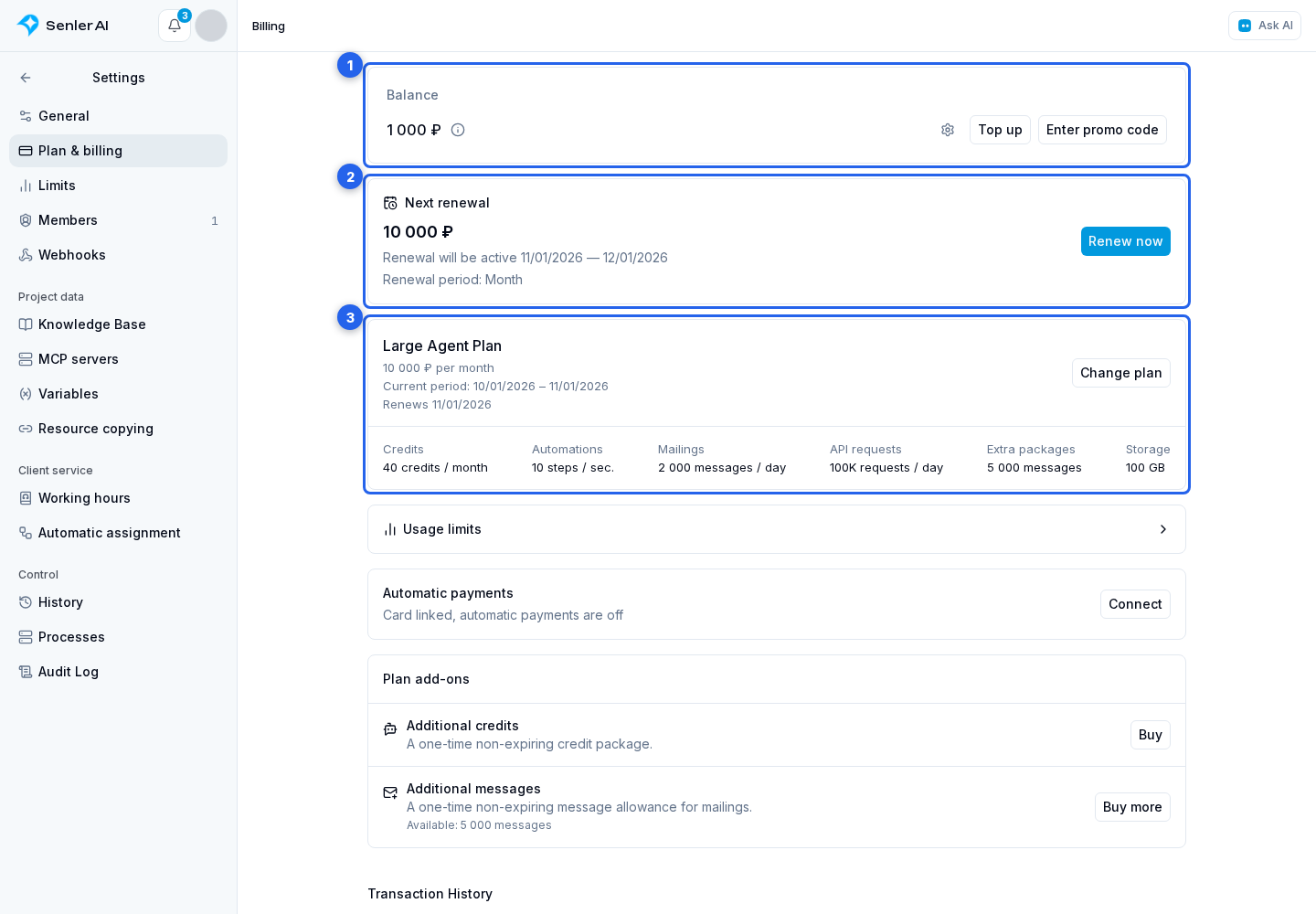
Below, you can buy one-time credit and message packages. Active recurring limit increases are already included in the current plan card. Recurring limits change only with the complete plan configuration and share its term. Purchased one-time credits and messages do not expire with the plan period and are not part of the monetary balance. Configure automatic payments separately to allow automatic card charges.
If an agent could not reply because the plan ended or credits ran out, you can retry the missed replies from the top of this same page after restoring billing. Senler lets you choose between all affected dialogs and only dialogs where no one replied after the error.
Automation steps deferred because of an inactive plan continue automatically after the plan is restored. A manual pause remains in effect.
Transaction histories
The bottom of the page contains monetary transaction history: deposits, plan and package purchases, refunds, adjustments, and currency conversions. AI credit usage is shown separately in credit history.
Viewing this page and its histories requires billing view access. Adding funds, making purchases, and editing payment settings require project billing management access.