
Agent Testing
Summary
In the agent form, open the Testing tab.
Run testing before publication and after every meaningful change: instruction, model, knowledge base, MCP servers, variables, keywords, or allowed functions. This lets you check agent behavior without risking real dialogs.
How the test window works
Testing opens in an embedded dialog window inside the agent form. The cabinet passes the needed access, language, and theme itself, so the user does not need to open a separate section or enter additional parameters manually.
If a variant created by the auto-training wizard is being tested, the test window opens that exact variant. Media from the test dialog opens over the cabinet: images in the viewer and videos in the player.
In edit mode, the agent form saves the draft automatically. The testing panel shows an indicator: changes are saving, saved, or failed, and the dropdown hint shows the last saved time. If autosave is active, the separate "Save for test" button may not appear: testing uses the saved draft.
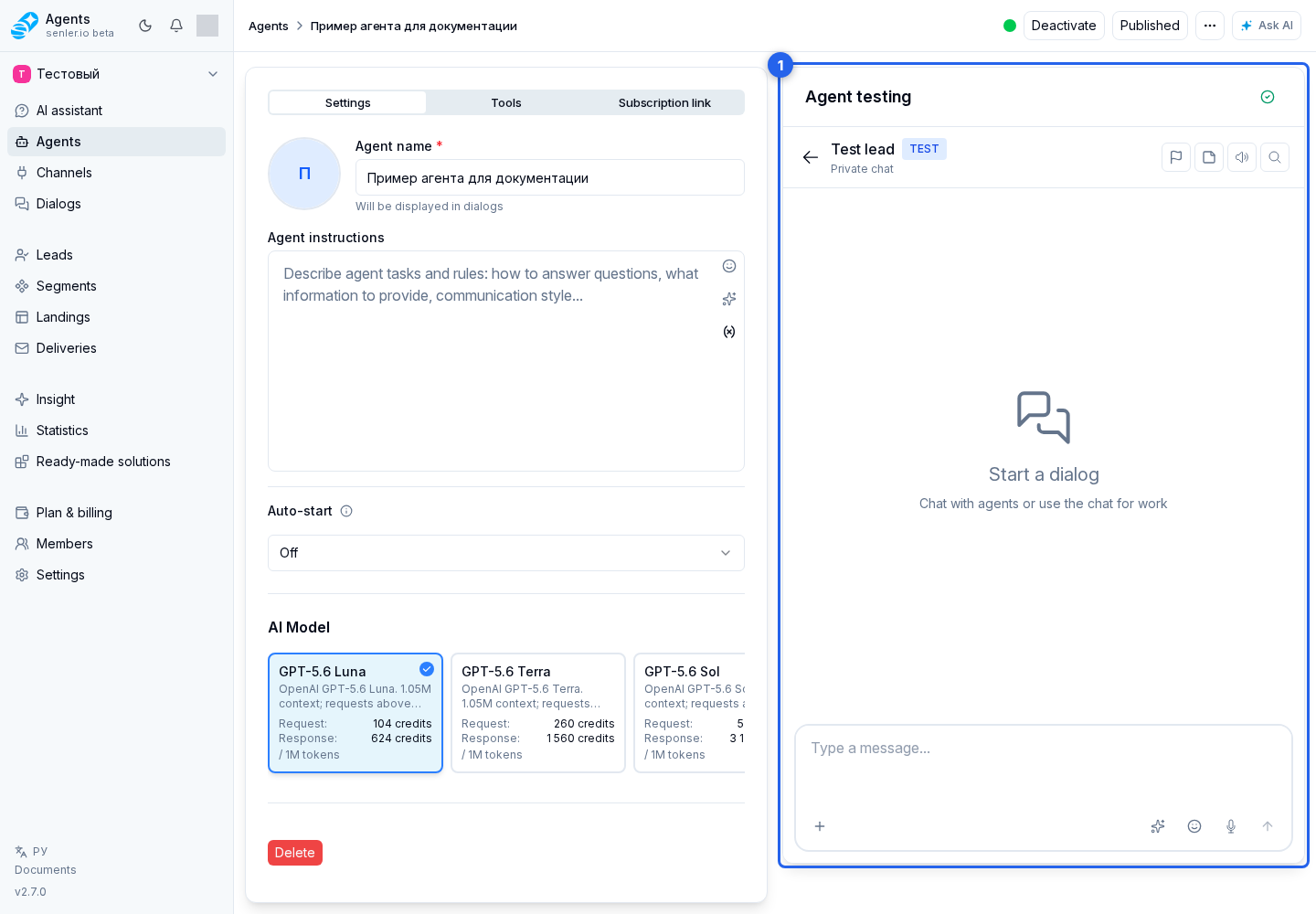
To test the agent before launch
- open an agent;
- go to the testing tab;
- wait for successful draft autosave or click "Save for test" if that button is shown;
- send a test request;
- check the answer text, tool calls, and variable substitution;
- after a successful test, publish the agent;
- then activate the agent and assign it to a project or channel.
In a test response, check not only the final text but also the sources: which knowledge was found, whether tools were called, whether the agent asked for unnecessary secrets, and whether it claimed an action that did not actually complete.
If the test does not run
- check if the required fields are filled in;
- check the draft autosave indicator and last saved time;
- check that the embedded dialog window has loaded;
- check the selected model;
- check MCP servers if the answer depends on the tools;
- check your balance and available functions.
Where this is in the interface
Main elements in this section:
- Testing tab
- agent testing panel
- agent settings form
- agent list
- Agents item in the side menu