
Knowledge Sources and Permissions
How to link sources
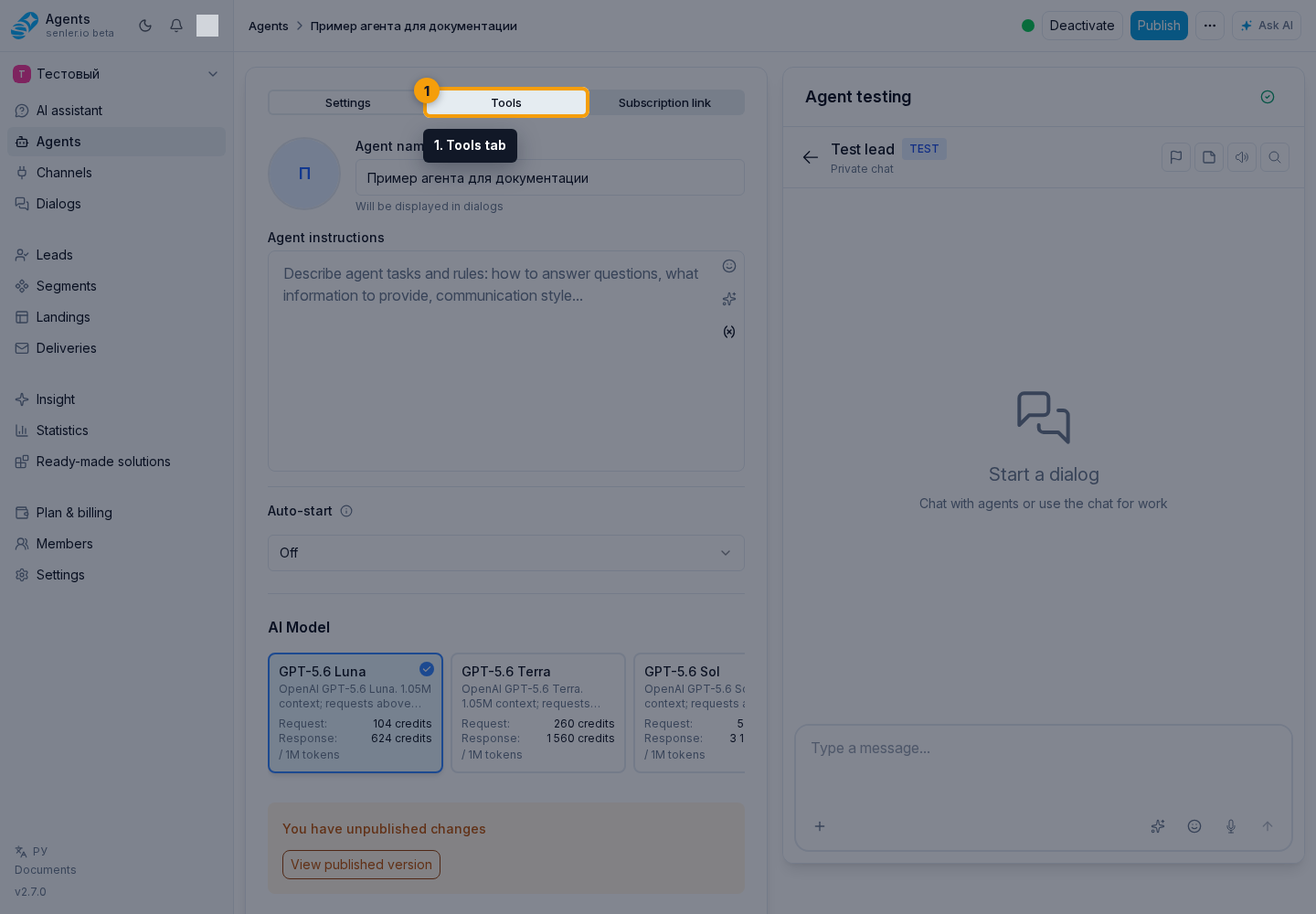
- In the agent form, open the Tools tab.
- In the Knowledge Base block, select Configure.
- Select Add from knowledge base.
- Select a folder, file, or table.
- Select Done to return to the list of selected sources.
- Select general permissions or configure custom permissions for individual sources.
If a folder is selected, the agent will see all current and future items within that folder.
For a selected source, you can open its parent folder or remove it from the agent. List and permission changes take effect after clicking "Save".
General and custom rights
General rights apply to all selected sources, unless a specific source has Custom Rights enabled.
Custom rights are useful when one source should be read-only while another can be edited. For example, an agent reads the FAQ folder, but can only add rows to the tickets table.
List of rights
- “Receive data” is the minimum right to read the knowledge base.
- "Edit content" - change document text, table cells and ranges, formulas, formatting, columns, visibility, sizes, merged cells, and borders.
- "Add rows to tables" - append rows to the end or insert empty rows into the required place.
- “Create documents” - create new text documents.
- "Upload files" - add files to the knowledge base.
- "Create tables" - create tables.
- "Create sheets" - create sheets inside tables.
- "Import CSV/XLSX" - import table files.
- "Delete rows" - delete table rows.
- "Delete files" - delete files.
- "Delete sheets" - delete table sheets.
- "Delete tables" - delete tables.
Safe recommendation
If the agent only needs to answer questions, grant only "Receive data". Add edit, import and delete rights only for scenarios where the agent actually changes data.
For tables, it is usually enough to start with "Receive data". If the agent must fill a selected area, move ranges, change formatting, or hide columns, add "Edit content". If it only appends a log or request list with new rows, "Add rows to tables" is often enough without deletion.
Diagnostics
If the agent does not use the knowledge base:
- Make sure that the file, folder or table is selected in the "Knowledge Base" block.
- Check the "Receive data" right.
- Check if the resource is active.
- If you select a file inside a folder, make sure you select the correct folder or file itself.
- If the agent needs to change the table, check "Edit content", "Add rows to tables", "Delete rows", and the separate permissions for sheets, tables, and imports.
Where this is in the interface
Main elements in this section:
- agent knowledge base access
- agent settings form
- agent list
- Agents item in the side menu
- knowledge base page