How AI Highlights Page Elements
In short
This article explains how a selected page element becomes a clear context chip in the dialog. This chip makes it easier to explain what the element is, highlight it, scroll to it, or suggest the next step.
A reliable link has three parts: the element is visible on the current screen, it has a clear name or stable data-ai-context-id, and the documentation contains a human phrase with the same key. If there is no exact link, the path is explained in words, without pretending the action has already completed.
How a selected element works
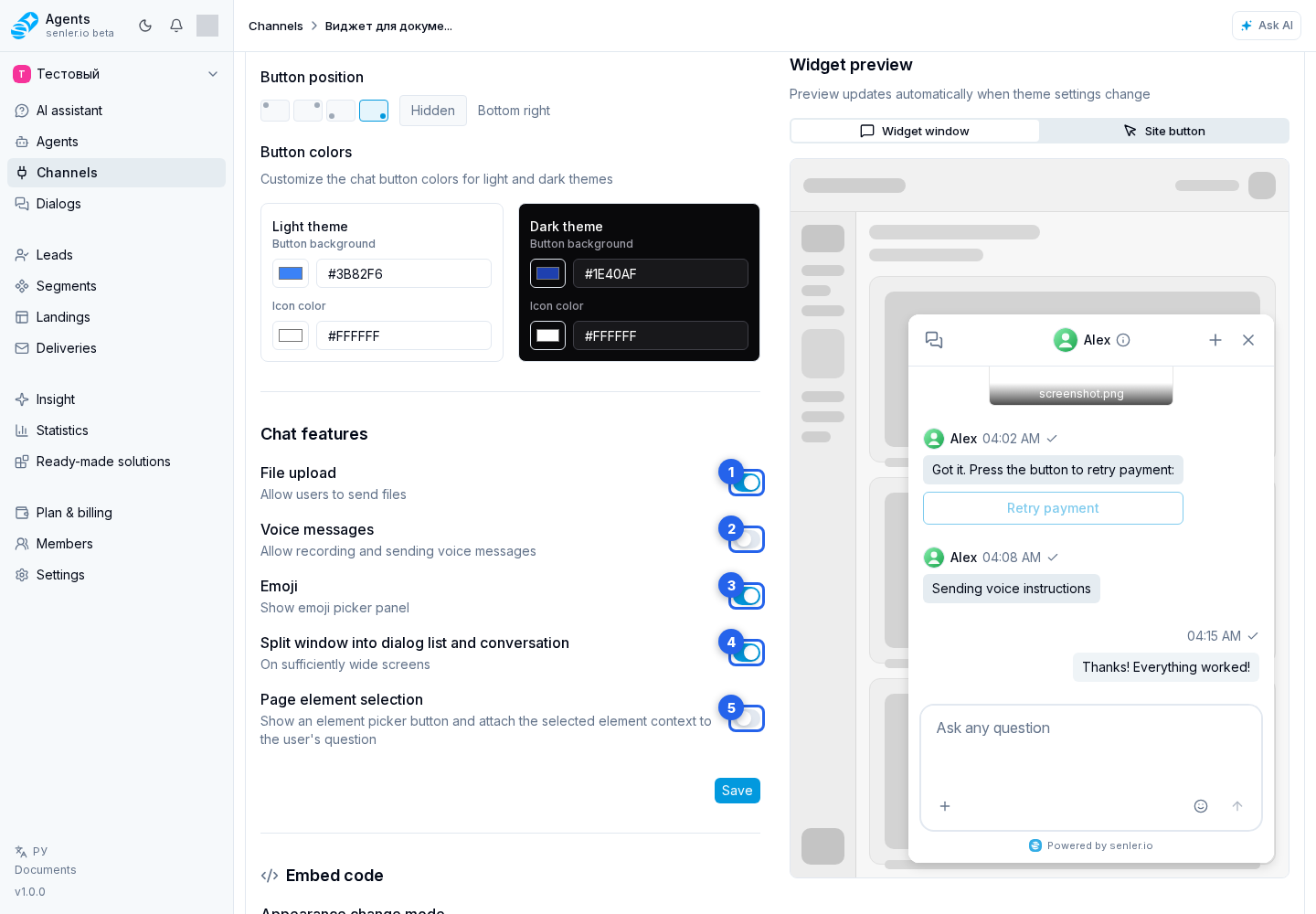
When element selection is enabled, the user can point to a button, field, card, or another important page element. In the dialog, this appears as a context chip on the message, so it is clear which part of the interface the question is about.
For the answer, Senler AI uses:
- page URL;
- page title;
- visible text or element name;
- nearest page section;
- element or action type, if specified;
- context key and search hint, if present.
The site provides page context during widget initialization and SPA navigation. In the Senler AI cabinet, the page title is set from the current section, so the open place has a clearer label. On an external site, set a meaningful <title> and clear names for key elements for the same benefit.
Besides the selected element, a message can show other chips: project, page, business entity, AI summary recommendation, or action target. The user reads them as normal hints attached to the message.
If the element matches a phrase in the knowledge base, the question links more reliably to the right article. This is especially important for similar buttons and repeated cards.
For repeated rows and cards, the selected object needs its own entity identifier. Highlighting or an action can then target that exact row; if several identically marked rows are visible and cannot be distinguished, no arbitrary action is performed.
Developer limits and the exact context format are described in site-actions/widget-public-api.md.
Quickly ask AI about an element
In the dialog interface, marked elements may show an "Ask AI" action. On desktop it appears on hover, on a touch device after holding the element. The action opens the assistant and passes the selected element as context.
For the user, this is a shortcut to "what is this element?" or "what should I do with it?". The answer should be about the selected place itself: its name, page section, and related article, without replacing it with a similar button or field.
If the element only has data-ai-label without a stable data-ai-context-id, the message still has a readable name. This is usually enough for explanations, but weaker for reliable on-screen guidance, scrolling, or changing the element.
Supported attributes
data-ai-area- large area: sidebar, content, header, modal, form, navigation.data-ai-section- section inside the area: project-navigation, dialog-chat, billing-settings.data-ai-label- human-readable name of the element.data-ai-kind- element type: button, field, menu-item, dialog-list-item.data-ai-action- action: open, save, delete, upload, buy.data-ai-context-id- stable key for connecting to a knowledge base document.data-ai-kb-doc-id- direct ID of the knowledge base document, do not use Senler AI for this MD documentation: the file UUID is created upon loading and is unstable.data-ai-kb-query- search hint for the knowledge base.data-ai-entity-type- type of business entity.data-ai-entity-id- ID of the business entity.data-ai-reveals-context-id- one or more context roots made available by revealing the element; separate multiple values with spaces.data-ai-reveal-action- the reveal method:click,hover, orfocus;clickis used when the attribute is omitted.
Value length restrictions:
- label - up to 180 characters;
- kind - up to 80;
- action - up to 120;
- url - up to 500;
- title - up to 180;
- area - up to 80;
- section - up to 120;
- context_id - up to 120;
- kb_doc_id - up to 80;
- kb_query - up to 240;
- entity_type - up to 80;
- entity_id - up to 120;
- reveals_context_id - up to 2,000 characters across all roots.
data-ai-section by itself does not make the container selectable. To select the element, add data-ai-label, data-ai-kind, data-ai-action, data-ai-context-id, data-ai-kb-doc-id or data-ai-kb-query.
Example
<aside data-ai-area="sidebar" data-ai-section="project-navigation">
<button
data-ai-label="Add channel"
data-ai-kind="button"
data-ai-action="open"
data-ai-context-id="cabinet.channels.list.add"
data-ai-kb-query="how to add a channel"
>
Add channel
</button>
</aside>
Linking a hidden element to its revealer
Describe the semantic target in the documentation instead of writing different paths for narrow and wide layouts. For example: “In the project menu, open Agents.” If the menu is already visible, AI and the screenshot generator find the item directly. If the menu is collapsed, they show the button that reveals it first and then the item.
The cabinet's shared menu, dialog, sheet, popover, select, tab, accordion, collapsible, menubar, hover-card, and tooltip components automatically link a trigger to marked targets inside their content. Normal aria-controls, popovertarget, commandfor, and <details>/<summary> relationships are supported too. If content is opened programmatically or lives inside a separate component and cannot be discovered in advance, explicitly declare the root of the context being revealed:
<button
data-ai-context-id="cabinet.navigation.sidebar.toggle"
data-ai-label="Open menu"
data-ai-reveals-context-id="cabinet.navigation.project-sidebar"
data-ai-reveal-action="click"
>
Open menu
</button>
The root also covers descendants: the button in this example reveals cabinet.navigation.project-sidebar.agents, cabinet.navigation.project-sidebar.channels, and the other items in that branch. If another element reveals a narrower branch, the most specific match is used.
One trigger can reveal several unrelated targets: list their exact keys separated by spaces. In a nested chain, the closed top-level trigger is used first, then the submenu trigger, and only then the final target. An already open menu is not clicked again.
Link to knowledge base
If in a knowledge base document a phrase is marked as <span data-ai-context-id="cabinet.channels.list.add">Add channel</span>, and the element has the same data-ai-context-id, the selected place is linked to the right document.
data-ai-kb-query is useful when there is no direct document, but there is a good search phrase.
data-ai-kb-doc-id is not suitable for uploaded Senler AI MD documentation because the knowledge base file ID is created after import. For this base, use the inline link data-ai-context-id in Markdown + the same data-ai-context-id on the element + data-ai-kb-query as a text fallback.
Page element actions
For Senler AI cabinet elements, dialog iframes, and customer sites, run an automatic page action only after an explicit user request: highlight, scroll to, focus, click, fill, clear, select, or toggle.
An exact action needs a context key from the documentation. If the target is hidden by a menu, tab, dropdown, accordion, or dialog, the linked revealer is used. The documentation and agent do not need a separate scenario for each screen size.
For highlighting or scrolling, the assistant first shows the available revealer and does not press it for the user. After it opens, the highlight automatically moves to the semantic target. When the user explicitly asks to click, focus, fill, clear, select, or toggle, the assistant may perform safe reveal actions itself. A successful status appears only after the final target action; merely opening a menu or dialog is not enough.
For example, the create-agent instruction contains only the Agents section in the project menu and the create agent button. The collapsed-menu button is resolved through the reveal relationship and added to the actual path only when it is needed. If the exact element or a reveal relationship is unavailable on the current screen, the route is explained in words.
Site action card in the dialog
When an action is performed on a page, the operator sees a separate site action card in the chat. It shows the action, target, status, and execution details.
Statuses:
- completed - the page confirmed execution;
- not found - the element was not found on the current screen;
- blocked - the action cannot be completed automatically;
- error - the action ended with an error;
- executing - the page result has not arrived yet.
If the card shows "not found", check the current page and the required data-ai-context-id on the element. If it stays "executing" for too long, the page may not have returned a result in time. Do not treat the action as complete until the card shows a successful status.
Diagnostics
If the selected item does not help find the answer:
- Check whether element selection is enabled in widget settings.
- Check that the element is actually selectable, and not just a container with
data-ai-section. - Check for
data-ai-labelordata-ai-context-id. - Check if there is a knowledge base document with such a context key.
- Add
data-ai-kb-queryif the knowledge base has trouble finding the required document. - If the "Ask AI" action does not appear, check that this is not an input field and that the element has a clear name or stable key.
Where this is in the interface
Main elements in this section:
- add channel button
- button that opens a collapsed menu
- Agents item in the side menu
- create agent button
- knowledge base page