
Telegram Connection
A Telegram channel lets Senler AI receive messages from a Telegram bot and reply through the assigned agent or operator.
Before you start, prepare the bot token from BotFather. If you do not have a bot yet, create one in BotFather and copy a token in the format 123456789:ABC....
How to connect
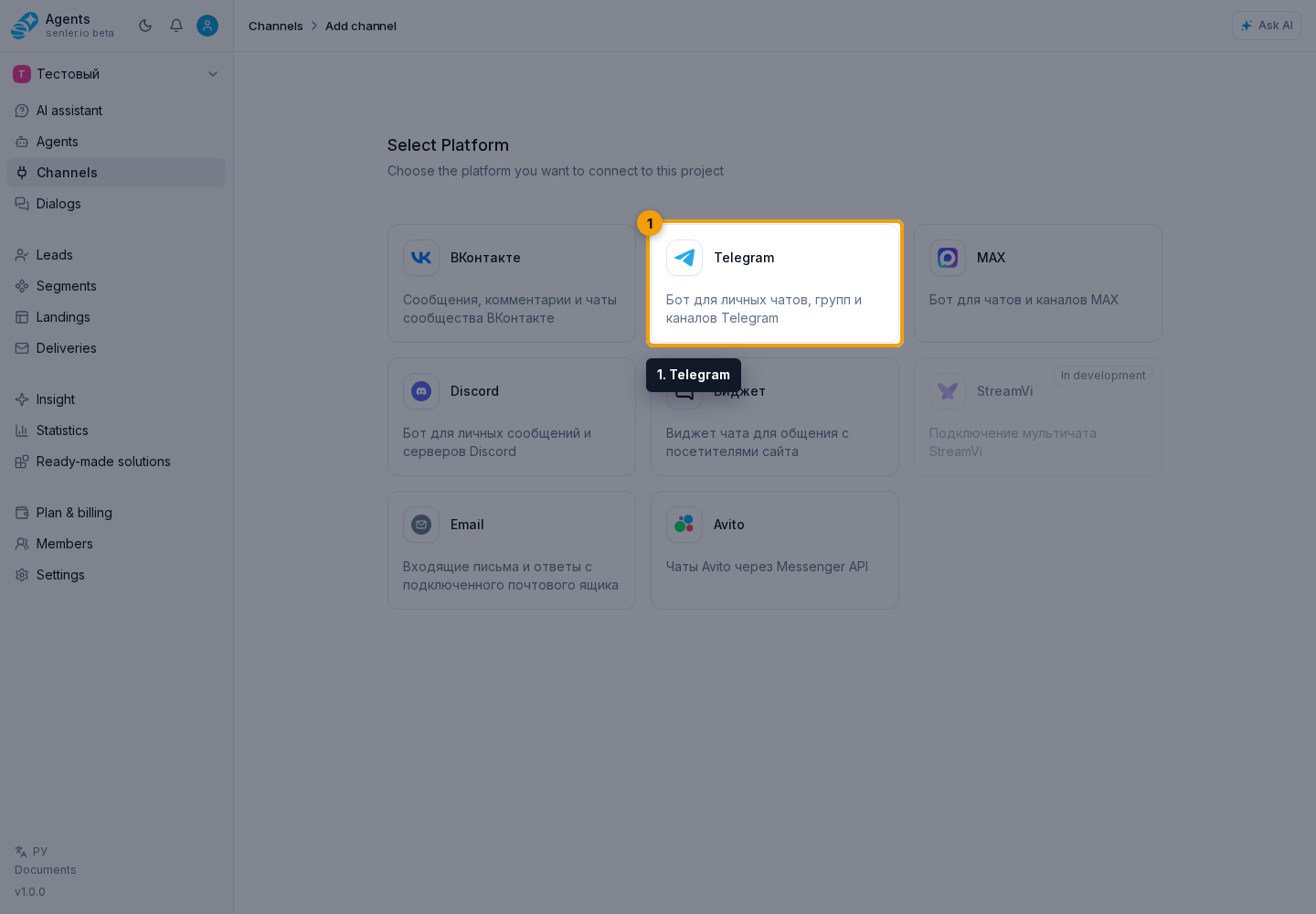
- Open the section through the Channels item in the side menu.
- Click Add channel.
- Choose Telegram.
- Paste the token into the Telegram bot token field.
- Click the Telegram bot connect button.
- After the connection is created, open channel settings and check the status.
What to know about the token
The token looks like 123456789:ABC.... Do not send it to support chat, publish it in documents, or share it with third parties. Enter it only in the channel connection form in the cabinet.
If the token was exposed, refresh it in BotFather and replace it in channel settings.
After connection
On the channel settings page, check:
- token status;
- bot name and username;
- webhook;
- assigned agent or operator;
- whether the channel is enabled.
If Telegram does not respond
Check in order:
- The token has not changed in BotFather.
- The webhook is installed without an error.
- The channel is not stopped.
- An agent is assigned to the project or channel.
- The agent is published and active.
- Event history does not contain delivery errors.
Where this is in the interface
Main elements in this section:
- Telegram bot connect button
- Telegram bot token field
- Telegram platform selection button
- Add channel button
- channel list
- Channels item in the side menu
- channel settings page