
How to Create a Dialog
A new dialog can be created with a specific lead or without linking it to a lead. If a conversation with the selected lead already exists, you can use the form to open it.
- Open Dialogs in the project side menu.
- On the section page, open the three-dot menu above the list.
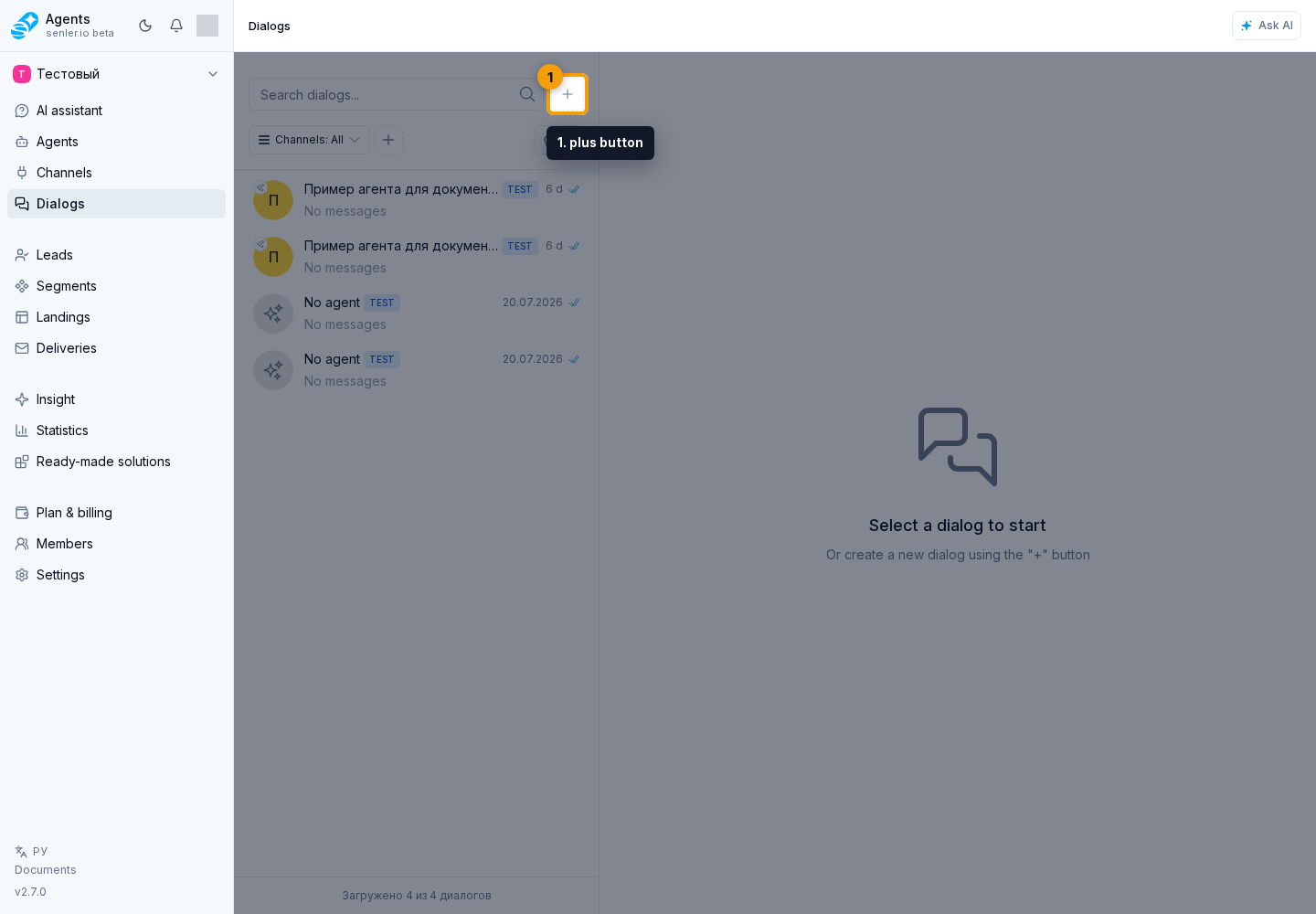
Choose Create new dialog.

In the creation form that opens, you can create a dialog with a lead or without a lead.
To leave without creating a dialog, click the close icon.
Create a Dialog With a Lead
- Enter a name or username in the lead search field.
- Select the lead you need.
- Click Create dialog.
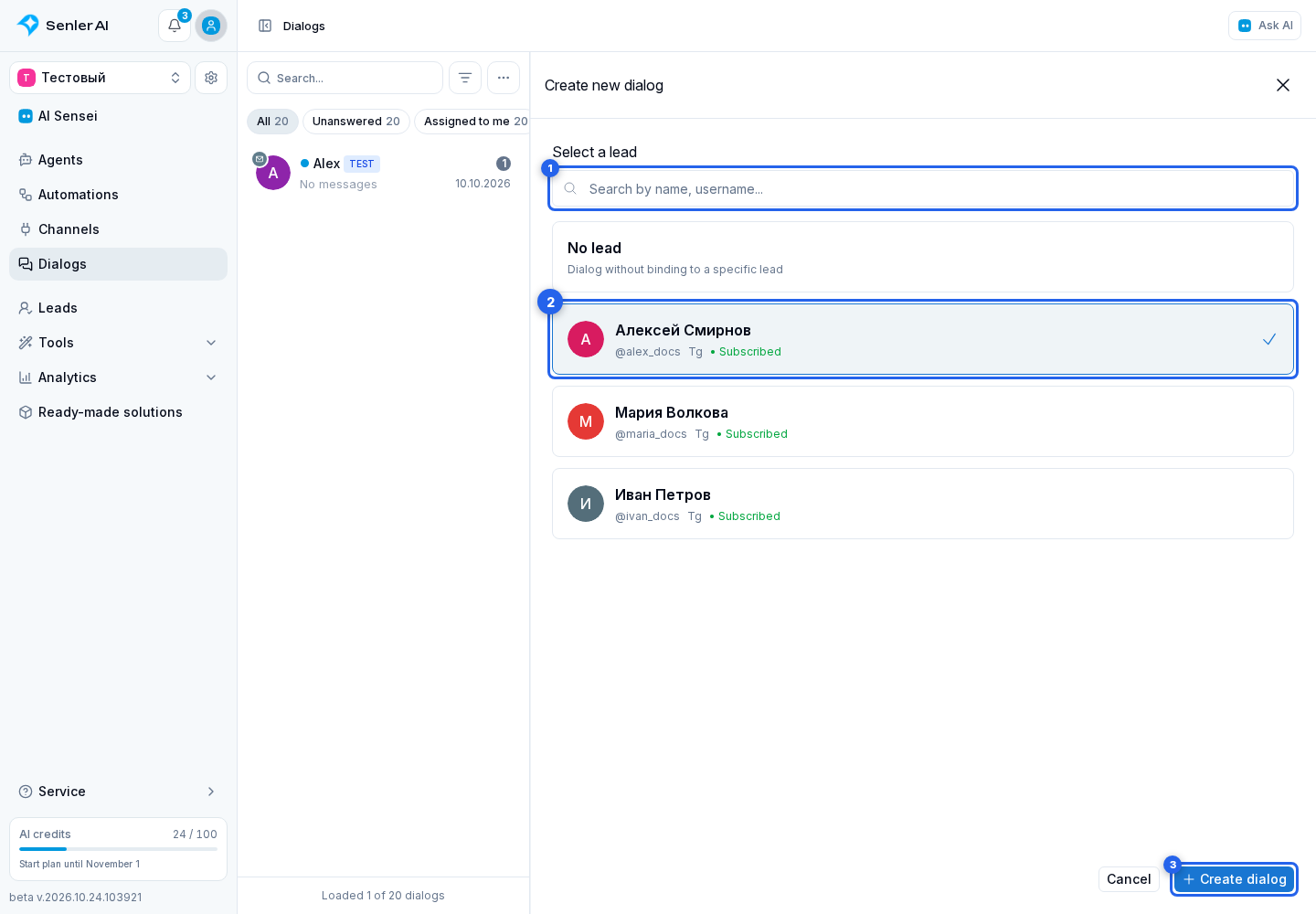
For Telegram, VK, MAX, and Discord, Senler uses a private conversation with the selected lead in their channel. If one already exists, it opens instead of creating a duplicate. For Discord, Senler opens the bot's direct message conversation with that user automatically; you do not need to enter a dialog address.
A widget lead can have several dialogs. If several conversations exist, the form offers to open an existing dialog or create a new one for a separate request. If only one dialog is found, it opens immediately.
Create a Dialog Without a Lead
- Select No lead.
- Click Create dialog.
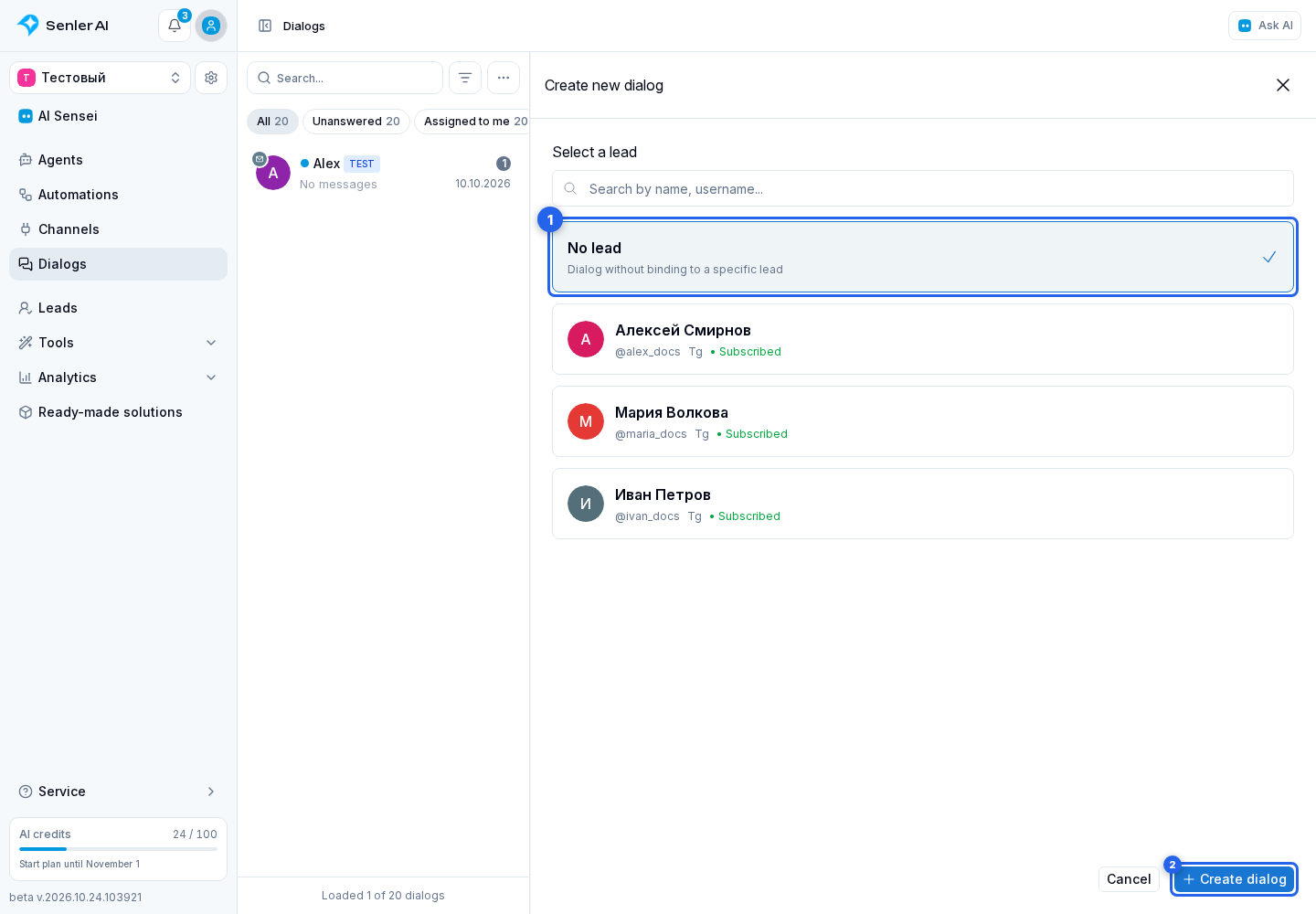
After the dialog is created, its chat opens. You can then send the first message.