
VK Connection
Summary
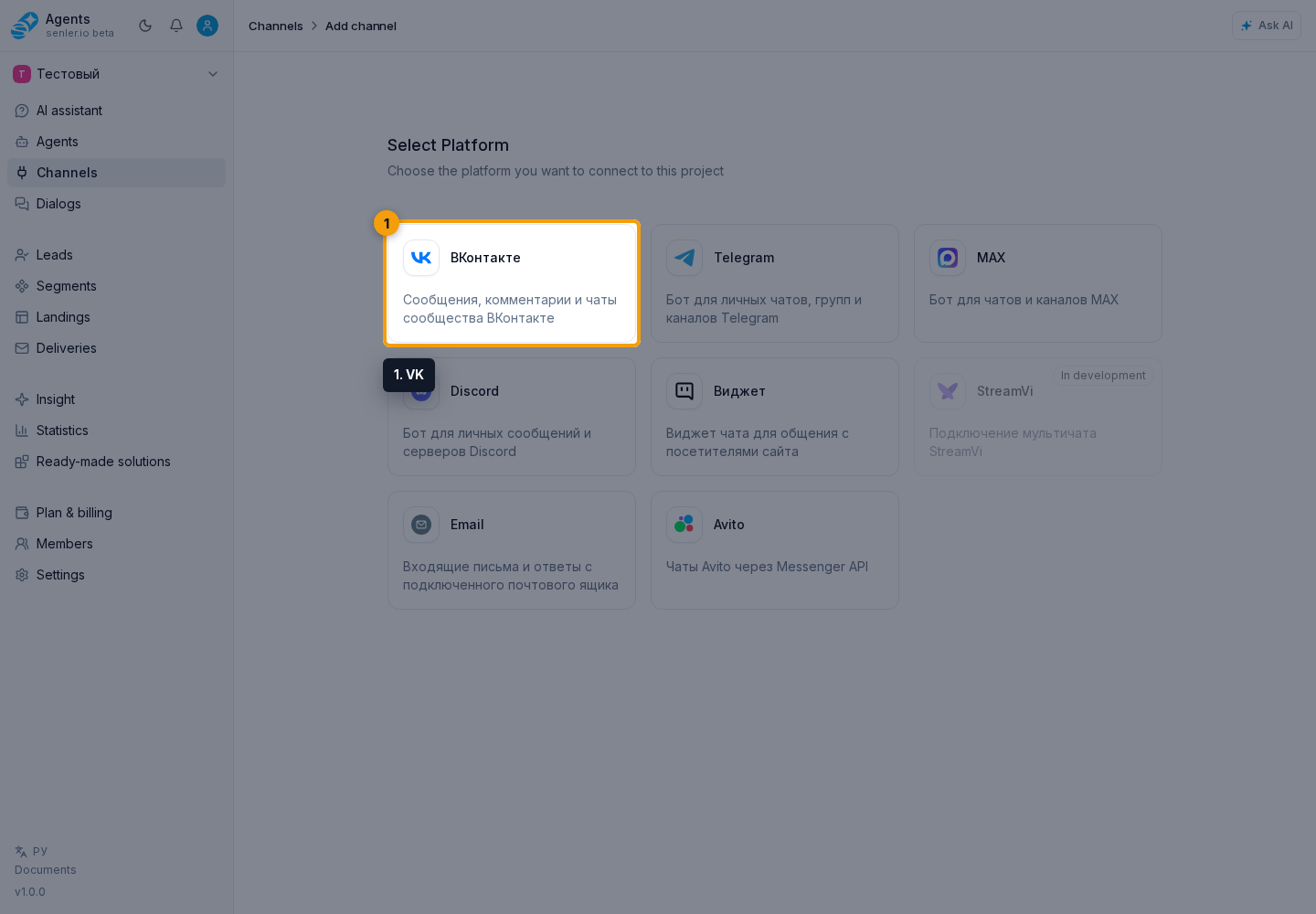
Path: Channels item in the side menu -> Add channel -> VK. The connection is made through a VK account and the choice of the community.
Form functions
- authorization via VK ID;
- OAuth pop-up window;
- VK account selection;
- adding, refreshing, and deleting a VK account with a separate confirmation;
- community search by name, ID, or link and the search action;
- forced list refresh;
- previous and next page;
- opening a community in VK;
- connecting the selected community.
If the list of communities is empty
- check that the user is authorized with the required VK account;
- check that the account has access to communities;
- try updating the list;
- sometimes additional VK authorization is required to access the community API.
After connection
- open VK channel settings;
- check the status of the token;
- check information about the community;
- set up a webhook;
- synchronize data from the platform;
- if necessary, connect Senler Link.
Senler Link
- used to connect with Senler;
- available in VK and Telegram settings;
- you can connect, update or disconnect;
- shows Senler channel ID and token status.
Where this is in the interface
Main elements in this section:
- channel list
- Channels item in the side menu
- Add channel button
- VK platform selection button
- channel settings page