
Plans
On the Plans and limits page, the plan and recurring limit increases are configured as one subscription with shared start, end, and renewal dates.
Available plans
- Trial is a free one-month plan for a new project. It cannot be activated a second time.
- Start costs RUB 500 per month. Its base credit amount is the same as Trial; see the current table for the other values.
- Large Agent starts at RUB 10,000 per month without add-ons. It is intended for larger agents: recurring credits use a 10% markup instead of 30% on Start, one-time credit packages cost less, and you can connect the project's own OpenAI and OpenRouter accounts.
The annual price equals 12 monthly prices with a 10% discount. Exact prices in the project's currency always come from the current catalog.
The daily external API allowance is configured in the “API requests” row. The tariff includes 100,000 requests per day; the first addon adds another 100,000 for ₽1,000 per month. Usage is shared across the project and resets at 00:00 Moscow time. Current usage and responses when the limit is reached are available in API key settings.
Table rows and sliders
The Month / Year selector changes the term for both the plan and all selected recurring add-ons. In annual mode, the heading shows the average monthly price and the calculation shows the full annual amount.
Each plan column contains the same rows:
- AI Agents — the plan's base monthly credits plus the selected recurring increase;
- Automations — the available number of steps per second;
- Mailings — the daily message limit;
- Storage — the project's total storage capacity;
- API requests — the daily limit for external requests to project data;
- Own AI accounts — OpenAI and OpenRouter availability.
On paid plans, limits use sliders when increase options exist for that limit. The price of selected recurring add-ons is immediately included in the total above the column. Trial shows fixed values only.
On a phone, plans appear as separate cards with the same limits.
The message count shown below credits is approximate: it is a guide, not a guaranteed number of replies. Usage depends on the selected model and the size of the request and response.
One-time non-expiring credits are not configured in this table. Buy them separately on Plan & billing.

Purchasing or changing a configuration
For a discounted purchase, first check and apply the promo code in Plan & billing, then select a plan.
- Configure the recurring limits you need.
- Select Switch or Apply configuration.
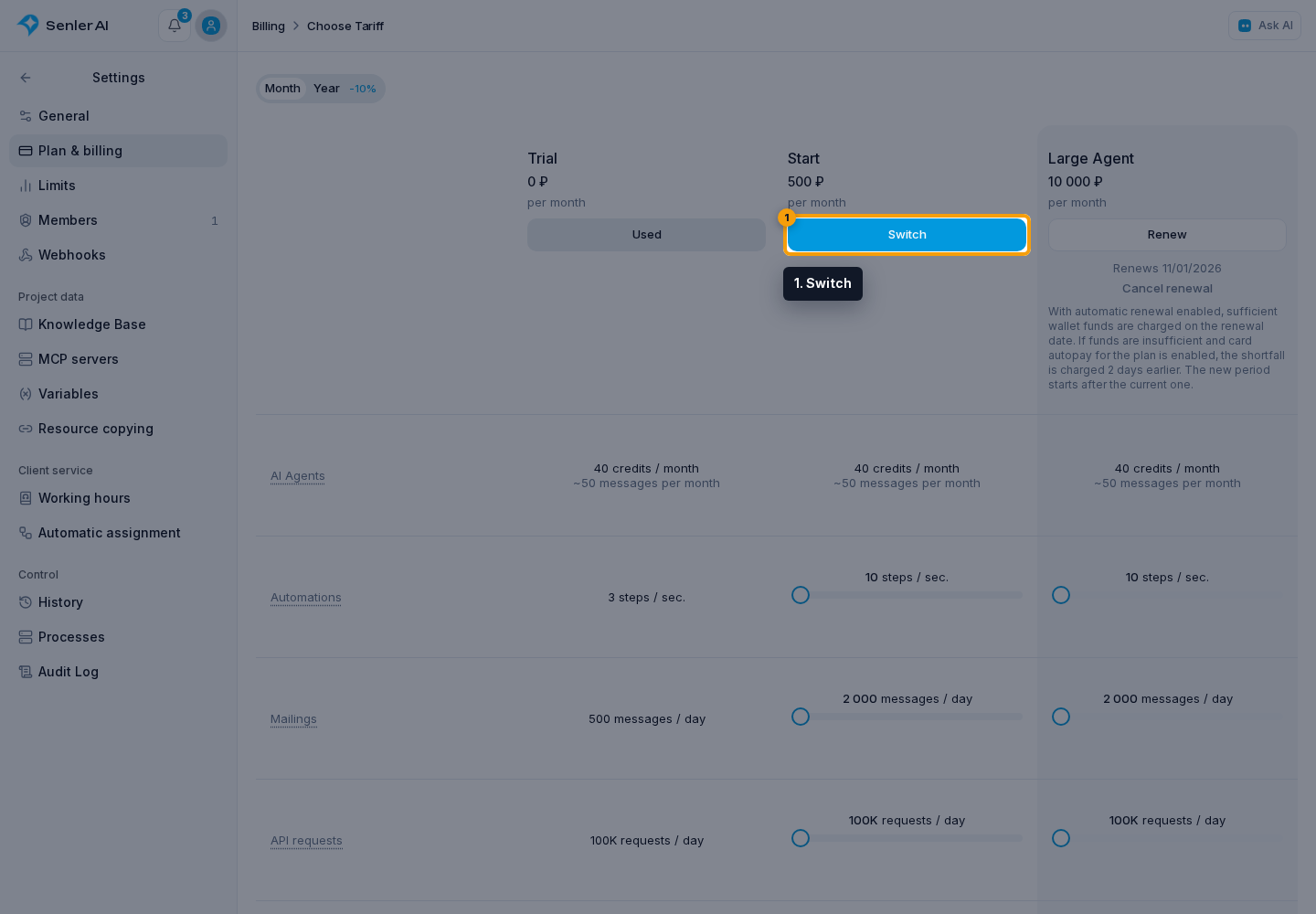
In the subscription checkout dialog, review:
- the monthly or annual period;
- the plan and every selected recurring add-on;
- the new period price, amount charged now, balance refund, and effective date;
- when paying now: whether to use the project's monetary balance and the remaining amount.
If the selected storage capacity is lower than the current one, the dialog shows a warning. Once the new limit takes effect, enabled automatic cleanup can remove old incoming files; important files are kept. Before confirming, check the space allocation and automatic cleanup, and protect attachments you need to keep.
In the example below, switching from Large Agent to Start is scheduled after the paid period. There is no charge now; the calculation shows the switch date and the next period's price.
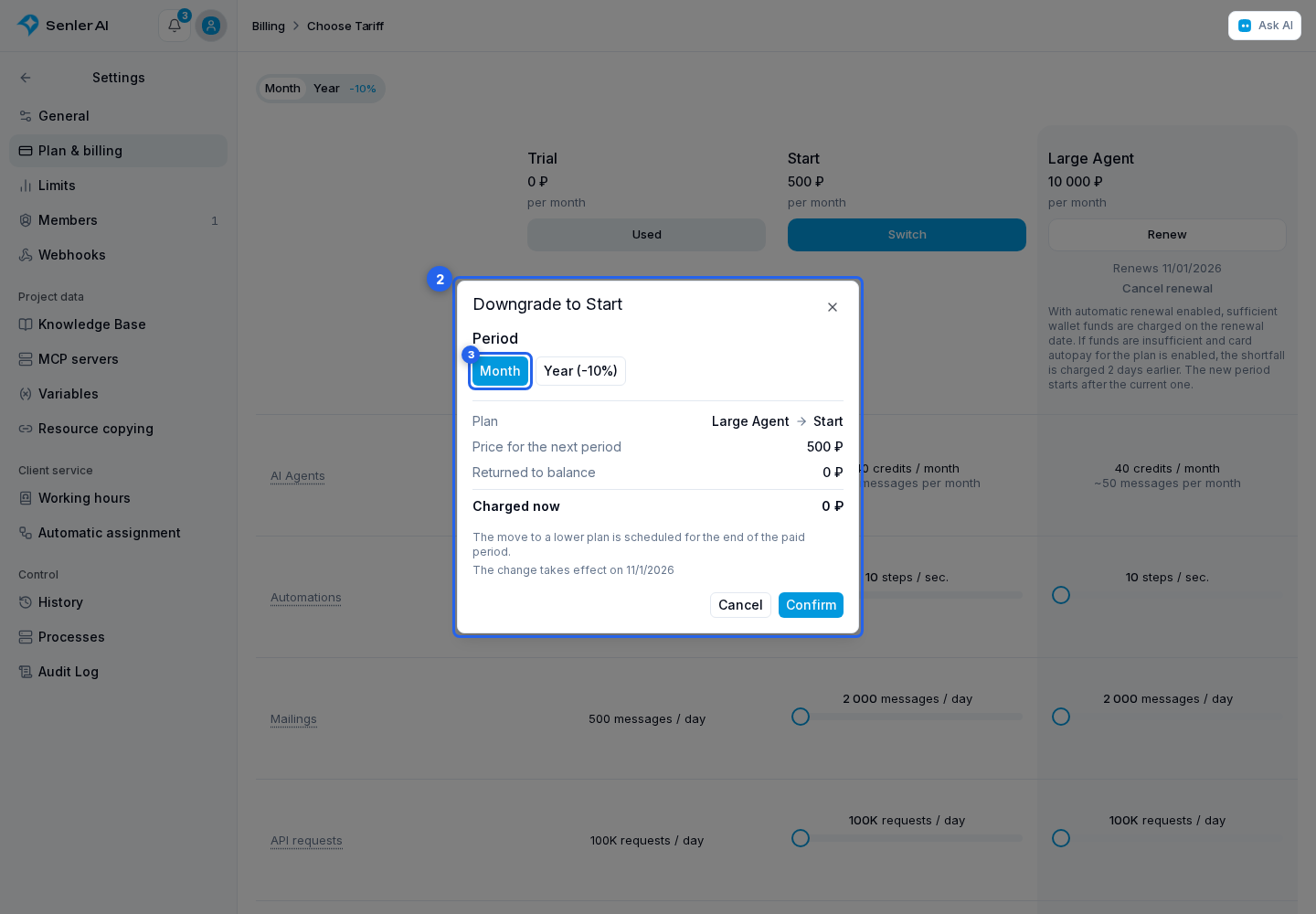
If an amount remains:
- Select Continue to payment.
- Choose a linked card or one-time payment.
- Select Pay.
Back returns to the subscription configuration and calculation. Payment settings must be saved before an external payment. If no external payment is needed, Confirm completes checkout without a payment-method step.
Recurring limits marked as bound to a plan cannot be renewed, purchased, or changed for a separate term. When changing one limit, review the other items too: you are saving the entire new subscription composition.
When a change takes effect
- Within the same plan, the total price of the selected recurring add-ons is compared. Both sets are priced at current catalog rates for the selected billing period and in the same currency, before unused paid value is applied. A more expensive configuration or one with the same price takes effect immediately; a cheaper one starts after the paid period.
- All selected changes take effect together. For example, increasing credits and reducing storage takes effect immediately if the total price increases. Selected limits are not replaced with the previous packages.
- Moving from Start to Large Agent takes effect immediately, even if a smaller credit package is selected. Moving back is scheduled for the end of the paid period.
- Switching from annual to monthly billing is always scheduled after the paid year. When switching from monthly to annual billing, annual prices are compared for both sets, so the period change alone is not an upgrade.
- For an immediate change, the unused value of the plan and all current add-ons, including removed ones, covers the new purchase. Prepaid future periods are also credited toward its cost after successful payment; they are preserved if the purchase is not completed. Any value exceeding the new price returns to the balance with its original funding source preserved. The dialog shows the net current charge and refund separately; either can be zero. The auto-renewal setting is preserved during this change.
- Renewal of the same configuration is charged on confirmation, and the new term starts after the current period.
- For a scheduled change, the current charge and refund are both zero. The switch takes place after all paid periods, including prepayment. The dialog shows the reason for the delay, effective date, and next period price; on that date, Senler attempts to pay for the complete new configuration from the project balance.
- Purchased one-time credits and messages remain after a plan change and do not expire with the subscription.
A scheduled change applies to the entire configuration. Pressing Cancel removes the upcoming switch; already paid periods and the auto-renewal setting are preserved. “Cancel renewal” disables subsequent renewals: the plan and add-ons remain available through their paid-through date, including prepayment.
If an option is no longer on sale
A plan or recurring limit increase may disappear from the general catalog but remain available to your project as part of its current, prepaid future, or scheduled configuration. The project's comparison table can therefore differ from the list for a new project.
Retiring an option does not remove the saved configuration. When continuing it, check the calculated amount: retaining an old option does not mean its price is fixed forever. You cannot add a retired option that was not part of your configuration.
Own AI accounts
Large Agent allows you to connect OpenAI and OpenRouter keys in Settings → General. Requests made with an own key are billed directly by the provider and do not consume Senler credits. See Own AI accounts for connection, validation, and disconnection details.