
Agent settings
The Settings tab defines the agent name and core behavior. Changes are saved in a draft and affect live dialogs after publication.
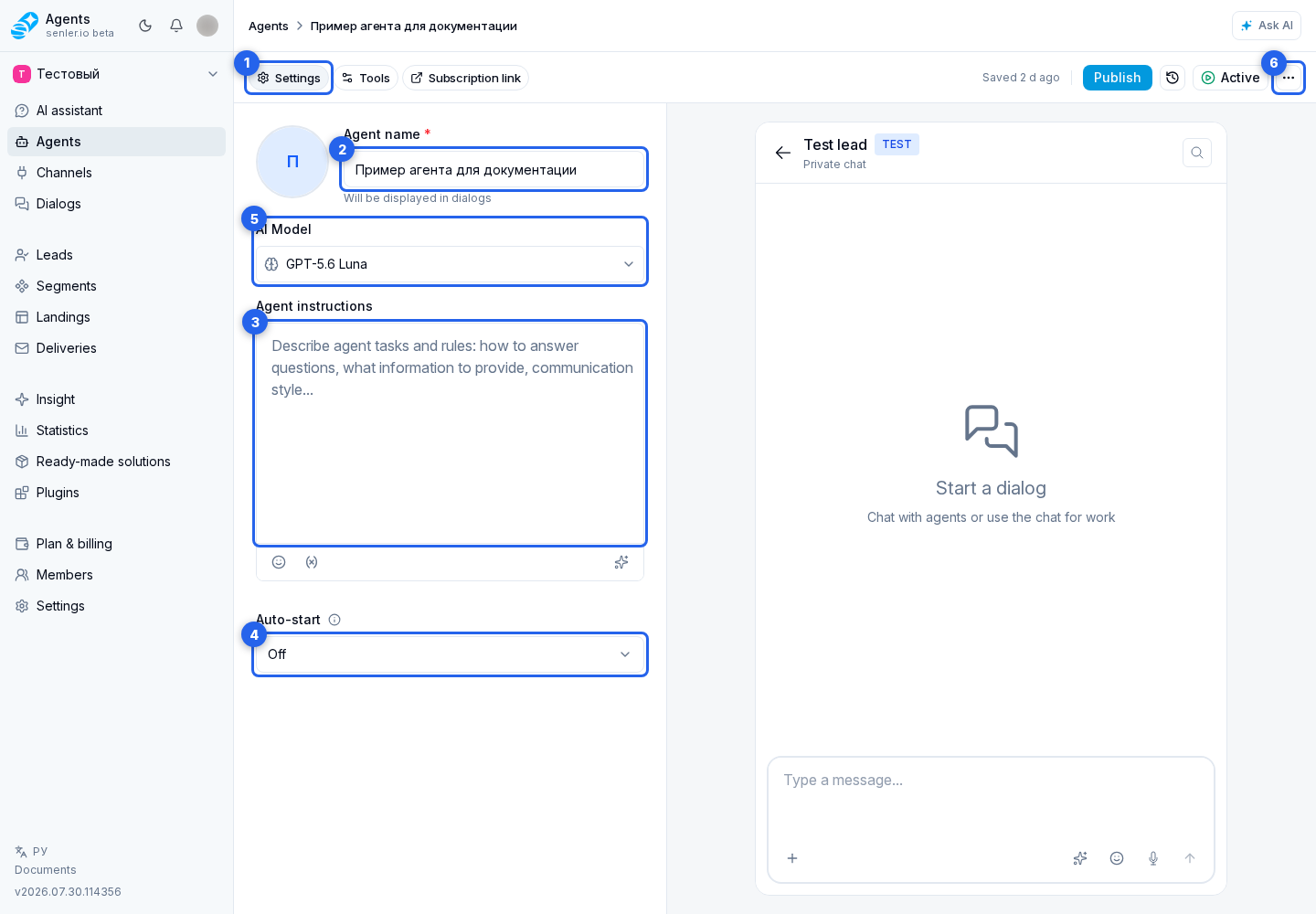
Name and avatar
Enter an agent name that is clear to your team, such as Sales Manager, Telegram Support, or Request Assistant. The name is required.
For a saved agent, you can replace the avatar through the image next to the name. Use a distinct avatar when a project has several similar agents.
Agent instructions
In the agent instructions, describe its role, tasks, communication style, restrictions, procedures, operator handoff conditions, and rules for using data and tools.
The editor stores text as Markdown. Basic formatting and Markdown shortcuts are supported, while arbitrary colors, fonts, and inline styles from pasted text are removed. Reverting the draft reloads the published Markdown.
The variables button can insert a project or lead value. Value inserts the variable, while Condition adds two text variants for filled and empty values. Read the complete instructions after insertion so the condition does not change their intended meaning.
Good instructions answer these questions in order:
- what role the agent performs and who it helps;
- what result the user should receive;
- which data needs to be clarified;
- what the agent must not do;
- when an operator should be called;
- how MCP tools, variables, and metrics should be used.
Keywords
Keywords launch or assign the agent when By Keywords and Link is selected. The mode can be saved without any words, but message-based launch does not work until at least one keyword is added. Changes take effect after publication.
For a keyword rule, configure the agent role, dialog types, and channels. A separate assignment for segment members is configured on the segment page, while the agent subscription link has its own Link and Subscription page.
Autostart
The Autostart mode provides these options:
- Off — the agent is assigned manually or by another rule;
- By Keywords and Link — the agent launches on configured phrases and can be subscribed to by link;
- On All Messages — the agent is assigned automatically to matching new messages.
For an active mode, choose the agent role, dialog types, and channels. Without a channel restriction, the rule applies to all matching project channels. A more specific rule, such as a keyword or segment, is applied before the general project rule.
When published rules overlap, the form shows auto-assignment conflicts. Publishing can require an overwrite confirmation: previous rules for the same area are disabled. Segment rules are changed separately on the segment page.
AI model
Select the AI model after comparing the available options by quality, speed, and credit usage. For a new agent, the cabinet selects the first available option, which can be changed before saving.
A previously created agent may retain a model marked Hidden from selection. It keeps working and is not replaced automatically, but it cannot be assigned to a new agent. To switch, explicitly select an available model, save the changes, and verify the result in a test dialog.
If the old model name cannot be retrieved, the card is called Previously selected model. This also does not indicate an automatic switch.
After changing settings
Check the agent on the Testing tab, then publish the draft. For a saved agent, the actions menu also provides copying and sharing by link together with related resources.
The same menu contains agent deletion. The cabinet asks for confirmation, and the agent cannot be restored through the form afterward. Before confirming, make sure you are not deleting a live published agent.