
StreamVi Connection
The StreamVi channel brings live-stream chat messages from the selected StreamVi project into Senler AI dialogs. During a live stream, operators and agents can send text replies from Senler AI. Files, buttons, and bulk deliveries to StreamVi are not supported.
What to prepare
- access to the required StreamVi account;
- permission to connect integrations in this account;
- browser permission to open the authorization window;
- the selected Senler AI project that should be linked to StreamVi.
How to connect
- Open the section through the Channels item in the side menu and click Add channel.
- Select StreamVi.
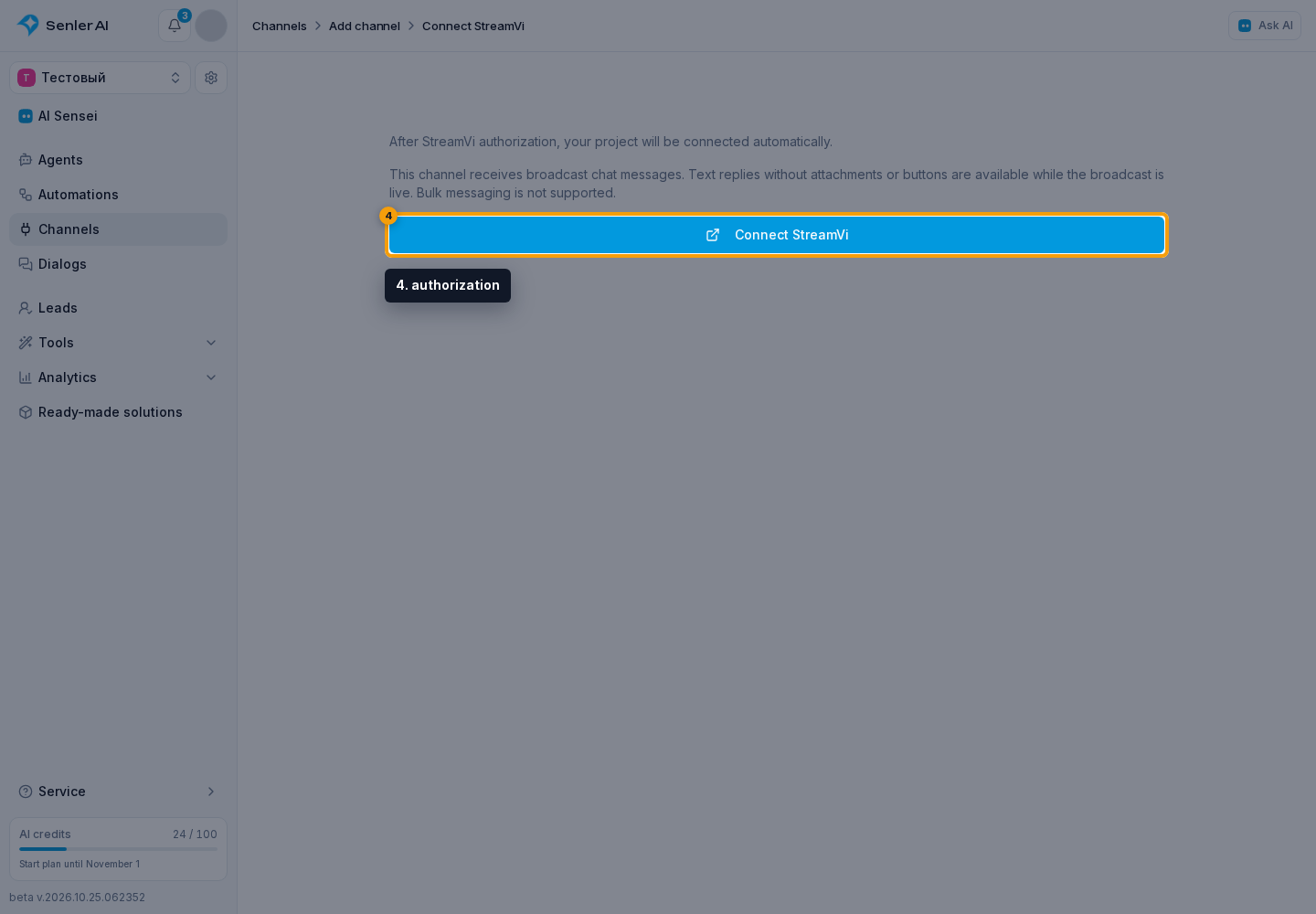
- Start authorization.
- In the opened window, choose the required StreamVi account and project.
- Confirm access.
- Return to Senler AI. The connected project appears in the channel list with its name and avatar.
After connection
Open the channel settings page. Event reception is configured automatically; you do not need to create a webhook manually.
Check an incoming live-stream chat message in the dialog list. While the stream is live, send a text reply. After the stream ends, its history remains available, but new replies cannot be sent.
A StreamVi project cannot be connected again as a separate channel while its connection exists.
If the connection does not finish
If the authorization window does not open, allow popups for Senler AI and click the connection button again. Select the required project in the StreamVi window and approve access.
If access for an existing channel is no longer valid, click Reauthorize in its settings. Select the same StreamVi project: another project cannot replace the existing connection. Reauthorization updates access without creating a new channel.