
Managing an installed plugin
Embedded page and settings
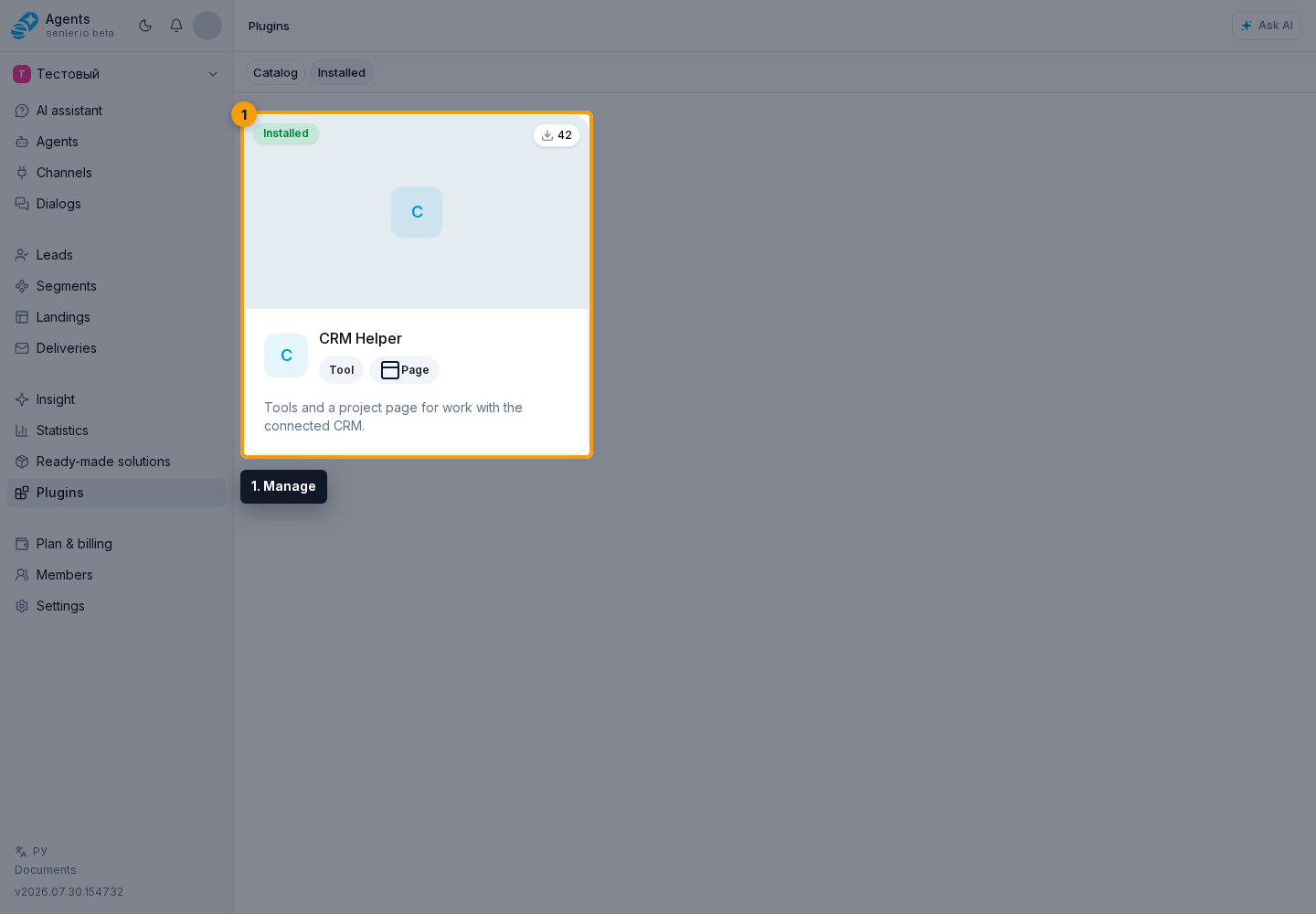
On the Installed tab, select the required plugin card. When it has its own interface, the cabinet opens its embedded page.
The plugin interface opens inside a cabinet dialog. To manage the installation, select Settings beside the close button.
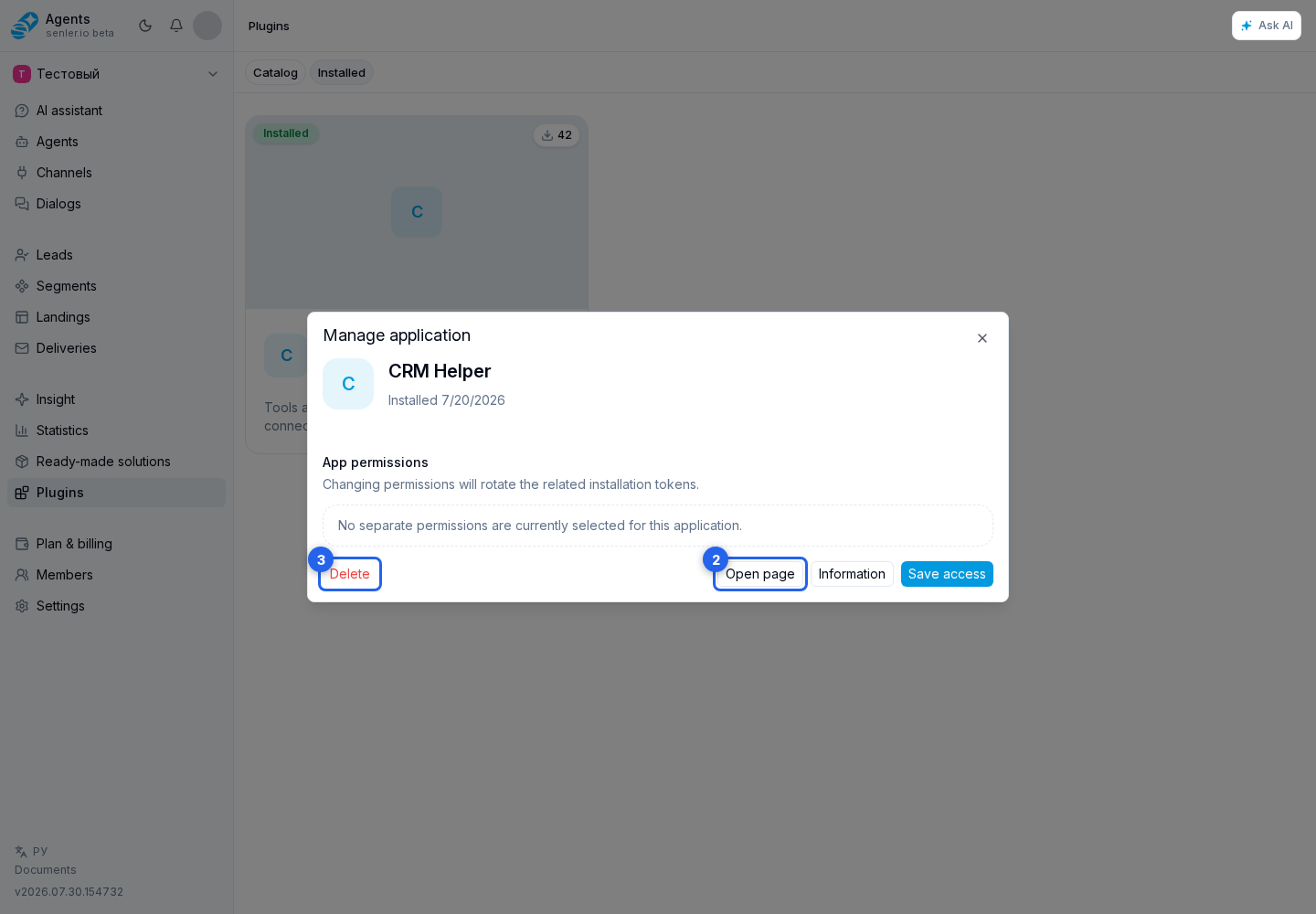
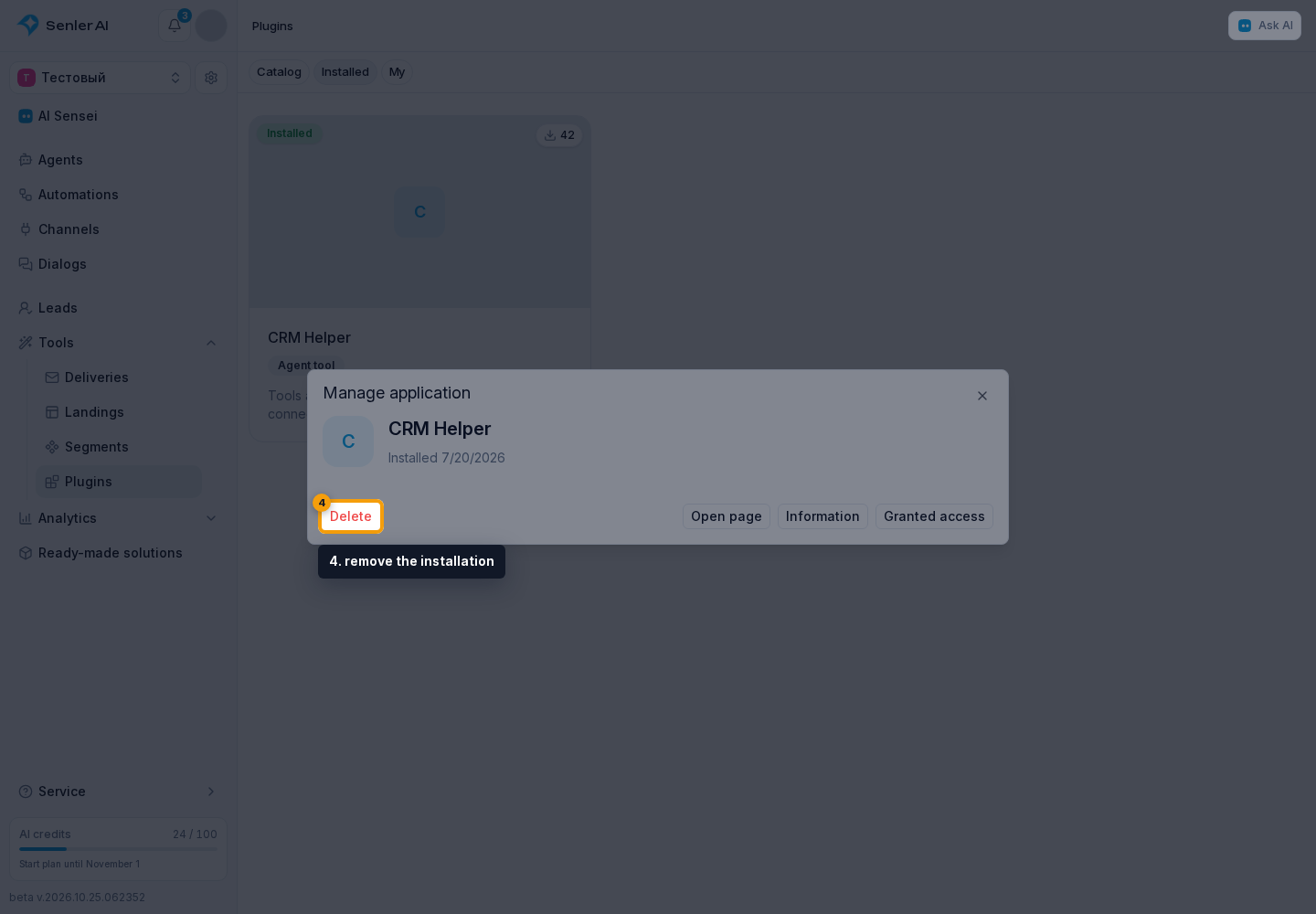
When there is no embedded page, the card opens settings directly. Here you can open the developer website, return to the embedded page, review access, or remove the installation.
Granted access
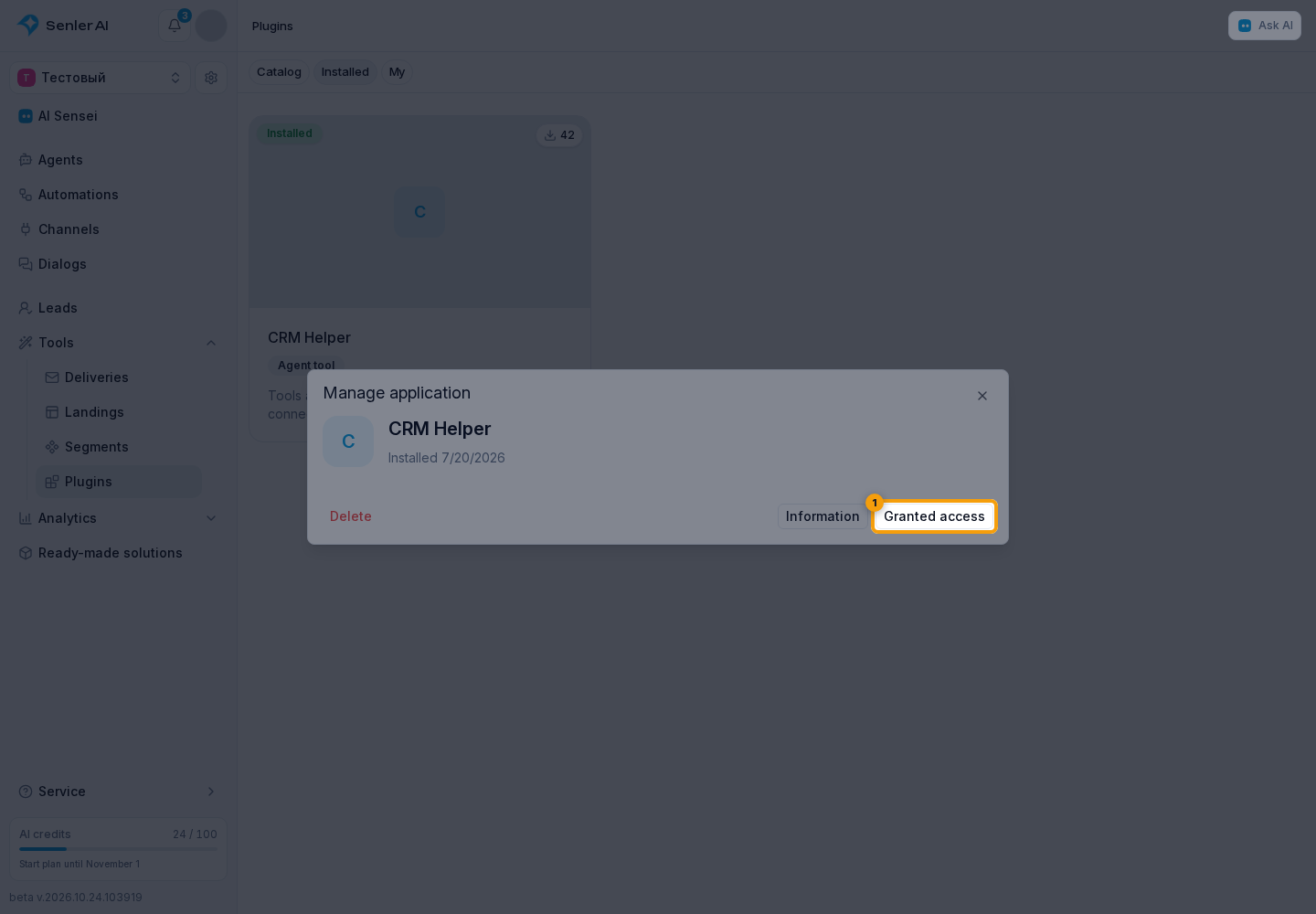
Select Granted access for an installed plugin.
The actions allowed for the application in this project will appear.
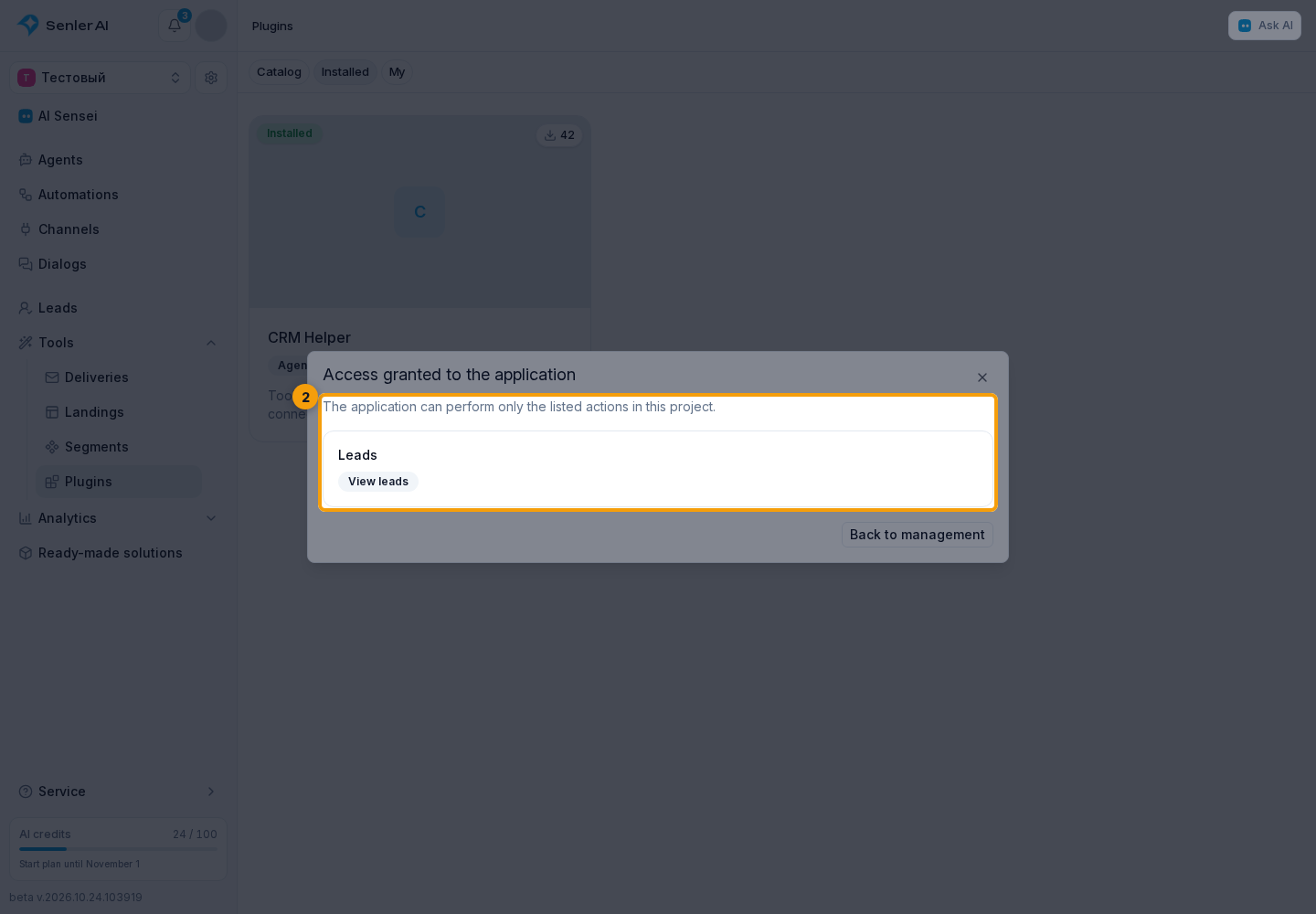
This list belongs to the project installation. Personal OAuth access that lets the application act on a user's behalf is reviewed separately in Account settings. The difference between these types of access is covered in OAuth access.
Managing Through Senler MCP
When the developer has published application actions, AI can find and call them through Senler.io Project MCP or User MCP. Actions remain available only while the plugin is installed and active in the target project.
The can_use_project_apps permission, shown as Use installed applications, is sufficient to search and call these actions. can_manage_project_apps is used to install, change, and remove plugins; it is not independently required to call an action. See Senler.io as an MCP server for the full flow.
Removing an installation
Removal disconnects the plugin from the project. Before confirming, check whether agents use its tools and events and whether the team needs its embedded interface or external integration.
To remove the installation, open the plugin settings and select Delete.
If the plugin description is temporarily unavailable, removal may remain available while the other actions return after the application data is restored.