
Segment settings
What you can change
Open an ordinary segment from the list. The selected segment page contains:
- Its name.
- Adding a required consent.
- Text above the consent message — the field appears when at least one consent has been added.
- The primary agent and background agent.
- The subscription link and saving changes.
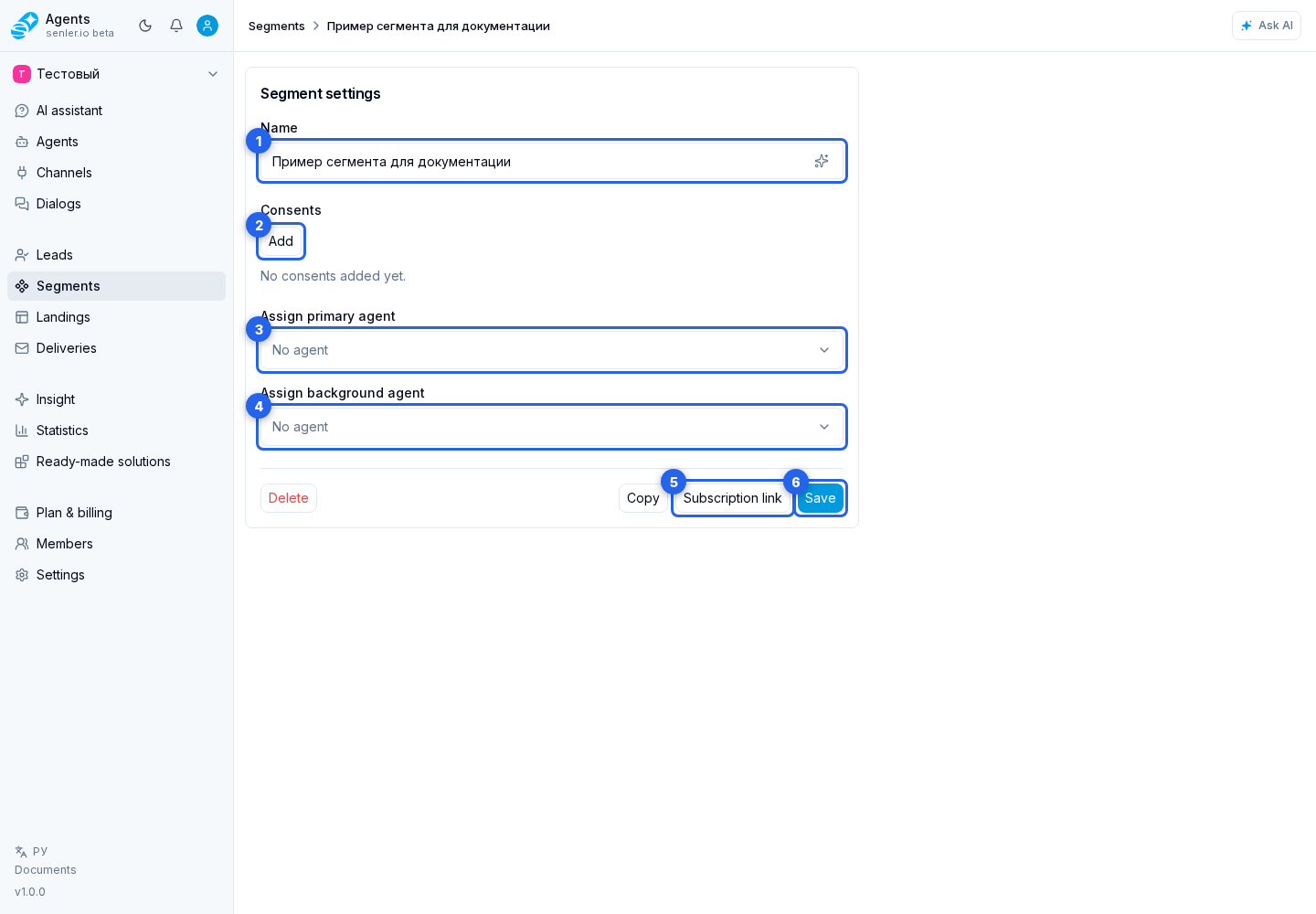
The name, consent list, and text above it are applied after you select Save. If you leave the page with unsaved changes to these fields, the cabinet displays a warning.
Page presentation, form fields, and buttons are configured on a landing, not in the segment.
Assigning agents
For leads who join the segment, you can select a primary agent and a background agent. The selector provides search and agent options, including No agent.
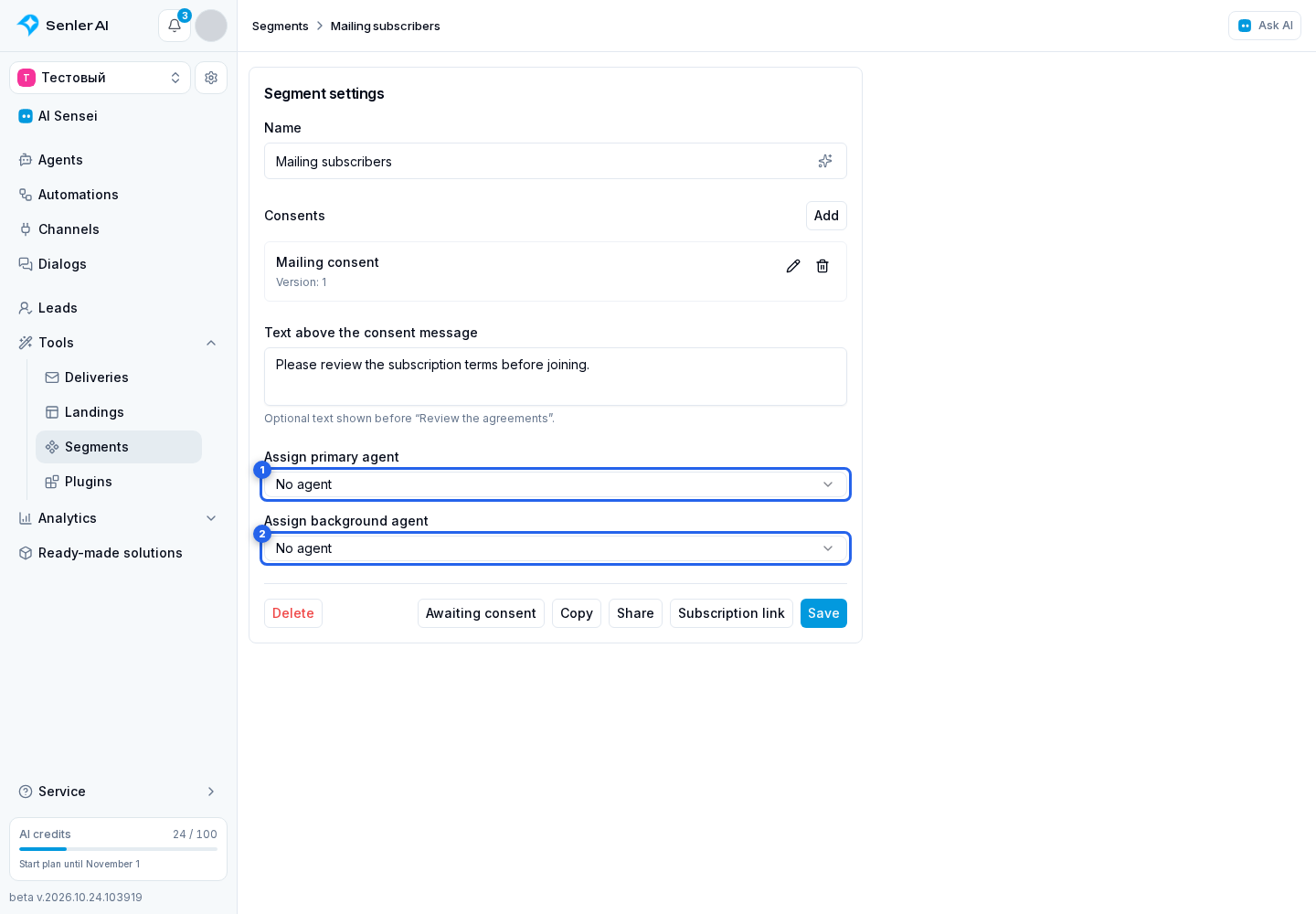
Selecting an agent saves the assignment rule immediately. You do not need to select the general Save button afterwards. The rule is used when a lead joins the segment and agents are automatically assigned in that lead's dialog.
For each role, a segment rule takes priority over channel and project rules. Assignment replaces the previous agent in that role. For example, if the primary consultant should keep talking to the client while another agent only saves data, select the consultant as primary and the data collector as background. Assigning the collector as primary replaces the consultant. One agent cannot occupy both roles at once.
The role does not prohibit or allow sending messages: both agents use their own reply settings and instructions. If replies stop after a lead joins the segment, check the agent assigned in the dialog and its reply mode.
Copying, Sharing, And Deleting
The page provides Copy and Share next to the save button. Save form changes before either action: the cabinet does not open the package while changes remain unsaved.
Copy lets you choose the current project or another available project. Share creates a link that lets the recipient import the segment into their project. The segment's required consents are included in the package. See Resource copying for the complete workflow and permission requirements.
Deletion requires separate confirmation and cannot be undone.

Read-only mode
When the form shows a read-only notice, the segment cannot be edited or deleted because it is managed by the resource that created it. With view access, you can still copy or share this segment by link. Segments linked to agents open in a separate summary; see Automatic segments.