
Telegram Connection
A Telegram channel lets Senler AI receive messages from a Telegram bot and send replies from an agent or operator.
Before you start, prepare the bot token from BotFather. If you do not have a bot yet, create one in BotFather and copy a token in the format 123456789:ABC....
How to connect
- Open the section through the Channels item in the side menu.
- Click Add channel.
- Choose Telegram.
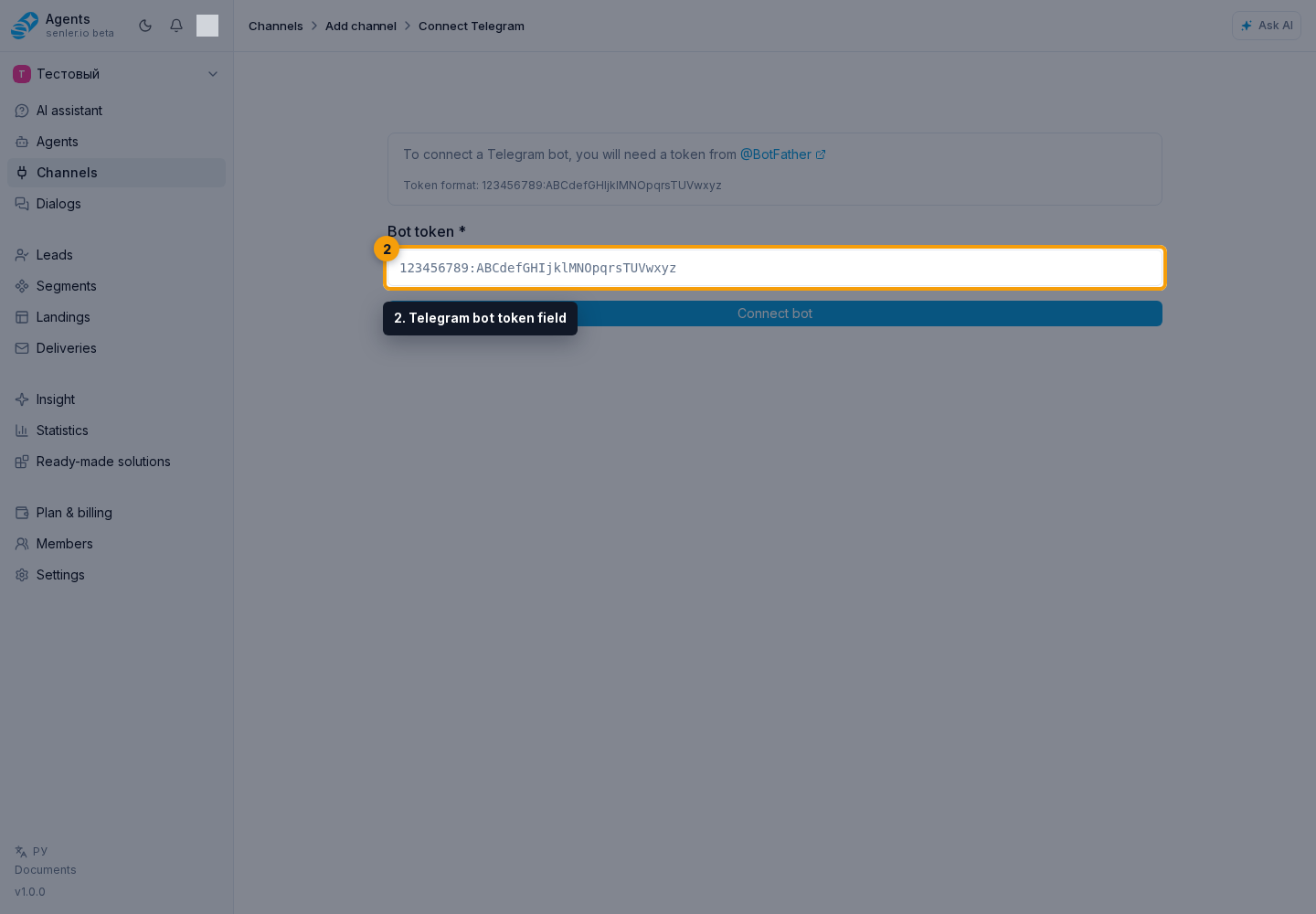
- Paste the token into the Telegram bot token field.
- Click the Telegram bot connect button.
- After the connection is created, open channel settings and check the status.
What to know about the token
The token looks like 123456789:ABC.... Do not send it to support chat, publish it in documents, or share it with third parties. Enter it only in the channel connection form in the cabinet.
If the token was exposed, refresh it in BotFather and replace it in channel settings.
After connection
On the channel settings page, check:
- token status;
- bot name and username;
- webhook;
- whether the channel is enabled.
Check agent assignment in the dialog and in the agent's own settings, not in the channel connection block.
To load your leads from Senler.ru, open channel settings, link the matching Senler.ru channel, and select Import leads.
Albums with multiple attachments
When a user sends several photos or videos as one Telegram album, Senler AI assembles them into one dialog message. Available captions from the album parts are combined, while parts without a caption do not prevent assembly; all attachments remain in one card. Processing starts after assembly: the album counts as one incoming message and does not create a separate run for each file. The final number of replies is determined by the assigned agents and their dialog roles.
There is no separate album switch: assembly applies automatically to incoming Telegram albums. In the event history, the album may have the collecting status while it is being assembled and complete afterward. This is the album state, not an error or a reply delivery status.
Channel or bot as sender
In a Telegram group, a message can come from a person, a third-party bot, or a channel or chat identity through sender_chat. Senler stores these cases differently:
- a third-party bot appears as a Channel-type lead; its incoming message can assign and trigger an agent under normal dialog rules;
- an external channel sending through
sender_chatremains a Telegram space and does not create a separate lead; its incoming message can also trigger an agent; - a message sent as the current group itself or its linked channel is treated as project-side activity, remains in history, and does not trigger an agent.
If an external chat or channel belongs to your team but Senler treats its messages as customer activity, mark the corresponding space as Project operator. For a team member's external account that appears as a lead, use the same mark in the lead profile.
To understand why an agent did or did not start, open the original dialog message and inspect the sender: a person or bot is associated with a lead, while a channel or chat identity is associated with a space or the project side.
If Telegram does not respond
Check in order:
- The token has not changed in BotFather.
- The webhook is installed without an error.
- The channel is not stopped.
- The dialog already has an assigned agent, or auto-assignment rules match this Telegram channel and dialog type.
- The assigned agent is published and active.
- Event history does not contain delivery errors.